How do I add questions to an interactive video?
Short answer
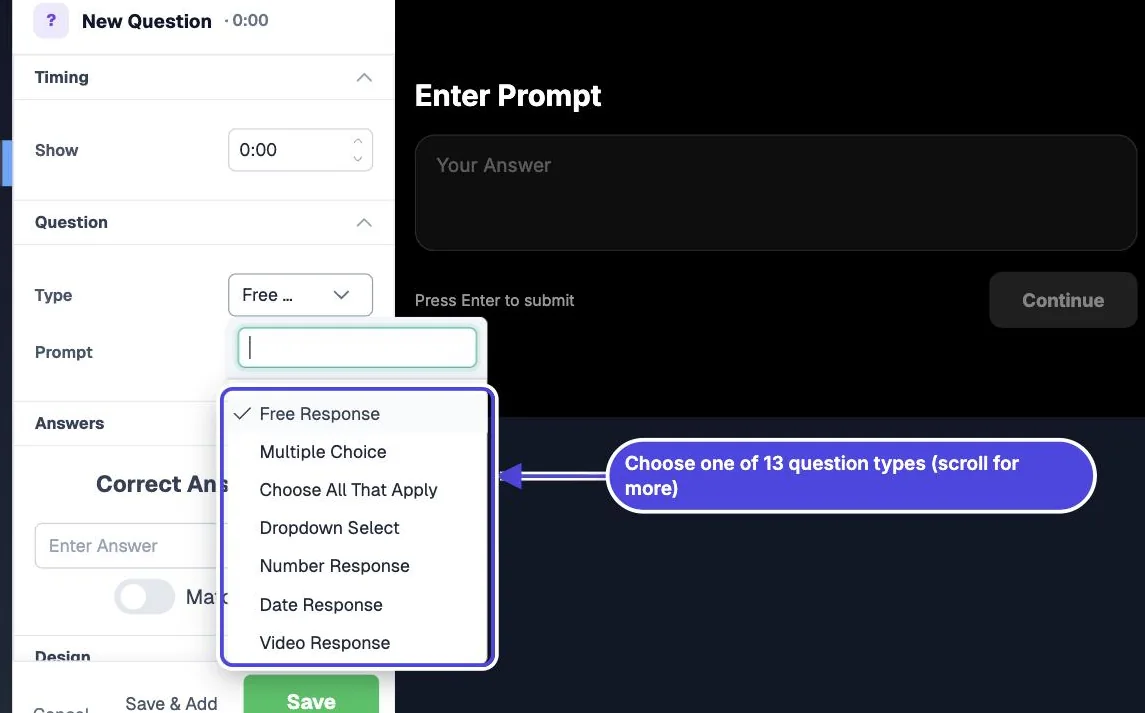
Move the playhead to the right moment, click Question in the interaction bar, choose a Type, write the Prompt and any answers, and save. The video pauses when the question appears and continues after the viewer answers. Mindstamp has 13 question types, from multiple choice to video and voice responses.
How to do it
Copy link to How to do it- Select Interactions and move the playhead to the point where viewers have enough context to answer.
- Click Question in the interaction bar. A new question starts as Free Response.
- Choose a Type, then write the Prompt. Add Answers if the type uses them.
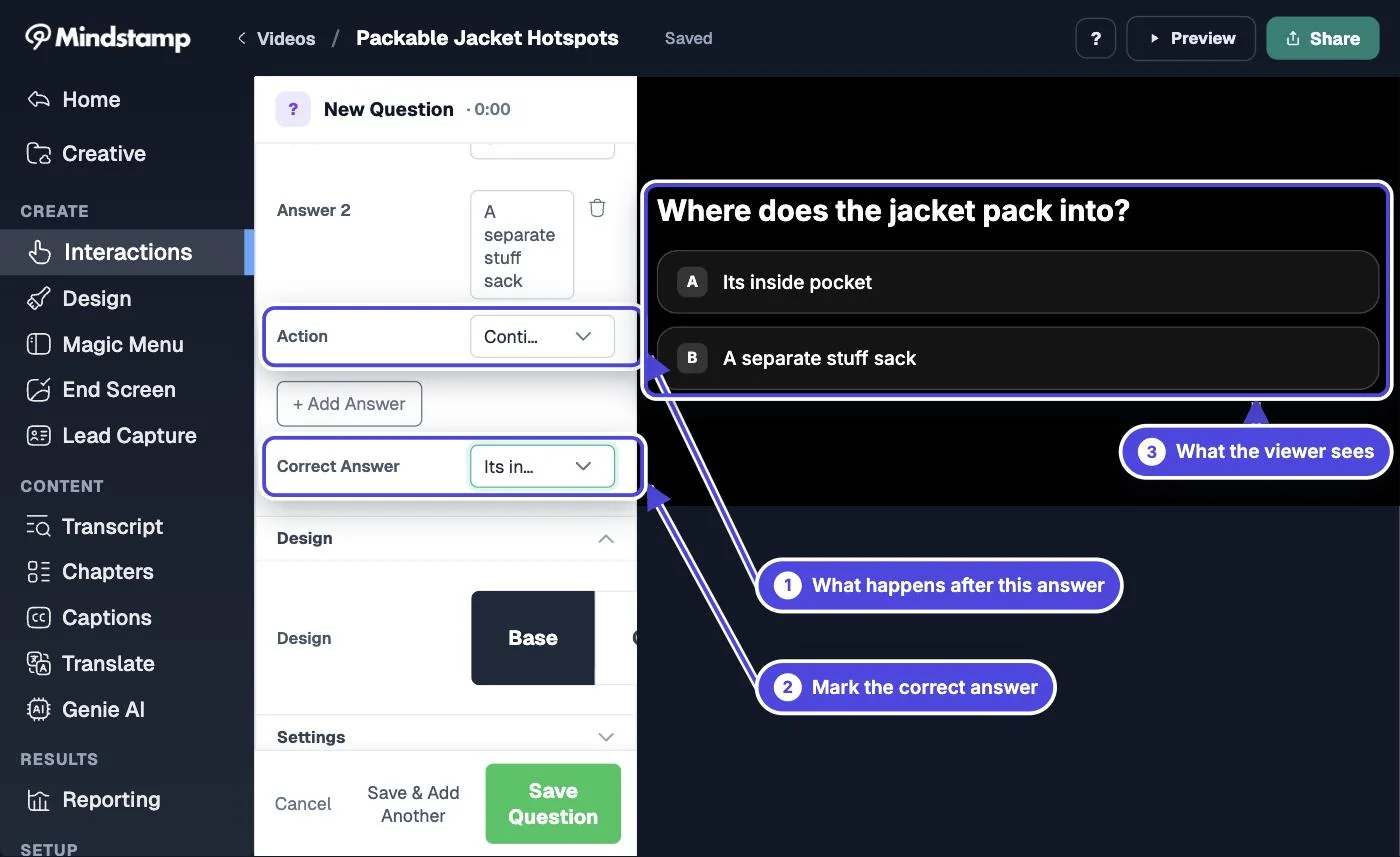
- For a scored type, set the correct answer. Then choose what happens after each answer.
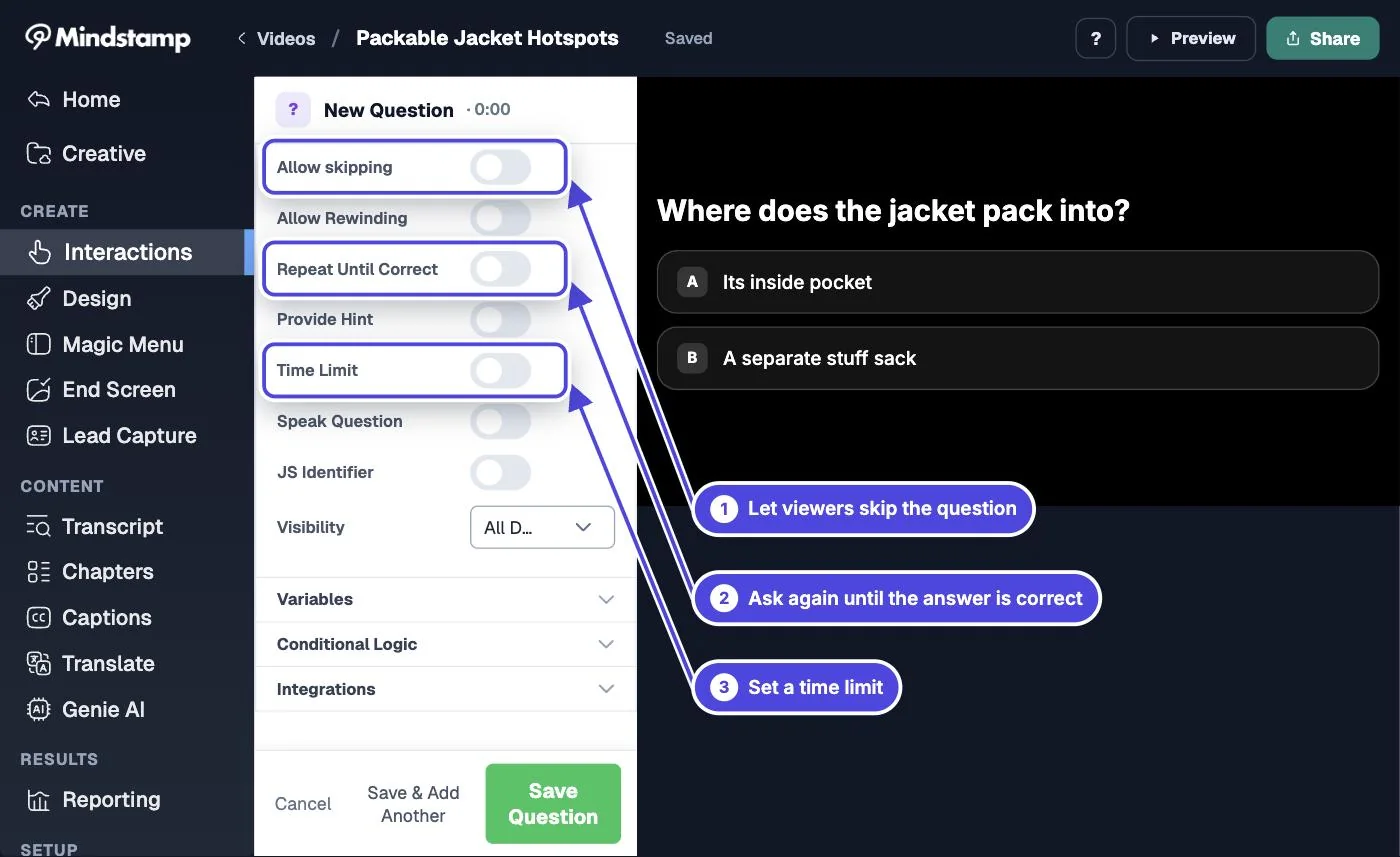
- Open Settings to allow skipping or rewinding, add a hint or a time limit, or have the question read aloud.
- Save the question. Answer it from the share link in a private browser window, then find the response under Questions in reporting.
The 13 question types
Copy link to The 13 question types- Free Response: a text box.
- Multiple Choice: up to 5 answers. One click submits.
- Choose All That Apply: up to 8 checkboxes.
- Dropdown Select: a list, with search when it has more than six answers.
- Number Response and Date Response: a number field or a calendar.
- Video Response, Voice Response, Drawing Response and Image Response: the viewer records up to 120 seconds, draws on the frame, or uploads an image.
- Rating (1-5): five stars.
- Likert Scale: five fixed options from Strongly Agree to Strongly Disagree.
- Display Poll: up to 5 answers, then a chart of how all viewers answered.
Correct answers and scores
Copy link to Correct answers and scoresSix types can be scored: Free Response, Multiple Choice, Choose All That Apply, Dropdown Select, Number Response and Date Response. Free Response accepts one or more correct answers and ignores capital letters unless you turn on Match case. Choose All That Apply must match the exact set. Number Response uses a range. The other types record the response without a score. The video’s Questions in score and Answer that counts settings decide how the score is calculated. See passing scores and retries.
What happens after an answer
Copy link to What happens after an answerMultiple Choice and Dropdown Select answers can each run their own action, such as Show Message, Change Time, Open Link or Switch Video. The other scored types run one action for a correct answer and one for an incorrect answer. Use these actions to branch viewers or send them back to review.
Question settings
Copy link to Question settings- Allow skipping shows a skip control. Allow Rewinding lets viewers go back to a time you choose.
- Provide Hint adds a hint the viewer can open.
- Time Limit closes the question after 2 to 90 seconds. It is not available for rating or media response types.
- Repeat Until Correct makes the viewer try again. It needs a scored type, no time limit, and skipping turned off.
- Speak Question and Speak Answers read the question aloud.
Use answers later in the video
Copy link to Use answers later in the videoSave a response in a variable (Core and higher plans) to address viewers by name or to adapt later content. Conditional logic (Pro and higher plans) can then show or hide later interactions based on that answer.
Stop viewers from skipping questions
Copy link to Stop viewers from skipping questionsTurn on Prevent passing required interactions in the video’s Settings, under Viewer experience (Core and higher plans). Viewers then cannot seek past a question that does not allow skipping until they answer it.