How do I export training completion records for an audit?
Short answer
Go to Reporting, open Views, filter to the training videos, and select Export. Choose Raw views for one row per view with watched percentage, score and answers, or Completion report for one row per learner with a score for each video. Download the file from Exports.
How to do it
Copy link to How to do it- In the side menu, under Reporting, select Views.
- Filter by video, group or playlist, and by date range if the audit covers a period.
- Select Export.
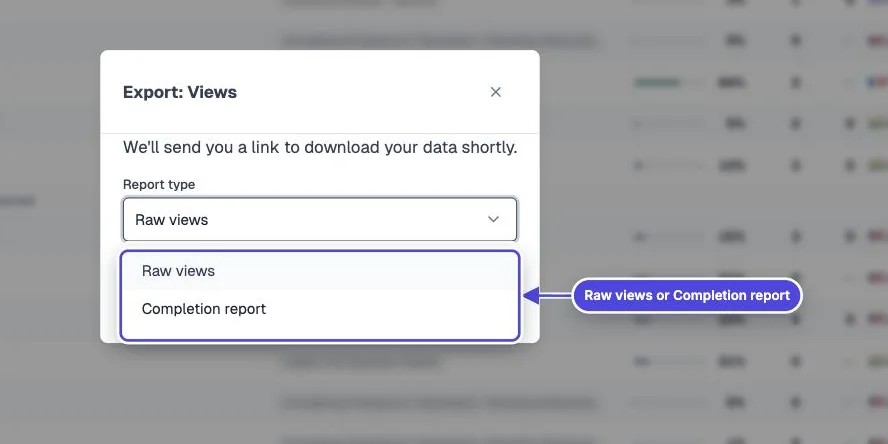
- In Report type, choose Raw views or Completion report.
- For Raw views, select Include Interactions, Variables, and Location to add a column for each question answer.
- For a Completion report, choose the videos, Group participants by (Email or Custom ID works best for training), and View to use.
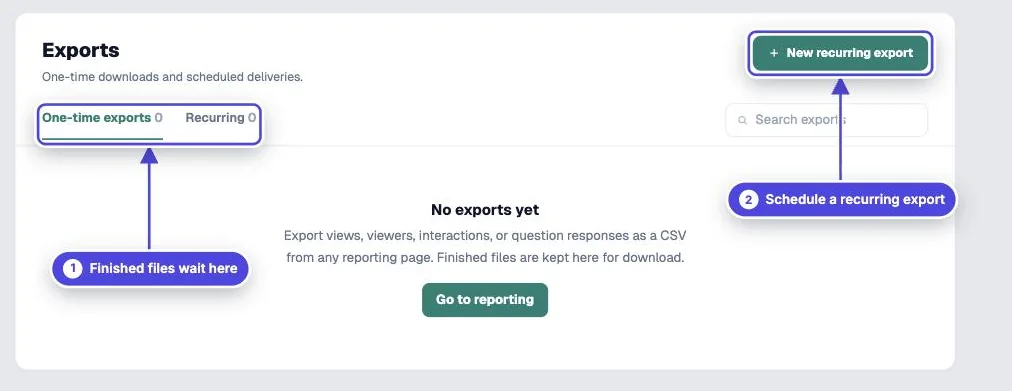
- Select Submit. When the file is ready, select Download. Past files stay on the Exports page.
What each export contains
Copy link to What each export contains- Raw views: one row per view. Columns include STARTED, VIDEO, NAME, EMAIL, CUSTOM_ID, WATCHED_PERCENTAGE, PARTICIPATION, CORRECTNESS, LAST POINT, FURTHEST POINT and FINISHED. With the extra option, each question and variable gets its own column.
- Completion report: one row per learner, with NAME, EMAIL, CUSTOM_ID, VIEWER_ID, AVERAGE SCORE, and one score column for each selected video. You can keep only learners who finished all the videos, or only learners above a Minimum score.
- Certificates: the Issued view on the Certificates page lists each certificate with its learner, video and certificate ID.
Limits to plan for
Copy link to Limits to plan for- The option to include interactions and variables shows only when you filter by one video, group or playlist. That export has a maximum of 5,000 rows at a time.
- The completion report shows scores, not watched percentages. Use Raw views for watched percentage.
- Records can only be grouped by learner when the learner was identified. Anonymous views each count as a separate person.
- Exports are paused while an account is inactive. Download your records before you cancel.
Scheduled exports
Copy link to Scheduled exportsOn Pro and higher plans, open Exports and select New recurring export. Choose views, interactions or viewers, pick the columns, and set the schedule: daily, weekly, twice a month or monthly. Mindstamp emails the file to the recipients you list.