Can I get one report with completion and answers across several videos?
Short answer
Yes, in two parts. The Completion report gives one row per person with a score column for each selected video. For the individual answers, export Views filtered to a group or playlist with Include Interactions, Variables, and Location, which adds a column for every question in those videos.
How to do it
Copy link to How to do it- Open Reporting > Views and select Export CSV.
- Under Report type, choose Completion report.
- Under Videos, select every video in the course.
- Under Group participants by, choose Viewer ID, Email or Custom ID. Choose Email or Custom ID if people watch on more than one device.
- Under View to use, choose Best score, Latest completed view or First completed view.
- Optionally, turn on Only include viewers that have completed all videos or set a Minimum score, then select Submit.
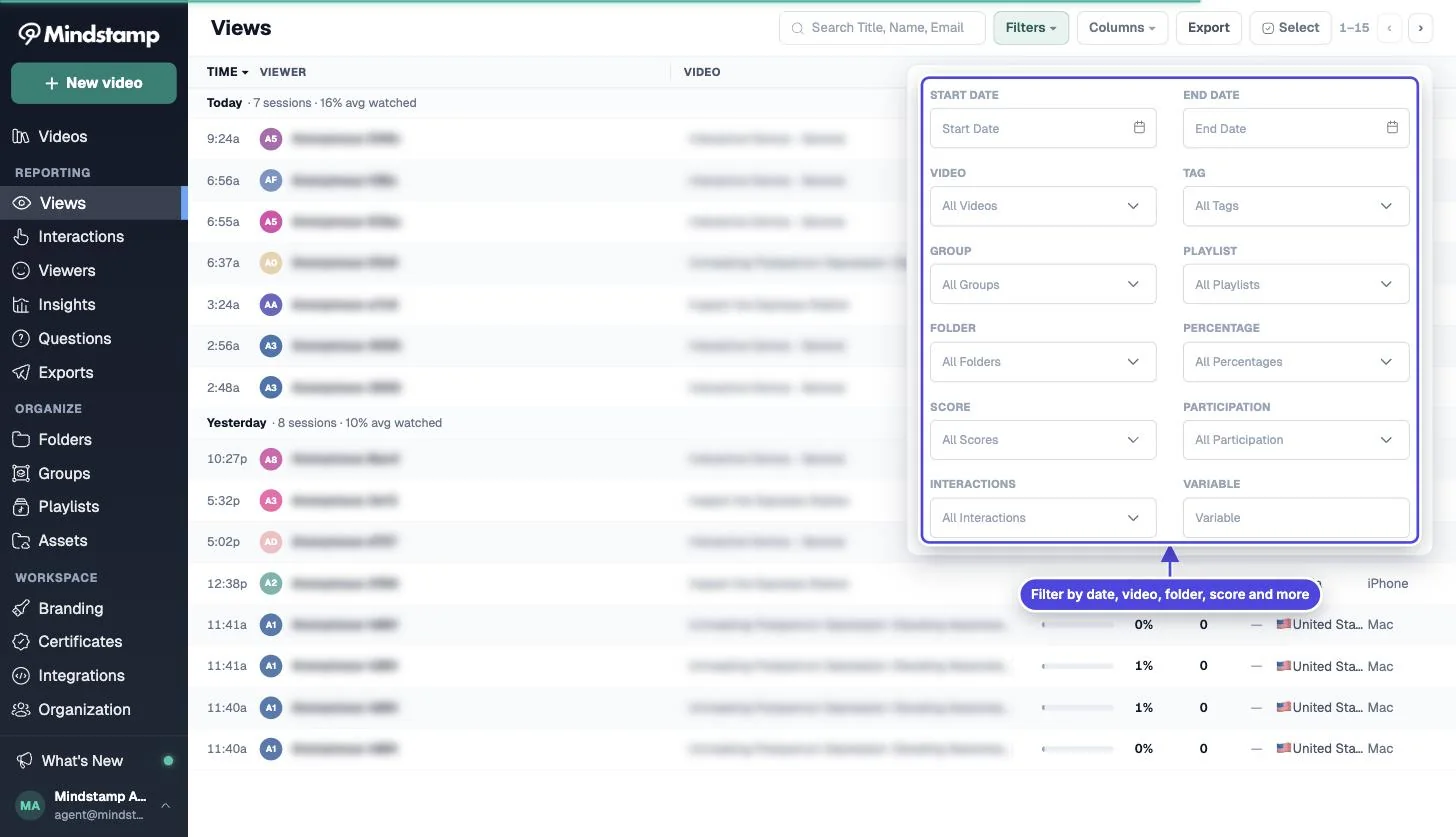
- For the answers, filter Views to the group or playlist that holds the course, select Export CSV, choose Raw views and select Include Interactions, Variables, and Location.
What the completion report contains
Copy link to What the completion report containsThe columns are NAME, EMAIL, CUSTOM_ID, VIEWER_ID and AVERAGE SCORE, then one column for each video, titled with the video name. Each video column holds the correctness score of the chosen view. A blank cell means the person has no finished view of that video.
The report does not include watched percentage or the individual answers. Use the views export for those.
What the views export adds
Copy link to What the views export addsA views export filtered to a group or playlist has one row for each session. With the extra columns turned on, it has one column for each question and interaction across all videos in the filter, plus watched percentage, participation and correctness. To make one row per person, sort or pivot the file by email or custom ID in your spreadsheet.
The extra columns are available only when the list is filtered to one video, one group or one playlist, and one export holds up to 5,000 rows.
Limits to know
Copy link to Limits to know- In the completion report, a view counts once the session is finished, even if the viewer did not watch to the end. Use the watched percentage in the views export to check real progress.
- A video with no questions has no score, so its column is blank. With Only include viewers that have completed all videos on, those people are left out.
- The completion report does not have a date filter. To separate training cycles, use Latest completed view, or use the date filter on a views export.
- Mindstamp does not join viewer records from different devices by itself. Grouping by email or custom ID does it in the report.
- AVERAGE SCORE divides by the number of selected videos, so a blank video counts as zero.
- A playlist filter on the Views list includes only sessions played inside the playlist. If people also watch the videos on their own, put the videos in a group and filter by the group.
Other ways to get the data
Copy link to Other ways to get the dataOn Pro and higher plans, a recurring export can send views for several selected videos, groups or playlists in one file every day, week or month. On Pro and higher plans, the REST API returns views with their answers for any set of videos.