How do I give learners a certificate when they complete a video?
Short answer
Design a certificate on the Certificates page, then add it to a video with a Get certificate action or the end screen. Set the rules for that video: a watched percentage, a passing score, a known identity, or a mix. Learners who meet the rules download a personalized PDF that has a public verification link.
How to do it
Copy link to How to do it- In the side menu, under Workspace, select Certificates.
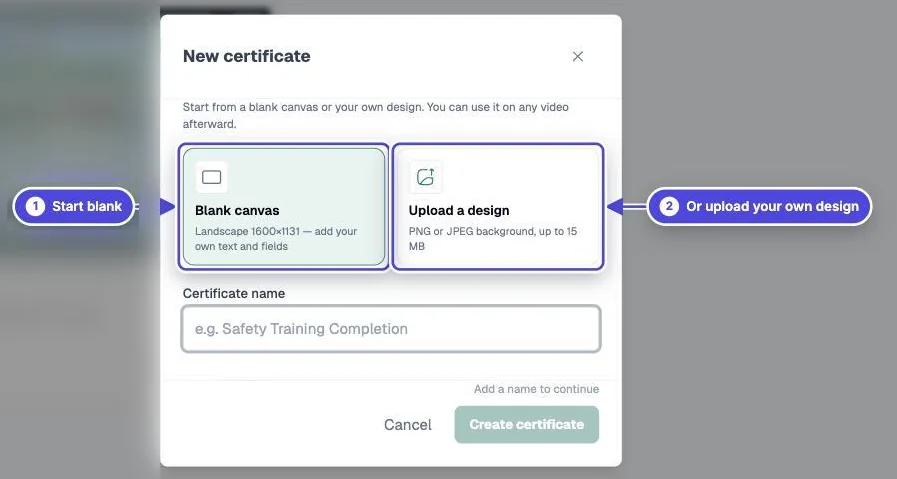
- Select New certificate. Start from a Blank canvas or Upload a design (PNG or JPEG, up to 15 MB; landscape works best).
- Enter a Certificate name, then add fields such as Viewer name, Course name, Issue date, Score and Certificate ID. Save the design.
- Open the video. Add a button or hotspot with the Get certificate click action, or open End Screen and choose Show button to get certificate.
- Select the certificate. Under Rules for this video, turn on Require watched percentage, Require passing score, or both, and enter the values.
- Optional: select Require a known viewer identity so only identified learners qualify.
- Preview the video as a learner in a private browser window and meet the rules. Select the button. The certificate PDF opens for download.
Fields you can place on a certificate
Copy link to Fields you can place on a certificateViewer name, email, phone and custom ID; course name (the video title); group name; organization name; completion percentage; score; issue date; completion date; certificate ID; certificate title; any custom variable; and your own text. You can set the font and text case for each field.
What the learner sees
Copy link to What the learner sees- If the learner has not met the rules, a message says what is missing, for example the watched percentage or score still needed, with Continue watching.
- If Mindstamp does not know the learner's name, it asks for the name as it should appear on the certificate.
- A qualified learner can select Download PDF or copy the verification link. Anyone with that link can view and download the certificate.
- Mindstamp does not email the certificate to the learner.
Track and revoke certificates
Copy link to Track and revoke certificates- On the Certificates page, the Issued view lists every certificate. Search by viewer, video or certificate ID.
- Select Revoke to cancel a certificate. Its verification page then shows it as revoked. You can restore it later.
- If you delete a design, it stops issuing. Certificates people already earned stay valid.
- Each video's Reporting page has a certificates report for that video.
Plans
Copy link to PlansCore includes 5 certificate templates. Pro includes 10. Scale, Ultra and Enterprise include 15. The free trial and the Solo plan include 1. Basic does not include certificates. The Certificates page shows how many you have used. See pricing.
How the score rule works
Copy link to How the score rule worksThe passing-score rule uses the same correctness score as your Mindstamp reports. The video's Questions in score and Answer that counts settings decide which questions and which answer count. See passing scores and retries.