How do I replace the video file without losing my interactions?
Short answer
Open the video, go to More and select Replace source video, then upload or link the new file. Your interactions, timings, settings, share link and embed code stay the same, so you do not need to send a new link or change an embed. The change is live for the next viewing session.
How to do it
Copy link to How to do it- Open the video in the editor.
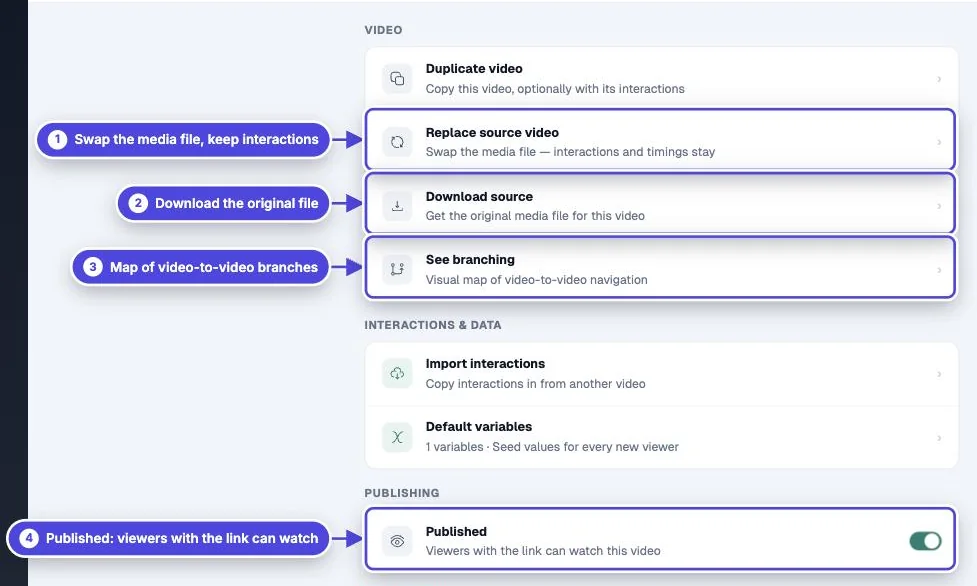
- If you need a copy of the current file, go to More and select Download source first.
- Go to More and select Replace source video.
- The New video page opens with the banner Replacing Video and the video title. Select a source: Upload, Link or a platform.
- Add the new file. The editor opens with the new source.
- Play the video from start to end and move any interaction that is now at the wrong time.
- Update the transcript, captions and translations if the words changed (see below).
What stays the same
Copy link to What stays the same- Interactions and their times.
- Design, settings, lead capture and end screen.
- The share link and the embed code.
- The video’s place in your library. A replace does not add a video to your count.
What to check after a replace
Copy link to What to check after a replace- Timing: interactions keep their times. If you cut or added footage, move the interactions that are now in the wrong place, and delete any that are after the new end.
- Transcript and captions: the existing transcript and caption tracks move to the new file. They are not made again. If the words changed, delete the transcript and create a new one, and upload new caption files.
- Translations: a published translated audio track is removed from the video. Submit the translation again on Translate.
- Original file: Mindstamp deletes the old source file when no other video uses it. Download it before you replace it if you need it.
Replace a file on Vimeo, Wistia or your own storage
Copy link to Replace a file on Vimeo, Wistia or your own storageIf you change the file at the host and keep the same link, Mindstamp keeps playing that link. The host can take some time to deliver the new file. If you have a new link, use Replace source video.
If the editor shows Video link unreachable, select Replace video in the alert to go to the same replace flow.