Brett Lindenberg
An interactive video quiz is a video that pauses at moments you choose and asks the viewer a question. The viewer answers inside the player, and the answer goes into that viewer's report. To create one, add a question right after each idea the video teaches, mark the correct answer, and decide what a wrong answer does, such as sending the viewer back to the explanation. Then share the link or embed code and read each viewer's score. In Mindstamp you can write the questions yourself or let AI draft them from the transcript, and the 90-second recording below shows the AI route on an economics lesson.
How to create an interactive video quiz in 7 steps
The steps are the same for a training module and a product video. You repeat steps 2 to 5 for each question.
- Choose the video and write what the viewer should know after it.
- Add a question right after each idea is taught.
- Write the question and choose its type.
- Mark the correct answer and write the feedback.
- Decide what a wrong answer does.
- Set the quiz rules and identify each viewer.
- Test the quiz, share it, and read the results.
Step 1: Choose the video and write the objectives
Start with a video you already have. Mindstamp adds the questions on top of the video in the player, so you do not edit or export the footage again. Upload the file, or link it from a host such as Vimeo, Wistia, JW Player, or Kaltura (see which videos you can use). YouTube links work for testing only, as the common questions below explain.
Next, write one sentence for each thing the viewer must know or do after watching, for example "State the storage range printed on the label." Each sentence becomes one question. Questions written without an objective tend to test small details that are easy to grade and do not matter to the goal.
Step 2: Add a question right after each idea is taught
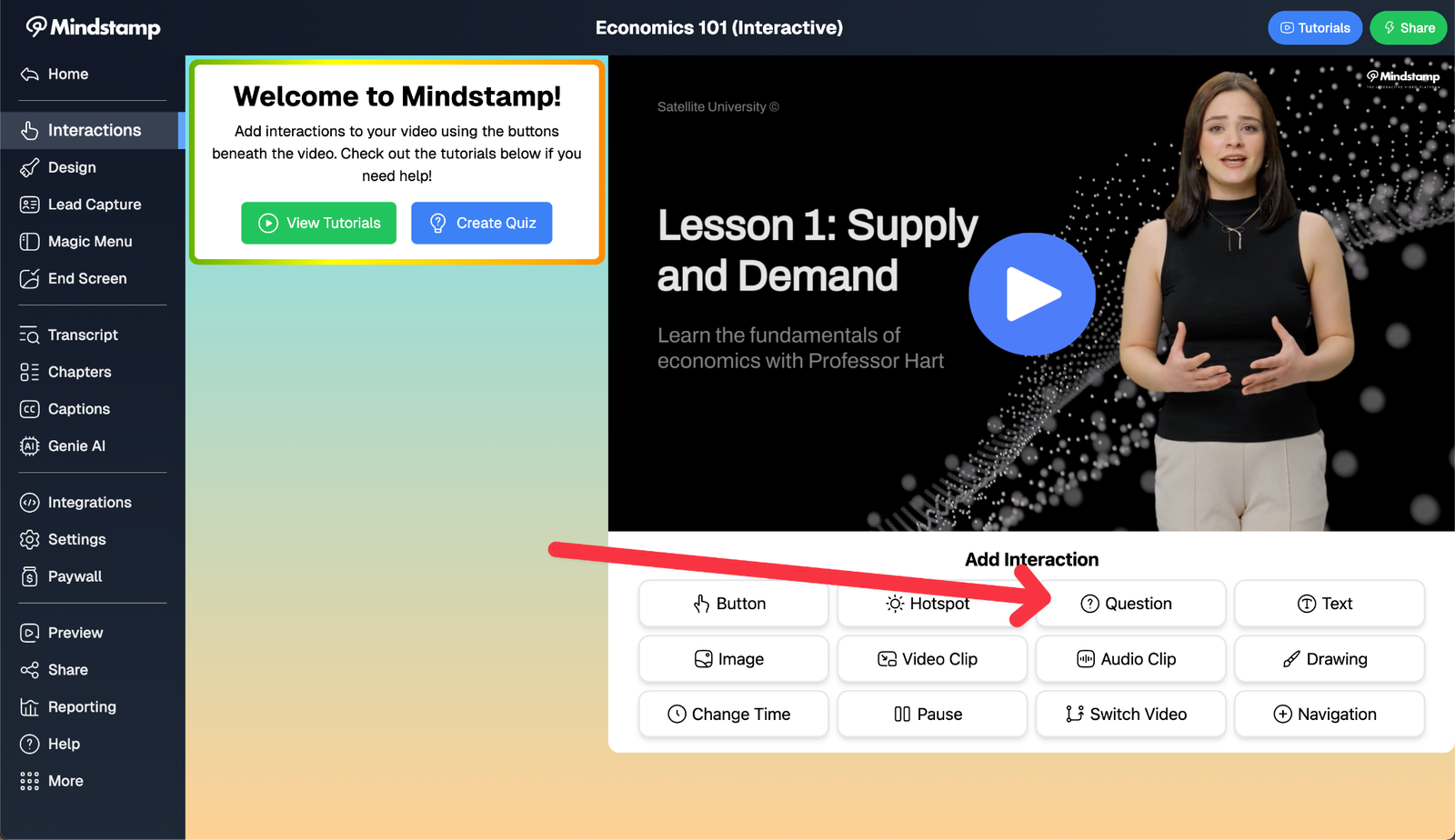
Open the video, select Interactions, and move the playhead to the point where the viewer has enough context to answer. Click Question in the interaction bar. You can set the time to a tenth of a second, so place the question after the narrator finishes the sentence.
Spread the questions through the video. Across 8.07 million views of 18,315 Mindstamp videos (2018 to October 2026), the average view played 46.5% of the video. A quiz saved for the last minute misses every viewer who stopped earlier, and it tests memory of the whole video instead of the idea just taught. Research on lectures points the same way: a 2013 study in PNAS found that short memory tests placed between segments of an online lecture reduced mind wandering, increased note-taking, and improved learning (Szpunar, Khan, and Schacter, 2013).
For the number of questions, we suggest one for each objective and about one every two to three minutes as a starting rule, so a five-minute video often has two or three. Add another only when it checks something the others do not. If you add more than one question at the same time, they appear one after another as a set, and the video resumes after the last one. Each question pauses the video when it appears. After you save it, the question shows in the interaction list and as a marker on the seek bar.
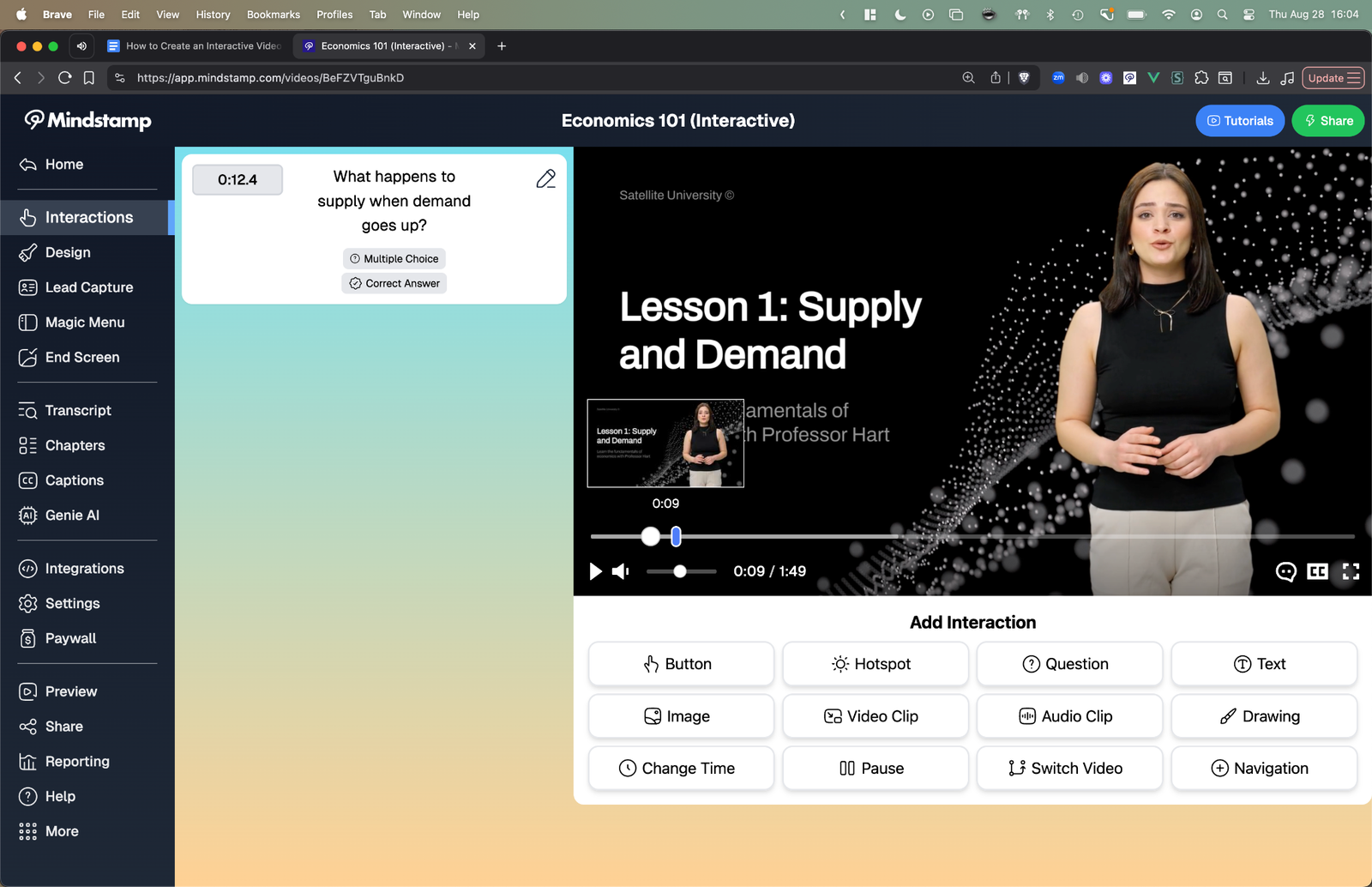
We also recorded an earlier video tutorial on adding questions. It shows an older version of the editor, so some labels differ from the ones in this guide.
Step 3: Write the question and choose its type
Ask about something the video showed or said, and make the viewer use it. A prompt such as "Did you understand the label?" only records how confident the viewer feels. "What storage range did the label state?" checks the objective. Write the wrong answers from mistakes real viewers make, so a viewer who half followed the video finds them believable. Keep each answer short enough to read in a few seconds. The short demo below asks you to pick the stronger of three prompts.
Mindstamp has 13 question types, and six of them can be scored. Pick the type that matches what the viewer must do to show the objective.
| Type | What the viewer does | Scored | Use it to |
|---|---|---|---|
| Multiple Choice | Picks one of up to 5 answers. One click submits. | Yes, one correct answer | Check a fact or a decision |
| Choose All That Apply | Selects any of up to 8 checkboxes | Yes, exact set only | Check that the viewer knows every item in a group |
| Dropdown Select | Picks from a list, with search when it has more than six answers | Yes, one correct answer | Choose from a long list, such as part numbers |
| Free Response | Types an answer | Yes, when you list accepted answers | Ask for a term in the viewer's own words |
| Number Response | Enters a number | Yes, inside a range you set | Check a value or a calculation |
| Date Response | Picks a date on a calendar | Yes, one correct date | Check a deadline or a date in a procedure |
| Video Response | Records up to 120 seconds on camera | No | Assess a spoken answer or a demonstration |
| Voice Response | Records up to 120 seconds of audio | No | Practice pronunciation or a phone script |
| Drawing Response | Draws on the paused frame | No | Circle a part, a hazard, or a spot on a diagram |
| Image Response | Uploads an image | No | Submit a photo of finished work |
| Rating (1-5) | Picks one to five stars | No | Ask how confident the viewer feels |
| Likert Scale | Picks one of five options from Strongly Agree to Strongly Disagree | No | Measure an attitude |
| Display Poll | Picks one of up to 5 answers, then sees how all viewers answered | No | Show viewers how their peers think |
For examples of each type in use, see our guide to interactive video question types and the question setup guide in our help center.
Step 4: Mark the correct answer and write the feedback
For a scored type, set the correct answer in the question editor. Three types have rules worth knowing before you write the answers:
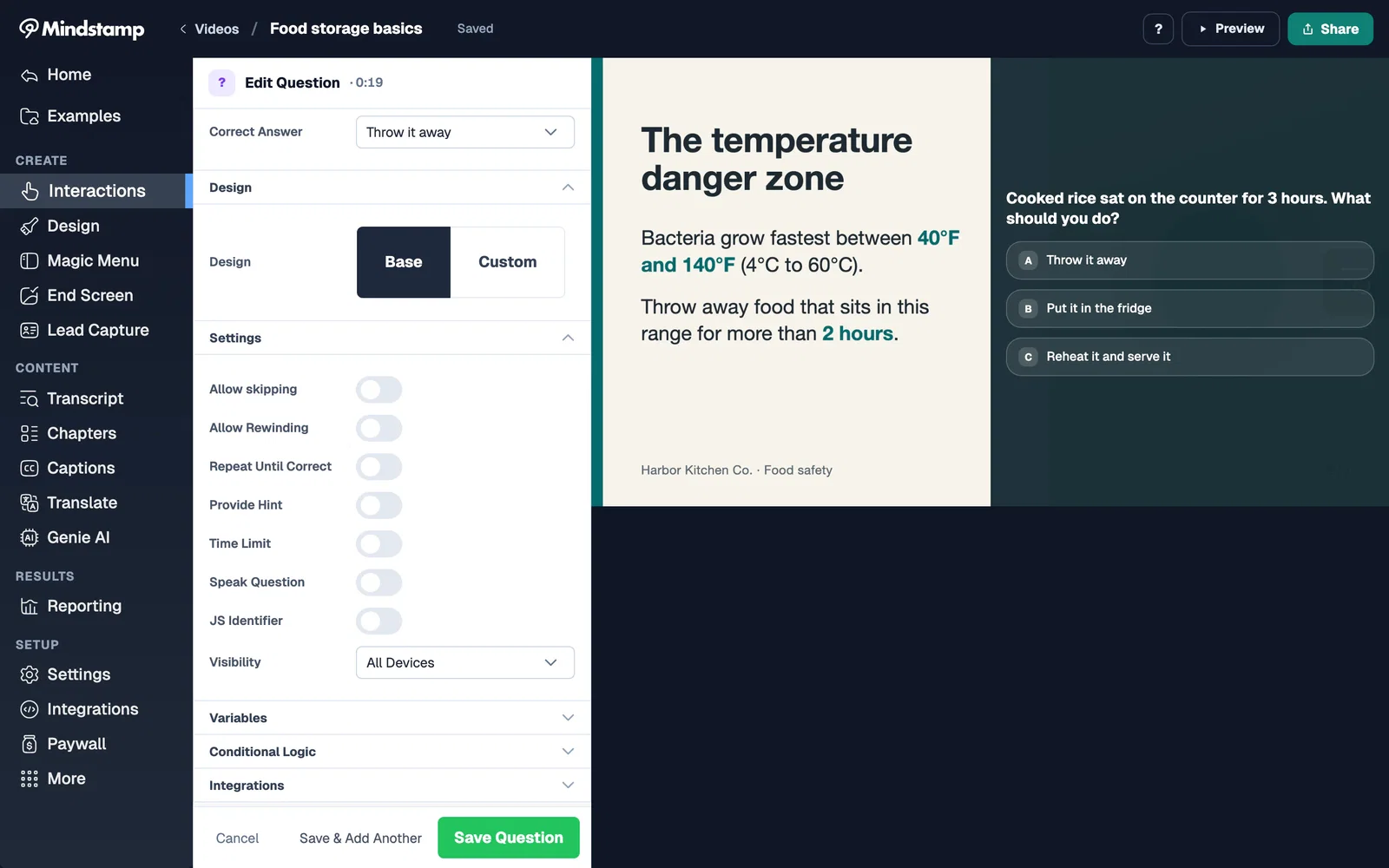
- Free Response accepts one or more correct answers and ignores capital letters unless you turn on Match case. List every spelling and synonym you will accept.
- Choose All That Apply is correct only when the viewer selects the exact set. One missing or extra box makes the answer wrong, and there is no partial credit.
- Number Response is correct anywhere inside the range you set, including both ends.
Then write the feedback. In a 2008 study, Butler and Roediger found that feedback after a multiple-choice test increased correct answers on a later recall test and reduced the wrong answers that learners carried over from the test (Memory & Cognition, 2008). Mindstamp gives you two ways to show it:
- The Show Correctness setting, in the video's Design under Questions, shows the correct answer after each scored question, next to the viewer's answer when it was wrong.
- A Show Message action on an answer explains why it is right or wrong. On Multiple Choice and Dropdown Select, each answer gets its own action. The other scored types get one action for a correct answer and one for a wrong answer.
Write the wrong-answer message as a short correction: give the right answer and name the part of the video that teaches it. Do not use color alone to show right and wrong, because some viewers cannot tell red from green. Our correct answers page shows how scoring and feedback fit together.
Step 5: Decide what a wrong answer does
A wrong answer can send the viewer somewhere, as well as show a message. Choose the option that matches how much the answer matters.
| Option | What the viewer sees | Use it when |
|---|---|---|
| Show Message, then continue | An explanation, then the video plays on | The question is practice and the explanation is enough |
| Repeat Until Correct | Try Again and the same question, with the correct answer hidden | The viewer must get it right before moving on |
| Change Time | The video jumps back to the explanation and reaches the question again | The viewer needs to rewatch the lesson |
| Switch Video | A separate review video plays | The review is long, or you reuse it in other courses |
| Try again button | A button that shows only after a wrong answer and jumps back to the explanation | You want the viewer to choose whether to review |
Repeat Until Correct needs a scored type, with Allow skipping and Time Limit turned off and Show Correctness turned on. It allows unlimited attempts, and no setting limits a question to a fixed number of tries. When a wrong answer jumps back to the explanation, give the viewer a way out after a few attempts. Our try again button guide shows how to count wrong answers with a variable and show a Continue button after the third one. The button method uses conditional logic, which is on Pro and higher plans.
Change Time and Switch Video are the two ways to branch on an answer. Change Time keeps the viewer in one video, so the whole path stays in one report. Switch Video moves the viewer to another video, which has its own report and counts toward the videos in your library. You can branch on a right answer too, for example to let a viewer who already knows a section skip it. For larger branched quizzes, see video branching and our guide to interactive video branching.
Step 6: Set the quiz rules and identify each viewer
Each question has its own settings:
- Allow skipping adds a skip control. Turn it off for questions the viewer must answer.
- Allow Rewinding lets the viewer go back to a time you choose before answering.
- Provide Hint adds a hint the viewer can open.
- Time Limit closes the question after 2 to 90 seconds and saves no answer. It is not available for rating, video, voice, drawing, or image questions.
- Speak Question and Speak Answers read the question aloud in a generated voice.
For a graded quiz, stop viewers from skipping ahead. In the video's Design, turn off Allow Seeking so the seek bar cannot be dragged. In Settings, under Viewer experience, turn on Prevent passing required interactions (Core and higher plans) so a viewer cannot seek past a question they have not answered. Our help article on stopping learners from skipping ahead covers each setting.
Then decide how you will know who answered. Viewers do not need an account, and a viewer who gives no details shows as anonymous in reports. For a graded quiz, ask for a name and email with lead capture at the start, send each person a personalized link, or add their email to the link as a URL parameter. In an LMS, a SCORM package passes the learner's name and ID for you. See how Mindstamp identifies viewers for the details.
Step 7: Test the quiz, share it, and read the results
Test the quiz as a viewer before you send it. The editor preview does not save normal responses, and owners and editors always see skip controls, so open the share link in a private browser window. Answer one question wrong and one right, try to drag the seek bar, and then check that both answers appear under Questions in Reporting. A test view can take a few minutes to show in totals: a session becomes a finished view when the viewer reaches the end, closes the page, or stops for about two minutes.
Then share the quiz in one of three ways:
- A share link, for email, chat, or a course page
- An embed code, for your website, an LMS page, or a help center
- A SCORM package (SCORM 1.2 or SCORM 2004, on Core and higher plans), when your LMS must record completion and a score
How to read quiz scores and reports
Open Reporting in the left menu. Each page answers a different question about your quiz:
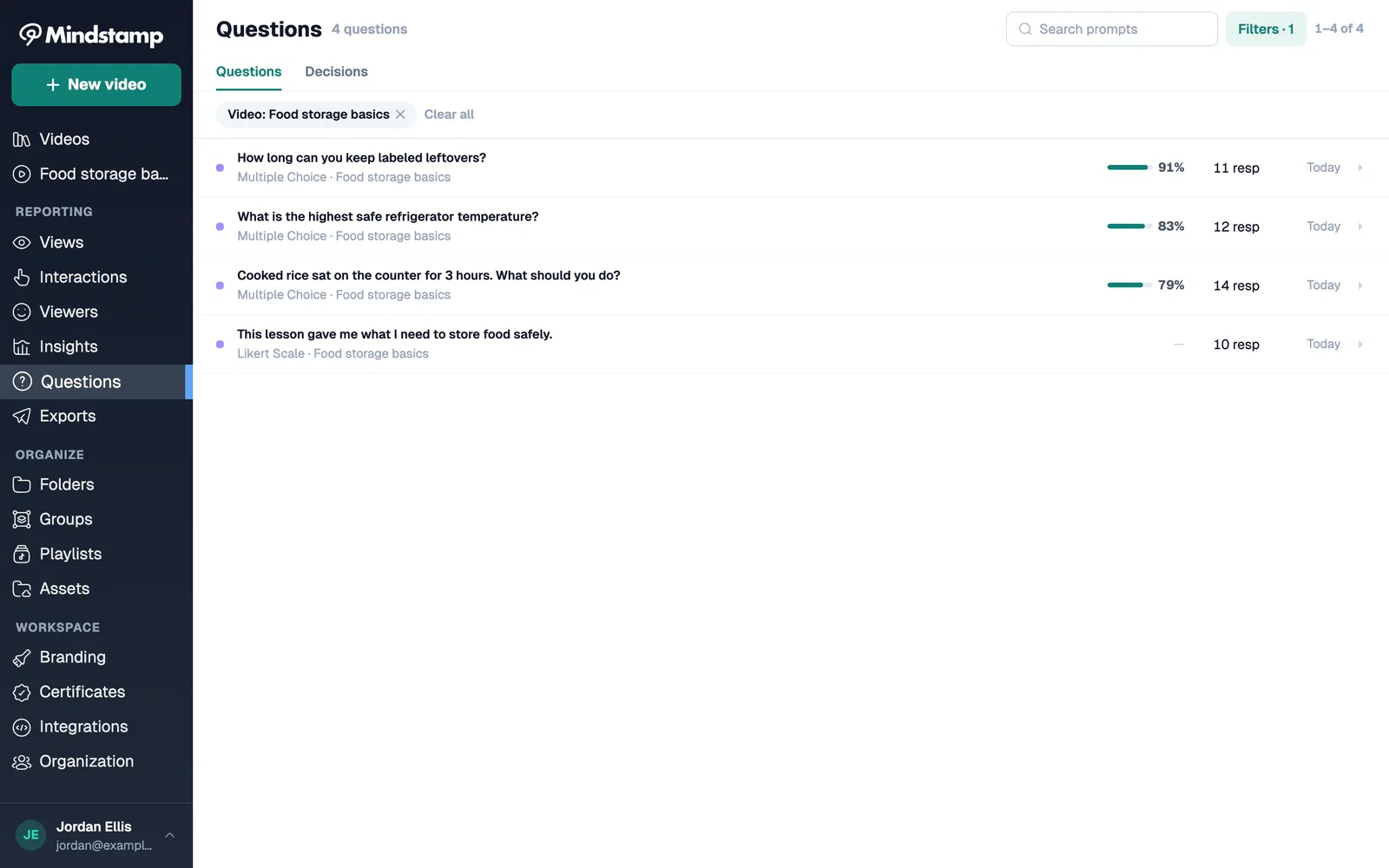
- Questions shows how all viewers answered each question. Start here to find the questions most people miss.
- Views has one row for each viewing session, with the watched percentage, participation, and correctness.
- Viewers shows every session and answer for one person across all your videos.
- Interactions lists each answer and click with its prompt and value, and plays back video and voice responses.
Each view carries two scores. Participation is the share of questions the viewer answered, so three answers to five questions is 60%. Correctness is the share of scored questions answered correctly, and two video settings decide it. Questions in score is either All questions, where a skipped question counts as wrong and conditional questions do not count, or Answered questions only. Answer that counts is the first answer by default, or the most recent one. A SCORM package sends your LMS the same score.
A video has no single pass mark. You set a minimum score where you use it: on a completion certificate, on completion emails, or on the completion report. The completion report has one row per learner with a score for each video, and you choose whether it uses the best, the latest, or the first completed view. The help articles on passing scores and retries and on exporting training records explain each option.
To show viewers their own result, set the End Screen to Show Viewer Results, which shows your message and the viewer's score. On Pro and higher plans, conditional logic can read the running score in the cScore variable and show a different ending, or send the viewer back, when the score is below your pass mark. To give learners who pass a PDF certificate, see completion certificates. More on the report itself is on our interactive video reporting page.
Use the Questions report to improve the quiz as well as grade it. When most viewers miss a question, either the question is unclear or the video did not teach the point well. Look at which wrong answer they chose. A popular wrong answer often points to the sentence in the video that needs a fix.
How to create a video response quiz
A video response quiz asks viewers to answer on camera. In Mindstamp, add a question and set its type to Video Response, or to Voice Response for audio only. The viewer selects Record Response, allows camera or microphone access in the browser, and records for up to 120 seconds. They can play the recording back, record again, or save it, and they do not install anything.
- Say in the prompt what the viewer should talk about and for how long.
- Video and voice answers are not scored and do not count toward the quiz score. Mix them with scored questions when you need a grade.
- Play the recordings in Reporting under Interactions. Turn on lead capture, or pass the viewer's details in the link, so each recording has a name.
- If you edit the embed code, keep camera and microphone in the iframe's allow attribute.
- A recording of a face or voice is personal data. Tell viewers how you will use it.
Video responses suit speaking practice in a language course, sales pitch practice, and interview screening. The help article on video and voice responses and the video questions page have more detail.
Interactive video quizzes for education and training
In a class, a video quiz is a quick formative assessment. Students get feedback while the lesson is still on screen, and you see which ideas they missed before the next class. For a flipped class, assign a recorded lecture with three questions and open the Questions report before the session to plan the discussion. Students open a link or an embed and need no account. Drawing Response suits diagrams, maps, and anatomy, where the answer is a place on the screen. See assessments inside the lesson and our explainer on formative assessment in education.
In workplace training, the quiz is often the evidence a compliance team keeps. Identify every learner, turn off seeking, and make the scored questions required. Mindstamp is not an LMS: you deliver the video through your LMS as a SCORM package, an embed, or a link (see LMS compatibility). For quiz design in corporate training, read how to create online quizzes for corporate training and see interactive video for training.
Which software adds quizzes to videos
Several kinds of tools can put a quiz on a video. They differ in where the video plays and where the answers go.
| Option | What it does | Consider it when |
|---|---|---|
| Mindstamp | Adds 13 question types to a video you upload or link, with scoring, branching, and a report for each viewer. Shares as a link, an embed, or a SCORM package. | The quiz must run on your existing video and you need each person's answers, inside or outside an LMS |
| H5P Interactive Video | An open-source content type with multiple choice, fill in the blank, free text, and drag and drop questions. An answer can jump the viewer to another part of the video. It runs in systems such as Canvas, Brightspace, Blackboard, Moodle, and WordPress (H5P). | Your school or team already publishes H5P content |
| Vimeo | Its help center lists chapters, forms, cards, and end screens by plan, and an Interactive studio with hotspots, time triggers, and overlays that needs an Enterprise plan (Vimeo Help Center). | Your videos already live on Vimeo and your plan covers the features you need |
| A quiz in your LMS after the video | The learner watches the whole video, then takes a separate quiz that the LMS grades | You need only a final score and no feedback during the video |
For side-by-side comparisons, see Mindstamp vs Edpuzzle, H5P, and PlayPosit. The PlayPosit website says that PlayPosit is now WeVideo. For a wider list of tools, see our roundup of interactive video platforms.
Common questions
Can AI turn a video into a quiz?
Yes. In Mindstamp, the AI question builder reads the video's transcript and drafts up to 20 multiple-choice questions, spaced through the video, each with one correct answer. You review the drafts, remove any you do not want, and save the rest. After that, you edit each one like any other question. The video needs a transcript, and transcripts work for uploaded videos and MP4 links. Our guide to turning any video into a quiz with AI walks through it. To draft questions without an account, paste a transcript into our free video quiz generator.
Can I make a quiz from a YouTube video?
You can test with a YouTube link, but Mindstamp supports YouTube for testing only, because its playback can fail without warning. Before you publish, upload the original file or link another supported host, then use Replace source video. Your questions, timings, and share link stay the same. A YouTube-based video cannot have a transcript, so the AI question builder needs another source. See using YouTube videos in Mindstamp.
Can I import questions I already wrote?
Yes. The editor uploads interactions from a CSV file and offers a template for questions. The import covers all 13 question types, with their answers, correct answers, and settings. You can also copy interactions in from another Mindstamp video.
Can I make a product quiz for an online store?
Yes. A product quiz asks shoppers about their needs and recommends a product from their answers. Our skin care product quiz example changes a score variable with each answer and uses conditional logic to pick the product at the end. To design the video itself in Canva, read how to make an interactive video product quiz with Canva.
What is the difference between a video quiz and a video survey?
A quiz has correct answers and a score. A survey collects opinions, such as ratings and comments, and has no right answer. You use the same question types for both: leave the correct answer empty and Mindstamp records the response without a score. See how to turn any video into a survey.
Build your first video quiz
Pick one video that your viewers already watch and write three objectives for it. Add a scored question right after each idea is taught, write a one-sentence correction for each wrong answer, and send a wrong answer on the most important question back to the explanation. Test it in a private window, share it with ten viewers, and read the Questions report. To try a finished quiz first, play the video quiz example or read about video quizzes in Mindstamp.