Brett Lindenberg
A video survey is a survey that uses video in one of three ways: the questions appear inside the video, a video sits in a form for people to react to, or respondents answer by recording themselves. To create one in Mindstamp, add survey questions, such as a 1 to 5 rating or an open comment box, at the moments in a video where you want a reaction. Leave the correct answer empty so nothing is scored. You can also ask viewers to answer on camera or by voice. Then share the link. Mindstamp saves each answer with the viewer's session, so you can read the results by question or by person.
What is a video survey?
The term covers three different setups. They solve different problems, so decide which one you need before you pick a tool.
| Kind | How it works | Use it when |
|---|---|---|
| Questions inside the video | The video pauses at times you choose and asks a question. The viewer answers in the player, and the video continues. | The video is what you want feedback on, such as a training module or a product demo |
| A video in a form | A survey form shows a video clip, and the questions are ordinary form questions | You already run surveys in a form tool and only need to show people a clip |
| Recorded answers | Respondents answer on camera or with their voice instead of typing | How people say something matters as much as what they say, such as a testimonial or a spoken explanation of a problem |
Mindstamp does the first and the third. Questions sit on the video's timeline, and two of the 13 question types record video or voice answers. The tool comparison further down covers the other setups.
How to create a video survey in Mindstamp
These steps use a video you already have. Mindstamp adds the questions on top of the video in the player, so you do not edit or export the footage again.
- Write the decision the survey informs.
- Choose a short video.
- Add questions at the moments you want a reaction.
- Choose a question type for each answer you need.
- Make the survey easy to finish.
- Decide whether answers are anonymous.
- Add follow-up questions for some answers.
- Test the survey and share it.
Step 1: Write the decision the survey informs
Start with the decision the answers will feed, such as which onboarding topic needs a new video or whether customers understood a price change. Then keep only the questions that help you make it. Each question pauses the video, so a question you will not act on costs every viewer time without helping the decision.
Step 2: Choose a short video
Upload the file, or link it from a host such as Vimeo, Wistia, or Kaltura (see which videos you can use). In our platform data, shorter videos were watched further. Across 8.07 million views of 18,315 Mindstamp videos (2018 to October 2026), videos of one minute or less averaged 59.4% of the video watched, compared with 39.2% for videos of two to five minutes. These are averages across many kinds of customer videos, not a test of surveys, so treat them as a pattern. If you need a longer video, ask questions during it rather than saving them all for the end, because viewers who stop early never reach the last minute.
Step 3: Add questions at the moments you want a reaction
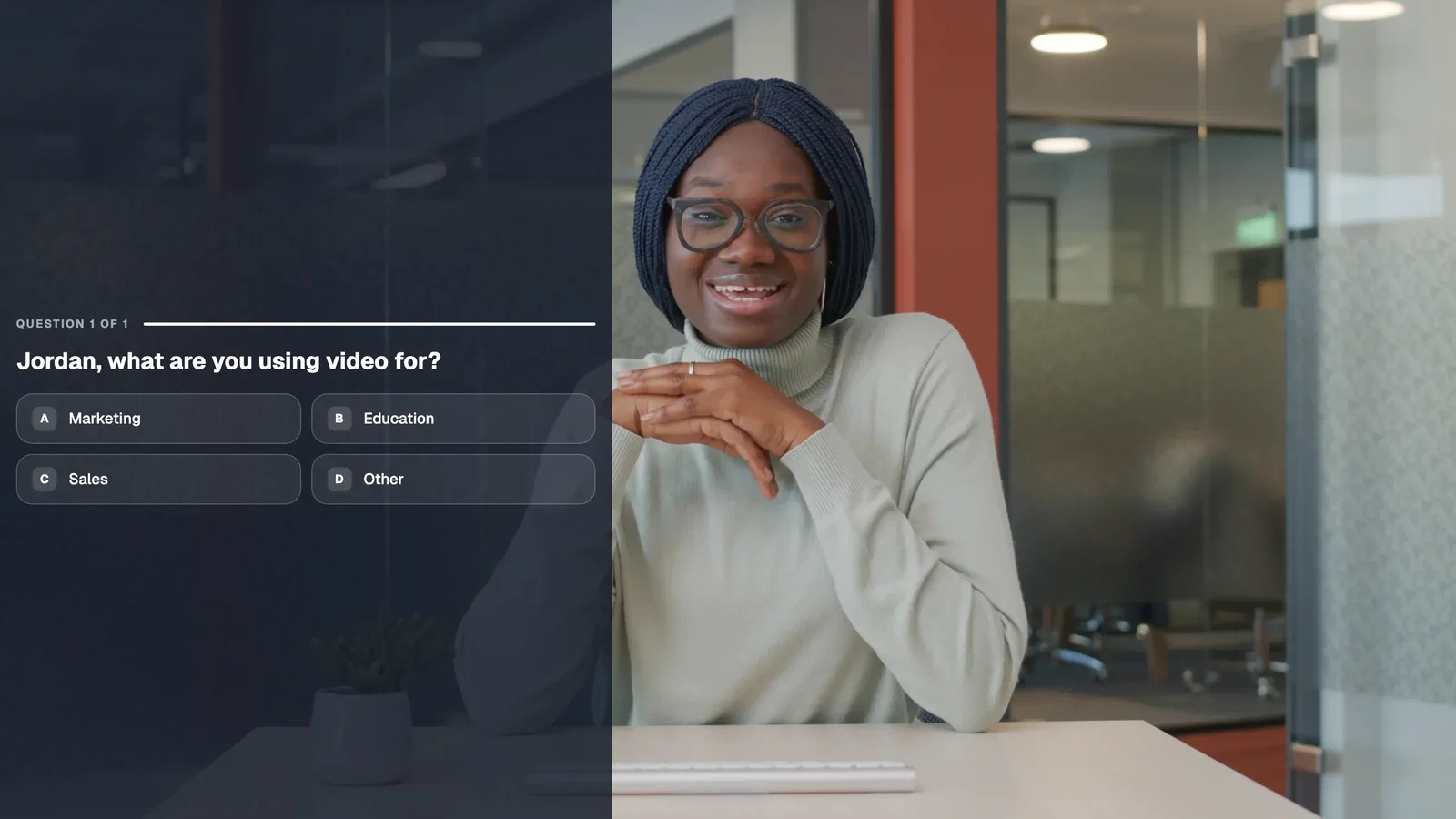
Open the video, select Interactions, and move the playhead to the moment you want a reaction. Click Question in the interaction bar. The video pauses when the question appears and continues after the viewer answers. Ask about a scene right after it plays, while it is still on the viewer's mind. For a closing set of questions, add several at the same time. They appear one after another, and the video resumes after the last one.
Step 4: Choose a question type for each answer you need
Mindstamp has 13 question types. Pick the one that gives you the answer in the form you will analyze.
| What you want to learn | Question type | What the viewer does |
|---|---|---|
| A satisfaction or confidence score | Rating (1-5) | Selects one to five stars, then Continue |
| Agreement with a statement | Likert Scale | Picks one of five fixed options from Strongly Agree to Strongly Disagree |
| One choice from a short list | Multiple Choice | Picks one of up to 5 answers. One click submits. |
| A vote that viewers compare with others | Display Poll | Picks one of up to 5 answers, then sees a chart of how all viewers answered |
| Every option that applies | Choose All That Apply | Selects any of up to 8 checkboxes |
| One choice from a long list | Dropdown Select | Picks from a list, with search when it has more than six answers |
| Comments in their own words | Free Response | Types an answer |
| A number or a date | Number Response or Date Response | Enters a number, or picks a date on a calendar |
| A spoken or on-camera answer | Voice Response or Video Response | Records up to 120 seconds in the browser |
| A photo or a mark on the screen | Image Response or Drawing Response | Uploads an image, or draws on the paused frame |
Leave the correct answer empty on every survey question. Mindstamp then records the response without a score. Rating, Likert, poll, and the media types have no correct answer at all. For examples of each type, see our guide to interactive video question types, or the rating and Likert scale question pages.
Step 5: Make the survey easy to finish
Open the question's settings and set it up for a survey:
- Turn on Allow skipping for any question that is optional. A viewer who skips one question can still answer the rest.
- Leave Time Limit and Repeat Until Correct off. They suit quizzes and add pressure to an opinion question.
- Keep question numbering on, so the viewer sees "Question 2 of 5" and knows how much is left. The count covers every visible question in the video.
- Use Speak Question if some viewers would rather listen than read. It reads the prompt aloud in a generated voice.
The question setup guide in our help center explains every setting.
Step 6: Decide whether answers are anonymous
Viewers do not need an account. A viewer who gives no name, email, phone number, or custom ID shows as Anonymous in reports, with a short code to tell sessions apart. In Mindstamp, anonymous means unnamed. Every view still records the viewer's IP address, approximate location, and browser details (see what Mindstamp collects from viewers). If you promise an anonymous survey, say what is recorded, and do not send a link that carries an email address.
To connect answers to people, use one of these methods:
- Lead capture asks for a name, email, or other fields at the start or at a time you choose. You can let viewers skip the form.
- Personalized links give each person their own link. You can create them one at a time or upload a CSV to create many.
- URL parameters such as
?email=carry details from your email or CRM tool into the link.
Personalized links and variables are on Core and higher plans. Our guide to personalizing links from your CRM covers both link methods, and the help article on viewer identity explains how Mindstamp recognizes returning viewers.
Step 7: Add follow-up questions for some answers
A follow-up question shown only to some viewers keeps the survey short for everyone else. On Multiple Choice and Dropdown Select, each answer can run its own action, such as Show Message or Change Time. For a rating, save the answer in a variable, then add a Free Response question at the same time with a condition: show it only when the rating is less than 3. Viewers who rate the video 1 or 2 are asked what was missing, and the rest continue. Conditions use conditional logic, which is on Pro and higher plans.
Step 8: Test the survey and share it
Test the survey as a viewer first. The editor preview does not save responses, so open the share link in a private browser window, answer every question, and check that your answers appear under Questions in Reporting. A test view can take a few minutes to show, because a session counts as finished when the viewer reaches the end, closes the page, or stops for about two minutes.
Then share it the way your audience already gets messages:
- Send the share link in a message or a course page, show it as a QR code from the Share page, or paste the embed code into a web page.
- In an email, link a still image of the video to the share link. Email programs cannot play an interactive video, as our guide to sharing a video in email explains.
To thank viewers at the end, set the End Screen to Show Button, with a short message and one button to your next step. See end screen options.
How to read video survey results
Open Reporting in the left menu. Survey results appear on four pages:
- Questions shows the answer counts for each question. Multiple Choice, Dropdown Select, Display Poll, Rating, and Likert answers are counted by option, Choose All That Apply is counted by each box, and typed answers are listed.
- Interactions lists each answer with its prompt and value, and plays back video and voice responses.
- Views has one row for each viewing session, with how much of the video the viewer watched.
- Viewers shows every session and answer for one person across all your videos.
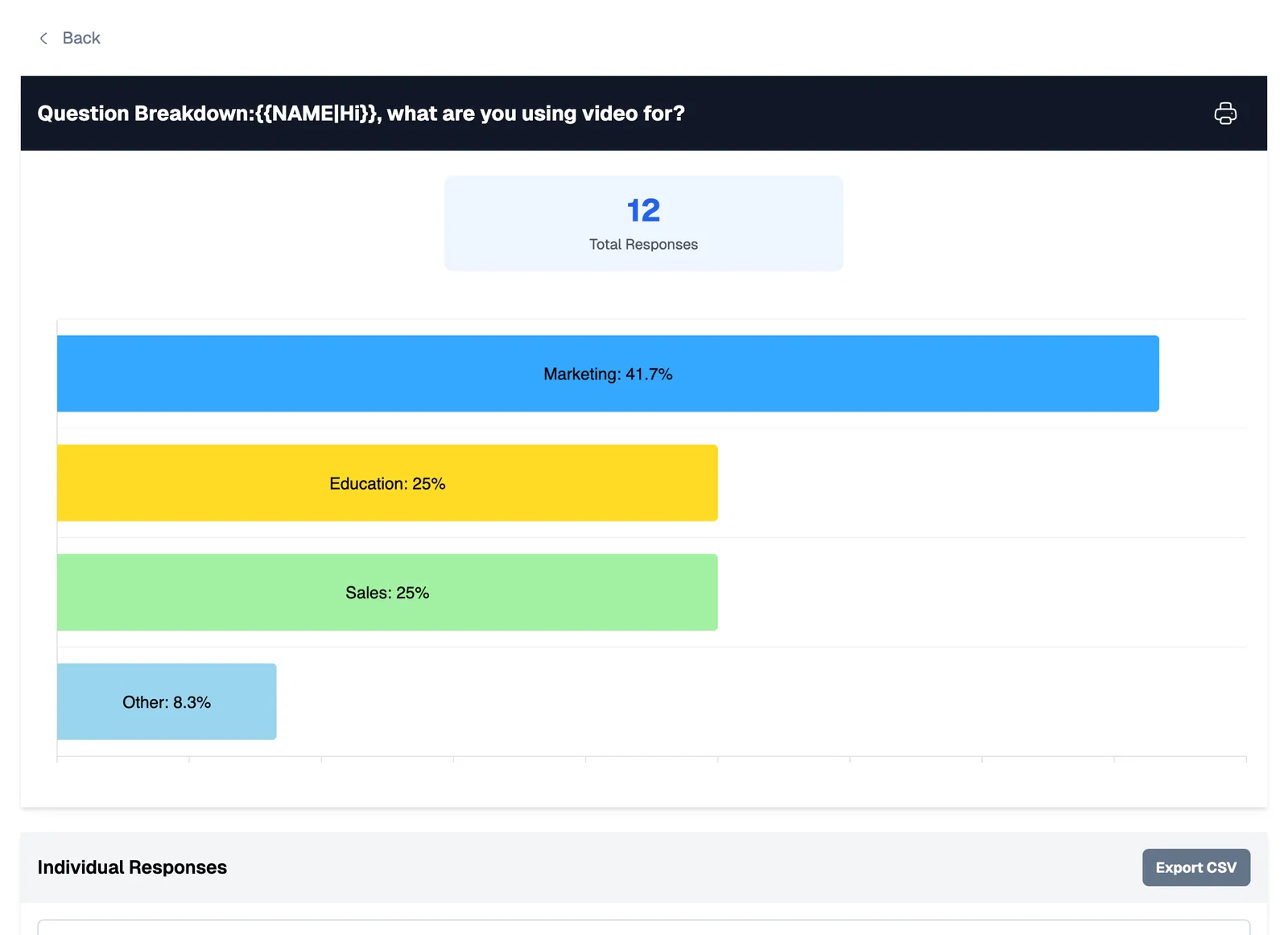
To analyze the answers in a spreadsheet, filter Views to one video and select Export CSV with Include Interactions, Variables, and Location turned on. The file then has one column for each question. With that option on, one export holds up to 5,000 rows, so split a larger survey by date range. On Pro and higher plans, you can also schedule recurring exports by email or webhook. See downloading your interaction data.
To send answers to another system, use one of the integrations on supported plans:
- Webhooks post a view record with a map of each question to its answer. Mindstamp sends them after the session finishes, so expect a delay of a few minutes.
- HubSpot can write an answer into a contact property and add answer events to the contact's timeline. It needs the viewer's email.
- Zapier passes finished views and interactions to other apps.
Read what viewers did as well as what they said. A viewer can rate a section highly and then stop watching halfway through the next one. Compare answers with watch progress and clicks before you change the video, as our help article on using video data to improve your message describes.
When to ask for video or voice answers
Recorded answers give you more to work with, but fewer people give them. In a 2024 experiment with 1,001 smartphone survey respondents, Lenzner, Höhne, and Gavras found that requests for spoken answers produced four to five times more nonresponse than requests for typed answers. The spoken answers that did come in had about three times as many words (Journal of Survey Statistics and Methodology, 2024).
So ask for a recording when the delivery is part of the answer: a customer story, a sales pitch, pronunciation, or a viewer showing you a problem on their screen. Use rating, choice, and typed questions for anything you need to count and compare. Put a choice or rating question before the recording and allow skipping on the recording, so you keep a usable answer from viewers who decline.
In Mindstamp, add a question and set its type to Video Response or Voice Response. The viewer selects Record Response, allows camera or microphone access in the browser, and records for up to 120 seconds without installing anything. They can play it back, record again, or save it. Recorded answers are not scored, and you play them back in Reporting under Interactions. A recording of a face or a voice is personal data, so tell viewers how you will use it. The help article on video and voice responses and the video questions page have more detail.
Video survey transcription
Mindstamp saves each recorded answer for playback in your reports. It does not transcribe recorded answers into text. If you need a written transcript of every answer, for example to search or code hundreds of responses, choose a tool built around recorded answers. VideoAsk's help center says that every video or audio answer it receives automatically generates a transcript that you can edit (VideoAsk help, checked October 1, 2026). If you only need a sentence or two from each viewer in text, add a Free Response question instead.
Video survey tools compared
The right tool depends on which kind of video survey you are running. We checked each vendor's own documentation on October 1, 2026.
| Tool | How video fits in | Recorded answers |
|---|---|---|
| Mindstamp | Questions pause your own video at set times. 13 question types, follow-up questions based on answers, and a report for each viewer. | Video and voice, up to 120 seconds. No transcripts of answers. |
| VideoAsk | A video form made of one or more steps. Its answer types include open ended, multiple choice, button, calendar, live call, Net Promoter Score, file upload, and payment (VideoAsk answer types). | Video, audio, or text. Answers are 2 minutes long by default and up to 5 minutes on paid plans (VideoAsk answer length). Answers are transcribed automatically. |
| Qualtrics | A full survey platform. The Video Response question needs a license that includes Strategic Research (Qualtrics question types). | Video or audio, 3 minutes by default and up to 600 seconds, with topic and sentiment analysis of the videos (Qualtrics Video Response) |
| Google Forms | Adds a YouTube video before or after a question. A video cannot go inside a question (Google Forms help). | Not covered in the help article we checked |
| SurveyMonkey | Embeds a YouTube, Vimeo, or X video in question text or answer choices. A Vimeo video must be public (SurveyMonkey help). | Not covered in the help article we checked |
Choose Mindstamp when the survey belongs inside a video you already use and you want each answer tied to the moment and the person. Choose a recorded-answer tool such as VideoAsk when collecting video replies is the main purpose. Our Mindstamp vs VideoAsk comparison goes into more detail. If you need to score recorded skills or run one-way interviews, see our roundup of video assessment tools.
How to write survey questions for a video
The rules for good survey questions apply inside a video too. Pew Research Center's guide to writing survey questions covers the research behind each of these:
- Ask about one thing per question. Pew calls a question that asks about two concepts at once "double-barreled" and says the answers are often difficult to interpret. Split "Was the demo clear and useful?" into two questions.
- Use a closed question to count and an open one to discover. In a poll after the 2008 presidential election, 58% of respondents picked the economy as the issue that mattered most when it was offered as an option, but only 35% named it when they had to answer in their own words. In the open version, 43% gave an answer that was not on the closed list.
- Watch the order of the answers. Pew found that in self-administered surveys, people tend to choose items at the top of a list. Mindstamp shows answers in the order you write them, so use a natural order for scales and do not put the answer you hope for first.
- Offer a choice between two statements when an agree-or-disagree item could lead viewers to agree by default. Pew reports that less educated and less informed respondents agree with such statements more often. A Multiple Choice question with two statements avoids this.
Ask about what is on screen, in the words your viewers use. A question right after a scene, such as "How clear was the setup step you just watched?", gets a more specific answer than the same question asked at the end.
Common questions
How do you run video surveys at scale?
Create personalized links from a CSV of your contacts, or add merge fields from your email tool to the share link, so each response is tied to a person without a form. Embed the video wherever your audience already is, and send results to your systems with exports, webhooks, or HubSpot. For a survey in several languages, the Translate page translates questions and player text into each language at no cost on every plan, and one link plays in the viewer's language (see translating an interactive video). Viewers are unlimited, and plans differ by videos, seats, and streaming minutes, which are listed on our pricing page.
What is the difference between a video survey and a video quiz?
A quiz has correct answers and a score. A survey collects opinions and facts about the viewer, with no right answer. Mindstamp uses the same question types for both, and a question without a correct answer records the response without a score. To build a scored quiz, see how to create an interactive video quiz.
Can I add a survey to the end of a training video?
Yes. Add the questions at the same time near the end of the video so they appear as one set. Ask how useful and clear the training was, and add a Free Response question for suggestions. For wording you can copy, see our sample evaluation questions for training.
Can viewers answer on a phone?
Yes. On a phone, a question opens full screen by default so the answers are easy to tap. Video and voice responses record in the phone's browser after the viewer allows camera or microphone access.
Run your first video survey
Pick one short video your audience already watches and write the one decision you want their answers to inform. Add a rating question after the key scene, a Free Response question at the end, and an optional follow-up for low ratings. Test it in a private window, send it to a small group, and read the Questions report before you send it to everyone. To see what each question type looks like, start with the questions feature page.