Brett Lindenberg
Interactive video questions pause the video and ask the viewer to answer inside the player. Mindstamp has 13 question types in four groups: choice questions, typed answers, rating scales, and answers the viewer records, draws, or uploads. Pick the type by what the viewer must do to show you the answer, and use one of the six scored types when you need a grade. Multiple choice and free response were the most used types in our 2023 count. The media types collect answers a click cannot give, such as a spoken pitch or a hazard circled on the screen. The demo below asks two questions in a short safety lesson.
All 13 question types at a glance
Every question pauses the video while it is open. Six types can have a correct answer and count toward a score. The rest record the response without one.
| Type | What the viewer does | Scored | Example prompt |
|---|---|---|---|
| Multiple Choice | Picks one of up to 5 answers | Yes | Which valve do you close first? |
| Choose All That Apply | Selects any of up to 8 checkboxes | Yes | Which of these items must be on the checklist? |
| Dropdown Select | Picks one answer from a list | Yes | Which product model do you use? |
| Display Poll | Picks one of up to 5 answers, then sees how all viewers answered | No | Which topic should our next video cover? |
| Free Response | Types an answer | Yes | What is this step called? |
| Number Response | Enters a number | Yes | How many minutes can the sample stay at room temperature? |
| Date Response | Picks a date on a calendar | Yes | On what date does the new policy take effect? |
| Rating (1-5) | Selects one to five stars | No | How confident are you doing this on your own? |
| Likert Scale | Picks one of five options from Strongly Agree to Strongly Disagree | No | The new process is clear to me. |
| Video Response | Records up to 120 seconds on camera | No | Show how you would greet this customer. |
| Voice Response | Records up to 120 seconds of audio | No | Read this sentence aloud in Spanish. |
| Drawing Response | Draws on the paused frame | No | Circle the hazard in this scene. |
| Image Response | Uploads an image | No | Upload a photo of your finished setup. |
Choice questions
Choice questions are quick to answer and simple to report on, because every response falls into an option you wrote. Cornell University's Center for Teaching Innovation notes that closed-ended questions such as multiple choice quickly check comprehension, while open-ended questions draw out more thinking (Using Effective Questions).
Multiple choice
The viewer picks one of up to five answers, and one click submits it. You can mark one answer as correct, and each answer can run its own action: show a message, jump to another time with Change Time, open a link, or switch to another video. Those per-answer actions let you branch on the answer, for example by sending a wrong answer back to the explanation. Write the wrong answers from mistakes real viewers make, so they are believable to someone who half followed the video.
There is no separate true-or-false type. Use Multiple Choice with two answers, as the follow-up in the demo above does.
Choose all that apply
The viewer selects any of up to eight checkboxes and then selects Continue. For scoring, the answer is correct only when the viewer selects the exact set you marked. One missing or extra box makes it wrong, and there is no partial credit. Use it when knowing every item in a group matters, such as the parts of a safety checklist. Individual answers cannot run their own actions, but each selected answer can set a variable. In marketing videos, that lets you record every product interest a viewer selects.
Dropdown select
Dropdown Select shows the answers in a list and adds a search box when there are more than six. Use it when buttons would fill the screen, for example to ask for a country, a department, or a product model. Like Multiple Choice, it can have one correct answer, and each answer can run its own action. In 2023 this type was called Choose From List.
Display poll
The viewer picks one of up to five answers, and the player then shows a bar chart of how all viewers have answered so far, with the viewer's own choice marked. The viewer selects Continue to go back to the video. A poll has no correct answer and no answer actions. Standalone tools such as Poll Maker show answers as live graphs outside the video. A Display Poll shows the result inside the video, right after the viewer votes. The chart counts every response so far, so the first viewers see percentages based on only a few answers. Use it when seeing what peers think is part of the lesson, such as which approach a team prefers.
Typed-answer questions
Typed answers show what a viewer can recall without a list of options to recognize. They take longer to answer, so use them where recall is the point.
Free response
The viewer types an answer. To score it, list every answer you will accept. Mindstamp ignores capital letters unless you turn on Match case, so list each spelling and synonym. Without a correct answer, Free Response collects open comments, such as "What would you change about this process?" It was the second most used type in our 2023 count, below.
Number response
The viewer enters a number. The answer is correct anywhere inside the range you set, including both ends, so you can accept a rounded result. Use it for calculations, doses, measurements, and settings, where a list of options would give the answer away.
Date response
The viewer picks a date on a calendar, and you can mark one date as correct. Use it for deadlines and schedules in a procedure, or without a correct answer to collect a date from the viewer, such as a preferred start date.
Rating and Likert scale questions
Scale questions measure how viewers feel, so they have no correct answer. Use them for confidence checks and feedback.
Rating (1-5)
The viewer selects one to five stars and then Continue. You can save the rating in a variable and use it later in the video. For example, on Pro and higher plans, conditional logic can show a follow-up question only to viewers who rate a section 1 or 2. A rating before and after a training module shows how confident learners feel, which is a different measure from a quiz score. More examples are on the rating questions page.
Likert scale
QuestionPro defines a Likert scale survey as one or more questions, each with a 5-point or 7-point scale, that run from one attitude to its opposite (QuestionPro). The Mindstamp Likert Scale question uses five fixed options: Strongly Agree, Agree, Neutral, Disagree, and Strongly Disagree. One click submits the answer. Write the prompt as a statement, such as "I know who to call after an incident." For other labels, such as frequency or satisfaction, use Multiple Choice with your own wording. Likert answers cannot be saved in a variable or sent to a HubSpot property, so use Rating or Multiple Choice when a later step depends on the answer.
Video, voice, drawing, and image responses
These four types collect a recording, a drawing, or a file instead of a selection. None of them is scored, so you or an instructor review the answers in the report. Video, voice, and drawing open a tool that fills the player, and the skip and rewind controls hide while the viewer uses it.
Video response
The viewer selects Record Response, allows camera and microphone access in the browser, and records for up to 120 seconds. They can play the recording back, record again, or save it, and nothing needs to be installed. Use it when the delivery is part of the answer, such as a sales pitch or a customer-service greeting. You play the recordings in Reporting under Interactions. See the video questions page and the help article on video and voice responses. If you need to grade recorded skills against a rubric or screen job applicants, compare the options in our roundup of video assessment tools.
Voice response
Voice Response works like Video Response with the microphone only, and it also allows up to 120 seconds. Use it for speaking practice in a language course and for phone scripts, where pronunciation and tone carry the answer. See voice questions.
Drawing response
The viewer selects Draw, and the paused frame becomes a canvas with tools to draw, circle, and add text. Mindstamp saves the result as an image. Use it when the answer is a place on the screen, such as the hazard in a workplace scene or a part on a diagram. See drawing questions and how teachers use drawing responses in class.
Image response
The viewer uploads one image. Use it to collect proof of work done away from the screen, such as a photo of a worked math problem or a finished equipment setup.
Which question types are most popular?
When we counted the questions created on Mindstamp in 2023, Multiple Choice made up 55% and Free Response 26%, so the two classic formats accounted for 81% of all questions. Number Response came third at 6% and Dropdown Select (then Choose From List) fourth at 5%. The other nine types made up the remaining 7%, and Rating was the most used of them. These figures come from our December 2023 count and have not been updated since.
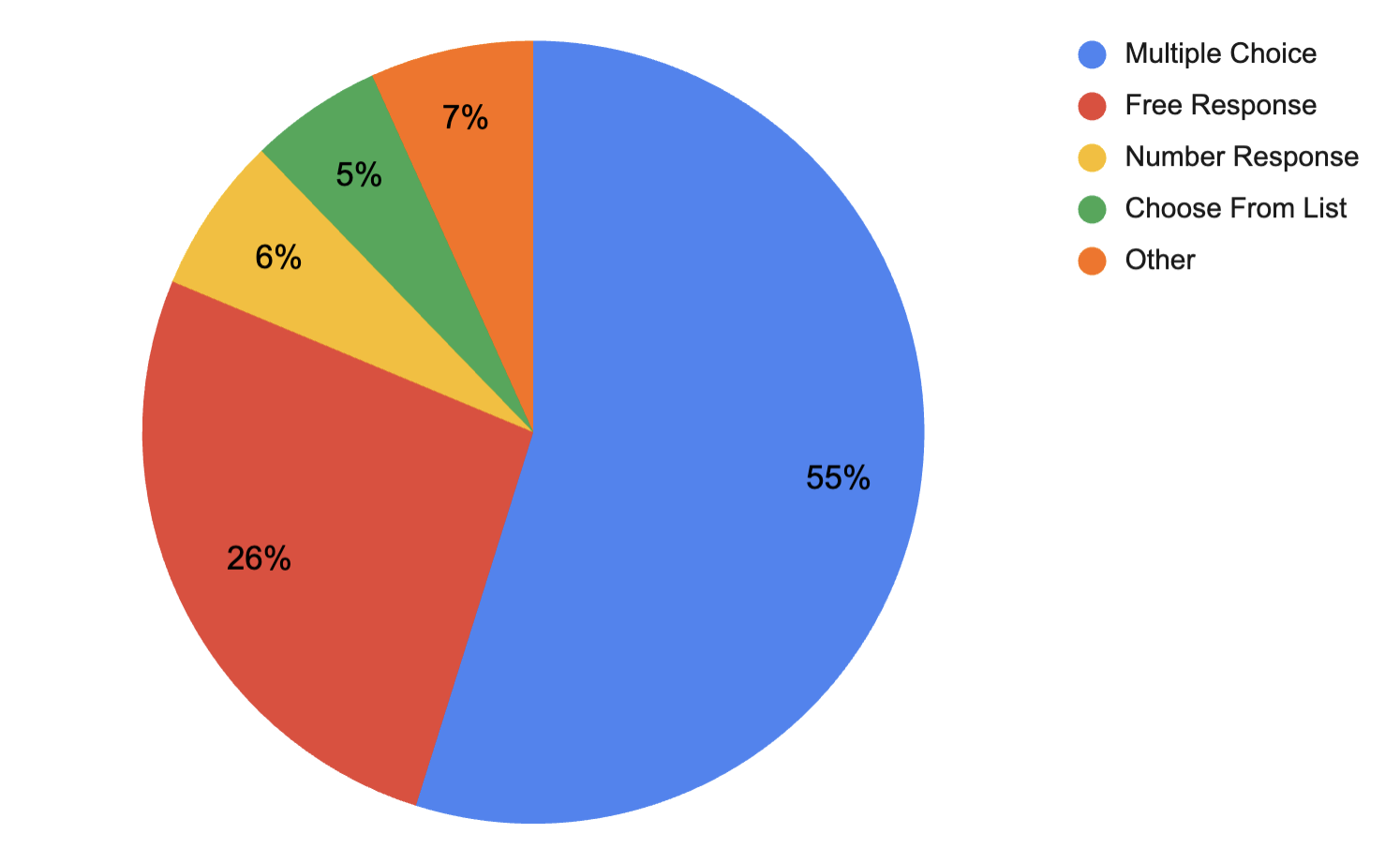
Multiple Choice and Free Response are the quickest ways to check knowledge with a score, which is what training and education videos need. A score also gives you evidence that goes beyond a completion record. Totara's guide to measuring the success of an LMS makes a related point: completion alone does not show whether learners gained new knowledge, skills, behaviors, or confidence.
How to choose a question type
Start from what the viewer must do to prove the point, then pick the type that asks for exactly that:
- To grade the answer, use one of the six scored types: Multiple Choice, Choose All That Apply, Dropdown Select, Free Response, Number Response, or Date Response.
- When there are many possible answers, use Dropdown Select. When you cannot predict the answers, use Free Response.
- When the answer is a place on the screen, use Drawing Response.
- When the answer is something the viewer says or does, use Video Response or Voice Response.
- To measure how viewers feel, use Rating or Likert Scale. Use Display Poll when viewers should see how others answered.
Mix closed and open questions in one video. A Multiple Choice question right after a concept checks that viewers followed it, and a Free Response or Voice Response question at the end of a section asks them to apply it. Place each question right after the idea it tests, while the explanation is still fresh.
Question types for training, education, marketing, and sales
In workplace training, scored questions are the evidence a compliance team keeps. Use Multiple Choice and Choose All That Apply for rules, Number Response for values, and Drawing Response for spotting hazards. Video Response suits customer-service and sales practice, where an instructor needs to see how the learner responds.
In education, questions inside a lecture video work as quick formative checks, and students get feedback while the lesson is still on screen. Drawing and Image Response suit diagrams, maps, and handwritten work. Voice Response suits language classes. Our explainer on formative assessment in education covers how to use the results.
In marketing and sales, questions collect information instead of testing it. Multiple Choice and Dropdown Select find out what a viewer needs, and each answer can send them to the matching part of a product tour. Choose All That Apply records every interest at once. To see these in finished videos, play the video quiz example and the product quiz example, or browse our list of interactive video examples.
How to add questions to a video
In the Mindstamp editor, move the playhead to the moment you want to ask, click Question in the interaction bar, choose a type, and write the prompt and answers. The settings on each question control skipping and add options such as a hint or a time limit. The time limit does not apply to Rating or the four media types. Our step-by-step guide to creating an interactive video quiz covers correct answers, feedback, and what a wrong answer does, and the question setup guide lists every setting.
You can also draft questions with AI. The AI question builder reads the video's transcript and writes up to 20 multiple-choice questions for you to review. See how to turn any video into a quiz with AI. If you already have questions in a spreadsheet, the CSV import supports all 13 types.
Common questions
What are video questions?
The term has two meanings. A video question can be a question that appears inside a video and pauses it until the viewer answers. It can also be a question the viewer answers by recording a video. Mindstamp supports both: every question type pauses the video, and Video Response collects a recorded answer.
Which question types can be scored?
Six: Multiple Choice, Choose All That Apply, Dropdown Select, Free Response, Number Response, and Date Response. The other seven record the answer without a score and do not count toward the viewer's quiz score.
Can a question stop the video until the viewer answers?
Yes. Every question pauses the video. Turn off Allow skipping to require an answer, and turn on Prevent passing required interactions in the video's settings so viewers cannot seek past a question they have not answered. See stopping viewers from skipping ahead.
Can I use these question types in a survey?
Yes. Leave the correct answer empty, and Mindstamp records each response without a score. Rating, Likert Scale, Display Poll, and Free Response are the usual survey types. Our guide on how to create a video survey walks through the setup.
Pick the question type for your next video
Open one video you already use and write down what a viewer should know or do after each section. For each one, choose the type that makes the viewer show it: a choice, a typed value, a rating, or a recording. Add the questions, test them from the share link in a private browser window, and read the answers under Questions in Reporting.
Sources and further reading
- Using Effective Questions, Cornell University Center for Teaching Innovation: why and how to ask closed and open questions in teaching.
- Likert scale, QuestionPro: definitions and examples of 5-point and 7-point scales.
- VoicePower online dictation courses: e-learning courses in speech recognition and dictation software.