Brett Lindenberg
To turn a video into a quiz with AI, give the AI the words spoken in the video. Create a transcript, ask an AI question builder for the number of questions you want, check every draft against the video, and save the ones that are right. In Mindstamp, the AI question builder writes up to 20 multiple-choice questions from the transcript and spaces them through the video. Each saved question pauses the video when it appears and records every viewer's answer, so the quiz runs inside the video instead of on a separate page. In the 90-second recording below, we turn an economics lesson into a five-question quiz with the builder.
How to turn a video into a quiz with AI in Mindstamp
The AI does steps 4 and 5 for you. Steps 2 and 6 decide whether the quiz is accurate, so give them most of your time.
Step 1: Use a video with clear narration
The AI question builder reads the transcript, which is the text of what people say in the video. It does not see the picture. A lecture or a product demo with voice-over works well. A video with only music and on-screen text gives the AI nothing to read, and so does a silent screen recording. Write those questions yourself. A product quiz designed in Canva is a common example, and our guide to the Canva interactive video product quiz builds one with clickable hotspots instead.
Transcripts work for videos you upload and for MP4 links. A video that plays from YouTube or from an HLS link cannot have a transcript, so upload the original file instead (see using YouTube videos in Mindstamp).
Step 2: Create and correct the transcript
Open the video, select Transcript in the video menu, and select Create Transcript. It usually takes about half the length of the video. Then read it and fix the words it misheard, especially names and numbers. The AI writes its questions from this text, so a misheard number can end up in a question or in its correct answer. Transcripts are on every plan (see how video transcripts work).
Step 3: Open the AI question builder
The builder is on every plan. It opens from three places in the editor:
- Create Quiz, below the list of interaction types, while the video has no interactions
- Generate questions, next to Edit and Download on the Transcript page, at any time
- Generate Questions with AI, inside a new question, while the video has a transcript and no saved questions
Step 4: Choose how many questions
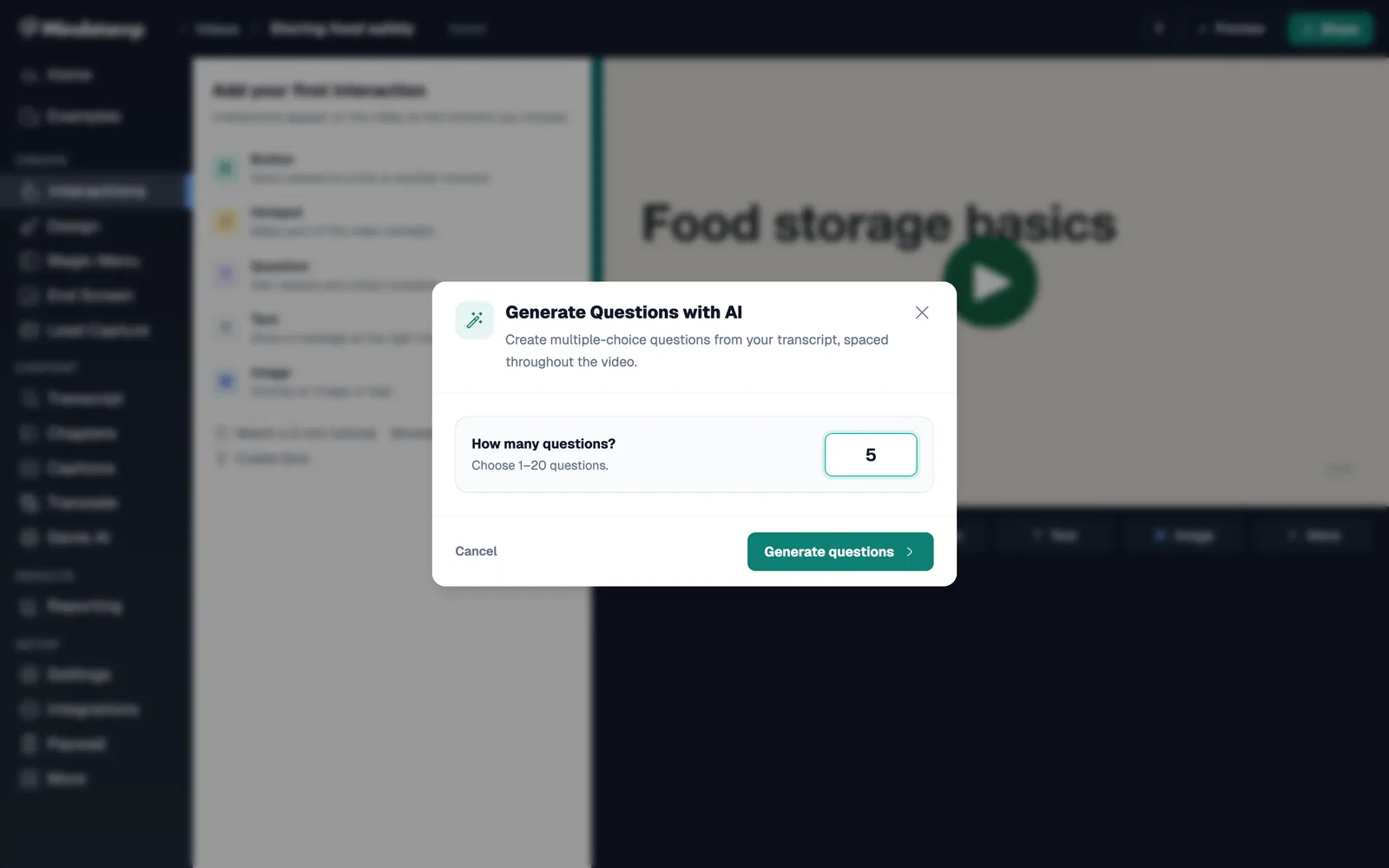
Under How many questions?, enter a number from 1 to 20 and select Generate questions. A progress bar counts the questions as the AI writes them. The builder spaces the questions evenly and writes each one from the part of the transcript around its place in the video. A 10-minute video with four questions gets one at about 2:00, 4:00, 6:00, and 8:00. The builder writes in the language of the transcript when it is English, Spanish, Portuguese, French, Italian, or German, and in English for any other language. As a starting point, our free video quiz generator suggests one question every two to three minutes, so a 5-minute video often has two or three.
Step 5: Review the drafts and save
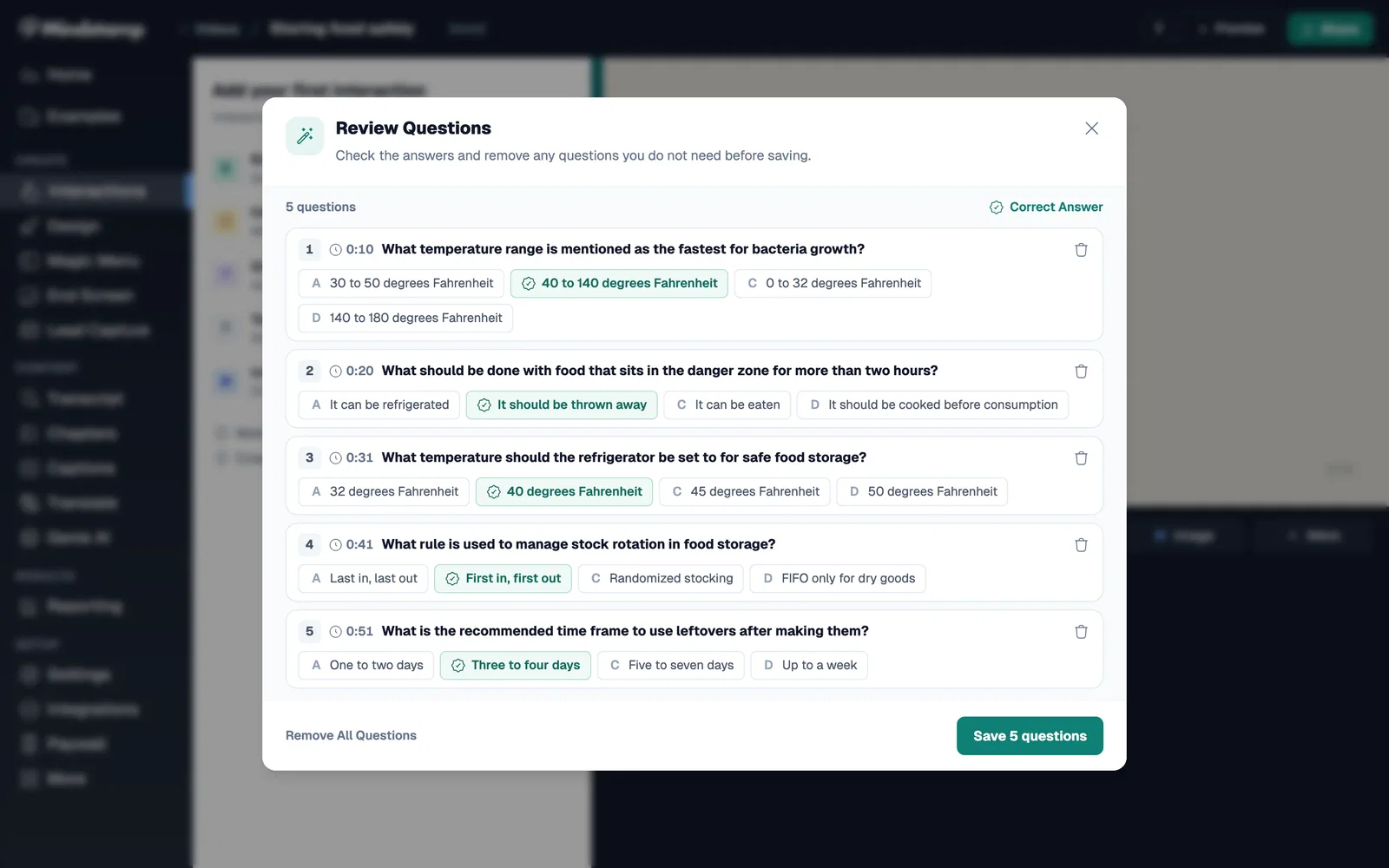
Each draft shows its time, the prompt, and three to five answer choices with the correct one marked. Remove any question you do not want, or select Remove All Questions and generate again with a different number. Then select the Save button, which shows the number of questions it will add. The saved questions appear in the interaction list as ordinary Multiple Choice questions, each with a correct answer.
Step 6: Edit each question and decide what happens next
Open each saved question and treat it as a first draft:
- Move it to just after the narrator finishes the idea it tests. Even spacing can put a question a few seconds before the answer is said.
- Rewrite the prompt in the terms your viewers use, and check that one answer, and only one, is correct.
- Give each wrong answer a Show Message action that explains the right one, or use Change Time to send viewers who choose it back to the explanation.
- Turn off Allow skipping on questions every viewer must answer.
The AI writes multiple choice only. For a typed answer or an answer recorded on camera, add those questions yourself from the other 12 question types. Our guide to creating an interactive video quiz covers the other types and the reports in full.
Step 7: Test the quiz and share it
The editor preview does not save normal responses, so open the share link in a private browser window. Answer one question right and one wrong, then check that both answers appear under Questions in Reporting. Then share the link or embed the video. For an LMS, download a SCORM package (SCORM export is on Core and higher plans).
What the AI question builder does and what you do
| Task | AI question builder | You |
|---|---|---|
| Read what is said | Reads the transcript | Fix transcript errors before you generate |
| Read what is shown | Cannot see slides, on-screen text, or demonstrations | Write questions about what the viewer must see |
| Write questions | 1 to 20 multiple-choice questions per run, each with one correct answer | Check each one, and add other question types by hand |
| Place questions | Spaces them evenly, and puts new ones in the largest gaps when the video already has questions | Move each one to just after its idea |
| Feedback and rules | Sets the correct answer only | Add explanations, branching, and required questions |
When you run the builder, Mindstamp sends the transcript to an AI model provider to write the questions. The account-level AI settings switch controls Mindstamp MCP. It does not control question generation, which runs only when you use it. For a security review, see how Mindstamp's AI features handle your data.
How to check AI-generated quiz questions
Research on AI-written test questions supports a careful review. A 2024 systematic review in BMC Medical Education found eight studies of medical exam questions written by large language models, and every study reported some faulty questions that were unfit for an exam (Artsi and colleagues, 2024). In a 2024 study in Academic Medicine, 161 students answered questions on the same learning objectives, some written by an experienced educator and some by ChatGPT 3.5. The two sets did not differ significantly in difficulty, but the educator's questions separated stronger students from weaker ones better (Laupichler and colleagues, 2024). A 2026 review in PLOS One found that ChatGPT 4 questions came close to human ones on relevance, clarity, and wrong-answer quality, with very low certainty in the evidence (Riehm and colleagues, 2026).
Check each draft for these problems before you save it:
- The marked answer is wrong according to the video, or a second choice could also be defended.
- The question tests a detail nobody needs. When an earlier version of the builder ran on our own 41-second announcement, one draft asked how many clicks the feature takes.
- The wrong choices are easy to rule out. Good ones are believable to a viewer who half followed the video, and all choices are about the same length.
- The wording differs from the terms in your course, product, or policy.
Can AI watch a video and answer questions about it?
For questions your viewers ask, Genie AI does this inside the Mindstamp player. It answers only from the video's transcript and the supplemental notes you add, and when those do not contain the answer, it says so instead of guessing. The Genie AI tab lists every question viewers asked with Genie's answer, and you can filter to the unanswered ones to see what the video leaves out. Like the question builder, Genie works from the transcript, so it cannot describe what appears only on screen. Genie AI is on Core and higher plans. See what Genie AI does and our guide to adding an AI assistant to a video.
The recording at the top of this page uses both features on one lesson. After the builder writes the five-question quiz, we ask Genie how low supply affects demand.
Other ways to make a quiz from a video with AI
Pick the route by where the answers need to end up.
| Your goal | Route |
|---|---|
| A quiz inside the video, with each viewer's answers in a report | The AI question builder in Mindstamp |
| A list of questions to paste into a document, a slide, or an LMS quiz | Our free video quiz generator. Paste a transcript, choose the number of questions, the difficulty, and the question types, then copy the questions or download them as CSV or plain text. It needs no account and does not store your transcript. |
| Short checks placed at the moments that teach | Our free video knowledge check generator |
| Answers to the questions viewers ask | Genie AI in the Mindstamp player |
Other platforms offer AI video quizzes too. Wayground, the new name for Quizizz, lists on its homepage that you can add questions to any video, your own or one found online, and says its AI finds the pause points and writes the questions (Wayground, checked October 2026). For side-by-side comparisons, see Mindstamp vs Edpuzzle and PlayPosit, and our roundup of video assessment tools.
Is there a tool to create interactive course videos with quizzes?
Yes. An interactive video platform such as Mindstamp puts the quiz inside each course video, so questions appear while the lesson is on screen. For a course with several videos:
- Put the videos in one playlist, and turn on Show learner progress if learners watch from the playlist page.
- Identify each learner the same way on every video, with lead capture, a personalized link, or an email address in the link.
- Export a Completion report from Reporting to get one row per learner, with a score for each video.
- If the course runs in an LMS, download each video as a SCORM package: SCORM 1.2, SCORM 2004 3rd edition, or SCORM 2004 4th edition, on Core and higher plans. The LMS then receives completion and a score for each learner.
Our help articles on tracking a course from the first video to the final report and SCORM export give the details. For course design, see assessments inside the lesson and our guide to online quizzes for corporate training.
Common questions
Can AI make a quiz from a YouTube video?
Not with Mindstamp's AI question builder while the video plays from YouTube. Mindstamp supports YouTube links for testing only, and a YouTube-based video cannot have a transcript. Upload the original file or link an MP4, create the transcript, and then run the builder. If you only need a list of questions, paste the video's transcript into the free video quiz generator.
Can I run the AI question builder again after I add my own questions?
Yes, from the Transcript page. The builder places the new questions in the largest gaps between your existing ones, and it avoids testing a fact that an existing question already covers.
Are AI-generated questions scored?
Yes. Each one is a Multiple Choice question with a correct answer, so it counts toward each viewer's score like a question you wrote yourself. Reports show every answer and the share of each viewer's answers that were correct.
Do video quizzes work for formative assessment?
Yes. A question placed right after an idea gives the student feedback while the lesson is still on screen. It also shows you which ideas students missed before the next class: open the Questions report and start with the questions most viewers got wrong. See our explainer on formative assessment in education.
How do I create a video response quiz?
Add a question and set its type to Video Response. Viewers record an answer on camera in the browser for up to 120 seconds, with nothing to install. The AI does not draft these questions, and video answers are not scored. Our interactive video quiz guide covers video response quizzes step by step.
Turn your first video into a quiz
Pick a narrated video your viewers already watch. Create the transcript, fix the terms it misheard, and ask for one question per two to three minutes of video. Keep the drafts that test what matters, move each one to just after its idea, and give every wrong answer a one-sentence explanation. Send the link to a few viewers, then read the Questions report to find the question most of them missed. To try a finished quiz first, play the video quiz example.