How do I publish a video and check it on a phone?
Short answer
Publish the video, place the Responsive embed code on your page, and test on a real phone in portrait and landscape. Check that every interaction is easy to tap, that fullscreen and captions work, and that the share link opens the interactive video from email and social apps.
How to do it
Copy link to How to do it- Open the video, select Share, and select Publish Video if the video is not yet published.
- Under Embed, choose Responsive and select Copy embed code. Paste it into an HTML or custom code block on your page and publish the page.
- On a phone, open the page in the default browser. Do not sign in to Mindstamp on that phone.
- Play the video in portrait. Tap every button, hotspot and question answer. Then turn the phone to landscape and play again.
- Tap the fullscreen control. Check that the interactions still show in fullscreen.
- Turn on captions with the player’s captions control and check that they are readable over your interactions.
- Copy the share link and send it to yourself by email and in one social or chat app. Open it from each app on the phone.
- Open Reporting for the video and find your test views.

Expected result
Copy link to Expected result- The player fills the width of the page and keeps its shape. It does not overflow the screen or need sideways scrolling.
- Every interaction shows and responds to one tap. Questions pause the video until you answer.
- The share link opens the interactive video in the phone’s browser or the app’s built-in browser, not a flat video.
- Your test views show in Reporting. Views you make in the editor preview are not stored as normal viewer responses, so always test from the published link or embed.
If something is wrong
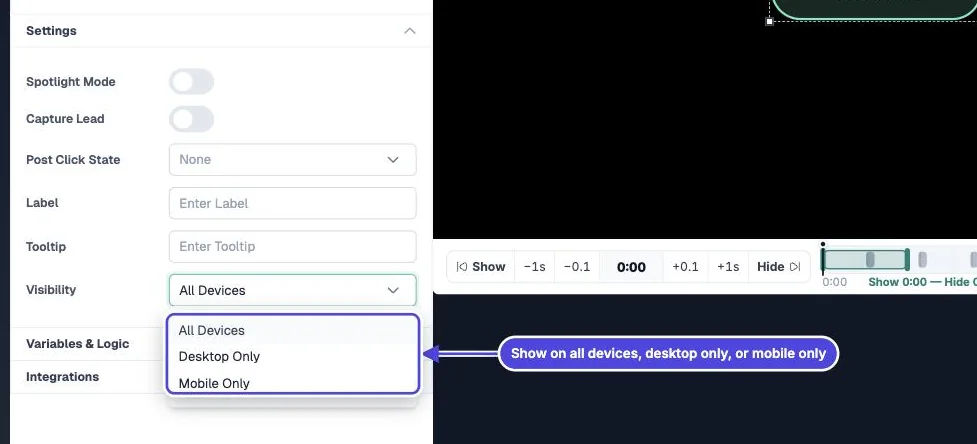
Copy link to If something is wrong- An interaction is missing on the phone: open the interaction in the editor and check its device setting. Desktop Only hides it on phones. Set it to All Devices.
- Buttons are too small or overlap: make the button larger or move it away from the edges. Phone screens show the video much smaller than your editor does.
- The player is too short for a vertical video: the responsive code uses a 16:9 box. For a 9:16 video, change `aspect-ratio:16/9` to `aspect-ratio:9/16` in the style of the code. See vertical videos.
- Fullscreen does not work on iPhone: iPhone browsers limit fullscreen for embedded players. See why a video cannot go fullscreen.
- Open fullscreen: on the Share page, select Allow fullscreen before you copy the link or embed code. The video then tries to go fullscreen when the viewer presses play, on devices that allow it.
- The video will not start by itself: phones block autoplay with sound. See autoplay.
- The video does not load inside your page: if your account has a list of allowed embed domains, add your site’s domain. See restrict embed domains.
Share links in social apps
Copy link to Share links in social appsSocial and chat apps usually open links in their own built-in browser. The interactive video works there. If you upload the video file to the social network instead of posting the link, it plays as a flat video with no interactions and no Mindstamp data.