How do I translate an interactive video into another language?
Short answer
Open the video and select Translate. Choose Interactions only to translate buttons, questions, forms, hotspots, text and player text for free on every plan, or Full audio dub to also add translated audio, captions and a transcript. Pick the languages and submit. One share link then serves every language.
How to do it
Copy link to How to do it- Open the video and select Translate in the left menu.
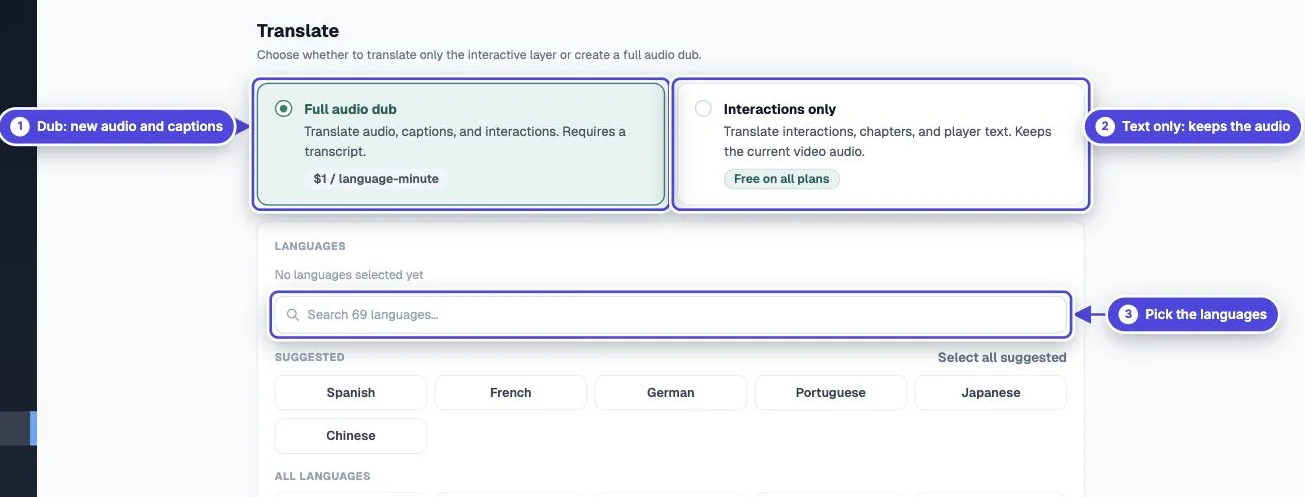
- Choose Interactions only or Full audio dub.
- For Full audio dub, the video needs a finished transcript. Check and edit it first on the Transcript page.
- Select one or more of the 57 languages. Some also come in regional versions, such as Portuguese (Brazilian) and Spanish (Mexico). Use the search box, or Select all suggested.
- For a full dub, choose a voice and preview it.
- Add protected terms, such as product names, brand names or acronyms that must stay unchanged. Type each term and press Enter.
- Check the cost summary, then submit. Interactions-only jobs take a few minutes. Dubbing takes about 4 minutes per language.
- Test: open the share link with ?lang= and a language code at the end, such as ?lang=es. Expected result: buttons, questions and player text show in that language, and a dubbed video plays the translated audio.
What is translated
Copy link to What is translated- Interactions only: buttons, questions, forms, hotspots, text overlays, labels and player text. The original audio stays. No transcript is needed. Free on every plan.
- Full audio dub: everything above, plus a new audio track, captions and a transcript in each language. The new track has only the translated voice, so the original music and sound effects are not in it. Viewers who keep the original language hear the original audio.
- Variables such as {{NAME}} and your protected terms stay unchanged.
How viewers get their language
Copy link to How viewers get their language- The player uses the viewer's browser language when a matching translation exists.
- Viewers can change the language in the player.
- You can share a link for one language by adding ?lang= and a language code, such as ?lang=fr.
- If no translation matches, the video plays in its base language.
Edit the player text yourself
Copy link to Edit the player text yourselfOpen Design and go to Translations, then select Show Translations. Set the Base language of the video, then use Edit text for language to change any piece of player text, such as button prompts, form labels and certificate text, for one language.
Change a translation later
Copy link to Change a translation laterIf you edit an interaction after you translate, run the translation again for the languages you need. The Translate page warns you when a language already has a translation and will be overwritten. Review AI output before you share, especially for legal, medical or safety content.