What accessibility features does Mindstamp offer?
Short answer
The Mindstamp player and its interactions support captions, keyboard operation and screen reader labels. You can also add a searchable transcript, have questions and messages read aloud in a generated voice, and show player text in the viewer's language. Test each video against your own accessibility requirements before you share it.
How to do it
Copy link to How to do it- Add captions to the video on the Captions page by uploading an SRT or VTT file.
- Add alt text: give each image and hotspot a caption. Mindstamp uses it as the text that screen readers announce.
- For questions, turn on Speak Question in the question settings and choose a voice.
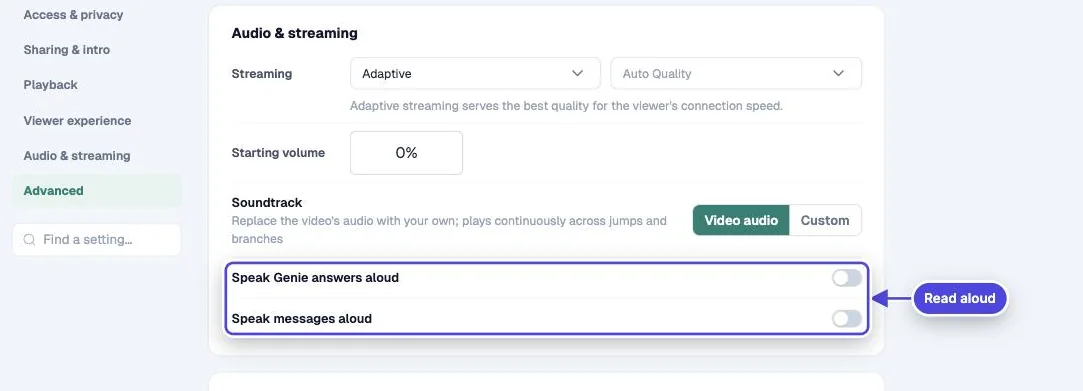
- To read messages aloud, turn on Speak messages aloud in Settings > Audio & streaming.
- Test: play the video with only a keyboard (Tab, Enter and Space) and with a screen reader. Expected result: you can reach and use every button, hotspot and question, and each one has a clear name.
Built into the player
Copy link to Built into the player- Buttons are real buttons, so keyboards and screen readers can use them.
- Hotspots can be reached with the Tab key and are announced with their caption, position and action.
- Images use their caption as alt text.
- Player controls, question text and forms use ARIA roles and labels.
- Player text can show in the viewer's language when a translation exists.
Features you add
Copy link to Features you add- Captions: upload SRT or VTT caption files, shown in the player. A full audio dub also adds captions in each language.
- Transcript: readable and searchable next to the player.
- Speak Question: reads questions and answers aloud in one of 13 generated voices. The voice is made when you save the question, so every viewer hears the same voice.
- Speak messages aloud and Speak Genie answers aloud: read messages and Genie answers aloud.
Choices that affect accessibility
Copy link to Choices that affect accessibility- Do not hide all player controls unless the video has another way to pause and move on.
- Use Prevent pausing only when you must. Viewers who need more time cannot stop the video.
- Keep strong contrast between text, buttons and the video behind them.
- Do not use color alone to show a correct or wrong answer.
Conformance statements
Copy link to Conformance statementsMindstamp does not publish a WCAG conformance level or a VPAT. If your procurement needs one, contact the team with your requirements.