
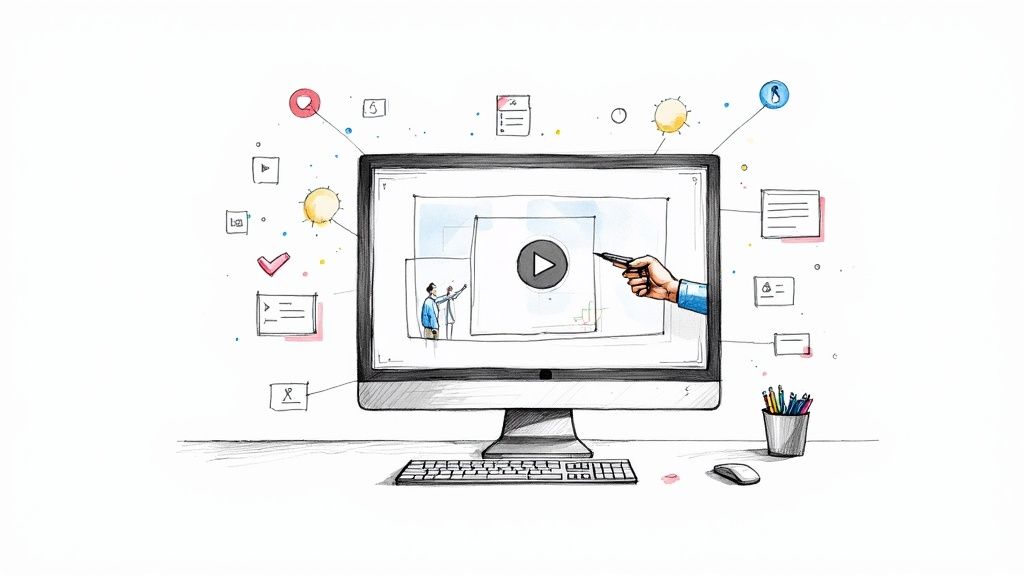
Text Overlay on Video for Corporate Training


A text overlay on video is simply written content placed directly onto your video footage. But in corporate training and development, it's so much more than that. It’s the tool that transforms passive viewing into an active learning experience, helping you highlight critical information, reinforce key concepts, and make your training content stick. With an interactive video platform like Mindstamp, you can create engaging, interactive learning and training content that drives real results.
Why Text Overlays Are a Game Changer for Training
Let's be honest—most traditional training videos struggle to hold an employee's attention for long. A lengthy, droning presentation is a one-way ticket to zoned-out team members and forgotten information. Strategic text overlays completely change this dynamic, turning a basic video into a powerful instructional tool that boosts interaction and knowledge retention.
This isn't just about adding fancy title cards. It's about creating a more effective and measurable learning environment for your workforce.
Imagine a safety training video for new machinery. As the instructor demonstrates a procedure, a bold text overlay pops up: "CRITICAL STEP: Engage safety lock before maintenance." That visual cue instantly drives the point home, making the most important takeaway impossible to miss and ensuring compliance.
Reinforcing Key Learning Objectives
At its core, a text overlay on video is all about emphasizing what truly matters in your training module. You're giving learners the information through two channels at once—audio and visual—which is proven to significantly improve their ability to recall it later. This is especially true for complex or highly technical subjects common in corporate development.
For instance, a leadership development module could use overlays to:
- Summarize a core management principle right as it's being explained.
- Display a key statistic from a recent company survey on employee engagement.
- Pose a reflective question that prompts the viewer to pause and consider how they'd apply the concept.
Increasing Comprehension and Accessibility
Text overlays also knock down some major barriers to learning in a corporate setting. You might be surprised to learn that 85% of videos on some platforms are watched with the sound off. In today's flexible work world, employees could be watching training content on a noisy commute or in a busy open office. Overlays ensure your message gets through, no matter the audio situation.
By providing visual reinforcement, text overlays ensure that every employee, regardless of their learning style or viewing environment, receives the full impact of the training message. It's a fundamental step toward more inclusive and effective corporate education.
This approach also makes your training far more accessible to employees with hearing impairments. While they aren't a full substitute for closed captions, overlays provide crucial context and highlight the essentials, ensuring no one is left behind.
And the best part? Platforms like Mindstamp make it incredibly simple to add these valuable layers to your learning and training content without needing any complex video editing skills. The result is a more engaged, knowledgeable, and capable workforce.
Designing Text Overlays That Actually Work
Let's be honest: a bad text overlay can completely derail an otherwise great training video. Instead of clarifying a point, it becomes a cluttered, confusing mess that distracts the learner. The real goal is to make your text feel like an organic part of the video—a helpful guide, not an annoying pop-up.
This means you need to think through every detail, from the font you pick to exactly where and when the text shows up on screen. Let's dig into the practical side of making your text overlays clear, professional, and genuinely useful for corporate learning.
Choosing Your Font and Color Palette
The right font instantly sets a professional tone. While it can be tempting to get fancy with a stylized script, readability is always king in training materials. Stick with clean, sans-serif fonts like Arial, Helvetica, or Lato. They’re designed for screens and make it easy for your employees to quickly grasp the information.
Color and contrast are just as crucial. Your text has to stand out against the video playing behind it. The simplest rule is light text on a dark background, or dark text on a light one. To see this in action, check out some strategies for impactful short-form video ads—they are masters of using high-contrast text for maximum impact.
If you're using your company's official brand palette, make sure you test it for contrast against various video backgrounds. Sometimes all you need is a subtle drop shadow or a semi-transparent background box to make your text pop without looking clunky.
To nail this every time, you need a solid grasp of what works and what doesn't.
Quick Guide to Readable Text Overlays
Here's a practical comparison of effective vs. ineffective design choices to ensure your training video text is always clear and professional.
Getting these basics right is the first step toward creating overlays that help, not hinder, the learning process.
The most effective text overlay on video is one that learners barely notice as a separate element. It should feel so integrated and clear that it simply enhances their understanding without demanding extra cognitive effort to decipher.
Mastering Placement and Timing
Where you put the text and when you show it matters just as much as what it looks like. Bad placement can hide important visuals, and poor timing can leave your learners feeling rushed or confused.
Strategic Placement:
- Lower-Thirds: This is your classic go-to for corporate videos. Placing text in the bottom third of the screen is perfect for speaker titles, key terms, or quick facts without getting in the way of the main action.
- Corner Callouts: Got a quick tip or a side note? Tuck a small text box into a corner. It’s there if an employee needs it but doesn’t scream for attention.
- Full-Screen Graphics: These are great for creating a clear visual break. Use them to introduce a new training module, summarize key takeaways, or pose a question directly to the viewer.
Timing is all about rhythm and reinforcement. A great rule of thumb is to have text appear just after the narrator makes the point. Then, leave it on screen long enough for an average person to read it twice. This simple technique accounts for different reading speeds and really helps the information stick. If you want to go deeper on this, exploring the core principles of multimedia learning will give you a solid foundation.
Writing Concise and Powerful Overlay Text
Remember, your overlay is not a teleprompter. The text needs to be incredibly brief, serving as a signpost that reinforces what's being said. Think more like a headline writer, not a training manual author.
Here are a few habits that will make your overlay text much more effective:
- Stick to Keywords and Phrases: Instead of writing out a full sentence, just pull out the most important words. If the narrator says, "It's essential to ensure the backup power generator is activated within 30 seconds," the overlay should be much punchier, like: "Activate Backup Generator: Within 30 Seconds."
- Lead with Action: Whenever you can, start with a strong verb. Phrases like "Confirm Settings," "Review Checklist," or "Ask Your Manager" are direct and tell the employee exactly what to do.
- Break Down Complex Ideas: If you're explaining a multi-step process, don't throw a giant wall of text on the screen. Instead, use multiple, timed overlays. Introduce each step visually as it's being discussed. It’s far less overwhelming and much easier to follow.
Alright, let's get down to business. Theory is great, but putting it into practice is where you'll really see the power of text overlays. The good news? You don't need a fancy graphic design degree or years of video editing experience to get started. With an interactive video platform like Mindstamp, adding your first text overlay is surprisingly simple, letting you focus on what really matters: your training content.
This guide will walk you through the basics so you can jump right in and start making your videos more effective, right away.
Getting Your Video Ready to Go
First things first, you need to get your training video into the platform. This is the easy part. Whether you've got a safety demo, a new hire orientation, or a leadership seminar, you can just upload it directly to your Mindstamp library. The platform handles most common video formats, so you can usually just drag and drop your .mp4 file and be on your way.
After a few moments of processing, your video will pop up in your dashboard. Now it’s ready for you to transform into an interactive learning experience.
The interface is clean and designed to be intuitive. You won't be digging through menus for hours. This is key for training managers who need to create great content without getting bogged down in technical details.
Finding and Using the Text Tools
Once your video is loaded in the editor, you'll see your creative canvas. Look along the video timeline for the interaction options. You’ll want to find the "Text" or "Comment" tool—this is where you'll add your overlay.
Clicking it will bring up a simple text box right on your video preview. From here, you just type out your message. Imagine you're in the middle of a compliance training module. You could pause the video at a critical moment and add an overlay that says, "REMINDER: All client data must be encrypted before sharing."
This is also where you'll start applying those design principles we talked about. Tweak the font, size, and color to make sure it's easy to read and fits your brand. Getting a feel for how text overlays work in different contexts, like with specialized YouTube live stream software, can also give you a broader perspective on their power.
Customizing and Styling Your Overlay
A plain text box gets the job done, but a styled one looks professional and reinforces your corporate identity. Mindstamp gives you the controls to make your overlays feel like a natural part of the video, not just something slapped on top. This is your chance to align everything with your company's brand guide.
Here are a couple of real-world scenarios for a sales training video:
- Introduce a Speaker: When a new sales leader comes on screen, add a lower-third overlay with their name and title. Pick a clean, professional font and tuck it neatly into the bottom-left corner.
- Highlight a Key Feature: During a product demo, you could add a small, bold text overlay next to a specific button that reads "One-Click Reporting" to really draw the viewer's attention.
The ability to fine-tune the visual style of your text is what separates amateur video from professional training content. Consistent branding and clear, readable text build credibility and keep learners focused on the material.
As you get more comfortable, you can explore more advanced styling. For a deeper dive into making your text a perfect match for your brand, check out our guide on how to change the color or design of text comments in Mindstamp. This will help you set up default styles so every video your team produces has that cohesive, polished feel.
By following these initial steps, you've already mastered the core skill of adding a value-driven text overlay on video.
Beyond Static Text with Interactive Overlays
Standard text overlays are a great start—they help reinforce key messages and add context. But the real magic happens when they stop being static labels and start being interactive. This is where you graduate from simply showing information to truly engaging your learners.
With an interactive video platform like Mindstamp, a text overlay transforms into a dynamic gateway. It's no longer just a piece of text on the screen; it's a launchpad for deeper learning and personalized paths through your training content.
Think about a sales training video for a new product. A static overlay might just list a feature. An interactive one, however, could let a salesperson click that text to pull up detailed specs, customer testimonials, or a direct link to the right page in the sales playbook. Suddenly, the learning experience is richer, self-directed, and far more practical.
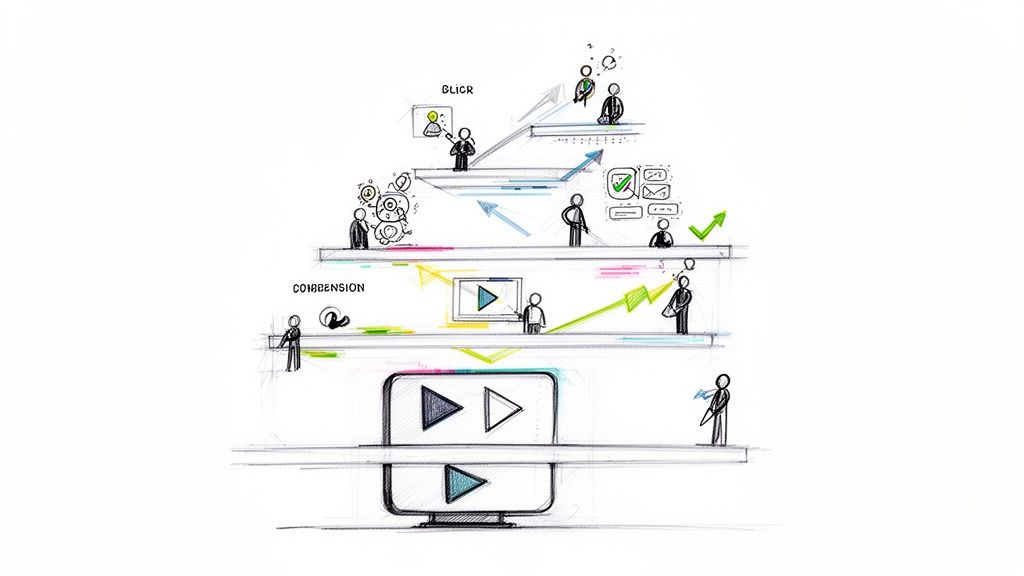
From Passive Viewing to Active Participation
The biggest win with interactivity is turning a passive viewer into an active participant. Instead of just sitting back and watching, your employees are now making choices, seeking out information, and applying what they've learned in the moment. This seemingly small shift has a huge impact on both engagement and knowledge retention.
Take a compliance module, for example. You can have a text-based question pop up on-screen right after a segment explaining a new data privacy policy. Based on the employee's answer, you can use branching logic to create two different paths:
- Correct Answer: The video moves on to the next topic, maybe with a quick "Correct!" overlay to build confidence.
- Incorrect Answer: The video automatically jumps back to a short, focused clip that re-explains the specific concept they struggled with.
This creates a personalized, real-time feedback loop right inside your training content, ensuring nobody moves on without mastering the critical information.
Implementing Clickable Hotspots and Branching
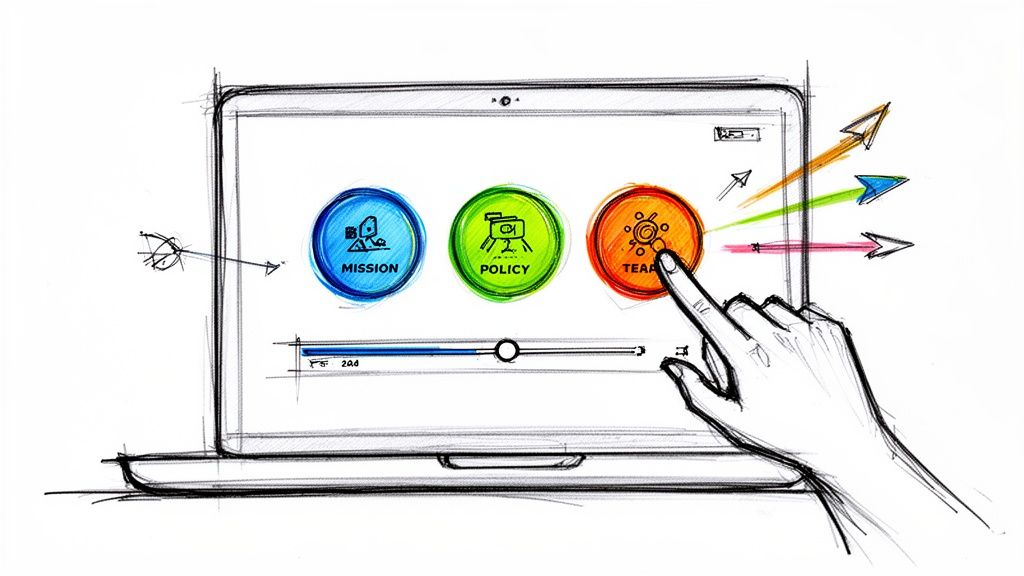
A clickable hotspot is essentially an interactive text overlay that performs an action when a viewer clicks it. In Mindstamp, you can set up these hotspots to do all sorts of things, turning your video into a rich, resource-filled learning environment.
For instance, during a new hire onboarding video, you could use text hotspots to:
- Define Jargon: An overlay appears with a company acronym. Clicking it opens a small pop-up with the full definition. No more confused new hires.
- Link to Resources: A segment on employee benefits could feature a clickable "View Benefits Portal" overlay that opens the HR website in a new tab.
- Reveal More Information: In a software tutorial, a text overlay could say "Advanced Tip." Clicking it reveals another text box with a power-user shortcut, keeping the main video clean and uncluttered for beginners.
Deciding which type of overlay to use at each moment is a key part of the instructional design process.
This kind of planning helps you choose the right tool for the job, whether your training video needs a simple intro title, a detailed topic explanation, or just some clean branding.
The move toward more engaging video isn't just a hunch; the numbers back it up. Video is expected to make up roughly 82% of all internet traffic by 2025, and video ad spending is projected to soar past $190 billion. This boom is happening because it works. Companies have seen up to a 12x increase in conversion rates from video ads that use features like text overlays, which help convince 89% of consumers to consider a product after watching. You can dive deeper into what these trends mean for your strategy over on sundaysky.com.
Interactive overlays aren't just fancy features; they're powerful instructional design tools. They let you build adaptive learning paths where employees control the pace and depth of their own training, which leads to much greater confidence and comprehension.
Branching logic is the next level. It lets you create completely different viewing experiences based on how a learner answers a question or which option they choose from a text menu. This is a game-changer for tailoring training content to different roles or experience levels.
Imagine a single "New Manager Training" video. It could start with a text overlay asking, "Have you managed a team before?" A "Yes" click could skip the fundamentals and jump straight to advanced topics, while a "No" click walks them through the introductory modules. You get to respect the time of your experienced leaders while still giving new ones the support they need—all within the same video.
Using Analytics to Improve Your Training Videos
So you've created an engaging, interactive training video. That's a great start, but it's really only half the job. How can you be sure it’s actually landing with your team? A well-placed text overlay is a fantastic tool, but its true power is only unlocked when you dig into how your employees are interacting with it. Data is what turns your creative effort into measurable training results.
This isn't just about counting who watched the video. It's about going deeper to understand comprehension, pinpoint where people are getting stuck, and consistently make your training content better. With a platform like Mindstamp, every single click and answer becomes an actionable data point.
But before you can analyze anything, you have to make sure everyone can access the content in the first place. Text overlays are a cornerstone of inclusive design, making sure key information gets across to employees in loud environments or to those with hearing impairments. When you commit to accessibility, you ensure your data reflects your entire workforce, which makes the insights you gather truly meaningful.
What to Track and Why It Matters
Once your training is accessible to everyone, it’s time to look at the numbers. View counts alone tell you almost nothing about learning effectiveness. The real story is hidden in the interactions. You need to know what your team is doing while they watch.
Here are the essential metrics you should be monitoring:
- Interaction Clicks: Which text overlays are people clicking on most? This is a dead giveaway for what resources, definitions, or extra details your team finds most helpful.
- Question Responses: Tracking how employees answer in-video questions gives you a direct window into their understanding. If a high number of wrong answers occur on a specific topic, that’s a clear signal to revise that section.
- Viewer Drop-Off: At what exact point in the video are you losing people? Analytics can show you the precise moments where engagement nosedives, helping you spot segments that are confusing, boring, or just too long.
By zeroing in on these specific data points, you can shift from just guessing what works to building a training strategy driven by hard evidence.
The goal of analytics isn't to generate pretty reports; it's to create a feedback loop. The data from your interactive text overlays tells you exactly where your training is hitting the mark and where it's falling short, allowing for continuous, targeted improvements to your learning programs.
Turning Data into Actionable Insights
Collecting data is the easy part. The real magic happens when you translate those numbers into tangible improvements for your training programs. Let's walk through a real-world corporate training scenario.
Scenario: You’ve created a video to demonstrate your new CRM. In it, a clickable text overlay says, "Click here for advanced reporting features." But the analytics show that less than 10% of viewers are actually clicking it. To make matters worse, the questions at the end of the video about reporting have a sky-high failure rate.
The data is telling a very clear story. Employees either aren’t noticing the overlay, or they don't see the value in clicking it. The next step isn't to blame the learners—it's to fix the training video. You could make the text overlay bigger and bolder, add a verbal cue from the narrator pointing it out, or even add a mandatory question that directs them straight to that resource.
For a deeper look at the possibilities, check out our guide on the rich world of interactive video data analytics.
Leveraging AI for Smarter Overlays
Video technology is moving fast, and artificial intelligence is starting to play a much bigger role in corporate development. It’s not just a buzzword; it’s becoming a practical tool. In fact, market forecasts show the global text-to-video AI sector is set to grow from $0.31 billion in 2024 to $0.4 billion in 2025. Experts predict the market will hit $1.18 billion by 2029, thanks to huge leaps in real-time generation and multilingual support. You can see more on these text-to-video market trends on researchandmarkets.com.
What does this mean for corporate training? It means more intelligent tools are on the horizon. Imagine AI suggesting the perfect spot to place a text overlay for maximum engagement, or even automatically generating quiz questions based on the video transcript. By pairing your own expertise with these emerging technologies, you can make your data analysis more powerful and your training videos more effective than ever before.
Common Questions About Video Text Overlays
Even with the best tools in hand, you're bound to run into a few questions when you're creating training content. Using a text overlay on video for your corporate training is no different. Let's walk through some of the most common hurdles learning and development professionals face so you can focus on creating great training, not getting stuck on the small stuff.
Think of this as your quick-start FAQ for making your video overlays more effective, professional, and accessible.
How Much Text Is Too Much for a Video Overlay?
This is probably the most important question, and luckily, the answer is simple: less is always more. An overlay's job is to emphasize a key learning point, not deliver a monologue. Your text needs to be scannable in just a couple of seconds.
A great rule of thumb is the "5x5 rule"—try to stick to no more than five lines of text, with a maximum of five words on each line. This is a lifesaver for preventing cognitive overload and keeps your learner focused on what’s actually happening in the video.
If you have more complex info to share, that’s a perfect opportunity to use an interactive element, like a clickable hotspot that reveals more details only when the learner wants them.
Should I Animate My Text Overlays?
Animation can definitely add a touch of polish, but it’s a tool that requires restraint in a professional context. The whole point is to boost comprehension, not to create a distraction.
Simple, subtle animations work best. A gentle fade-in or a smooth slide-up can draw the eye to new information without being jarring. Stay away from the flashy stuff like bounces, spins, or dramatic wipes—they can make your professional training content feel dated or just plain unprofessional. Clarity over clutter, always.
How Do I Make Overlays Work on Mobile and Desktop?
Your team is learning on everything from giant monitors to tiny phone screens, so responsive design isn't just a nice-to-have; it's essential for modern corporate training. The trick is to design for the smallest screen first.
- Font Size: Pick a font size that’s still perfectly readable on a phone. The best way to check? Preview the video on your own phone.
- Safe Zones: Keep all your essential text inside the central "safe area" of the screen. This stops critical info from getting chopped off by different device aspect ratios.
- Platform Features: Use a platform like Mindstamp that handles the heavy lifting for you. It automatically optimizes the video player for any screen size, giving every employee a seamless experience.
What Is the Difference Between Overlays and Captions?
They both put text on a screen, but their jobs are completely different. Getting this distinction right is key for both accessibility and good instructional design.
Closed Captions (CC) are a word-for-word transcript of whatever is being said in the video. Their main purpose is accessibility, making the content understandable for viewers who are deaf, hard of hearing, or just watching with the sound off.
Text Overlays, on the other hand, are a design choice. You use them to add context, call out key data, ask a question, or visually hammer home a critical piece of information. For instance, a caption might transcribe, "Ensure the pressure does not exceed one hundred PSI." An overlay would drive the point home visually, maybe by displaying "CRITICAL: < 100 PSI" right next to the gauge on screen.
Think of it this way: Captions tell you what is being said. Overlays tell you what is most important to remember.
It's also worth noting how much AI is changing the game here. The text-to-video AI market is growing like crazy, with the education sector alone projected to jump from USD 20 million in 2022 to over USD 350 million by 2032. This explosion is fueled by tech that makes video learning more immersive and accessible than ever. You can read up on the latest trends in the growth of the text-to-video AI market on thebusinessresearchcompany.com.
Ready to turn your corporate training from a passive watch-party into an active, measurable learning experience? With Mindstamp, you can easily add interactive text overlays, questions, hotspots, and even branching logic to any training video.
Start creating more engaging training content today by visiting Mindstamp
Get Started Now
Mindstamp is easy to use, incredibly capable, and supported by an amazing team. Join us!




Try Mindstamp Free


