Mastering Video Overlay Text for Corporate Training Success

Mastering Video Overlay Text for Corporate Training Success

December 16, 2025
Transform corporate training with our guide on video overlay text. Learn practical strategies to boost engagement, comprehension, and on-the-job performance.

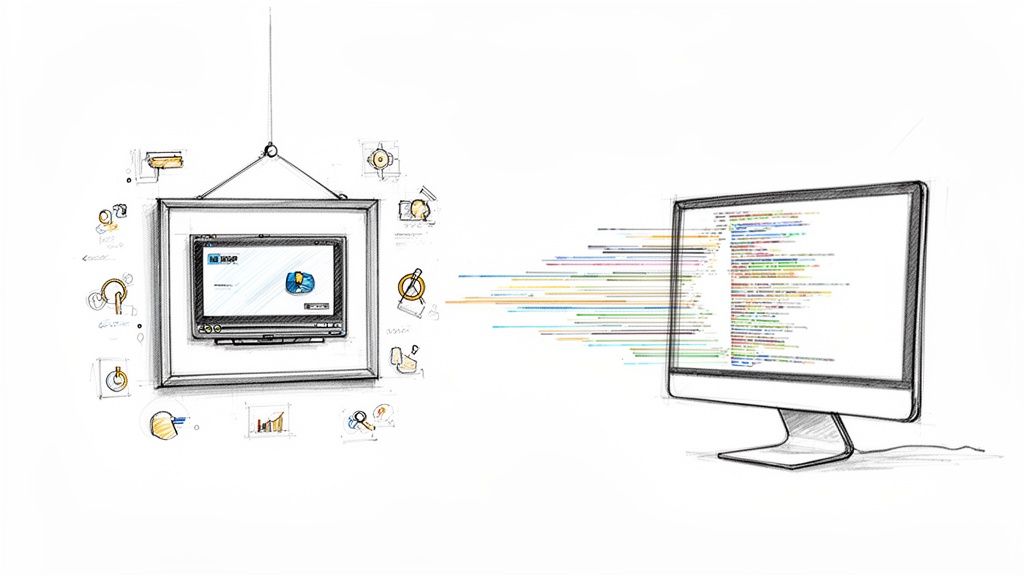
Video overlay text is exactly what it sounds like: a layer of text, graphics, or even clickable elements you place directly on top of a video as it plays. It’s the magic ingredient that transforms a passive training video into an interactive learning experience—perfect for highlighting critical information, posing questions, or nudging employees toward the next step in their development journey.

Why Video Overlay Text Is Your New Training Superpower

Let's be honest, traditional training videos have a major flaw. They often position employees as passive viewers who are expected to just watch, listen, and somehow absorb everything.

But what if you could ditch the one-way broadcast and create a dynamic, two-way conversation instead? This is where video overlay text completely changes the game for corporate training.

Instead of just showing a new hire a process, you can use overlays to actively guide their understanding right in the moment. Picture an employee learning to use a complex piece of machinery. As the video points to a critical button, a simple text overlay can pop up to reinforce its function, like "Emergency Shut-Off Valve." That kind of in-context reinforcement is way more effective than hoping they’ll remember a detail from a dense manual they read last week.

Clarify and Reinforce Key Concepts

In any corporate training scenario, clarity is everything. Overlays are a simple yet powerful way to cut through the noise and make sure essential knowledge sticks.

Think about the practical, day-to-day applications in a learning and development context:

  • Define Jargon: The moment a company-specific acronym is mentioned, you can flash its definition on screen. No more confused new hires.
  • Highlight Safety Protocols: You can superimpose a critical warning, like “ALWAYS wear protective gloves,” directly over a demonstration.
  • Summarize Key Takeaways: End a module with a quick overlay that recaps the core message, locking it into memory.

This approach aligns with how our brains process information. We already know people remember 95% of a message from video compared to just 10% from text alone. Well-placed overlays amplify that effect. In fact, there's an 80% chance viewers will look at video overlay text when it appears, making it an incredible tool for boosting knowledge retention during training.

Overlays are also a fantastic way to add supplemental information and context to your training content. To help visualize this, here’s a quick rundown of how they can directly impact training outcomes.

Key Benefits of Overlays in Training Videos

BenefitImpact on Corporate Training
Increased RetentionContextual pop-ups reinforce key terms and safety warnings, improving long-term memory.
Improved ComprehensionDefinitions and summaries clarify complex topics in real-time, preventing confusion.
Active EngagementClickable elements and questions turn passive viewing into an active learning experience.
Performance TrackingInteractive overlays allow you to gather data on comprehension and identify knowledge gaps.
Enhanced AccessibilityOn-screen text can supplement audio, aiding learners with different needs or in noisy environments.

Ultimately, these benefits lead to a more effective and efficient training program that respects your employees' time and delivers measurable results for your learning and development goals.

Shift Learners from Passive to Active

With an interactive video platform like Mindstamp, video overlay text becomes much more than just simple annotation—it becomes truly interactive. You can add clickable buttons, pop-up questions, and even branching logic that sends learners on different paths based on their answers.

This small change completely transforms the employee's role from a passive spectator into an active participant.

By making videos interactive, you’re not just sharing information; you’re creating a measurable learning experience. You can track engagement, test comprehension in real-time, and identify knowledge gaps instantly.

This shift is crucial for improving on-the-job performance. When you engage employees directly within the training content itself, you create a far more effective and memorable learning path. Dive deeper into the 5 reasons to use interactive video for training or educational content and see how this can work for your team.

Placing Overlays for Maximum Learning Impact

So you've decided to use video overlay text in your training. Fantastic. But the next big questions are where and when to make it appear. This isn't just about making things look good; the placement and timing of your overlays are strategic calls that have a huge impact on comprehension, retention, and how effective your training actually is.

Get it right, and your text acts as a helpful guide for the learner. Get it wrong, and it's just a distraction.

Think of your video screen like prime real estate. Every spot has a different psychological effect on the learner. For instance, putting a short, punchy definition in the lower-third of the screen is perfect for adding extra info without covering up the main action. It's a classic move for defining jargon in a software demo or putting a name to a face in a leadership training video. The text is there to help, but it doesn't steal the show.

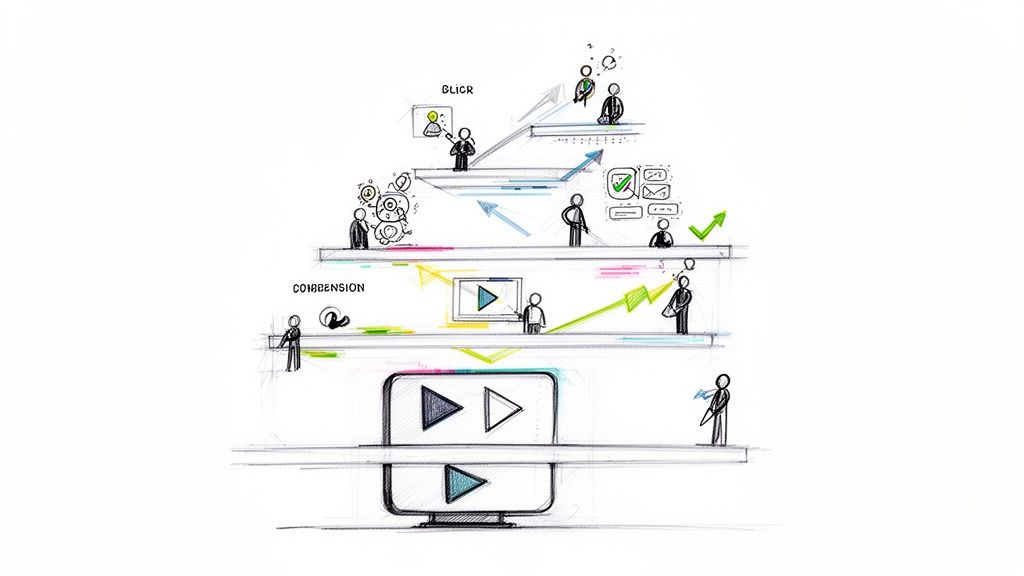
This simple flow chart really breaks down how powerful this process can be for learning.

Process flow diagram showing standard video, adding overlay text, leading to boosted learning.

You can see how just adding that layer of text turns a standard video into a much richer learning tool, giving knowledge absorption a real boost.

Strategic Screen Positioning

Where you put the text all comes down to what you want it to do. Different spots on the screen are suited for different learning goals.

  • Lower-Thirds: This is your go-to for reinforcing key terms, introducing speakers, or dropping in brief context. It’s a broadcast standard for a reason—it delivers information without yanking focus away from the main visuals.
  • Corner Overlays: Got some information that's persistent but not urgent? Stick it in a corner. Think of a module title or a gentle reminder to download a handout. It works as a constant, subtle anchor for the learner.
  • Full-Screen Overlays: Save these for the big, can't-miss messages. A full-screen overlay demands 100% attention, which makes it ideal for chapter breaks, critical safety warnings, or summarizing the three key takeaways from a compliance module.

The real trick is matching the text's importance with its visual dominance. A subtle tip doesn't need a full-screen takeover, but a must-remember safety protocol absolutely does. When you're thoughtful about it, the whole learning journey feels more intuitive.

Timing Your Overlays for Reinforcement and Discovery

Just as important as where you place your text is when. This is where an interactive video platform like Mindstamp really shines, giving you precise control over the timeline to create some powerful learning moments.

Imagine a training video on new compliance rules. You can sync a text overlay that highlights a specific legal clause to pop up the exact moment the narrator mentions it. This is called dual-coding—hearing and seeing the information at the same time—and it's proven to dramatically increase how much people remember. It links the auditory and visual pathways in the brain, making the concept stick.

Or you could get a little creative and use timing to spark curiosity. Let's say the narrator poses a question. Instead of showing the answer immediately, delay the text overlay by a few seconds. That brief pause gives the employee a moment to try and recall the information themselves before you confirm it on-screen.

Suddenly, a passive viewing session becomes an active comprehension check. It’s a simple timing trick, but it's incredibly effective for testing knowledge without the pressure of a full-blown quiz. By mastering placement and timing, you're not just showing information; you're guiding the learner's focus with purpose.

Writing Overlay Text That Drives Action

Sure, the visual design of your overlay grabs the employee's attention. But it’s the words you choose that actually drive action and help them remember what they’ve learned. In the world of corporate training, every single word matters. The goal is to be clear, concise, and purposeful—turning plain text into a powerful tool for locking in knowledge.

Your overlay text should do more than just summarize. It needs to actively engage the learner's mind. Try this: instead of a passive statement, pose a thought-provoking question that makes them reflect on what they just watched. This simple tweak changes a one-way information dump into a genuine mental dialogue.

Crafting Compelling Calls to Action

The most powerful type of video overlay text is the Call-to-Action (CTA). In a training setting, a CTA isn't about closing a sale; it's about prompting the next step in the learning process. To make sure your overlay text actually works, it’s smart to apply the proven principles of business copywriting.

Think in clear, direct commands that give the employee something of value right away. Ditch vague phrases like "Learn More" for specific, action-oriented language that guides their development.

  • Weak CTA: "Further Reading"

  • Strong CTA: "Download the Full Safety Checklist Now"

  • Weak CTA: "Contact HR"

  • Strong CTA: "Click Here to Schedule Your Onboarding Follow-Up"

See the difference? The stronger CTAs remove all guesswork. The learner knows exactly what they'll get by clicking, which makes them much more likely to engage with the training material.

It's no secret that video has become the go-to training tool for 89% of businesses. In this context, overlays that function as CTAs are absolutely essential. The data backs this up: 81% of viewers have taken an action after watching a brand video, and that same psychology applies directly to how learners behave in training.

Turning Text into Interactive Gateways

With a platform like Mindstamp, your text overlay becomes more than just words on a screen—it’s a clickable, interactive gateway. You can embed links and buttons directly into the video player, connecting learners to a whole ecosystem of resources without ever making them navigate away from the training module.

This screenshot from Mindstamp's homepage gives you a glimpse of what’s possible for creating interactive learning content.

The image shows a clean, professional video interface where you can seamlessly add elements to guide the learner. This is where you might embed a button that opens a supplemental PDF, links to a knowledge base article, or even launches a pop-up quiz to test comprehension on the spot. Suddenly, your training video is no longer a static file; it’s a dynamic hub for employee development.

Designing Overlays for Clarity and Readability

Even the most powerful training message is dead on arrival if employees can't read it. When you're designing text to go over your video, the number one goal is making that information effortless to absorb. It should support the learning, not become a visual distraction that pulls people out of the experience.

Hand-drawn diagram illustrating text plate positioning, video overlay examples, and font size concepts.

It all starts with your font choice. It can be tempting to grab a stylized font to match a specific campaign, but for training content, legibility wins every time. Stick with the basics: clean, simple sans-serif fonts like Arial, Helvetica, or Open Sans. They look crisp and clear across different screen sizes and resolutions, which is a must for a consistent learning experience.

Speaking of screens, today's learners are watching content everywhere. While full HD 1080p is still a reliable standard for uploads, we've seen vertical HD viewing on mobile surge by 51%. That means your text overlays have to be readable whether an employee is watching on a huge monitor at their desk or on their phone during their commute.

Mastering Contrast and Color

One of the trickiest parts of using overlays is making sure the text pops against a moving video background. A piece of text might look fantastic against a dark scene, only to completely vanish when the shot changes to a brighter one. The secret weapon here is often a subtle background plate.

A semi-transparent black or white rectangle sitting behind your text can be a total game-changer for contrast. This simple trick ensures readability no matter what’s happening in the video, making it a non-negotiable best practice for any professional training content.

This is just one of several core ideas you can dig into by reviewing the multimedia learning principles that guide effective instructional design.

Maintaining Brand Consistency

Your training videos are an extension of your company brand, and the overlays need to look the part. When all your visual elements are consistent, it creates a more professional, unified experience for employees, reinforcing that the training is important and trustworthy.

This is where your brand guidelines are your best friend.

  • Use Approved Fonts: Stick to the primary and secondary fonts spelled out in your company's style guide. No exceptions.
  • Adhere to Color Palettes: Use your brand’s official colors for the text and any background plates to keep everything looking cohesive.
  • Standardize Sizing: Set a few standard text sizes for headings, body text, and captions. This keeps things uniform across all your training modules.

To keep your styling and branding on point, it can be really helpful to get familiar with concepts like understanding design tokens. These systems help you maintain a consistent visual language across all your digital assets, including these crucial training videos. When you prioritize both clarity and brand alignment, your overlays will become a powerful tool that enhances learning instead of getting in the way.

Here’s a quick checklist to run through before you hit publish on your next training video. It helps ensure you’ve covered all your bases for accessible, on-brand design.

Text Overlay Design Checklist

Design ElementBest Practice RecommendationWhy It Matters
Font ChoiceUse a clean, sans-serif font (e.g., Arial, Helvetica) from your brand guide.Maximizes readability across all devices and screen sizes. Avoids cognitive load.
Font SizeMinimum 24-32pt for body text on a 1080p video. Headings should be larger.Ensures text is legible on smaller mobile screens without requiring viewers to squint.
Contrast RatioAim for a WCAG AA standard of at least 4.5:1 between text and background.Guarantees accessibility for viewers with visual impairments and improves clarity for everyone.
Color PaletteStick to your company’s approved brand colors for text and background plates.Reinforces brand identity and creates a professional, cohesive viewing experience.
PositioningPlace text in the lower third or upper third, avoiding critical action areas.Keeps the main subject visible while ensuring the text is in a natural reading position.
Background PlatesUse a semi-transparent (60-80% opacity) black or white plate behind text.Creates consistent contrast against a dynamic video background, ensuring readability.
Text VolumeKeep on-screen text concise. Use short phrases or bullet points.Prevents overwhelming the viewer. Text should supplement the video, not replace it.

Running through these checkpoints helps bake quality and consistency into your workflow. The result is a more polished, professional, and—most importantly—effective training video.

Measuring Training Effectiveness with Interactive Overlays

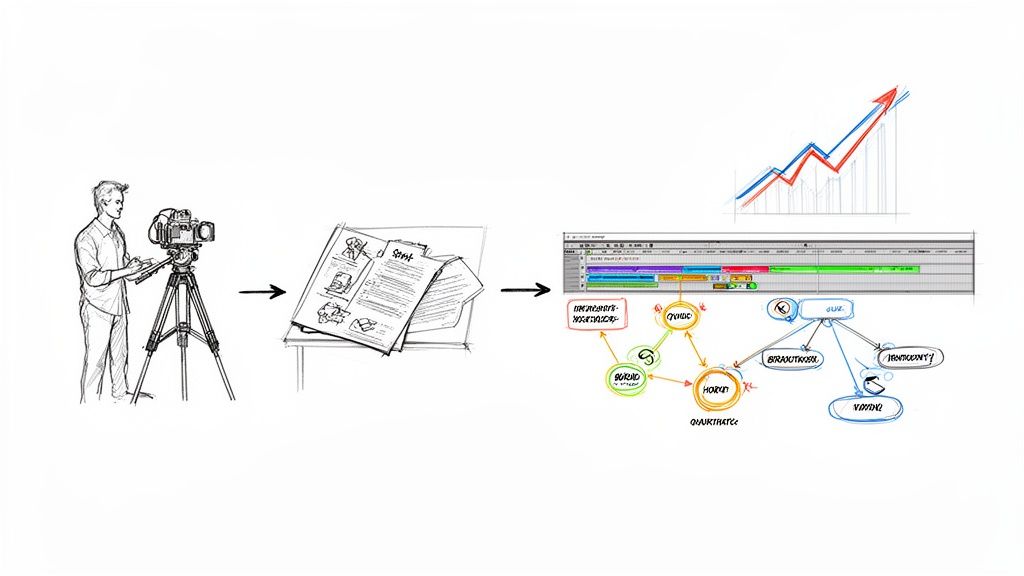
Making a great training video is one thing, but proving it actually works? That’s the real challenge for learning and development teams. Interactive video overlay text is the key. It turns your training videos from passive content into active data-gathering tools, letting you measure what your team is learning and show a real return on your training investment.

A hand-drawn bar chart shows growth, connected to clocks illustrating CTFR, accuracy, and drop-off metrics.

This move toward data-backed learning couldn't be more timely. As companies rely more on video for training dispersed teams, the demand for measurable content is exploding. The text-to-video AI market alone is expected to shoot past USD 350 million by 2032, driven by this exact need. You can dig into more details about this growing market on gminsights.com.

Key Metrics to Track

Forget just tracking view counts. That tells you almost nothing about comprehension. Interactive overlays give you the kind of granular data that shows you exactly how employees are engaging with the material.

A few crucial metrics you can finally track are:

  • Click-Through Rates (CTR): When you add an overlay linking to a supplemental PDF or a detailed policy doc, the clicks tell you which topics your team wants to dig into deeper.
  • Response Accuracy: Pop in a few questions and suddenly you have direct insight into knowledge retention. If everyone’s getting a particular question wrong, you’ve found a concept that needs clarifying.
  • Viewer Drop-Off Points: See the exact moment you start losing your audience? That’s your cue to rework content that’s either confusing or just plain boring.

These data points paint a much clearer picture of your training's impact. For a closer look at this, check out our guide on how to measure training effectiveness.

Turning Data into Actionable Insights

Collecting numbers is easy. The real magic happens when you use that data to make your training strategy smarter. It's about spotting patterns and using them to constantly improve your content.

Say you notice a super high click-through rate on an overlay that defines an industry acronym. That’s not just an engagement metric—it’s a massive flag telling you employees don't know what that term means. Now you can proactively address it in future training or even a company-wide email.

By digging into these patterns, you can break free from the old "one-and-done" training model and create a cycle of continuous improvement. You'll be able to spot weaknesses, reinforce tricky concepts, and build a more effective learning program from the ground up. This data-driven approach gives you the hard evidence you need to show stakeholders the real, tangible value your training brings to the company.

Common Questions We Hear About Video Overlays in Training

As more and more learning and development teams start using interactive video, we see the same practical questions pop up. Adding video overlay text is pretty simple, but knowing the little details can make a huge difference in how effective your training is.

Here are some of the most common things we hear from corporate training managers.

Can I Use Overlays in a Live Training Session?

This is a big one. The short answer is: it depends on your tools. Most interactive overlays, like the ones you build in Mindstamp, are designed for on-demand (asynchronous) videos. That’s because you can dial in the timing perfectly. Live sessions usually have their own real-time engagement tools, like live chat or polls.

But here’s a pro move for L&D teams: create a hybrid experience. After you run a live session, record it. Then, upload that recording to a platform like Mindstamp and add all your interactive overlays. You've just turned a one-time webinar into a powerful, reusable training asset that new hires can go through anytime, with all the same engagement triggers.

Will These Overlays Work on Every Device?

Yep, they will—but you have to be smart about the design. Any good interactive video platform will make your overlays responsive, meaning they’ll automatically adjust to fit a desktop monitor, a tablet, or a smartphone. The trick is to design for the smallest screen first.

Think about it: corporate training video is following the same path as everything else. The video advertising market is on track to hit USD 82.68 billion, and a massive 68.19% of that happens on mobile. On the flip side, completion rates on connected TVs can be as high as 97%. The device completely changes the viewing experience. You can dig into more of these video market trends on mordorintelligence.com.

The takeaway is simple: always, always preview your training video on a phone before you hit publish. Are the fonts big enough to read? Are the buttons easy to tap without blocking key parts of the video? If the mobile experience is clunky, your training won't be effective.

How Many Overlays Is Too Many?

There isn’t a magic number here. The guiding principle for effective learning design should always be less is more. An overlay is there to clarify a point, reinforce a key concept, or ask the viewer to do something—not to clutter up the screen and overwhelm them.

Before adding another overlay, just ask yourself: is this absolutely necessary for the learning objective?

Here are a couple of real-world training examples to get you thinking:

  • A 5-minute software tutorial: Maybe 3-5 overlays are perfect for defining jargon or highlighting the exact button to click.
  • A 30-minute compliance course: You could use one overlay to introduce each new section and a final one that links out to the certification quiz. This keeps the core content clean and easy to follow.

If you feel like you're adding text just for the sake of it, you’ve probably gone too far. Every single element should make the learning experience better, not distract from it.


Ready to turn your static training videos into active learning tools? With Mindstamp, you can easily add clickable text, questions, and other interactive elements to pull your team in and actually measure what they've learned. Start your free trial today and see what interactive video can really do.

Get Started Now

Mindstamp is easy to use, incredibly capable, and supported by an amazing team. Join us!

Try Mindstamp Free

Get started now
Free 7 day trial
No credit card required
30 day money back guarantee

Have Questions?

Connect with a specialist to find out if Mindstamp is for you!