Brett Lindenberg
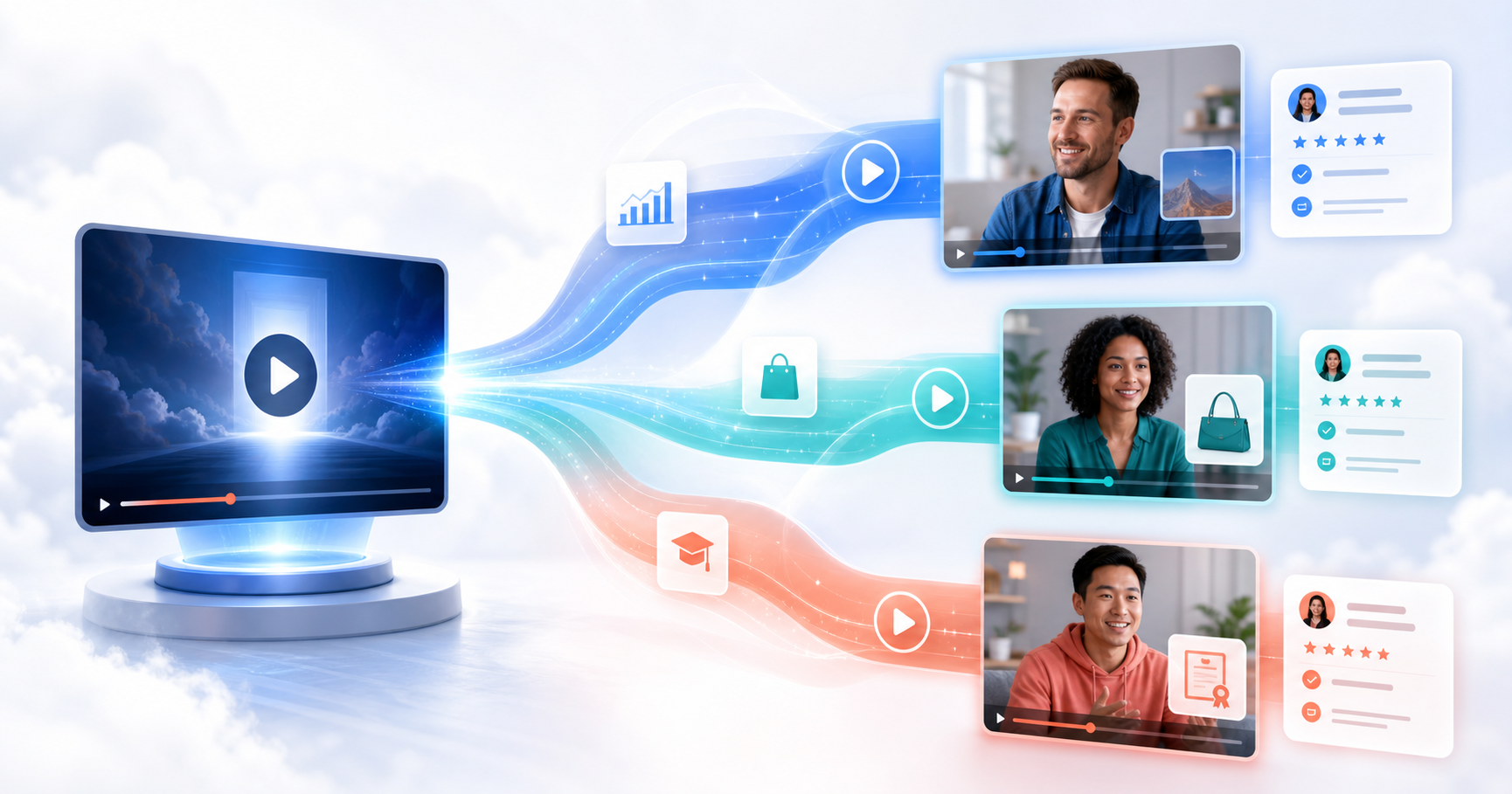
To personalize a training video, keep one recording and change the parts that differ between learners: the details on screen, such as their name, team, site, or manager, and the section they see next, chosen by their role or by an answer they give. A personalized video message is the short form of the same idea, a message from a manager or the L&D team that speaks to one learner or one role. You can build both without recording a version for each person, and you can see which route each learner took and how they answered. In the demo below, you choose your role in a store, and the message and the practice case change with it.
Three ways to personalize a training video
The right method depends on how many learners you have and what has to change for each of them.
| Method | What changes per learner | Effort | Best for |
|---|---|---|---|
| A one-to-one message: a manager records a short video for one person | Everything, including the spoken words | A few minutes for each learner | Coaching, recognition, and a welcome from the direct manager |
| Learner details in one recording | On-screen text, such as name, team, site, or start date | Set up once for the whole group | Onboarding and site-specific compliance for many learners |
| Routes by role or answer | Which sections the learner sees | Plan and record each route once | Role-based training and refreshers that skip what a learner already knows |
You can combine the second and third methods in one video and keep one-to-one messages for the moments where a manager's own words matter. A fourth method renders a separate video file for each person from a template and a data feed. Pirsonal, a vendor of this kind, lists uses for data-driven personalized video that include welcome videos and year-in-review videos for customers, members, and employees. Our guide to video personalization compares all four methods, including when rendering is worth the setup.
What to personalize, according to the research
One form of personalization has solid research behind it and costs nothing: address the learner directly. In three experiments by Mayer, Fennell, Farmer, and Campbell (2004), students watched a narrated animation about the respiratory system. In one version, "the" became "your" in 12 places. Students who heard the conversational version scored significantly higher on transfer tests (solving new problems with what they learned), though not on retention tests.
A 2013 meta-analysis by Ginns, Martin, and Marsh pooled studies of conversational style and found average effects on retention (d = 0.30) and transfer (d = 0.54). The effect was small and not statistically significant in studies where instruction lasted longer than 35 minutes. Write the whole script to "you," and keep personalized modules short.
Relevance to the learner's own life matters too. A 1997 meta-analysis by Symons and Johnson confirmed the self-reference effect: people remember material better when they relate it to themselves. In a training video, that means asking learners to connect the content to their own work, for example "Which of these happens on your shift?", and showing the procedure for their site.
These studies tested wording and self-reference, not a learner's name shown on screen. A name tells the learner the message is meant for them. The role, the site, and the route they take decide whether the content fits their job.
Learner details worth adding
| Detail | Example on screen | Where the value comes from |
|---|---|---|
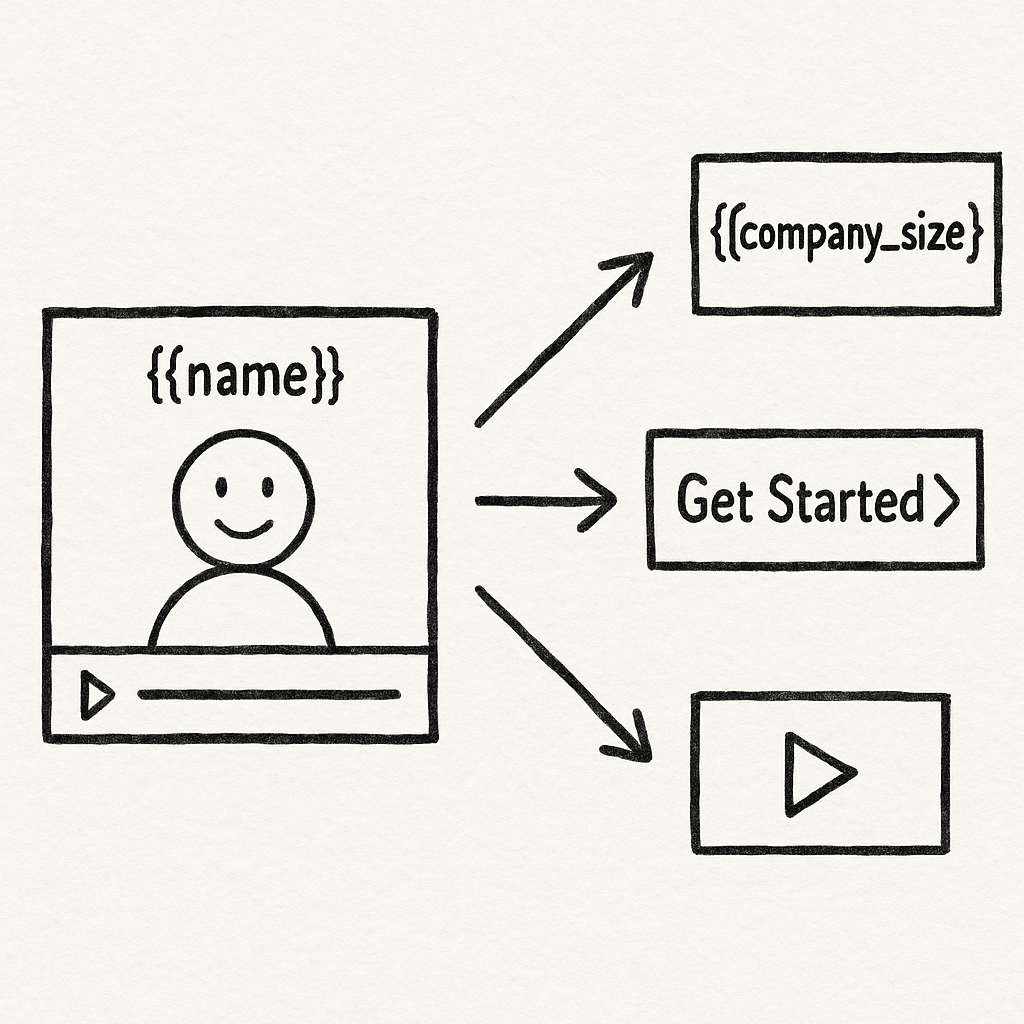
| Name | "Welcome, {{name}}" | Lead capture, a personalized link, or the LMS through a SCORM package |
| Role or team | The route for warehouse receivers | A question or button in the video, or a column in your HR export |
| Site or region | "Lockout steps for {{site}}" | A column in your HR export or a link parameter |
| Manager | "{{manager}} will review this with you on Friday" | A column in your HR export |
| Start date | "Your first 30 days start {{start_date}}" | A column in your HR export |
What to leave out
Keep performance ratings, health information, and disciplinary history out of personalized training videos. Anyone who sees a link can read its parameters, and links get forwarded. On-screen text can be seen by anyone near the screen. Mindstamp's help article on viewer data lists what each view records. If a value must personalize the video but stay out of reports, Mindstamp can mark that variable as private, so reports store it as [private]; contact our team to set this up. For feedback on one person's performance, a one-to-one message from their manager is the better tool.
How to personalize a training video in Mindstamp
Mindstamp adds personalization variables and routes to a video you already have, so you can start from your current training video. These steps build the kind of role message shown in the demo above.
1. Choose one moment and one outcome
Pick the moment where a generic video fails a group of learners: day one for new hires, a policy change that differs by site, or a system rollout where each team uses different screens. Write down what the learner should do differently after watching.
2. Write one script for everyone
Write the shared parts in second person. Put the details that change on screen, not in the narration, because one recording has one soundtrack. If a value can be missing, add a fallback after a vertical bar: "Thanks, {{name|friend}}." reads "Thanks, friend." for a viewer without a name. Our guide to writing video scripts shows how to script the branches.
3. Decide how learners are identified
Pick one identity for the whole program, an email address or an employee number stored as a custom ID, and use it on every video. Learners can arrive in three ways:
- Through your LMS: a SCORM package reads the learner name and ID from the LMS and passes them to Mindstamp. Your LMS decides how the name is written, so check the greeting as a test learner before rollout.
- From a list: export a CSV from your HR system and create personalized links in bulk. Map the name, email, and custom ID columns, and map columns such as site or manager under Additional variables.
- From a form in the video: lead capture asks for the details at the start, and later text can use them.
4. Add the role routes
Early in the video, ask the learner's role with a question or a set of buttons that store the answer in a variable. Each choice uses Change Time to jump to that role's section, or Switch Video to open a separate video. Variables carry over when a learner switches videos, and playlist links carry the learner's name, email, and variables to every video in the playlist. The help article on personalized video navigation walks through the setup, including a route for learners with no value.
5. Show role-specific extras with conditional logic
With conditional logic, an interaction appears only for learners who match a rule, such as a policy document only for managers or a greeting only when the name exists. Each interaction can test two conditions at most, so keep the number of roles small.
6. Check understanding where it matters
Place a question at the step each role must get right. Questions pause the video. Send a wrong answer back to the explanation, or show feedback before the learner continues.
7. Test every route
Open the share link in a private browser window, not the editor, which does not fill in variables. Test each role, an unexpected value, and a blank value. To test a link value quickly, add it to the link, for example ?site=Tampa.
Variables, personalized links, and SCORM export are on supported plans starting with Core, and conditional logic starts on Pro. The pricing page lists what each plan includes.
Examples of personalized training messages
New hire welcome from the manager
The manager records one welcome for everyone on the team. On screen, the video shows the new hire's name, start date, and manager. After the welcome, the new hire picks their role and sees only that role's first-week tasks, then confirms they read the key policy. The onboarding use case shows how teams track each new hire's progress through week one.
Site-specific safety update
A procedure changes at three plants, but the steps differ by site. One video carries the shared reason for the change. A site value from the learner's link opens that plant's steps, and a question at the critical step checks that the learner can name it before the video continues.
Manager coaching message
A short coaching message fits the frequent check-ins that come first in MyCulture's list of performance management best practices. In the demo below, a manager chooses the conversation they are preparing for, and the video plays the coaching segment for that skill.
For longer practice, see the leadership development use case, where managers rehearse reviews and feedback conversations in branching scenarios.
Product training by the industry a rep sells to
A new product launches to the whole sales team. Each rep picks the industry they sell to and sees the talking points and objections for that industry, then answers one objection-handling question. See the sales enablement use case for more.
How to tell whether personalization helped
Most published numbers on personalized video come from marketing surveys of consumers. Idomoo's 2025 State of Video Technology report surveyed 2,510 adults in the U.S. and U.K. and found personalized video 3.5 times more likely than generic video to make someone become or remain a customer. Idomoo sells personalized video, and the survey measured consumers, not employees. Roundups such as Insivia's video marketing statistics collect similar marketing figures. Neither tells you whether personalization improves learning in your program, so measure it yourself:
- Compare first-try question scores and completion between the personalized video and the generic version it replaces.
- Compare results between routes. If one role misses the same question more often, fix that route's explanation.
- Check where each route loses learners before the end.
Mindstamp's per-learner report shows how far each learner watched, how they answered, and which route they took. For a course of several videos, export a completion report grouped by email or custom ID, as described in tracking a training course. A SCORM package sends completion and a score to your LMS; individual answers stay in Mindstamp. Our guide on how to measure training effectiveness connects these numbers to on-the-job results.
Common questions
How do you personalize training videos at scale?
Record one video, add learner details as on-screen variables, and send each learner a personalized link created in bulk from a CSV, or deliver the video through your LMS. Routes by role cover the content that differs. You record each route once, not once per learner.
Can personalized training videos run in our LMS?
Yes, through a SCORM package, an embed, or a link. Mindstamp is not an LMS. The SCORM package reports completion and a score to the LMS and passes the learner's name and ID to Mindstamp, so both systems show the same learner. Test one package in your LMS before rollout.
Should the narration say the learner's name?
Only in a one-to-one message that a manager records for that person. A single recording has one soundtrack, so put the name on screen and write the narration to "you."
How is this different from a personalized video sales letter?
A training message helps a learner do their job. A personalized video sales letter uses the same tools to lead a buyer to an offer. For routes that span several courses or a whole role, see personalized learning paths.