Brett Lindenberg
To market a webinar, make a specific promise to a specific audience, then run a dated promotion schedule that starts two to three weeks before the session and continues after it with the recording. In practice, you publish a short registration page, send the invitation 14 days out, send reminders 7 days, 1 day, and 1 hour before, post on LinkedIn and through partners, and email the recording within a day. Plan the replay from the start, because most registrants miss the live session. Goldcast's 2026 benchmark of 26,190 B2B webinars counted 6.8 million registrations and 2.2 million live attendees, so about one in three registrants attended. Per webinar, Goldcast's promotion guide gives an average of 251 registrants and 102 attendees, a 40% attendance rate.
A webinar promotion timeline you can copy
Use this schedule for a live webinar for customers, prospects, or employees. Count back from the session date and put each step on a calendar the day you announce the event.
| When | What to do | Where |
|---|---|---|
| 4 to 6 weeks before | Choose the topic, speakers, and any co-host. Write the title and a list of three to five things people will learn. Build the registration page and the confirmation email. Ask partners for promotion slots. | Webinar platform, website, partner contacts |
| 3 weeks before | Announce the session. Create a LinkedIn Event. Send partners and speakers a kit with copy, an image, and a tracked link. | LinkedIn, partner newsletters, internal channels |
| 14 days before | Send the email invitation to each segment of your list. | |
| 7 to 10 days before | Send the first reminder with the agenda and speakers. Start paid social if you have a budget. | Email, LinkedIn ads |
| 1 day before | Send a reminder that names one question the session will answer. | Email, plus Slack or Teams for internal sessions |
| 1 hour before | Send the join link and little else. | Email, chat |
| At the start time | Send a "we are live" note to registrants who have not joined. | Email or platform notification |
| Within 24 hours after | Send the recording, the slides, and one next step. Write separate emails for attendees and for registrants who missed it. | |
| 1 to 4 weeks after | Publish the on-demand version, cut short clips, and promote the replay. | Website, social, newsletter, sales outreach |
The email steps match the sequence Goldcast recommends in its September 2026 guide to webinar promotion channels: start two to three weeks out, invite at 14 days, and remind at 7 days, 1 day, and 1 hour. The same guide suggests organic social posts at least weekly, more often in the final five to seven days, and seven to ten days of paid social. Partner promotion needs the longest lead time, so ask partners first. If you plan in a spreadsheet or a project tool, Eden's roundup of event planning timeline templates lists formats you can adapt.
Make a specific promise before you promote
Promotion multiplies whatever offer you start with. A session called "Q3 product update" gives nobody a reason to click. A session that names one audience and one problem it solves gives every email, post, and partner a reason to share it.
Title wording affects registration. In Goldcast's 2023 benchmark of 900 webinars from 100 B2B brands, putting the word "webinar" in the title went with a 50% drop in registration. Its 2024 report found that sessions labeled as a "series" drew more sign-ups and attendance than sessions labeled "webinar". Name the result instead of the format.
| Generic title | Specific title |
|---|---|
| Sales training webinar | Close bigger deals with a five-question discovery call |
| HR compliance update | The three compliance mistakes new managers make in their first 90 days |
| Leadership skills | From peer to manager: how to run your first one-on-ones |
Registration page checklist
- The title as the headline, then the date, start time with time zone, and length.
- Three to five things the attendee will be able to do afterward.
- Each speaker's name, role, and one line on why they are worth an hour.
- A short form: name and work email, plus only the fields you will use in follow-up.
- A confirmation page and email with the join link and add-to-calendar links for Google Calendar, Outlook, and an .ics file.
- A clear answer on the recording. If you promise to send it, people who cannot attend still register. If you keep it back, people have a reason to attend live. Decide which matters more for this session.
Where to promote a webinar
Pick two or three channels your audience already reads and use them well. Put a tracked link (UTM parameters, or a separate link per source) on every channel so your registration report shows what worked.
| Channel | Best for | What to measure | Tip |
|---|---|---|---|
| Email to your own lists | Customers, prospects, and employees you can already reach | Clicks to the registration page, registrations per send | Segment by role or interest and write one invitation per segment. |
| LinkedIn Event and posts | B2B audiences and each speaker's network | Registrations from LinkedIn links | Ask each speaker to post from a personal profile, with their own angle on the topic. |
| LinkedIn ads | New audiences chosen with LinkedIn's ad targeting | Cost per registration, attendee quality | Test that leads reach your webinar platform before you spend. |
| Partners and associations | Audiences you cannot reach yet | Registrations per partner link | Give each partner ready-made copy and its own tracked link. |
| Internal channels | Employees and corporate webinars | Registrations by team | Give managers a short message they can forward to their teams. |
Goldcast's promotion guide calls email the most effective webinar promotion channel. Send from a person, put the outcome in the subject line, and use one button that goes to the registration page. If you want video in the invitation, use an image of the player that links to the video page; our guide on how to embed a video in an email covers the setup.
Create the session as a LinkedIn Event. LinkedIn says an event gives you a native landing page with its own URL, and Event Ads can promote that event to a chosen audience before, during, and after it. Ask speakers to share the event on LinkedIn with one specific thing they will cover.
If you buy LinkedIn ads, make sure the leads reach your webinar tool. For example, Livestorm's integrations page lists a LinkedIn Lead Gen Forms connector that sends leads from your LinkedIn ads to your Livestorm events (checked October 2026). For other platforms, check the vendor's integration list before you launch the campaign.
Partners, co-hosts, and associations
A co-host with an overlapping audience who does not compete with you can put your session in front of their whole list. Agree on the deliverables in writing: one email and two social posts each, for example, with a tracked link per partner so you can see who sent registrants. In a niche industry, the trade association and the trade press newsletter are often the shortest route to the right people.
Internal channels for corporate webinars
When the audience is your own staff, promote where people already talk: Slack channels, Microsoft Teams chats, or Google Chat spaces, plus an intranet banner that links straight to registration. Also use managers. Send them a two-line message they can forward with a personal note, and for required training, send a calendar hold instead of an invitation people can ignore.
A short video teaser
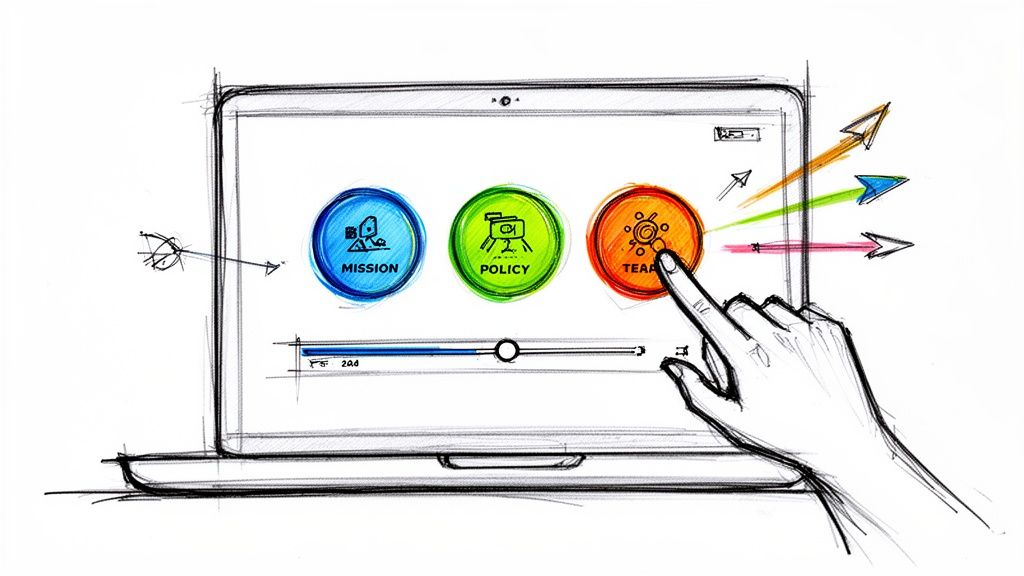
A 30- to 60-second clip of the speaker answering one real question gives people a concrete reason to register. You can make the teaser interactive so the viewer chooses the problem they care about and sees the matching part of the agenda. The 28-second demo below does that for a fictional operations webinar.
We built it in Mindstamp with three buttons that jump to matching scenes and a variable that stores the choice. In your own teaser, add a button with the Open link action that goes to your registration page. The viewer report shows which topic each viewer picked, so you can see which part of the agenda draws interest before you finalize the slides. The Webinar Preview Branch example shows how it is set up.
Reminders that cut no-shows
People often register weeks ahead and then forget, so send reminders on a fixed schedule.
- Right away: a confirmation email with the join link and add-to-calendar links. A calendar entry protects the time better than an email in the inbox.
- 7 days before: the agenda, the speakers, and the one question the session answers.
- 1 day before: a short note with anything people should prepare, such as a question to bring.
- 1 hour before: the join link, high in the email.
- At the start: a "we are live" email or chat message for registrants who have not joined.
Give people a reason to attend live instead of waiting for the recording, such as open Q&A with the speaker or a poll whose results change what the speaker covers next.
Pick the day and time for your audience, then test
Benchmark reports disagree on the best day, as this comparison shows.
| Report | Data behind it | Best slot reported |
|---|---|---|
| Goldcast 2026 B2B Webinar Benchmark | 26,190 webinars from 522 B2B organizations | Monday had the highest attendance rate of any weekday; Friday afternoon also did well. |
| TwentyThree State of Webinars 2026 | A survey of 133 webinar makers plus anonymized platform data | Thursday had a 64% attendance rate and Friday a 63% rate; sessions from 7 to 10 a.m. averaged 62% attendance. |
| Goldcast 2025 B2B Webinar Benchmark | 19,531 webinars from 418 B2B companies | Friday from noon to 3 p.m. for tech companies (44% attendance); Friday from 9 a.m. to noon for other companies (54%). |
Treat any best-day claim as a starting point. Schedule in your audience's main time zone, avoid days you know are busy for them (month-end close for finance teams, for example), and compare attendance rates across two different slots over a quarter. For a global audience, run the session twice or plan the on-demand version as the main event.
Corporate webinar production checklist
A corporate webinar is any webinar a company runs for employees, customers, or partners: training, product launches, all-hands meetings, or a marketing event. Production problems undo the promotion work, so prepare the session as carefully as the campaign.
- Assign roles. You need a host, the presenters, a producer who runs chat, Q&A, and polls, and a backup who can take over the screen share.
- Rehearse on the real platform with the real laptops and microphones, a few days before. Microsoft's guidance for Teams events tells organizers to always schedule a dry run.
- Use a wired internet connection, an external microphone, and a light source in front of each speaker. If the budget covers only one upgrade, buy the microphone.
- Plan the interaction. Write each poll question and decide what you will do with the answers. Goldcast's 2026 benchmark found polls in only 19% of webinars and resource links in 35.1% of webinars.
- Confirm the recording is on and decide who can access the file.
- Write the follow-up emails and build the replay page before the session, so the recording goes out the next day.
- For internal sessions across time zones, run two live sessions or make the recording the official version and track who completes it.
Choose a webinar platform
The platform sets your audience limit, the live engagement tools, and whether you can rerun the session as simulive (a recording broadcast at a set time) or on demand. The figures below come from each vendor's own pages. Plans change often, so confirm before you buy.
| Platform | Live audience limits | Live engagement tools | Recorded and on-demand options |
|---|---|---|---|
| Zoom Webinars | Webinars, Webinars Plus, and Events plans listed at 500 attendees; Zoom says Webinars can support up to 100,000 | Polls, Q&A, chat, reactions, breakout rooms | Simulive (pre-record, then broadcast as live) and on-demand video libraries |
| GoTo Webinar | Reach up to 500, Elevate up to 1,000, Complete up to 3,000 participants; Complete adds streaming to unlimited attendees | Polls, handouts, Q&A | Simulive on all three plans; cloud recording on Elevate and Complete |
| ClickMeeting | Free plan 25; Live and Automated plans from 50 to 1,000; Enterprise up to 10,000 | Polls, surveys, Q&A, chat, whiteboard | Automated and on-demand webinars on the Automated plan |
| Livestorm | Up to 3,000 live attendees per event on Pro and Enterprise | Polls, Q&A, chat, emoji reactions, raise hand | On-demand and automated events on both plans |
| Zoho Meeting webinars (Zoho Webinar plans) | Free 20; Standard up to 1,000; Professional up to 3,000; Enterprise up to 5,000 | Polls, Q&A, raise hand on all plans; public chat on paid plans | On-demand webinars on Enterprise |
| GetResponse webinars | Up to 1,000 live attendees | Polls and tests, chat, whiteboard, call-to-action buttons | On-demand and paid webinars; stores up to 20 hours of recordings |
| Microsoft Teams events | With Teams Enterprise: 1,000 attendees interactive, 3,000 with large-event chat, 10,000 view-only; an add-on license raises the limit to 100,000 | Polls, Q&A, chat, reactions (Q&A only in view-only events) | Recording and publishing; published recordings of large-audience events expire after 30 days by default |
Mindstamp is not a live webinar platform. We work on the recording after the session and on short promotional videos before it.
ClickMeeting vs GoTo Webinar
On capacity, GoTo Webinar's plans list 500, 1,000, and 3,000 participants, and its top plan adds streaming to an unlimited audience. ClickMeeting's Live and Automated plans go up to 1,000 attendees, and its Enterprise plan to 10,000. Both include polls and Q&A. ClickMeeting adds surveys, chat, and a whiteboard; GoTo adds handouts. For evergreen sessions, GoTo includes simulive on every plan, and ClickMeeting puts automated and on-demand webinars on its Automated plan. Both list current prices on their pricing pages. Choose by your largest expected audience first, then by whether you need sessions that run without a live host.
After the webinar: follow up and market the replay
Follow up within 24 hours
- Attendees get a thank-you, the recording, the slides, and one next step, such as booking a call or registering for part two.
- Attendees who asked a question or answered every poll get a personal reply from the speaker or the account owner that answers their question.
- Registrants who missed the session get a short "sorry we missed you" note with the recording and a list of chapters, so they can go straight to the part they wanted.
Turn the recording into an on-demand webinar
A raw one-hour recording loses many viewers partway through. Across 8.07 million views of 18,315 Mindstamp videos (2018 to October 2026), views of videos longer than 20 minutes played 41.7% of the video on average, compared with 53.8% of the video for videos of 10 to 20 minutes. Many things differ between those videos, so treat this as a pattern, not proof. Expect replay viewers to skip around and leave early, and make the replay easy to navigate.
- Trim the waiting time, housekeeping, and any technical problems from the start and the end.
- Add chapters so viewers can jump to the section they need.
- Add a question after each key point. A question pauses the video, and the report shows each viewer's answer.
- Add buttons for the next step: a resource, a booking calendar (Calendly or HubSpot scheduling inside the video), or registration for the next session.
- If the replay is a lead source, add a lead capture form after the first useful section, or make the email field optional. A form at the very start can cost you views.
- Share the replay as a link, embed it on your on-demand page, or, for training, export a SCORM package for your LMS (SCORM 1.2, SCORM 2004 3rd edition, or SCORM 2004 4th edition) on supported plans.
The 33-second demo below shows a replay menu for a fictional accessibility webinar. Pick a section and the video opens that part of the recording.
See the On-Demand Webinar Navigator example for the setup, and our page on webinar repurposing for how chapters, intent questions, and forms turn a recording into a lead source. For more ways to get viewers to act during a video, see our guide to audience engagement strategies.
Keep promoting the replay
Keep sending people to the recording after the first follow-up. In TwentyThree's 2026 survey, more than two-thirds of organizations said they repurpose webinars into clips, articles, or social posts. Post two or three short clips, each ending with a link to the full replay. Add the replay to your newsletter and to related blog posts, and give the sales team chapter links they can send to prospects who care about one topic. If the session is part of a series, link the next session at the end of the replay. Goldcast's 2026 benchmark found that nearly one in three webinars is now part of a series, up from one in four the year before. For ways to keep a recording useful for months, see how to future-proof your content with interactive video.
Webinar metrics to track
| Metric | How to calculate it | What it tells you |
|---|---|---|
| Registration page conversion rate | Registrations divided by unique page visitors | Whether the title and the page sell the session |
| Registrations by source | Registrations per tracked link | Which channels and partners to use again |
| Attendance rate | Live attendees divided by registrants | Whether timing and reminders work (Goldcast's 2026 figures: 40% for the average webinar, about one in three across all registrations) |
| Live engagement | Poll responses, questions asked, and average minutes watched | Whether the content held attention |
| Replay views and watched percent | From your replay host's report | Whether the on-demand version works |
| Outcome | Meetings booked and pipeline, or quiz scores and completion for training | Whether the webinar did the job you set for it |
Methods differ between benchmarks, so compare your attendance rate with your own past sessions first. For the replay, Mindstamp's viewer reports show each viewer's answers, clicks, and how much of the video they watched. On supported plans, the HubSpot integration sends contacts, views, answers, and clicks to HubSpot after the viewing session ends.
Common questions
How far in advance should you promote a webinar?
Start two to three weeks before the session for most webinars, with the email invitation 14 days out. Start four to six weeks out when partners promote the session or when you plan paid ads, because partners need time to book their newsletter and social slots. For internal webinars, two to three weeks of notice with a calendar hold works for most teams.
What is a corporate webinar, and how do you promote one internally?
A corporate webinar is a webinar a company runs for its own employees, customers, or partners, such as training, a product update, or an all-hands meeting. Promote it through managers and the chat tools people already use, send a calendar hold for required sessions, and treat the recording as part of the program, with questions that confirm people understood it. Our guides to virtual training best practices and internal video communications go further.
How do you market a webinar in a niche industry such as aviation?
Go where the specialists already gather. Partner with the industry association or a trade publication, co-host with a practitioner the audience knows, and write a title that names a specific operating problem the audience has this year. The same approach works for other specialist fields, such as audiovisual integration.
How can you increase webinar attendance?
- Write a title that names an outcome, and leave the word "webinar" out of it.
- Put add-to-calendar links in the confirmation email.
- Send reminders 7 days, 1 day, and 1 hour before, plus a "we are live" note.
- Give people something they only get live, such as Q&A with the speaker.
- Test two time slots and keep the one with the higher attendance rate.
What is an evergreen or on-demand webinar platform?
An evergreen webinar runs from a recording, either at scheduled times (simulive) or whenever a viewer asks for it (on demand). In the platform table above, Zoom and GoTo Webinar offer simulive, and ClickMeeting (Automated plan), Livestorm, Zoho Webinar (Enterprise), and GetResponse offer on-demand or automated webinars. To add questions, chapters, and buttons to a recording you already have, use an interactive video tool such as Mindstamp; our guide on how to create interactive video walks through the steps.
Sources and further reading
- Goldcast, 2026 B2B Webinar Benchmark Report, and its September 2026 guide to webinar promotion channels.
- TwentyThree, State of Webinars 2026.
- Microsoft Learn, Plan for Teams events.
To start, put your next session's date on a calendar, count back with the timeline above, and write the title and registration page this week. Then plan the replay before you go live.