Brett Lindenberg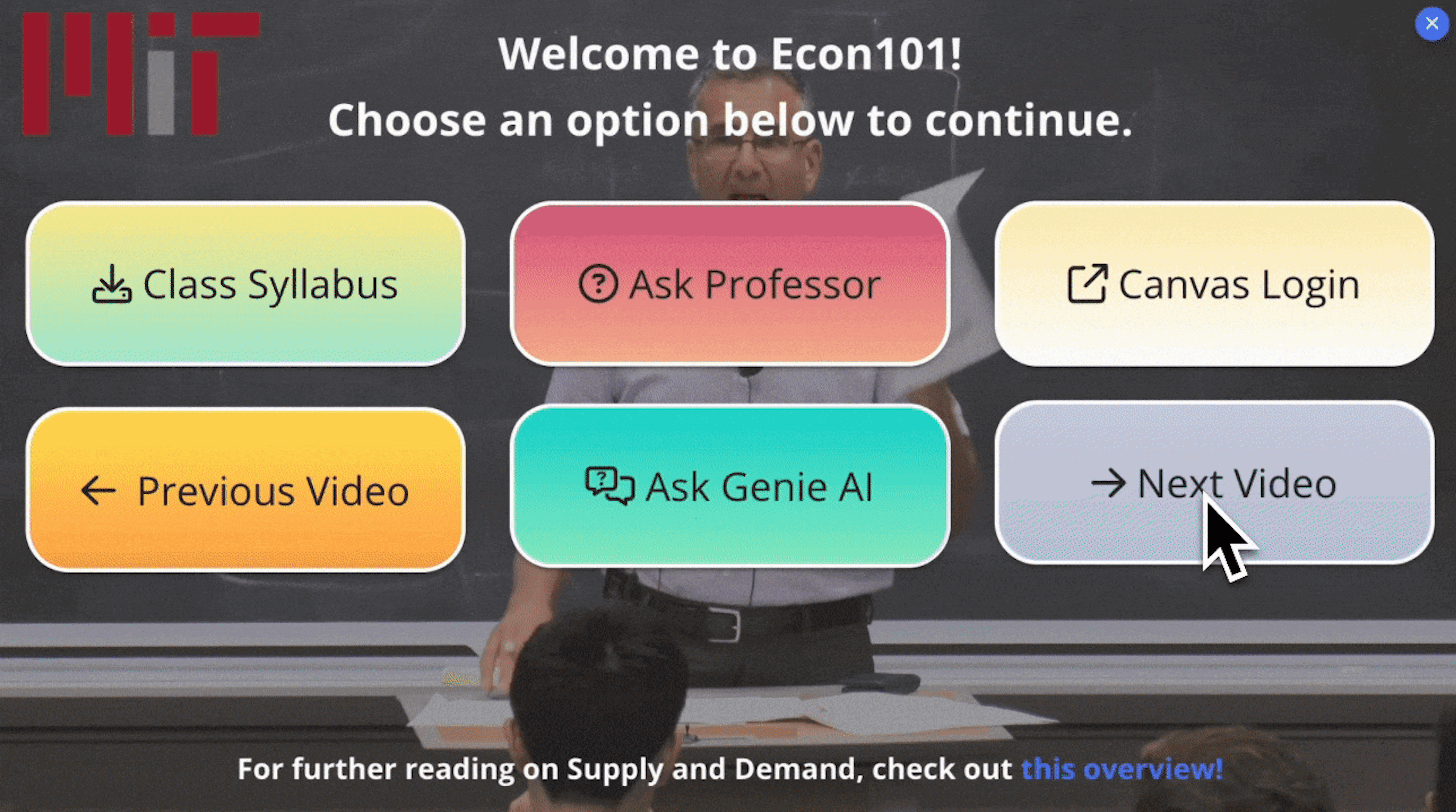
An interactive video menu is a set of clickable choices inside the video player. It lets viewers jump to a section, switch to another video, or open a resource without leaving the video. Menus come in two kinds. A timed menu shows a group of buttons at one point, such as a chapter menu at the start. An always-available menu waits behind an icon or button, and viewers can open it at any moment. In Mindstamp, the always-available kind is the Magic Menu, a panel of buttons and other interactions that you add to a video.
Types of video menus
| Menu | When viewers see it | Best for |
|---|---|---|
| Chapters | Any time, as named points viewers can jump to from the player | Helping viewers find a section by name |
| Timed button menu | At one point in the video, often while the video waits for a choice | Chapter choices, role-based paths, a "pick a topic" start screen |
| Magic Menu | Whenever the viewer opens it, or when you open it for them | Resources, contacts, and section links that matter for the whole video |
| End screen | When the video ends | The next video, a call to action, or a replay |
Chapters help viewers find a section, but a chapter only jumps to a time and does not set variables. Use buttons when you need to track which sections a viewer finished, or when a choice should open something other than a timecode. For the end of the video, see how to add a call to action at the end of a video.
When does a video need a menu?
Add a menu when viewers come to one video for different reasons, or need something from you at any point while they watch.
- Long recordings are the most common case. Across 8.07 million views of 18,315 Mindstamp videos (2018 to October 2026), the average view of a video longer than 20 minutes played 41.7% of it. These are mostly training, marketing, and sales videos, and many factors differ between them, so treat the figure as a rough guide. If the part a viewer needs sits late in a webinar or lecture, a menu lets them go straight there.
- A product demo for buyers, admins, and developers can offer one route for each audience.
- A booking link, a reference PDF, or a support contact is as useful at minute 2 as at minute 20.
- In training that learners come back to, a section list lets them review one part without sitting through the rest.
A short video with one message rarely needs a menu, because one well-timed button does the job. Our guide to clickable video buttons covers every action a button can run.
How to build a Magic Menu in Mindstamp
- Open the video and select Magic Menu in the video menu.
- Add items: Button, Hotspot, Text, or Image. Each item is a normal interaction with its own click action and styling. Use text items as headings, such as "Jump to a section" or "Resources".
- Give each item a click action. Change Time jumps to a section of this video, Switch Video opens another video, and Open Link Modal opens a page, such as a booking calendar, on top of the player.
- Open the Magic Menu design settings to set the panel's position and size, its background color and transparency, and the transition it opens with. You can copy the layout from your End Screen or your questions so the panels match.
- Choose how viewers open the menu (next section).
- Open the share link in a private browser window, open the menu, and click every item. When you play your own video as its owner, Mindstamp does not record normal viewer data and skips some actions.
To reuse a menu, open Magic Menu on another video and use its import option to copy the menu from the first one. The Magic Menu tutorial walks through each step on screen.
Four ways to open the menu
| Trigger | How to set it up | Use it when |
|---|---|---|
| Menu icon | In the Magic Menu design settings, turn on Show Magic Menu Icon. The icon sits on the left edge of the player, and you can choose a different icon. | Viewers should always know where the menu is |
| A click | Give any button, hotspot, image, or text the Open Magic Menu click action | You want a labeled "Menu" or "Resources" button, or a menu that opens after a choice |
| A set time | Add an Open Magic Menu navigation from More in the interaction bar. It runs with no click. | The presenter says "choose where to go next" and the menu should appear on that line |
| A pause | In the Magic Menu design settings, turn on Show on Pause | Viewers who pause are often looking for something, such as a resource or another section |
Pause for Menu, in the same settings, pauses the video while the menu is open. Leave it on for a full-screen menu. Turn it off for a small side panel when viewers should keep watching while they browse. Closing the menu with its X returns the viewer to the video. A navigation runs for every viewer who reaches its time, so do not use one to open the menu during a part of the video that viewers need to hear without interruption.
What to put in the menu
Every item should still matter wherever the viewer is in the video. Time-specific prompts belong on timed buttons.
For sales and marketing videos
- Book a meeting. A button with Open Link Modal and a Calendly or HubSpot meetings page opens the calendar on top of the player and pauses the video. The booking is stored in your scheduling tool, and Mindstamp records the click (calendar embedding).
- A pricing or trial page with Open Link.
- A one-page summary with Download File, on Pro and higher plans.
- A person to contact, with Start Email or Start Call.
- A discount code with Copy Text.
The calendar booking example shows the booking flow in a live video, and our guide to adding call-to-action buttons to your videos covers wording and placement.
For training and education videos
- A list of sections, each with Change Time, so learners can review one part.
- Reference material such as a job aid or slides, with Download File or Show Image.
- A way to reach the instructor: Start Email, or Collect Feedback for a short question that appears in your reports.
- Open Genie AI, which answers learner questions from the video's transcript and your notes, on Core and higher plans (Genie AI).
- A link to the next module in your learning management system.
For webinars and other long recordings
If each section is its own video, build the menu as a short video of its own. Each item uses Switch Video, and each section ends with a Switch to Previous Video navigation, which returns the viewer to the menu at the point they left. Variables carry over between the videos, so a menu can mark the sections a viewer has finished.
For paid video
If you sell access with the video paywall and set the payment step at a time in the video, a menu item can jump straight to the paid section. The payment step appears when playback reaches that time, so viewers who want the premium part can buy it without watching the free preview first.
How to build a chapter menu that tracks progress
A timed button menu can also show which sections a viewer has finished and unlock a final step. This is the pattern we recommend for training modules:
- Put a short menu segment at the start, for example 0:00 to 0:10.
- One second in, add a Pause navigation with Pause Length set to Until interaction, so the menu waits for a choice.
- Add one button per section for the whole menu segment, each with Change Time to the start of its section.
- Set each button's Post Click State to Change Colors, so visited sections look different. Hidden or Disabled would stop the viewer from reviewing.
- At the last second of each section, add a Set Variable navigation (for example,
section_1set todone), then a Change Time navigation back to the start of the menu. - Add a "Completed" text next to each button, with conditional logic that shows it only when that section's variable exists.
- Add a Finish button that shows only when the required sections are done.
Variables are on Core and higher plans, and conditional logic is on Pro and higher. One interaction can test two conditions at most, so a menu with three or more sections needs a counter variable. The chapter menu article shows the counter setup and a test plan.
For a simpler menu without progress tracking, see our webinar replay example, where three buttons send the viewer to three chapters of one recording.
Two limits matter for completion rules. Watch percentage counts each second of the video once, so a section watched twice does not raise it. Variables and post-click colors last for the viewing session, so a viewer who returns later on another link starts with an empty menu.
Menu design rules
- Label each item with its destination or result: "Pricing for teams", "Download the checklist", "Section 3: Lockout steps".
- Put what most viewers need first, and group the rest under text headings.
- If viewers must pick one path, offer two to four options that exclude each other. A long list of unrelated options makes the choice harder and the click report harder to read.
- Choose a size for the job. A full-screen menu suits a pause. A smaller panel with a semi-transparent background lets the video show through.
- Keep contrast high between item text and the panel color. WCAG 2.2 asks for a contrast ratio of at least 4.5 to 1 for normal-size text.
- Give every image and hotspot a caption. Mindstamp uses it as the text screen readers announce, and buttons work with a keyboard (accessibility features).
- Open the menu on a phone and tap every item before you share the video.
See which menu items viewers use
A click on a menu item is recorded like any other interaction, against the viewer who made it and the time in the video. After a few weeks of views, the report shows which resources viewers want and which sections they jump to. If an item gets no clicks, move it higher, rename it, or remove it. To see names next to the clicks, add lead capture to the video. The reporting overview shows what each report contains.
Common questions
Is the Magic Menu the same as the Resource Tray?
Yes. We introduced it as the Resource Tray in our March 2023 product update and renamed it Magic Menu later. Older articles, including our post on always-available calls to action, use the old name.
How is a pop-out different from the Magic Menu?
A pop-out is a named panel of buttons, text, images, or hotspots that opens when a viewer clicks an item with the Open pop-out click action. A video has one Magic Menu, available for the whole video. The same video can also have several pop-outs, and each one opens from its own interaction at the moment it applies, such as product details next to the product on screen. You choose whether the video pauses while a pop-out is open, and an item inside it with the Close pop-out action closes the panel. Magic Menu items cannot open a pop-out. The pop-outs update shows the setup.
Should I use chapters or a menu?
Use chapters when viewers only need to find a section. Use a menu when a choice should run an action, such as opening a calendar or another video, or when you need to track which sections a viewer finished. A long webinar can use both.
Can I use the same menu on several videos?
Yes. On the Magic Menu page of the new video, use the import option and choose the video whose menu you want to copy. Then change any items that differ.
Does the video keep playing while the menu is open?
Only if you turn off Pause for Menu in the Magic Menu design settings. With it on, the video pauses when the menu opens.
Which plans include the Magic Menu?
Every Mindstamp plan includes it. Some actions you might put in it, such as Download File or Open Genie AI, need a higher plan. See pricing for what each plan includes.
Can I add an interactive menu to a live stream?
Mindstamp adds menus and other interactions to recorded video and does not work on a live broadcast. Once the stream recording is available, add the menu to the replay. Our guide to RTMP live streams explains how the recording gets from your stream to a file.
To try it, open your longest video, add a Magic Menu with three items viewers ask about most, and turn on Show on Pause. After a week, check which items viewers clicked and adjust the list.