 Brett Lindenberg
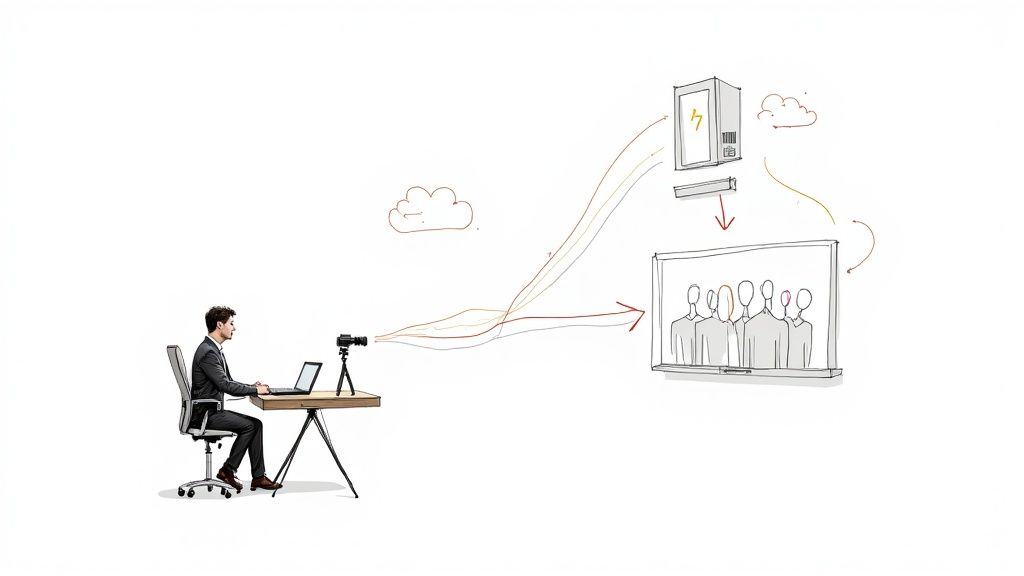
To embed a video with HTML, use the <video> element for a video file you host, or paste an <iframe> embed code for a video that lives on YouTube, Vimeo, or another video platform. The shortest working example is <video src="intro.mp4" controls></video>, which plays intro.mp4 in the browser's own player with play, volume, and fullscreen controls. An iframe loads the platform's player inside your page, and the platform takes care of storage and streaming. Both become responsive with a few lines of CSS, and the demo below shows one embedded player at three page widths.
Which HTML tag embeds a video?
People who search for an HTML video embed tag usually mean one of these three elements. Two of them show video.
| Element | Use it for | What the browser does |
|---|---|---|
<video> | A video file you host, such as an MP4 | Downloads the file and plays it in its own player |
<iframe> | A video on YouTube, Vimeo, Mindstamp, or another platform | Loads the platform's player page in a frame inside your page |
<embed> | Content the browser displays itself, such as a PDF. Not video | Hands the content to the browser or an external application |
MDN's reference for the embed element notes that modern browsers no longer support plug-ins such as Flash, which is what <embed> used to load. If you have the video file, use <video>. If the video is on a platform, copy that platform's iframe code. Our comparison of uploading a video versus embedding it covers the trade-offs for a whole website, such as bandwidth and search, and our explainer on what it means to embed a video covers the term itself.
How to embed a video file with the HTML video tag
- Export the video as an MP4 file with H.264 video and AAC audio. MDN's web video codec guide says every major browser plays this combination. If the file is large, reduce the video file size first.
- Upload the MP4 and a poster image (a still frame from the video) to your web server or CDN.
- Paste this code where the video should appear, and change the file paths to yours.
<video controls preload="metadata" poster="/media/onboarding-poster.jpg"> <source src="/media/onboarding.mp4" type="video/mp4"> <p>Your browser cannot play this video. <a href="/media/onboarding.mp4">Download the MP4</a>.</p>
</video>
The <source> line tells the browser where the file is and what type it is. The paragraph inside the element appears only in a browser that cannot play the video element at all, so it is a good place for a download link. If the player stays empty, the troubleshooting table near the end of this guide lists the usual causes.
Video tag attributes
Attributes control how the player looks and behaves. These are the ones you will use most, as MDN's video element reference defines them.
| Attribute | What it does | When to use it |
|---|---|---|
controls | Shows the browser's controls for play, pause, volume, seeking, and fullscreen | On every video that people watch on purpose |
poster | Shows an image while the video downloads and before playback starts | Always. Pick a frame that tells viewers what the video is about |
preload | Hints how much to load before play: none, metadata, or auto. The default differs by browser, and the HTML specification advises metadata | metadata for most pages, none when one page holds several videos |
width, height | Set the display size in CSS pixels. Percentages are not allowed | For a fixed size. Use CSS for a size that follows the page |
autoplay | Starts playback as soon as the browser can | Only together with muted, because browsers block autoplay with sound |
muted | Starts the video with the sound off | Background loops and any video that autoplays |
loop | Goes back to the start when the video ends | Short background clips |
playsinline | Asks the browser to play the video inside its box on the page | With autoplay, because Safari needs it to autoplay |
Attributes such as autoplay, muted, and loop are on whenever they are present. MDN warns that autoplay="false" still autoplays, so delete the attribute to turn it off.
Offer a smaller format next to the MP4
One MP4 file is enough for most pages. To send smaller files to browsers that can decode AV1, list a WebM file with AV1 video first and the MP4 second. MDN's video reference says the browser tries each source in order and plays the first one it can.
<video controls preload="metadata" poster="/media/onboarding-poster.jpg"> <source src="/media/onboarding.webm" type='video/webm; codecs="av01.0.08M.08, opus"'> <source src="/media/onboarding.mp4" type="video/mp4"> <p>Your browser cannot play this video. <a href="/media/onboarding.mp4">Download the MP4</a>.</p>
</video>
Write the full codec string in the type attribute. We tested this code on October 5, 2026 in Chrome, Firefox, and WebKit (the engine behind Safari). With the full string av01.0.08M.08, which means AV1 Main profile, level 4.0, Main tier, and 8-bit color, all three played the WebM file. With the short form codecs=av01,opus, all three skipped the WebM file and played the MP4. MDN's guide to the codecs parameter explains each part of the string. Keep the MP4 in the list: MDN's codec guide notes that Safari plays AV1 only on Apple devices with a hardware AV1 decoder, such as M3 MacBooks and later.
Add captions with the track element
Captions go in a separate WebVTT (.vtt) text file that a <track> element links to the video. WCAG 2.2 success criterion 1.2.2, a Level A requirement, asks for captions on all prerecorded audio in synchronized media.
<video controls preload="metadata" poster="/media/onboarding-poster.jpg"> <source src="/media/onboarding.mp4" type="video/mp4"> <track kind="captions" src="/media/onboarding-en.vtt" srclang="en" label="English" default>
</video>
A minimal caption file looks like this:
WEBVTT 00:00:00.000 --> 00:00:04.000
Welcome to the onboarding course. 00:00:04.000 --> 00:00:09.000
In this lesson you file your first expense report.
In our October 2026 test, Chrome, Firefox, and WebKit all loaded both cues from this file and showed the English track by default. The rules that trip people up come from MDN's track element reference:
- Use
kind="captions"for dialogue plus sound effects. Usekind="subtitles"for dialogue or a translation, and addsrclang, which subtitles require. - The
labelis the name viewers see in the captions menu. Only one track per video can carrydefault. - The .vtt file must come from the same domain as the page, unless the video element has a
crossoriginattribute and the file's server allows cross-origin requests.
MDN also recommends a transcript on the page for people who need more time with the content. If your captions are in SRT format, convert them with our free SRT to VTT converter and check them with the caption validator.
Autoplay a muted background video
For a short, silent loop behind a heading, combine these attributes:
<video autoplay muted loop playsinline controls poster="/media/hero-poster.jpg"> <source src="/media/hero-loop.mp4" type="video/mp4">
</video>
MDN's autoplay guide says a browser lets media autoplay when the audio is muted, when the person has already interacted with the site, or when the site is on the browser's allowlist, and that Safari also needs playsinline. Chrome's autoplay policy always allows muted autoplay. The code above includes controls because WCAG success criterion 2.2.2 (Level A) requires a way to pause, stop, or hide moving content that starts by itself and lasts more than 5 seconds. If the design cannot show controls, add your own pause button. Remove the audio track and keep the clip short; our guide to reducing video file size shows both steps with FFmpeg.
How to embed a YouTube or Vimeo video with an iframe
Platforms write the iframe code for you. On YouTube, open the video, select Share, then Embed, and copy the HTML code, as YouTube's help article on embedding videos and playlists describes. On Vimeo, select Share, then Embed, then Copy embed code. Paste the code into an HTML, code, or embed block on your page. A normal text block shows the code as text.
This is the code YouTube's oEmbed service returned for one of YouTube's own developer videos on October 5, 2026. We changed the size to 560 by 315 pixels and added a start time:
<iframe width="560" height="315" src="https://www.youtube.com/embed/M7lc1UVf-VE?start=30" title="YouTube Developers Live: Embedded Web Player Customization" frameborder="0" allow="accelerometer; autoplay; clipboard-write; encrypted-media; gyroscope; picture-in-picture; web-share" referrerpolicy="strict-origin-when-cross-origin" allowfullscreen></iframe>YouTube embed parameters
Add parameters to the end of the src address: the first one after ? and each one after that after &. These come from YouTube's embedded player parameters (last updated September 2026).
| Parameter | What it does |
|---|---|
start=30 | Starts playback 30 seconds into the video |
end=90 | Stops playback 90 seconds into the video |
rel=0 | Since September 25, 2018, this no longer hides related videos. It limits them to videos from the same channel |
cc_load_policy=1 | Shows captions by default, even if the viewer turned them off |
controls=0 | Hides the player controls |
loop=1&playlist=VIDEO_ID | Loops one video. The playlist value must be the same video ID |
playsinline=1 | Plays the video inline in mobile browsers |
autoplay=1 | Starts the video when the player loads. Browsers can still block it |
For privacy-enhanced mode, change the domain in the src to www.youtube-nocookie.com. YouTube says this mode keeps views of the embedded video from influencing the viewer's browsing experience on YouTube. Two rules can stop a YouTube embed from playing. The owner can turn off embedding for a video. And YouTube's required minimum functionality rules say embedded players must receive the HTTP Referer header, so a page that sends no referrer, for example with referrerpolicy="no-referrer", breaks that rule. YouTube recommends the strict-origin-when-cross-origin policy, which is also the browser default. The same rules set a minimum player size of 200 by 200 pixels.
Vimeo embed parameters
Vimeo uses the same pattern, for example ?autoplay=1&muted=1&loop=1. To start at a set time, add #t=1m15s to the end of the address. Vimeo's player parameters guide points out that this one uses # instead of ?, and that hiding all controls with controls=0 needs a paid plan. Our Vimeo embed code guide covers the other options and the privacy settings that block embeds.
Iframe attributes worth checking
Check these attributes in any iframe code before you publish. The details come from MDN's iframe reference.
titlenames the frame for people who use screen readers. It should describe the video in a few words, so replace a generic title such as "video player".allowlists the browser features the frame may use, such asautoplay,fullscreen,camera, andmicrophone. If your site builder strips it, autoplay with sound and fullscreen can stop working.loading="lazy"waits to load the frame until the reader scrolls near it. Add it to every player below the first screen.- Without
widthandheightor CSS, an iframe is 300 by 150 pixels, which is why a pasted embed can look tiny. frameborderis deprecated. You can delete it and setborder: 0in CSS.
How to make an embedded video responsive
Remove the fixed size and let CSS set it. This CSS makes a video fill its column and keeps an iframe at 16:9:
video { width: 100%; height: auto;
} .video-embed { width: 100%; height: auto; aspect-ratio: 16 / 9; border: 0;
}
Add class="video-embed" to the iframe. A video element takes its shape from the video file, so it only needs the width rule. An iframe has no shape of its own, so it needs aspect-ratio. In our October 2026 test in Chrome, Firefox, and WebKit, a YouTube iframe with this CSS rendered at 360 by 202.5 pixels in a 360-pixel column, 768 by 432 pixels in a 768-pixel column, and 1,200 by 675 pixels in a 1,200-pixel column. The video element matched it at 768 by 432 pixels.
MDN lists the aspect-ratio property as available across browsers since September 2021, so you no longer need the older wrapper with padding-top: 56.25%. For a vertical video, use aspect-ratio: 9 / 16 and a max-width, so the player does not fill a desktop screen from top to bottom. For the rest of the page layout, Websites USA's article on responsive web design best practices covers breakpoints and flexible media. The responsive embed fit check shows the result as an interactive example.
How to embed an interactive video
A video tag or a YouTube iframe only plays the video. If you want viewers to answer a question, click a button, or choose a path inside the player, embed an interactive player instead. In Mindstamp, the steps are:
- Open the video, select Share, and publish it if it is not published yet.
- Under Embed, choose Responsive for most pages, Popout for a thumbnail that opens the player in an overlay, or Basic iframe for a platform that removes scripts.
- Select Copy embed code and paste the code into an HTML or embed block.
- Open the page in a private window and on a phone, and try each interaction.
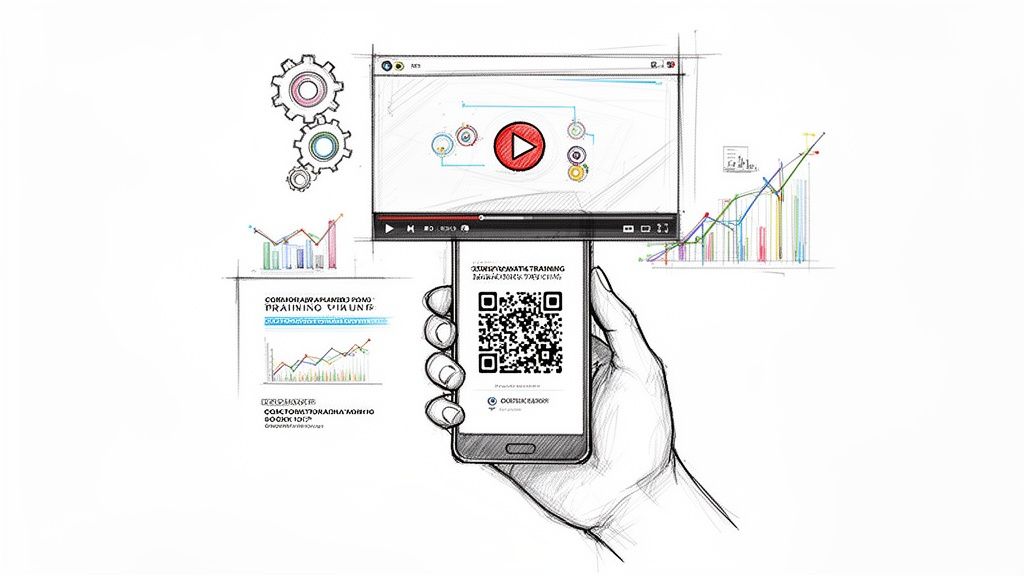
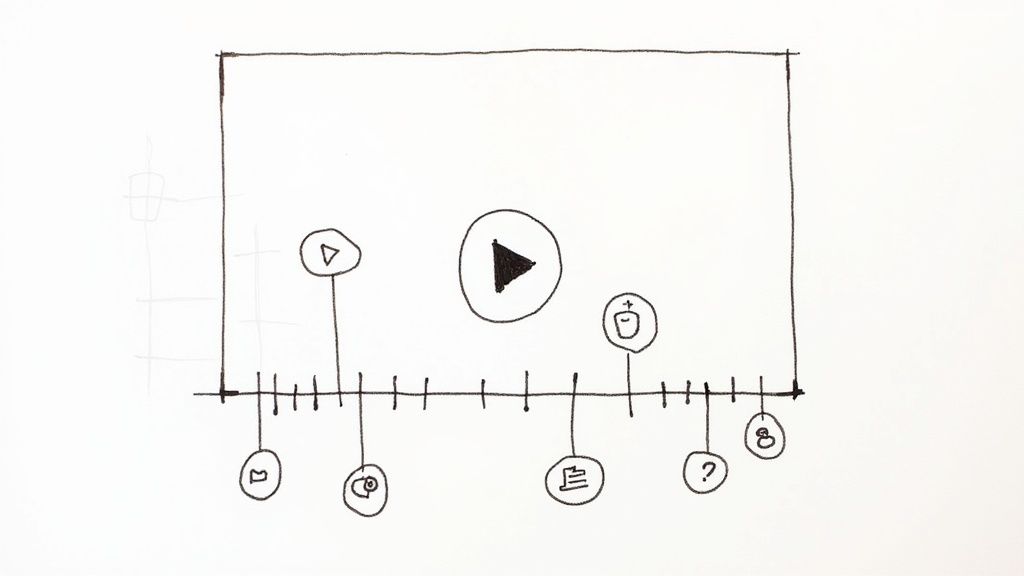
The Responsive code uses the same aspect-ratio rule shown above and loads lazily. Its allow attribute also includes camera and microphone, because video response and voice response questions record inside the player. If your site builder rewrites the iframe, keep those permissions, or those questions cannot record. Mindstamp's reports then show what each viewer did inside the embed:
- answers to questions, which pause the video
- clicks on buttons and hotspots
- the path each viewer took through branching
- contact details from lead capture forms
Autoplay, loop, and the start time are written into the code when you copy it, so copy the code again after you change them (see how autoplay works in Mindstamp). On supported plans, allowed embed domains stop the video from playing on sites you did not approve, and the player sends JavaScript events such as video_end to your page, as the iframe events guide explains. Our help articles on embedding a Mindstamp video and on choosing an embed type have the full steps. To collect leads from an embedded video, see the lead capture section of our guide to uploading versus embedding a video.
Where to paste embed code in WordPress, SharePoint, and an LMS
Paste embed code into your site builder's HTML block. A text block either shows the code as text or removes it.
- In WordPress, add a Custom HTML block (type
/htmlin a new paragraph) and paste the code. The WordPress documentation (updated June 2026) says WordPress strips<iframe>and<script>tags when the author lacks the unfiltered_html capability, as a Contributor does. If your embed disappears on save, ask a user who has that capability, usually an administrator, to add it. - In SharePoint, add the Embed web part and paste the code. Microsoft's help article says the code must be iframe-based, script tags are not supported, and the address must start with HTTPS. For a Mindstamp video, choose the Basic iframe code.
- In an LMS, look for an HTML, web content, or external content block. In Thinkific, for example, you paste only the address from the iframe, as our Thinkific embed guide shows.
An embed in an LMS lesson plays the video, but the LMS gradebook does not see what happened inside it. If the LMS needs to record completion and a score for each learner, export a SCORM package instead. Mindstamp exports SCORM 1.2, SCORM 2004 3rd edition, and SCORM 2004 4th edition packages for a compatible LMS on supported plans, as the SCORM export help article describes. For the wider picture of how an LMS connects to platforms such as SharePoint and Sitecore, see Kogifi's guide to learning management system integration.
Why is my embedded video not playing?
Open your browser's developer tools before you change anything. The Console tab shows blocked frames and permission errors, and the Network tab shows whether the video file loaded. Then match the symptom:
| What you see | Likely cause | Fix |
|---|---|---|
| The code appears as text on the page | It went into a text block | Paste it into an HTML, code, or embed block |
| An empty player or a broken video icon | The file path is wrong, so the request returns 404. On many servers, Video.mp4 and video.mp4 are different files | Copy the file address from the Network tab and open it in a new tab. Fix the path until the file plays there |
| The video plays in one browser and not in another | The file uses a codec that browser cannot decode. MDN's codec guide says HEVC (H.265) support depends on the browser, operating system, and hardware | Export an MP4 with H.264 video and AAC audio, or list it as a second source |
| A long wait before playback starts | The MP4's index sits at the end of the file, so the browser has to fetch the end before it can start | Re-export with the index at the front. YouTube's upload guidance calls this "Fast Start", and FFmpeg's -movflags +faststart option does it |
| Plays on a computer but not on an iPhone | The server does not answer byte-range requests | Apple's Safari guide says servers that host media for iOS must support them. Check that the server sends Accept-Ranges: bytes |
| Autoplay does not start | The video has sound, playsinline is missing, or the iframe's allow attribute lacks autoplay | Add muted and playsinline, and keep autoplay in allow |
| Captions do not show | The file is not WebVTT, or it comes from another domain | Convert it to .vtt and serve it from the page's domain |
| A YouTube embed shows an error | The owner turned off embedding, the video is age-restricted, or the page sends no referrer | Choose another video, or remove a no-referrer policy |
| The player is a tiny box | The iframe has no size, so it falls back to 300 by 150 pixels | Add the responsive CSS above |
| "Video not available: Code 617" on a Mindstamp embed | The page's domain is not on your allowed embed domains list | Add the exact domain, including the domain your LMS or site builder serves lessons from |
The byte-range rule comes from Apple's Safari Web Content Guide, an archived page last updated in 2016, and MDN's guide to range requests shows how to check a server with curl. The fast start recommendation is in YouTube's recommended upload encoding settings.
Common questions
What is the HTML code to embed a video?
For a file you host: <video src="/media/intro.mp4" controls preload="metadata"></video>. For a YouTube video: <iframe src="https://www.youtube.com/embed/VIDEO_ID" title="Describe the video" allowfullscreen></iframe>, where VIDEO_ID is the code after v= in the watch address. Add the responsive CSS from this guide to either one.
How do I embed a video in HTML without YouTube?
Upload the MP4 to your own server or CDN and use the <video> element. Your server then pays for every view. At YouTube's recommended upload rate for 1080p video of 8 Mbps, a 3-minute file is about 180 MB, so 1,000 complete views move about 180 GB. Another option keeps the file on storage you control and still uses a hosted player: with Mindstamp self-hosting, you paste a public MP4 or HLS link and Mindstamp adds the interactions and reports.
Does an embedded video slow down my page?
An embed adds weight when its player loads. A video element with preload="metadata" or preload="none" loads little until someone presses play. For iframes, add loading="lazy", keep one player per page where you can, and use a click-to-load thumbnail on pages with several videos. Mindstamp's Popout embed works that way: only a thumbnail and a small script load with the page. Our help article on reducing embed load time compares the options.
Can I embed video conferencing in a web page?
Yes. A live call runs on a conferencing service, and each service publishes its own embed method. For example, the Jitsi Meet IFrame API loads a meeting room into your page with one script and a few lines of JavaScript. A frame from another domain gets the camera and microphone only when its allow attribute grants them, because MDN's Permissions Policy reference lists the camera's default allowlist as the page's own origin.
How do I know who watched an embedded video?
A video element reports nothing unless you add your own analytics, and public platforms such as YouTube report views and watch time as totals. To see which person watched and what they answered, the player has to know who the viewer is. In Mindstamp, that comes from a lead capture form, a personalized link, or the learner details a SCORM package passes from your LMS. Our guide on how to share a video explains how to see who watched a link you sent.
Start with one page: paste the basic video code or your platform's iframe, add the responsive CSS, and test the page on a phone with the developer tools open. When you need to know who watched and what they understood, swap in an interactive embed and check the first viewer's report.