Brett Lindenberg
To create a choose-your-own-adventure video, plan the story as a map of scenes and choices, film each scene so it ends on a decision, and then add clickable choices in an interactive video tool that sends each viewer to the scene they picked. In Mindstamp, each choice is a button, hotspot, or question answer. Its click action either jumps to another time in the same video (Change Time) or opens another video (Switch Video), and the report shows the path each viewer took. Try the 28-second customer-service story below: pick a response and watch the next scene change.
How to make a choose-your-own-adventure video in nine steps
Steps 1 to 4 happen before you open any editor, and they decide whether the project stays small enough to finish. For the general idea of branching and when it beats a linear video, read our guide to interactive video branching.
1. Write the endings first
Decide where viewers can end up before you write the first scene. Two or three endings are enough for a first project. In a customer-service training story, the endings might be "the customer keeps the order and stays," "the customer gets a refund but leaves unhappy," and "the customer cancels." In a story made for fun, the endings are the payoffs.
With the endings fixed, you can work backward and design choices that push toward each one. Every choice should change something the viewer can see: the next scene, a later option, or the ending. If two options lead to the same result, cut one of them.
2. Pick a structure you can afford to film
Every new branch is another scene to write, shoot, and edit, so the structure sets your budget. Writers of interactive fiction have names for the common shapes. Sam Kabo Ashwell described them in Standard Patterns in Choice-Based Games (2015). These four are the most useful for video.
| Structure | How it works | Scenes to film | Good for |
|---|---|---|---|
| Time cave (full tree) | Every choice opens a new branch, and branches never rejoin | 15 scenes and 8 endings with two options per decision; 40 scenes and 27 endings with three options | Short pieces with one or two decisions |
| Branch and bottleneck | Paths split after a choice, then rejoin at a scene everyone sees | 9 scenes with two options per decision (opening, two results and one shared scene for each of the first two decisions, two endings) | Most stories and training scenarios |
| Gauntlet | One main path; a wrong choice plays a short failure scene and sends the viewer back to try again | 7 scenes (four on the main path, three failure scenes) | Safety and compliance practice |
| Sorting hat | One early choice picks a track, and each track then plays in order | 10 scenes for three tracks of three scenes | Role-based onboarding, product tours by use case |
The full tree grows fastest: each extra decision doubles the endings when every decision has two options. That growth is why branch and bottleneck suits most video projects. Viewers still see the result of their choice right away, and you film far fewer scenes. Later choices can still differ by path if the video remembers earlier answers (step 7).
3. Map every scene and choice
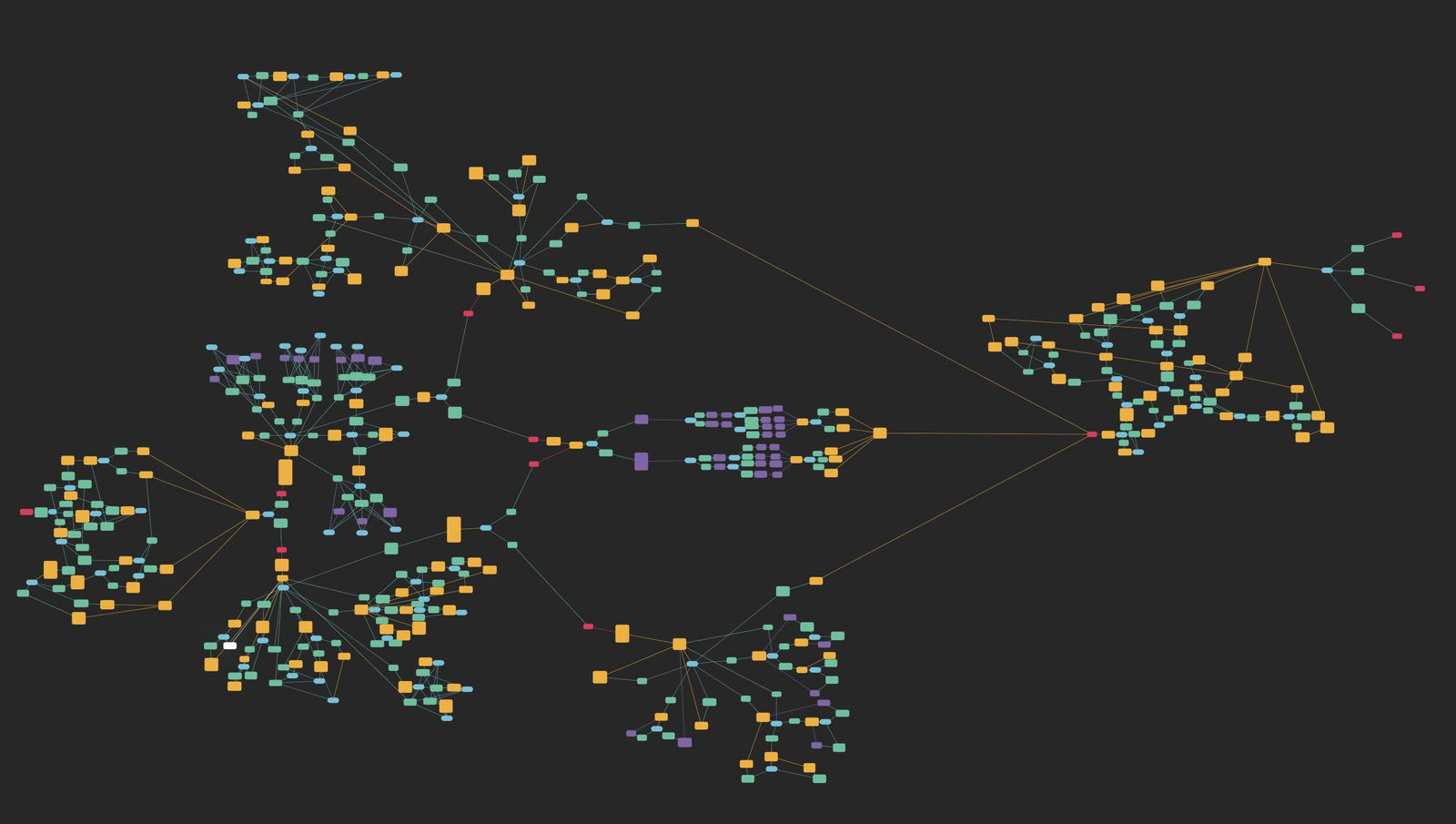
Draw boxes for scenes and arrows for choices. Paper or a whiteboard works. So does Twine, a free, open-source tool for nonlinear stories; Charlie Brooker outlined Bandersnatch in Twine (Wired, 2018). For each scene, write down:
- a short ID, such as S1, S2A, or S2B, that you will reuse as the file name and in the editor
- what happens in the scene
- the prompt on screen and the wording of each option
- where each option goes, including any return to a shared scene
For a training scenario, our free branching scenario generator drafts a decision tree with choices, consequences, and outcomes from a one-line situation. Treat the draft as a starting point and edit it with someone who knows the job.
4. Film scenes that end on the decision
Shoot each scene as its own short piece. A few habits save editing time later:
- End every decision scene on a held moment, such as a character waiting for an answer or a wide shot of two doors, so the choice buttons sit on a calm frame while the video waits.
- Leave clear space in the frame, often the lower third, where the buttons will appear.
- Start each result scene with the consequence. The viewer has just chosen, so show what their choice did in the first few seconds.
- Shoot shared scenes once. In a branch-and-bottleneck story, everyone sees them.
- Keep framing and audio levels consistent from scene to scene, because viewers notice a jump in either when the video moves between branches.
Mindstamp does not trim or join video files, so edit your scenes in any video editor first (help article). You can also build from footage you already have: find the moments where a decision fits, trim the clip to end there, and film only the missing consequences.
5. Choose one video or several
Mindstamp video branching works in two ways, and both are on every plan. Decide which one you will use before you export your files.
| Change Time | Switch Video | |
|---|---|---|
| What a choice does | Jumps to another time in the same video (Change Time) | Opens another Mindstamp video, with an optional start time |
| How to prepare files | Edit all scenes into one file and note the start time of each scene | Export one file for each scene or branch |
| Reporting | Mindstamp records the whole path in one view | Each video has its own report, so you can see who reached each branch |
| Plan usage | Uses one video in your library | Each branch video counts toward your plan's video limit |
| Best for | Short stories and most first projects | Long branches, very different paths, or scenes you reuse in other stories |
The demo at the top of this page is a single 28-second video built with Change Time. The full instructions are in how to use video branching and what Change Time does.
6. Add the choices
Upload the video (or the set of videos), publish every video a viewer can reach, and open the scene that holds the first decision. Then:
- Move the playhead to the held moment at the end of the scene.
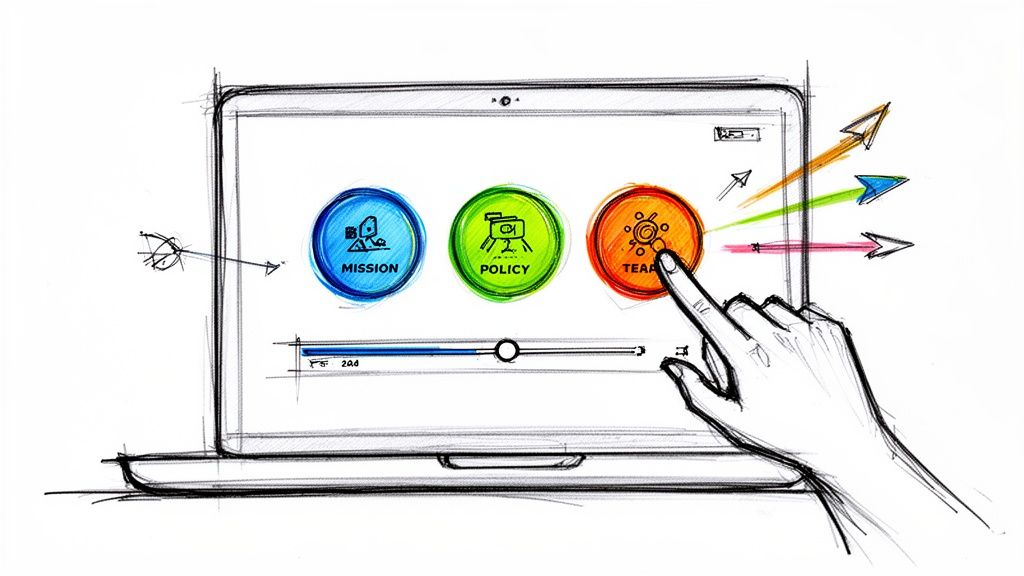
- Add one button or hotspot for each option. Images and text can also be clickable, and a multiple-choice question can set an action on each answer.
- Open each interaction, go to Content, and set Click Action to Change Time (then Select Time) or Switch Video (then Select Video). Use Switch Time to start the next video after its first frame.
- Under Timing, set Pause to At show time with Pause Length set to Until Interaction. The video waits until the viewer chooses.
Pick the interaction type by what the choice is. Buttons make the options explicit. Hotspots let the viewer click an object in the frame, such as a door or a drawer, which feels more like exploring. A question works when the choice also tests knowledge, because Mindstamp scores and reports the answer. A question always pauses the video while it is open.
7. Rejoin paths, add loops, and remember choices
Next, connect the jumps into one story. At the end of each branch, add an automatic jump to the shared scene. Click More in the interaction bar and choose Change Time or Switch Video under Playback & Navigation; it runs at its time without a click. In the demo, the replacement and troubleshooting scenes each end with a jump to the shared closing scene. For a short detour that returns to the main story, use the Switch to Previous Video action, which takes the viewer back to the video and time they left.
A menu that waits in motion needs a loop: add a Change Time navigation at the end of the section that points back to its start (looping help article). Give the viewer a button that jumps past the section, or the loop never ends.
Variables let the story remember what the viewer chose, so give each choice a variable value. Each button in the demo sets a variable called service_path, and the closing scene shows it with the text "Service Path: {{service_path}}". With conditional logic, a later button or ending can use Show if or Hide if rules on that variable, so a viewer who took the refund route sees a different option later. Variables go with the viewer when they switch videos (details). For quiz-driven stories, the player keeps the running score in the cScore variable, so you can show a different ending when a learner's score is below your pass mark. Variables and conditional logic are available on supported plans; the setup is in our conditional logic guide.
8. Lock the timeline and test every path
In a one-video build, every branch sits on the same timeline, so a viewer who drags the seek bar can land in a scene they did not choose. In Design, under Player, turn off Allow Seeking, or turn off Show Seekbar to hide the bar. In Settings, Prevent passing required interactions stops viewers from skipping past an unanswered question (help article).
Then test:
- Open More in the video menu and choose See branching to check the map of video-to-video paths.
- Check that every branch video is published. A switch to an unpublished video does not run, and the editor lists these under Unpublished Video Branches.
- Use Preview to follow every path to its end, on a phone and on a computer. Three decisions with two options each make eight paths, so test all eight.
- Watch two or three people who have not seen the script play it. Note where they hesitate or pick an option you did not expect. The methods in OneNine's guide to user testing for websites, such as task scenarios and moderated sessions, carry over to a branching video.
9. Publish and read the path report
Share the video with a link or an embed. Viewers watch in the browser and do not need a Mindstamp account. Mindstamp reporting shows which path each viewer took and every answer and click, with its timecode. With Switch Video, each branch video's report also shows how many people reached that branch.
Use the report to fix the story. If almost nobody reaches one ending, reread the choices that lead there: the option text may be unclear or less tempting than the others. If many viewers stop at the same decision, the prompt may be confusing or the scene before it may run too long. Change one thing at a time and compare the paths again.
How to make a video like Bandersnatch
Netflix released the interactive film Black Mirror: Bandersnatch on December 28, 2018. Wired UK reported that it held two and a half hours of footage in 250 segments (Matt Reynolds, 2018), and Wired counted five main endings, each with variants. You can no longer watch it there: Netflix removed Bandersnatch on May 12, 2025, along with its last other interactive special, as it phased interactive titles out of its apps (What's on Netflix, May 2025). Netflix's title page for Bandersnatch still shows the description and trailer, but the film is not available to stream (checked October 1, 2026).
The mechanics are well documented, and each one maps to a setting you can use today.
| Bandersnatch mechanic | How to build it in Mindstamp |
|---|---|
| Two options on screen and about 10 seconds to choose, then a default choice | Two buttons with Pause set to At show time and a pause length of 10 seconds. If nobody clicks, the video plays on into the next scene on the timeline, so put the default scene there. |
| An early, small choice (a breakfast cereal) shows up again later, in a TV commercial in the background | The early button sets a variable. A later text interaction shows it, or conditional logic picks which version of a scene plays. |
| Endings depend on combinations of earlier choices | Conditional logic with two conditions joined by AND or OR, on the variables your earlier choices set |
| After an ending, the viewer can go back to a key decision and try the other path | A "try the other choice" button on the ending, with Change Time or Switch Video back to that decision |
The short mystery below uses the same building blocks. Its hotspots and buttons save each choice to a variable, one option loops back to an earlier scene, and the last screen lists the choices you made.
Build your own story on these mechanics, with your own characters and setting. Netflix's characters, footage, and branding belong to Netflix.
Can you make a choose-your-own-adventure video on YouTube?
Yes, with end screens, but the choices can only appear at the end of each video. Upload each scene as its own video (public or unlisted). In the last 5 to 20 seconds of a scene, add end screen elements that link to the next scenes. A 16:9 video can have up to four elements, so each decision can offer up to four options, and each video must be at least 25 seconds long (YouTube Help, end screens, checked October 2026).
The same help page lists the limits. End screens do not appear on mobile web, on videos set as made for kids, or on 360 videos, and viewers can hide them. Every choice opens a new watch page, and YouTube analytics count views per video, so you cannot see the path one viewer took. Info cards can appear at any time you set, up to five per video, but they show as a small teaser and a card icon, not as on-screen buttons (YouTube Help, cards). YouTube used to offer annotations for this, but it stopped new annotation edits on May 2, 2017, and pointed creators to cards and end screens (YouTube blog, 2017).
If you want choices in the middle of a scene, a timed default, or a record of each viewer's path, use a dedicated interactive player. Mindstamp accepts YouTube links for testing only, so upload the video files or connect Vimeo or Wistia before you share (help article). Our guide to interactive YouTube videos covers the YouTube options in more detail.
Which software can you use to make choose-your-path videos?
The right tool depends on where the video will play and what you need to measure.
| Tool | How choices work | What you can measure | Cost model | Best fit |
|---|---|---|---|---|
| Mindstamp | Buttons, hotspots, images, text, or question answers jump within a video or switch to another one; variables and conditional logic remember choices | Each viewer's path, answers, and clicks, with timecodes | Paid plans, with a 14-day free trial that needs no payment card (pricing) | Training scenarios, product demos, and marketing stories that also need questions, lead capture, or per-viewer reports |
| Stornaway | A Story Map flowchart editor links scenes with buttons and overlays | Watch times, drop-off points, and buttons clicked on hosting plans | Free sign-up; publishing starts on a paid hosting plan | Story-first projects and scenario learning |
| H5P Branching Scenario | Each choice leads to another node: a video, interactive video, image, text, or slide set | A score for each ending, or points collected along the path | Free and open source; runs through a WordPress, Moodle, or Drupal plugin or an H5P.com account | Course content inside an LMS |
| YouTube end screens | Up to four end screen elements in the last 5 to 20 seconds link to other videos | Views and clicks per video, not per viewer path | Free | Public stories where reach matters more than tracking |
| Twine | Text passages linked by choices, published as HTML | Nothing for video | Free and open source | Writing and testing the branch map before you film |
If the project is a story first and you do not need questions, lead capture, or CRM data, Stornaway is built around that job. Mindstamp fits when the same branching video also has to score answers, capture leads, or report each viewer's path. Our Mindstamp and Stornaway comparison goes into more detail, and the guide to the best interactive video software for corporate training compares more tools for L&D teams.
Where choose-your-own-adventure videos work
Many viewers already know the format from books and games. In a 2023 survey of 1,411 US adults by Researchscape International, published by Troy Press, 24% had ever read a gamebook such as Choose Your Own Adventure. Playing interactive fiction on a device rose with each younger generation, from 11% of Boomers to 43% of Gen Z adults (Troy Press, 2023). People also pay for interactive stories: Sensor Tower estimated that the app Episode - Choose Your Story earned about $568,000 in US revenue in the last week of December 2023 (Sensor Tower, Q4 2023).
In business video, the format earns its place where a decision has consequences:
- Training scenarios, where a learner makes a call and sees what happens. The damaged delivery example covers customer service, and the branching safety training example covers a hydrogen leak. Our list of training scenarios has more starting points.
- Product demos and tours, where the buyer picks the use case that matches their job and skips the rest.
- Entertainment and brand stories, where replay value matters. The Count's Den, an immersive theater venue in Los Angeles, built a branching horror short in Mindstamp; you can play it on our choose-your-own-adventure horror film page. The choose-your-own-journey example shows a simpler story.
Common questions
How many choices should each decision have?
Two or three. Each extra option is another scene to film at that decision, and in a full tree the scene count multiplies at every level. Three decisions with two options each make eight possible paths; with three options each, they make 27.
How long should each scene be?
Long enough to show the consequence and set up the next choice, and no longer. Mindstamp platform data points the same way for whole videos. Across 8.07 million views of 18,315 Mindstamp videos (2018 to October 2026), the average view played 59.4% of a video that ran one minute or less, 41.5% of a video of one to two minutes, and 39.2% of a video of two to five minutes. These are whole videos, mostly training and marketing, not branching scenes, so treat the numbers as a pattern, not a rule.
Can I use videos I already have?
Yes. Mindstamp adds the interactive layer on top of your existing video, so you do not re-encode anything. Trim each clip in a video editor so it ends where a decision fits, film any missing consequence scenes, and connect them with Change Time or Switch Video. If you later re-edit a file, Replace source video keeps your interactions, but check their times.
Do viewers need an account or an app?
No. Viewers open a share link or an embedded video in any modern browser on a phone, tablet, or computer (help article). You can still ask for a name and email with lead capture if you want each path tied to a person.
Can I call my video a "Choose Your Own Adventure"?
Be careful with the exact phrase in a commercial title. Choose Your Own Adventure is the name of a book series that the publisher Chooseco brought back into print in 2006 (cyoa.com). Chooseco sued Netflix for trademark infringement over Bandersnatch in January 2019, and the case closed in November 2020 (Chooseco LLC v. Netflix, Inc., D. Vt.). A generic label such as "choose your path" or "interactive story" avoids the issue. This is general information, not legal advice. Ask your own lawyer if you want to use the brand name.
Can AI write or build the branching story?
AI can draft the map. Our branching scenario generator turns a short description of a work situation into a decision tree with choices, consequences, and outcomes. You still need to check the draft, film or source the scenes, and test every path. For the build itself, the branching tutorial walks through the editor, and how to create an interactive video covers the steps that apply to any interactive video.
To start, map one decision with two outcomes and a shared ending, film the four scenes, and build them as a single video with Change Time. That small build is quick to film and test, and it shows how viewers react before you commit to a bigger story.
Sources and further reading
- Sam Kabo Ashwell, Standard Patterns in Choice-Based Games (2015), the source of the structure names used above.
- Peter Rubin, How the surprise new interactive Black Mirror came together, Wired (2018).