Brett Lindenberg
Update, October 2026: Mindstamp's HubSpot integration now adds its events to the activity timeline on each HubSpot contact record. HubSpot uses the name activity feed for a separate list of sales notifications, such as email opens and website visits. You connect HubSpot once under Integrations in the Mindstamp side menu, then choose on each video what to send: views, the questions and clicks you select, and list changes. Mindstamp creates or updates the contact by email, can write an answer into a contact property, and sends everything after the viewing session ends, so allow a short delay. HubSpot is on Pro and higher plans. The HubSpot integration page and the HubSpot help article describe how it works today, and we have corrected the 2022 steps below.
If you're a HubSpot user, you know how useful it is to see exactly how a contact has interacted with your marketing content on their contact record. In one view, you can see which ad brought them to your website, which emails they opened, and which landing pages they visited.
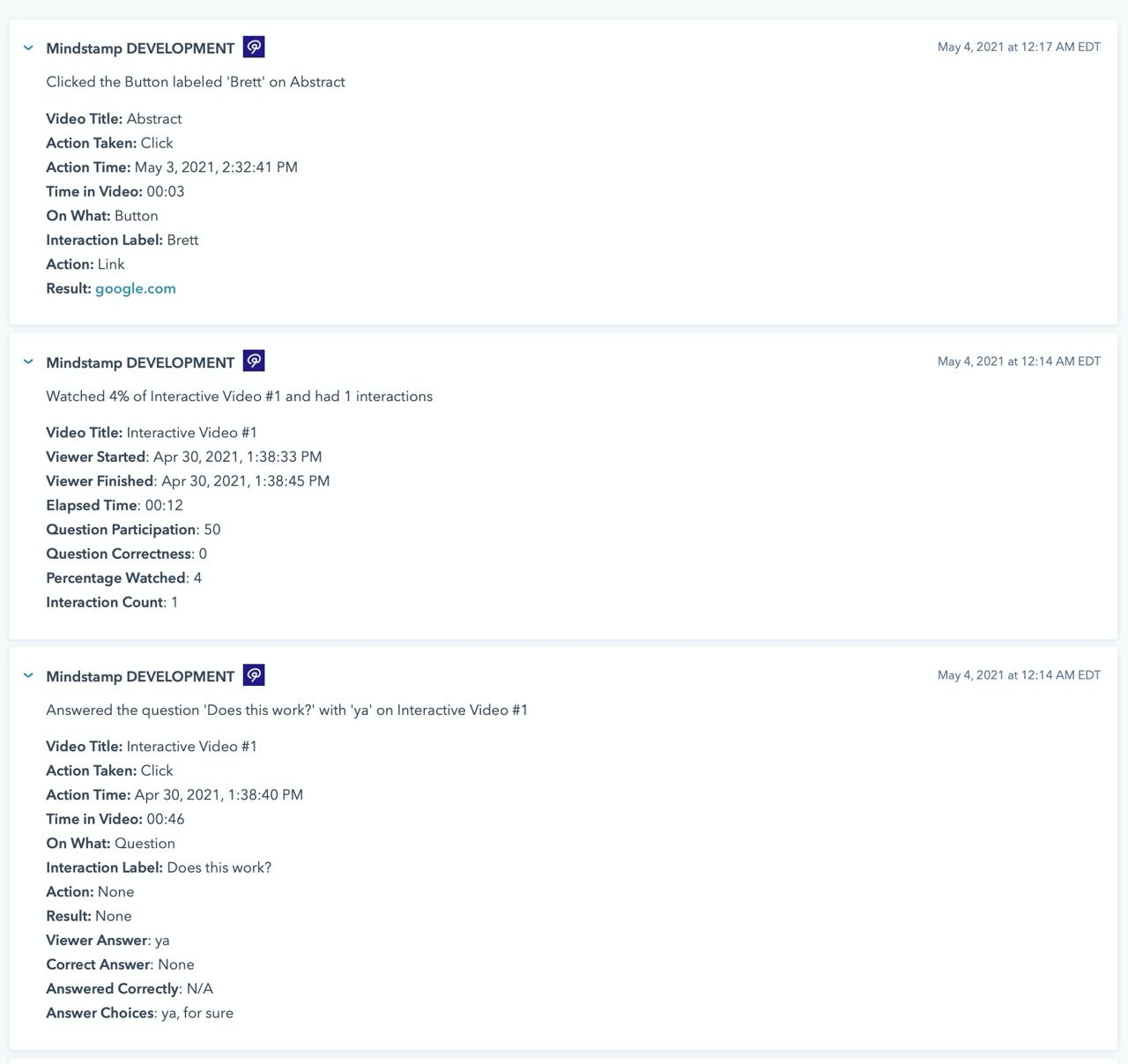
Mindstamp, which joined the HubSpot App Marketplace in 2021, adds viewer events from your interactive videos to that timeline. You connect your HubSpot account once under Integrations in Mindstamp. Then open a video, select Integrations > HubSpot, and select what you want synced to HubSpot:
View reports
Summary data on your viewers, including when they viewed your interactive video, what percentage of the video they watched, how many interactions they engaged with, and participation and correctness scores if you have questions. Turn on Send Views to create or update the contact and add this event.
Button and hotspot clicks
Details on which buttons or hotspots your viewers clicked, when they clicked them, and the interactive action that the click triggered. Turn on Send Interaction Events, then choose the buttons and hotspots under Select Interactions to Send.
Question responses
Your viewers' answers to the questions you select, with the choices, the correct answer, and whether the viewer was correct. You can use them to trigger the next marketing message based on each viewer's interest, response, or need.
Mindstamp can also write values that your interactive video viewers give or earn into HubSpot contact properties. Open a question and set its HubSpot Field to write the viewer's answer, or set a HubSpot Field and HubSpot Value on a button or hotspot to write a fixed value when someone clicks it. Any Mindstamp variable whose name matches a HubSpot contact property is written to the contact as well. In 2022 this post said Mindstamp could also update company records; the integration writes to contacts only.
Those property values and list changes are what HubSpot automation can act on. A HubSpot workflow can enroll contacts when a property meets your criteria, as HubSpot's guide to workflow enrollment triggers explains, and Mindstamp can add the viewer to a list or remove them from one. That means you can follow up with specific email content based on what a viewer did in your interactive video. For instance, if your viewer clicked a hotspot in your product demo for a specific feature, give that hotspot a HubSpot Value with the feature's name and let a workflow send more detail on the feature that interested them most.
You can also embed Mindstamp interactive videos on your HubSpot landing pages or link to them from HubSpot emails, and pass what you know about a contact into the video for personalization. Our guide to personalizing video links from a CRM shows how to add HubSpot personalization tokens to a share link. For instance, if you know when your contacts last purchased from your business, pass that date in the link and show it in Mindstamp buttons, text, images, and questions.
To learn more about the HubSpot integration or arrange a free demo, contact us. For more ways teams use Mindstamp data in HubSpot, read HubSpot and Mindstamp: the future of interactive video and our guide to interactive video in HubSpot marketing workflows.