Brett Lindenberg
A video hotspot is a clickable area placed over a product in a video. In ecommerce, the shopper selects the jacket, the pan, or the part of the machine they care about, and the hotspot opens product details, adds the item to a cart, or jumps to the scene that explains it. You add hotspots in an interactive video player, so the video file stays as it is, and each click is recorded so you can see which products drew interest. Try the packable jacket demo below.
What does a product hotspot do?
A hotspot turns part of the frame into a button. In Mindstamp, you choose what a click does from the same list of click actions that buttons use. These are the ones that matter in ecommerce:
- Open Link opens the product page in a new tab and pauses the video, so the shopper can come back to the same spot.
- Show Card opens a product card with an image, text, a price, and action buttons.
- Add to Cart puts the product in a Shopify cart inside the player.
- Change Time jumps to the scene that explains that feature, and Switch Video branches to another video.
- Show Message shows a short note, such as the fabric or the size range, and pauses the video until the shopper closes it.
The full list of click actions has more than 20 options.
Hotspots, buttons, and clickable product tags compared
| Option | Where the shopper clicks | Best for |
|---|---|---|
| Hotspot | On the product itself, in the frame | Several products or parts on screen at once |
| Button | A labeled control on the video | One clear action, or choices with nothing to point at, such as sizes |
| Product tag on YouTube or TikTok | A shopping button, sticker, or product list | Videos that live on those apps |
| Link in the description | Below the player | Players with no interactive layer |
On YouTube, a tagged product shows as a Shopping button on long videos and as a product sticker on Shorts, and viewers select it to see the tagged products. A hotspot sits on the product instead, so one frame can hold several choices. For a comparison of social shopping and on-site video, including who runs the checkout, see our guide to interactive shoppable video.
Why hotspots help ecommerce sales
In a store, a shopper picks up the product, turns it over, and checks the part they care about. A product page has to answer the same questions without the product in hand, and Net Solutions counts personalization among the common challenges of running an online store. A hotspot lets each shopper open the detail they care about, and the click tells you which detail that was. Use those clicks to decide which details belong higher on the product page.
Lab research supports the idea that letting shoppers control what they inspect helps them judge a product. We summarize the studies on product video and purchase uncertainty in our shoppable video guide. Those studies measured product understanding, not sales, so measure your own clicks and orders.
How to embed product links in videos for your ecommerce site
There are two ways to connect a hotspot to your store. A store integration builds the cart inside the player. An add-to-cart link works with any player and with stores that accept cart links, such as Shopify and BigCommerce.
Shopify
With the Mindstamp Shopify integration, the steps are (full setup guide):
- Open Integrations, select Shopify, enter your store address that ends in myshopify.com, and approve the app in Shopify.
- In the video's Shopify settings, select the store for this video.
- Add a hotspot over the product and choose the Add to Cart click action.
- Choose the product and its variant, or let the viewer choose the variant.
- Choose Add to cart to build a cart in the player, or Buy now to open checkout in a new window with that one product.
With Add to cart, the video pauses and the cart opens. The shopper can change quantities, keep watching, or go to checkout. Shopify is on every Mindstamp plan.
Without the integration, use a Shopify cart permalink as the hotspot's link. By default it opens checkout with the item in the cart. Add ?storefront=true to open the store's cart page instead. Shopify's documentation notes two limits: selling plans, such as subscriptions, do not work with cart permalinks, and the links cannot get past a storefront password.
BigCommerce
BigCommerce explains how to add a product to the cart with a link. Its developer documentation lists the parameters: action=add adds the product, action=buy goes straight to checkout, and product_id, sku, qty, and couponcode set what goes in the cart.
| Store | Add one item and open the cart | Add one item and open checkout |
|---|---|---|
| Shopify | https://STORE.myshopify.com/cart/VARIANT_ID:1?storefront=true | https://STORE.myshopify.com/cart/VARIANT_ID:1 |
| BigCommerce | https://YOURSITE.com/cart.php?action=add&product_id=PRODUCT_ID | https://YOURSITE.com/cart.php?action=buy&sku=SKU |
Test every link in a private browser window before you publish, and test again after you change a product, because a deleted product or a new variant can change the ID.
Any other store
Link each hotspot to the product page. Add campaign parameters so your store's analytics credits the video. Google Analytics reads utm_source, utm_medium, and utm_campaign from the link, and its campaign URL guide suggests utm_content to tell apart two links in the same message. Give each hotspot its own utm_content value, such as the product name.
Put the video on your page
Copy the responsive embed code from the video's Share page and paste it into an HTML or custom code block on your product page (embed steps). For a vertical 9:16 video, change the aspect ratio in the embed code, as the vertical video guide shows.
Where to place hotspots so shoppers use them
A hotspot only earns a click if the shopper sees it, understands it, and can tap it. These rules follow Mindstamp's hotspot setup guide and current accessibility guidance:
- Show the hotspot from the first frame where the product is clearly visible, and hide it when the product moves away or leaves the frame.
- Make it large enough to tap on a phone. WCAG 2.2 sets a minimum target size of 24 by 24 CSS pixels at Level AA. A phone shows the video much smaller than your editor does, so cover the whole product, not the minimum.
- If the product moves, open Styling and select Track motion so the hotspot follows it. Tracking needs a hotspot that shows for at least 3 seconds and does not pause the video. Without tracking, use several short hotspots instead of one that drifts off the product.
- Give the hotspot a visible cue when the product does not look clickable. Keep the indicator ring on, or add an attention effect such as Glow, Beam, or Pulse on supported plans.
- Write a caption that names the product, such as "Blue running shoe". Viewers can reach a hotspot with the keyboard, and screen readers announce its caption, position, and action.
- Keep hotspots apart from each other and from the player controls. Overlapping targets make taps ambiguous and blur your click data.
- Let shopping hotspots stay optional. Use Require Click only when the shopper must choose before the video can continue, as in a guided path.
Put the first product early
Across 8.07 million views of 18,315 Mindstamp videos (2018 to October 2026), the average view played 46.5% of the video. Videos of one minute or less averaged 59.4% watched, and videos of 2 to 5 minutes averaged 39.2%. These are Mindstamp videos, mostly training, marketing, and sales, and many things differ between them, so read the figures as a pattern, not a rule. For a product video, this means a hotspot in the last seconds of a long video reaches fewer shoppers than one near the start.
Guided selling with hotspots and questions
Guided selling means asking a shopper what they need and recommending the product that fits. In a video, you ask with a question, branch to the matching product, and put a hotspot or product card on it.
- Ask one or two questions that split your range, such as skin type, trail conditions, or room size.
- Send each answer to the scene that shows the right product, with video branching or conditional logic on supported plans.
- Put a hotspot or a product card with Add to Cart on the recommended product.
- Offer a way back, such as a button that returns to the questions, for shoppers who want to compare.
The skin care product quiz works this way. Each answer adjusts a score variable, and conditional logic uses the score to recommend one moisturizer. The answers are stored with each viewer, so you can follow up on what the shopper said they needed.
Which ecommerce experience tools support hotspots and guided selling?
Three kinds of tools sell through video. They overlap, so compare them by where the video plays and what the shopper can do in it.
| Tool type | Examples | What their own pages list | Where it fits |
|---|---|---|---|
| Interactive video platform | Mindstamp | Hotspots over products, questions and branching, a Shopify cart in the player, and per-viewer reports | Product videos on your site, in email, and on landing pages |
| Video commerce platform | Firework, Tolstoy, Videowise | Firework: shoppable video, a video showroom, and one-to-one video chat. Tolstoy: shoppable video, quizzes and branching journeys, and an AI shopping assistant. Videowise: shoppable videos, live shopping, and social commerce. | Video galleries and widgets on store pages, live selling |
| Social shopping | TikTok Shop, YouTube Shopping | Product tags on videos and live streams | Audiences who shop inside those apps |
How to measure hotspot clicks and sales
Every hotspot click in Mindstamp is recorded against the viewer who made it, with the interaction and its timecode. Open Reporting and then Interactions to see who clicked which product, or open a single view to see one shopper's path. The reporting guide explains each report.
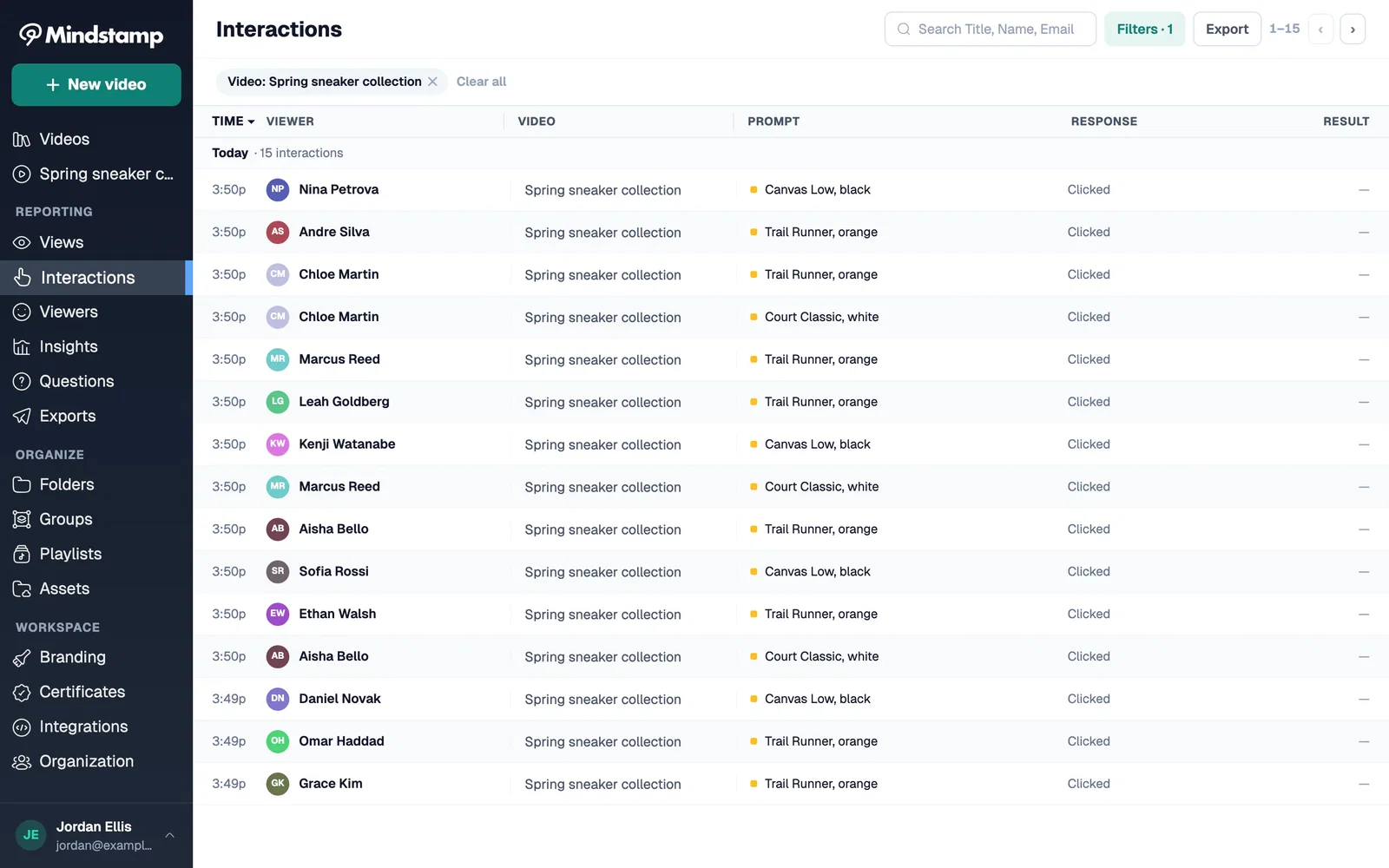
To connect clicks to sales:
- Shopify carts created in Mindstamp carry the attributes Mindstamp Video, Mindstamp Play ID, and Mindstamp Interaction ID, so the order shows which video and which hotspot started it.
- For other stores, read the
utm_contentvalue of each hotspot link in your analytics. - To react on your own page, listen for the player's viewer_interaction event, available on supported plans.
Compare products by click rate: viewers who clicked a hotspot divided by viewers who reached the moment it appeared. A product that few viewers reach needs an earlier spot before you judge its appeal.
Is there a video heatmap for ecommerce?
Mindstamp does not draw a heatmap of where viewers click on the frame. Each hotspot reports its own clicks, so the click count per product shows where interest went. To see where viewers stop watching, use drop-off by section in Mindstamp reporting on supported plans.
Ecommerce hotspot examples you can try
Each of these is a live Mindstamp video with its own page:
- Packable jacket: the demo at the top of this page. Three hotspots sit on the hood, pocket, and fabric.
- Espresso station: beam hotspots on three machine parts open a detail view and store the part the viewer inspected.
- Lamp cutaway: the shade, arm, and base each open a close-up, and outlines mark the parts the viewer has already seen.
- Recipe cookware: viewers click a pan in a cooking video, choose a size, and add it to a demo cart.
- Skin care quiz: questions lead to one recommended product.
- Camera bag ad: buttons ask where the bag needs to work and open the matching feature.
The examples gallery has more, including product tours and lead capture.
Common questions about video hotspots
Do hotspots work on phones?
Yes. Test each one on a real phone before you publish. If a hotspot is missing on the phone, check its device setting in the editor, because Desktop Only hides it on phones.
Can a hotspot follow a moving product?
Yes. Track motion makes the hotspot follow the object, and you can edit or remove the tracking later.
Can I add hotspots to a YouTube video?
Mindstamp accepts YouTube links for testing only. Before you publish, upload the file or link another supported host, and your interactions stay in place. Motion tracking does not work on YouTube sources. On YouTube itself, product tags are the built-in option.
How many hotspots should one scene have?
One for each product or part a shopper might ask about, with space between them. If more products are on screen than you can mark cleanly, split the scene, or ask a question first to narrow the choice.
Can a hotspot show the price?
A product card can show a price when the shopper clicks. To keep a price on screen, use a text overlay you can edit later. Our guide to video overlays shows how to add a price overlay.
To start, pick one product video and add a hotspot over each product at the moment it is clear on screen. Connect each hotspot to its cart link or product card, then check which products drew clicks before you add more.