Brett Lindenberg
Update, October 2026: Mindstamp still calls this feature transcripts. A transcript is the text of everything said in a video, with times, shown in a panel beside the player. Learners can read it, search it for a word or phrase, and select a line to jump to that moment, so they can revise from a long lesson without watching all of it again. You create one on the video's Transcript page for videos uploaded to Mindstamp or added with an MP4 link (YouTube and HLS links are not supported), correct names and terms in the editor, and Mindstamp builds an English caption track from it. Transcripts are on every plan. The transcripts feature page shows how they work today, the transcript help article has the setup steps, and we have updated this 2020 announcement where the product has changed.
As more people learn digitally, it's increasingly important that educational content is accessible, navigable, and understandable.
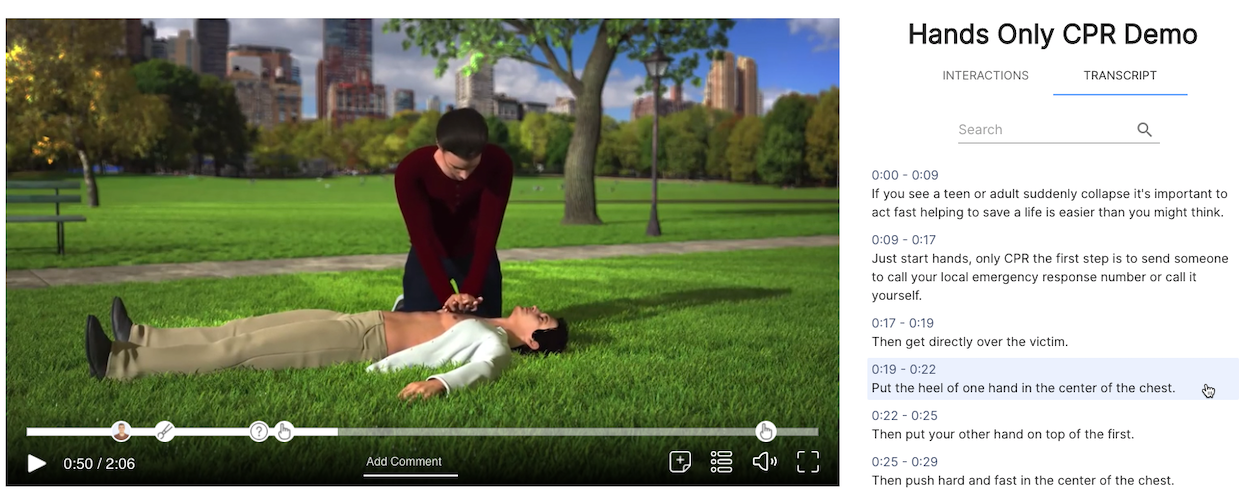
Unlike standard written material, the content of a video is not scannable at a glance. It's difficult to know exactly where a certain topic is discussed and to get to that point quickly.
In an October 2019 forecast for 2020, e-learning expert Craig Weiss predicted that video platforms would publish a transcript of the audio automatically, let the viewer highlight or search the text, and take them to that point in the video. Weiss wrote that this "eliminates huge weaknesses" in the way people watched video at the time. The post has since moved, and the archived copy of the forecast keeps the full text.
At Mindstamp, we've been helping bridge this gap by letting viewers add their own comments and drawings at any moment in a video. A student can flag a confusing step or add context, and the instructor sees each comment with its time in the viewer report.
But that only covers one side of the equation.
Today, we're happy to extend this effort by launching automatic transcriptions for videos uploaded to Mindstamp.
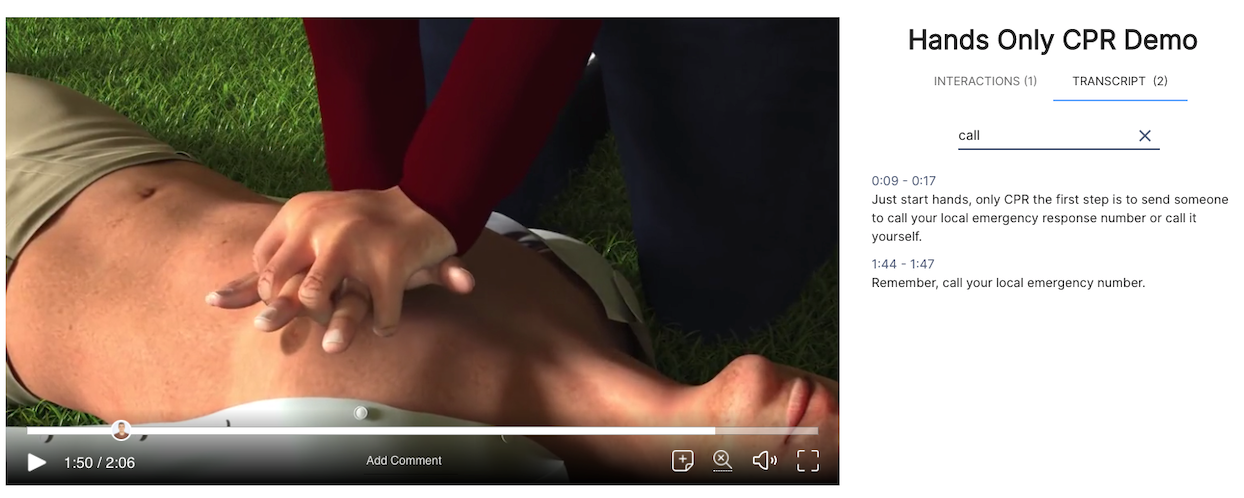
Transcripts turn your videos into searchable, accessible documents. They let viewers review the content of the video and jump to the points that interest them. In the current player, the same search box also filters the video's chapters and interactions when you show them in the guide.
To show the transcript to viewers, open Design > Behavior and turn on Show Guide Transcripts. If you turn it off, Mindstamp still uses the transcript to make captions, to ground Genie AI answers about the video, and to suggest quiz questions.
When we launched, transcripts were available to our Pro subscribers and were generated automatically for uploaded videos. Today they are on every plan. Open the video, select Transcript, and select Create Transcript; it usually takes about half the length of the video. To learn more, request a demo, or read how chapters break a video into named, searchable sections that learners can use alongside the transcript.
Cover image by Claire Graybeal.