Brett Lindenberg
To automate video at each stage of the customer lifecycle, pair a tool that knows each customer's stage with a tool that makes the video. The first group decides when to send: a CRM or marketing automation tool such as HubSpot or Customer.io, or a customer success platform such as Gainsight. The second group makes the video personal: Loom, Vidyard, and BombBomb for recorded messages, and Sendspark for an AI version per recipient. An interactive video tool such as Mindstamp fills in each viewer's name from the link and sends their answers back to your CRM, so an answer can choose the next video.
Which tools automate sending videos at each lifecycle stage?
The system that already knows where each customer stands should do the sending. The video tool supplies the link or thumbnail. Your CRM or customer success platform decides who gets it and when.
| Type | Example | What it does | Stages it fits |
|---|---|---|---|
| CRM and marketing automation | HubSpot | Keeps a lifecycle stage on each contact, from Subscriber and Lead through Customer and Evangelist, and runs workflows from it | Awareness to purchase, plus customer emails |
| Messaging platform | Customer.io | Sends email, push, SMS, and in-app messages from behavioral triggers and customer data | Onboarding, adoption, retention |
| Customer success platform | Gainsight | Scores account health and runs journeys that mix automated emails, in-app guides, surveys, and human touchpoints | Onboarding to renewal |
| In-app guidance | Intercom product tours | Shows tours, checklists, and tooltips, targeted by who the user is and how they use the product | Onboarding and feature adoption |
Some video tools automate sending on their own. Vidyard runs video sequences with signal-based triggers, and BombBomb has automated outreach workflows. They suit stages that a sales team owns. For stages after the sale, let the system your customer success or marketing team already uses do the sending, so one tool holds the customer's history.
What tools can send personalized videos across the customer lifecycle?
Personalized video comes in three forms. Each costs a different amount of effort per recipient and tells you different things back.
| Approach | Examples | How it works | Trade-off |
|---|---|---|---|
| Record one video per person | Loom, Vidyard, BombBomb | Someone records a short screen or camera message for one recipient. Each tool tracks views. | The most personal option, and it takes someone's time for every recipient. Save it for an onboarding kickoff or a renewal at risk. |
| Generate a version per person | Sendspark, Vidyard AI avatars, HeyGen | Sendspark clones your voice from one recording and tailors it to each contact you import by CSV, CRM, or API. Vidyard offers AI avatars for reps. HeyGen makes AI avatar videos, translates them into more than 175 languages and dialects, and has an API. | One recording reaches many people. Review samples before you send, because a wrong name or odd phrasing is easy to miss at volume. |
| Fill in one recording at play time | Mindstamp | One video shows each viewer's name, company, or other values in on-screen text, questions, and buttons. Values come from a personalized link or from merge fields in your email tool. Viewers answer and choose paths, and the answers go back to your CRM. | The footage stays the same for everyone, so the personal touch is on screen. In return you get each viewer's answers, which you can use to pick the next video. |
You can combine them. A HeyGen avatar video can become an interactive video: Mindstamp's HeyGen integration adds questions and branching to the video without changing the source file.
In Mindstamp, personalization uses placeholders such as {{NAME}} or {{NAME|there}}. A viewer sees their own value first, then the fallback after the bar, then any default value you set for the organization or video, and otherwise nothing. You can build the link from merge fields in your email tool or create personalized links one at a time or from a CSV, as our guide to personalized links from your CRM explains. Merge-field values are visible in the link and anyone can change them, so use personalized links, which show only a link ID, for anything private.
What to send at each stage of the customer lifecycle
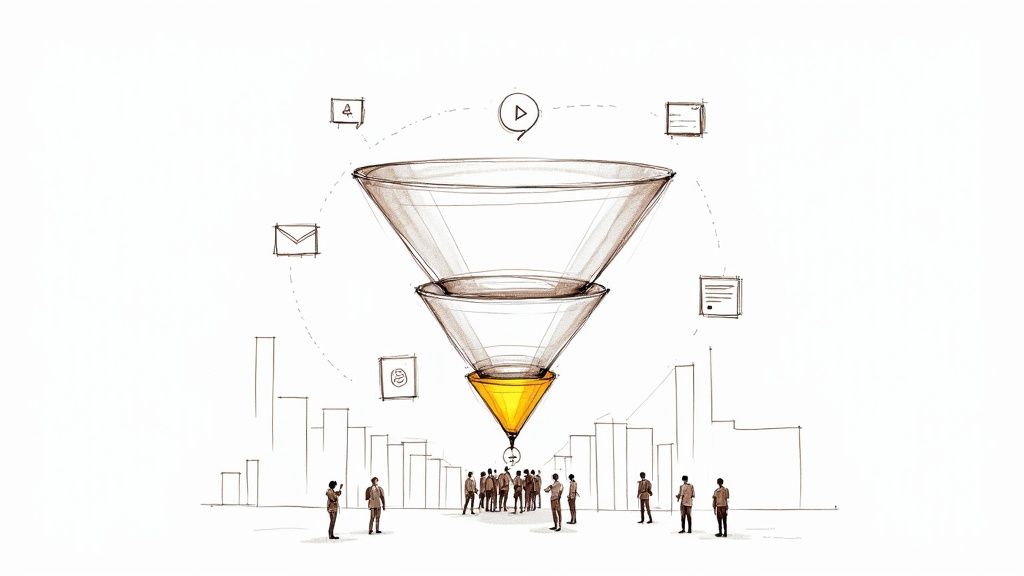
Each stage needs a video that answers the customer's question at that moment and an interaction that tells you what to send next.
| Stage | Video to send | Interaction | Signal for the next step |
|---|---|---|---|
| Awareness | Short explainer that links to the interactive version | Buttons that split viewers by interest | The topic each viewer picked |
| Consideration | Product tour or demo | Branch by need or role | The path chosen and how far they watched |
| Purchase | Proposal or pricing walkthrough, or a product video | Calendar booking, add to cart, or a checkout link | A booked meeting or a cart |
| Onboarding | Welcome and first-task video | A first-goal question, then one setup task | The customer's goal and setup result |
| Adoption | Feature videos inside the product | Role branch and a chapter menu | The features each account asks about |
| Support | Troubleshooting video | A triage question | The most common problem and where viewers give up |
| Renewal and expansion | Personalized review video | A rating question and an add-on choice | The rating and the add-on picked |
| Advocacy | Thank-you video with a referral or testimonial ask | A video response question | A recorded testimonial or a referral |
Awareness
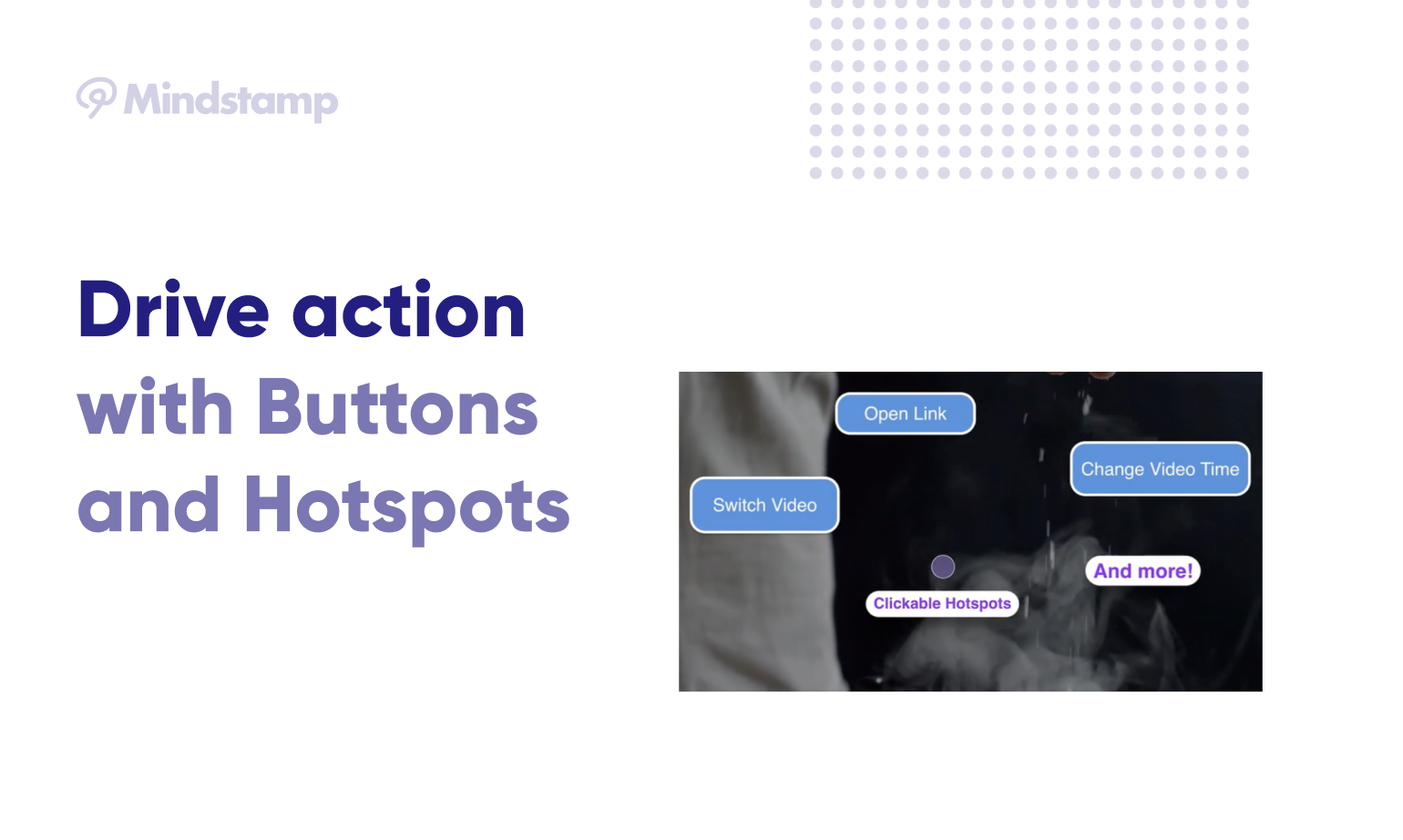
Social platforms play flat video files, so use them to send people to the interactive version on your site. In that version, give viewers a choice early. Two "Learn more" buttons can lead to the same next scene and still tell you which benefit each viewer cares about. You can use that answer to choose the email they get next. Our guide to interactive video marketing covers awareness campaigns in more detail.
Consideration and purchase
Buyers at different stages want different proof from the same product tour. Let them say which proof they need, and the tour opens that part. Try it in the demo below.
At the purchase stage, put the action inside the video. Calendar embedding opens a Calendly or HubSpot calendar over the video, so a buyer books while interest is high. For e-commerce, the Shopify Add to Cart action opens a cart in the player, and Shopify orders carry the Mindstamp video, play, and interaction IDs, so you can see which video started the sale. For the full pre-sale sequence, see how interactive video guides buyers through the sales funnel and our guide to video lead generation.
Onboarding and adoption
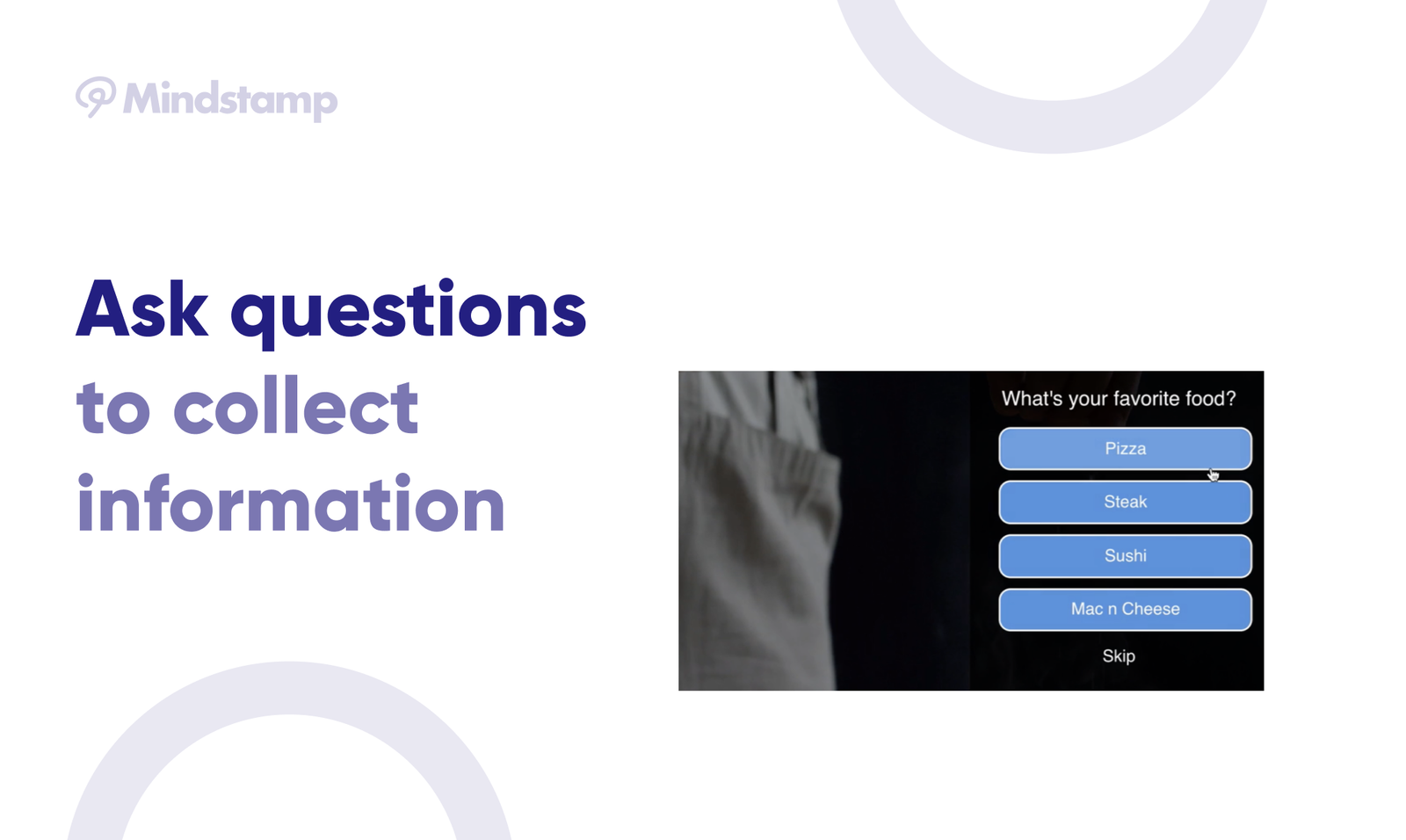
Start onboarding with a question about the customer's first goal and show one setup task for that goal. Send feature videos later, inside the product, when the customer reaches the feature. Our post on SaaS customer engagement with interactive video covers these plays in depth, and our customer onboarding best practices cover the program around them.
To choose onboarding content from data you already hold, such as plan or industry, pass it into the video from the link and confirm how you will identify each viewer. If that data lives in Salesforce, note that Salesforce integration is quoted per account; agree on the supported data direction and fields with Mindstamp before you plan personalization around it.
Support
A support video that opens with a triage question plays only the fix for the customer's case. The report shows which problem viewers pick most and the step where they stop watching. See our support use case page for help center embeds and escalations that carry the viewer's answers to an agent.
Renewal, expansion, and advocacy
Before a renewal, send a personalized review video with a one-to-five-star rating question. On supported plans, conditional logic can send a low rating to a follow-up question and a high rating to a booking link. For expansion, let customers pick the add-on or use case they want to see, in the style of a choose-your-own-adventure video. Even when they don't buy that day, the choice tells your account manager what to raise next. Customers who rate you highly can record a testimonial with a video response question; get their written permission before you publish it.
How to automate a lifecycle video sequence: a worked example
This example uses HubSpot and Mindstamp for onboarding. The same pattern works with other tools.
- Record one onboarding video. Open it with a question about the customer's first goal, and give each answer a short path that ends in one setup task.
- In HubSpot, create a workflow that enrolls contacts when their lifecycle stage becomes Customer. HubSpot's lifecycle stage guide notes that setting stages from a workflow needs a Professional or Enterprise account.
- Have the workflow send a welcome email with a thumbnail linked to the video. Add the contact's email and first name to the link as URL parameters with the email tool's merge fields. Email clients can't play interactive video, so link a thumbnail instead of embedding the player.
- Turn on the HubSpot integration for the video (on supported plans) and map the first-goal answer to a contact property. After the viewing session ends, Mindstamp adds the view and the answer to the contact's timeline.
- Create a second workflow that branches on that property. Each answer gets the follow-up video for that goal, and an answer such as "I need help connecting data" creates a task for the onboarding owner.
- Send a reminder to contacts with no view after the wait you choose, and move contacts who finish into your adoption sequence.
With other stacks, Customer.io or Gainsight handles steps 2 and 5. Webhooks or Zapier carry the answers back. Three details apply to every stack:
- Mindstamp sends to HubSpot and webhooks after the session ends (when the viewer reaches the end, closes the page, or stops for about two minutes), so build in a short wait before a workflow checks for an answer.
- A view reaches a CRM record only when the viewer is identified by email or custom ID. Anonymous views still show in your Mindstamp report.
- Encode values in links, such as a plus sign in an email address as %2B, or the parameter breaks.
How to make enough video for every stage
A video for every stage adds up, but the production budget can be modest. Wistia's 2026 State of Video report, as summarized by HubSpot, surveyed more than 900 professionals and found that about 40% of companies spent under $5,000 on video production in 2025. Educational videos, product videos, social videos, and webinars were the most common types, and people watched about halfway through educational videos under five minutes. In Wyzowl's 2026 survey, 59% of video marketers made their videos in house, 10% used only outside vendors, and 32% used both.
Ways to fill the gaps:
- Record screen-and-camera walkthroughs yourself for onboarding and support topics.
- Make animated explainers with a template tool such as Powtoon, which also offers AI avatars and text-to-speech.
- Hire freelancers for editing or animation through a marketplace such as Fiverr, which lists video editing and video and animation services.
- Reuse one recording for several stages. A product tour with branches can serve discovery, evaluation, and decision, as in the demo above.
Mindstamp adds the interactive layer to video you already have, uploaded or linked from a host such as Vimeo or Wistia, so you don't need to re-edit a video to make it interactive.
Common questions
What is an interactive sales video?
An interactive sales video lets the prospect steer. It asks a discovery question, such as team size or current tools, plays the part that fits the answer, and offers a meeting booking inside the player. The rep then sees what each prospect chose before the call. See interactive video for sales, the personalized sales video use case, and our guide to video for sales.
What is an interactive video solution?
An interactive video solution is software that adds clickable elements, such as questions and branching paths, to a video and records what each viewer does. Some video hosts include interactive features. Others, like Mindstamp, add the interactive layer to video you host elsewhere. Read what interactive video is for the basics and our comparison of interactive video platforms for the options.
Do you need a different video for each lifecycle stage?
Not always. One video with branching can serve several stages, because each viewer picks the part that fits them. Separate videos make sense when the audience changes, for example a prospect before the sale and an admin after it.
Sources and further reading
- Insivia, video marketing statistics: cited in earlier versions of this post. The 2013 address now redirects to Insivia's 2025 statistics page, which no longer shows the retention figure we quoted, so we removed it.
Pick the stage where your customers stall most often. Map the one question that would tell you what each customer needs, add it to the video you send at that stage, and connect the answer to the workflow that sends the next message.