Brett Lindenberg
Your video content is working when the people it is for see the parts that carry your message, understand them, and act on them. This three-part series checks those one at a time, and Part 1 covers the first test: did your audience see the most important content? A view count cannot tell you, because it counts everyone who pressed play. To find out, name the moments the video must deliver, check how many viewers reached each one in your watch and drop-off data, and put a checkpoint at each moment so the report shows who got there. Then change the video where viewers leave before the part that matters.
Why a view count cannot answer the question
A view looks the same for three very different viewers:
- One starts the video, switches to another tab, and lets it play to the end.
- One clicks around the seek bar, watches a few seconds here and there, and leaves.
- One jumps to the end to look for a summary.
None of them saw the key content, and each one counts as a view. Watch data separates the last two. In Mindstamp, the watched percentage counts the unique seconds a viewer played, divided by the video length, so a viewer who jumps to the end has a late furthest point and a low watched percentage (see furthest point and last point). The viewer in the background tab is harder to spot, because the seconds did play. The attention settings in step 3 cover that case.
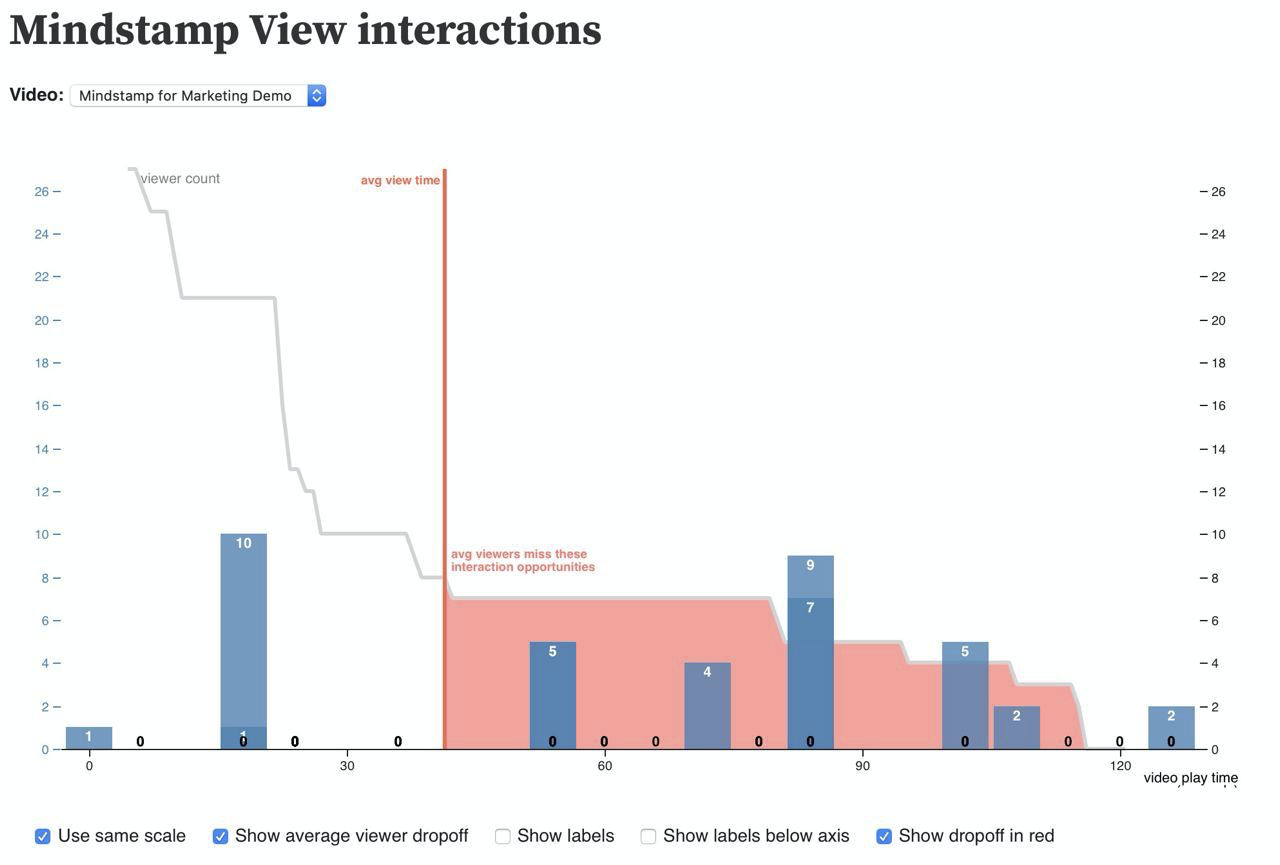
Many viewers also stop well before the end. Across 8.07 million views of 18,315 Mindstamp videos (2018 to October 2026), the average view played 46.5% of the video. For videos of 2 to 5 minutes, the average was 39.2%. These are Mindstamp videos, mostly training, marketing, and sales, so treat them as a reference point, not a benchmark for all video. YouTube's help center makes the same point for its own videos: audiences usually shrink over the length of a video, so put the most compelling content early. If your key message arrives in the last minute, expect many viewers to miss it.
Step 1: Name the moments that must be seen
Write down the one to three moments that carry the message, with their timecodes. For each one, ask: if a viewer saw only this part, would the video have done its main job? Some examples:
- In a product demo, the feature that answers the buyer's main objection, at 1:45.
- In a safety training video, the lockout step, at 3:20.
You measure everything in the next steps against these timecodes. If you cannot name them, decide what the video is for before you measure it.
Step 2: Check whether viewers reached those moments
Each watch signal answers part of the question. Use them together.
| Signal | What it tells you | What it misses |
|---|---|---|
| Views or plays | Someone pressed play | Whether they watched any particular part |
| Watched percentage | The share of the video's seconds each viewer played | Which seconds they played, and whether they were looking |
| Furthest point | The latest moment each viewer reached | Sections they skipped on the way |
| Drop-off curve | The share of viewers still watching at each point | Who left, and why |
| Response at a checkpoint | That a viewer reached the moment and responded | Whether they understood it (Part 2 of this series) |
Read the drop-off curve at each timecode
Most video hosts chart how many viewers are still watching at each point of a video. YouTube Help explains how to read one: a flat line means viewers watched that part from start to finish, a dip means viewers left or skipped at that point, and a spike means viewers rewatched or shared that part. A spike can mean the part is compelling, or that it confused viewers enough to watch it again. Find each key timecode on the curve and note the share of viewers still watching. A dip just before a key moment is the warning sign to look for. In Mindstamp, drop-off data is part of Reporting on supported plans.
Check each viewer's watched percentage and furthest point
The curve describes the audience, and the view record describes one person. In Mindstamp, Reporting > Views lists each viewing session with its watched percentage, and opening a session shows how far the viewer got and each answer and click with its time. Use the furthest point to see whether a viewer reached a key timecode. Use the watched percentage to see whether they played the video or skipped through it. The guide to exported fields defines each column if you work in a spreadsheet.
Put a checkpoint at each key moment
Watch data shows only that the player passed a timecode. To know the viewer was there, add an interaction at each key moment and count the responses. Responses divided by views gives the share of viewers who reached the moment and responded, and each response sits in that viewer's record with its time. Two setups work well:
- A button with the Continue click action, which records the click and keeps the video playing. Set its pause to At hide time (Require Click): the video plays while the button is on screen and waits at its hide time until the viewer clicks. The guide to requiring a click has the steps.
- A short question. Questions pause the video when they appear, and the Questions report breaks down every answer.
Keep checkpoints to the moments from step 1, so each pause has a reason the viewer can see.
Know who reached the moment
Anonymous views tell you how many viewers reached a moment. To know which people did, collect or pass their identity with lead capture, a personalized link, or URL parameters, as the guide to viewer identity explains. For training, a SCORM package sends completion and score to a compatible LMS (see SCORM export).
Step 3: Make the key moments harder to miss
What you can do depends on whether viewers have to watch.
When viewers must watch, as in compliance training
Use these Mindstamp settings together:
- Turn off Allow Seeking in Design > Player. The seek bar still shows progress, but viewers cannot drag it forward.
- Turn on Prevent passing required interactions in Settings > Viewer experience. Viewers then cannot seek past a required question or a must-click interaction.
- Turn off Allow skipping on each question that must be answered.
- Turn on Pause when tab is inactive and Resume video on tab focus in Settings > Playback. On a share link, the video stops when the viewer switches to another tab or window and plays again when they come back. An embedded player, including a SCORM package in an LMS, does the same when the viewer switches to another browser tab and back.
- Turn on Verify attention in Settings > Viewer experience and choose a time between 30 and 300 seconds. If the viewer does not move the mouse over the player or press a key in that time, the video pauses and asks "Are you still watching?" until they select Continue. This check also runs in embedded players.
Prevent passing required interactions and Verify attention are available on supported plans. The guide to stopping viewers from skipping ahead has the full setup and a test you can run in a private browser window.
When viewers choose to watch, as in marketing and sales
Locks are hard to justify when the viewer chose to watch. Make the key moment easy to reach instead:
- Move the key moment earlier. Open with the answer to the viewer's main question and put the background after it.
- Let viewers jump to the part they came for with chapters, or with buttons that use the Change Time action. Each button click is recorded, so the report shows which sections viewers chose.
Step 4: Read the results and decide what to change
Look at each key moment and match what you see to one of these patterns.
| What you see | What to change |
|---|---|
| Most viewers leave before the key moment | Move the moment earlier, shorten the opening, or split the video into shorter parts |
| The curve dips at the key moment itself | The section loses viewers. Shorten it or show it a different way |
| Viewers pass the moment, but few respond at the checkpoint | Check that the checkpoint is easy to see and comes at the right time. If it should be required, use Require Click or a question |
| A spike at the key moment | Viewers replay it. Ask a question there to find out whether it confused them (Part 2) |
| Most viewers reach the moment and respond | They saw it. Next, check whether they understood it (Part 2) |
For fixes to early drop-off, see how to increase video audience retention. To practice reading a pattern, try the drop-off diagnosis example: viewer evidence points to a problem near 4:20, and you choose what to inspect first.
The three questions in this series
- Did your audience see the most important content? (this post)
- Did your audience understand the message?
- Did viewers take the action you wanted?
For the metrics behind all three, see video engagement metrics and interactive video analytics. If you are new to adding questions and buttons to a video, start with what interactive video is.
Start with one video. Write down its key timecodes, check the share of viewers still watching at each one, and add a single checkpoint at the most important moment. As new views come in, the checkpoint count shows how many viewers get there.
Sources and further reading
- YouTube Help: Measure key moments for audience retention, on reading a retention graph.