Brett Lindenberg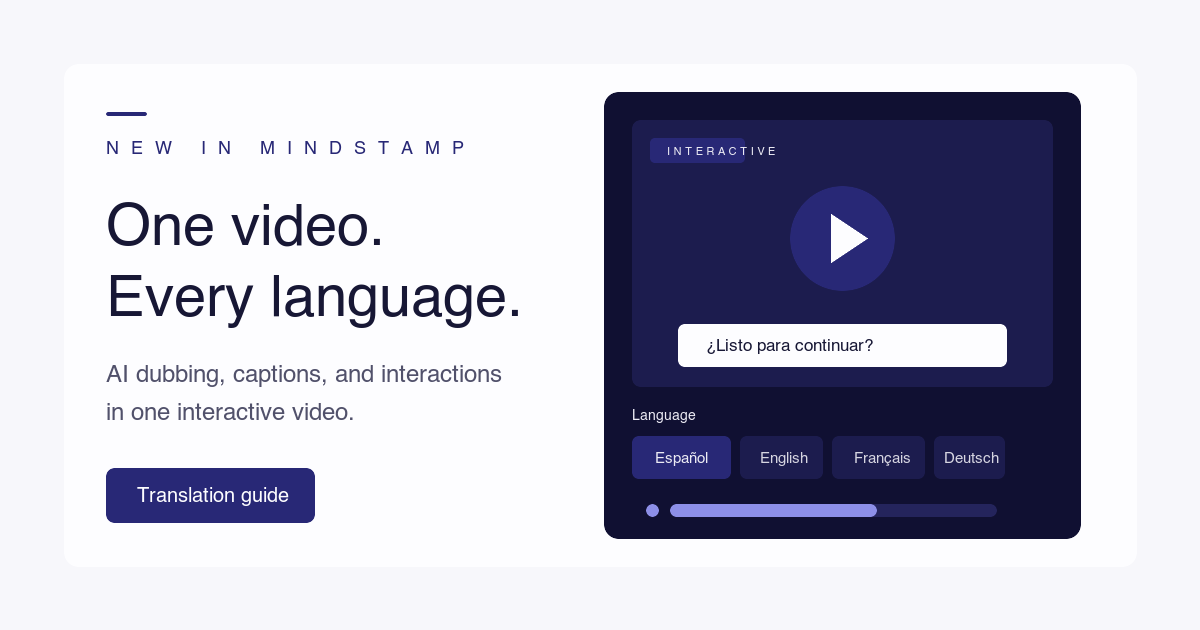
To translate the spoken language in a video and add accurate subtitles, start from a corrected transcript of the original speech. Translate that text, time the translation as a caption file (SRT or VTT), and generate a dubbed voice track from the same text if viewers should hear the new language. Have a fluent speaker check names, terms, and timing before you publish. An interactive video needs one more step: its questions, buttons, forms, and player text must change language as well, or a viewer hears Spanish and reads English. In Mindstamp, a full audio dub translates both the spoken and the on-screen parts of one video, and an interactions-only translation changes the on-screen parts at no charge while the original audio stays.
Subtitles, AI dubbing, or both
Pick the format before you translate anything, because each one needs different files and different checks.
| Option | What the viewer gets | Good fit | What to check |
|---|---|---|---|
| Same-language captions | Text of what is said, in the original language | Accessibility, viewers who watch with the sound off, language learners | Captions also describe important sounds, such as an alarm or a speaker change |
| Translated subtitles | The original voice, with text in their language | Viewers who read comfortably, and speakers whose own voice matters | Reading speed and line length |
| AI voice dubbing | A new voice track in their language | Training, software demos where eyes stay on the screen, viewers who prefer to listen | Pronunciation of names and terms, and pacing against the picture |
| Lip-sync dubbing | A new voice with mouth movement matched to it | On-camera presenters in close-up, and marketing video | Usually a separate video file for each language |
| Human voice-over | A professional voice actor in their language | Regulated, high-stakes, or brand-critical content | Studio time and a script freeze before recording |
For training, we suggest AI dubbing plus translated captions. The dub carries the lesson, and the captions help viewers who watch without sound or want to check a term. Captions in the original language are an accessibility baseline either way: WCAG success criterion 1.2.2 asks for captions on prerecorded video at Level A, and W3C notes that captions cover important sounds as well as dialogue.
How to translate the spoken language in a video and add accurate subtitles
This is the general process, whatever tool you use.
- Get a transcript of the original speech. Automatic speech-to-text gives you a draft, then you fix names, numbers, product terms, and punctuation, because every error copies into every language.
- List the terms that must not change. Brand and product names, SKUs, acronyms, and personalization placeholders such as
{{NAME}}should come through untouched. - Translate the corrected text. Machine translation is a good first draft. Anything you publish needs a fluent reviewer, and legal, medical, or safety content needs a qualified one.
- Time the translation as captions. Use SRT or VTT saved as UTF-8 so accented letters display correctly. The BBC subtitle guidelines recommend 160 to 180 words per minute (0.33 to 0.375 seconds per word) and at most two lines per subtitle in landscape video.
- Shorten lines where the translation runs long. Text usually grows in translation. A W3C article on text size cites IBM guidance that, on average, English strings of up to 10 characters become 200% to 300% as long in European languages, and strings over 70 characters become about 130% as long.
- Generate the dub from the same reviewed translation so the audio and the captions say the same thing.
- Watch the result all the way through. Check that captions match the speech, names sound right, and no subtitle covers on-screen text.
If you only need a translated caption file, our free subtitle translator translates SRT and VTT files into 19 languages and keeps every timestamp. The caption validator then checks the file for overlaps and broken timing.
How to translate an interactive video in Mindstamp
Mindstamp keeps every language on one video, so the questions, buttons, and branches you built once work in each language you add. It translates and dubs into 57 languages, and some of them come in regional versions, such as Portuguese (Brazilian) and Chinese (Traditional). The steps below follow our help page on translating an interactive video.
- Finish the video and its interactions first. If you edit an interaction after you translate, you run the translation again for the languages that need it.
- For a full audio dub, create the transcript on the Transcript page, then select Edit and correct it. The transcript drives both the translated audio and the caption timing. Transcripts work for videos you upload and for MP4 links, and not for YouTube or HLS links (see how video transcripts work).
- Open the video and select Translate in the left menu. Choose Full audio dub or Interactions only.
- Select one or more languages with the search box, or use Select all suggested.
- For a full dub, choose a voice and preview it.
- Add protected terms such as product names, brand names, and acronyms. Type each term and press Enter. Variables such as
{{NAME}}stay unchanged. - Read the cost summary, then submit. Interactions-only jobs take a few minutes, and dubbing takes about 4 minutes per language.
- Test the result by adding
?lang=es(or another language code) to the share link. The buttons, questions, and player text should show in that language, and a dubbed video should play the translated audio.
| Part of the video | Full audio dub | Interactions only |
|---|---|---|
| Audio | New voice track in each language, without the original music and sound effects | Original audio stays |
| Captions and transcript | Translated | Not changed |
| Buttons, questions, forms, hotspots, text overlays, labels | Translated | Translated |
| Player text | Matching language where a translation exists | Matching language where a translation exists |
| Transcript required | Yes | No |
| Cost | Uses dubbing minutes | Free on every plan |
Interactions only fits a video whose audio is already right for the audience, or whose viewers follow the spoken language but need instructions and answer choices in their own. It is also a free way to test a second language before you pay for a dub.
To change a piece of player text yourself, such as a button prompt, a form label, or certificate text, open Design, go to Translations, and select Show Translations. Set the base language of the video, then use Edit text for language.
How viewers get the right language
One share link or embed serves every language you add:
- The player uses the viewer's browser language when a matching translation exists.
- Viewers can change the language in the player.
- You can send a link for one language by adding
?lang=and a language code, such as?lang=fr. On a website, you can also pass the lang parameter into an embed. - If no translation matches, the video plays in its base language.
A sales rep can send a direct Spanish link, while a public product page lets each viewer choose.
How to improve audio quality in translated video
A dub is built from text, so many audio problems in a translated video start in the source recording or the transcript.
Record clean source audio
Speech-to-text works best on a clear voice in a quiet room, with music kept low under the speech. A word the transcript gets wrong becomes a wrong word in the dub for every language. If the original audio is poor, correct the transcript line by line before you translate.
Write sentences that translate well
Short, complete sentences translate and time more cleanly than long ones with several clauses. Leave a short pause between sentences, because a translated line often needs more time than the original and the dub has to fit the same moments in the video.
Choose the voice by listening
Preview the voice before you submit, and listen to the finished dub from start to end at least once. Pay attention to names, numbers, and terms, and add any term the voice should leave alone to the protected terms list. Mindstamp times translated audio to the video, but the timing of individual lines can vary because the same idea takes more or fewer words in another language.
Plan for music and sound effects
A Mindstamp dub keeps only the new voice. The original music and sound effects are not in the dubbed track, so viewers who pick a dubbed language hear the translated speech over silence. If a sound carries meaning, such as an alarm in a safety video, mention it in the narration so it reaches the dub. If the music matters more than a translated voice, use Interactions only and upload a translated caption file on the Captions page.
Keep on-screen labels short
Button labels and answer choices grow the most in translation, so "Continue" in English can need two or three times the space in another language. Short labels leave the player room for the translated text.
AI dubbing for education courses
A course adds a few needs on top of a single video. Translate the knowledge checks along with the lecture, so learners answer in the language they heard the lesson in. Have a subject expert who reads the target language check each translated question and its correct answer, because a loosely translated distractor can make a wrong answer look right. In Mindstamp, the same questions keep pausing the video in every language, and each learner's answers are recorded the same way.
If a video uses Genie AI, it answers in the language of the learner's question when they watch in a language other than English. For the bigger picture on AI in courses, see our guide to AI interactive video for training and education, and for other AI features, what AI can do for interactive video. If your course videos are generated with an avatar tool, our guide to generative AI and interactive video covers that workflow, and the training and education pages show how teams use Mindstamp for courses.
Translating video into Spanish, and learning Spanish with video
Making a Spanish version of your video
Follow the steps above, and settle two choices before you translate. Pick the regional variant your viewers use where the language list offers one, and have a reviewer from that region check product terms. Decide whether the script addresses viewers formally (usted) or informally (tú), and keep that choice the same in the voice track, the captions, and every button. Then share the video with ?lang=es for Spanish-speaking audiences, or let the browser language choose.
Using video to learn or practice Spanish translation
Research on captioned video gives learners and teachers a starting point. In a 2001 study in Foreign Language Annals, intermediate university students of Spanish who watched a video with a Spanish soundtrack understood the most with English captions, less with Spanish captions, and the least with no captions. A 2025 meta-analysis in Language Learning by Kurokawa, Hein, and Uchihara combined 89 effect sizes from 49 studies and found a medium effect of same-language captions on vocabulary learning (g = 0.56).
A teacher can turn a Spanish clip into a translation exercise. Pause the video after a line and ask learners to type their English translation in a free response question, or to say it aloud in a voice response question, which records for up to 120 seconds in the browser. After the answer, a button can jump back and replay the line. Our page on language learning with interactive video shows how teachers review each student's spoken answers.
How Mindstamp video dubbing is priced
Interactions-only translation is free on every plan. A full audio dub uses the dubbing minutes included with your plan each month, then costs $1 per minute of video for each language.
| Plan | Included each month | After the included minutes |
|---|---|---|
| Solo | 0 minutes | $1 per minute per language |
| Basic | 0 minutes | $1 per minute per language |
| Core | 100 minutes | $1 per minute per language |
| Pro | 500 minutes | $1 per minute per language |
| Scale | 1,000 minutes | $1 per minute per language |
| Ultra | 2,500 minutes | $1 per minute per language |
| Enterprise | 500 minutes by default | Custom options available |
Minutes are counted per language, and video length rounds up to the next whole minute. A 4-minute 10-second video counts as 5 minutes in each language. On Core, dubbing a 12-minute 30-second video into Spanish, French, and German counts 13 minutes per language, uses 39 of the 100 included minutes, and leaves 61 minutes for the month. A language you already bought for the same video is not charged again, and included minutes reset each month. The cost summary on the Translate page shows the total before you submit. See how AI dubbing is priced and the pricing page for plan details.
What AI dubbing does and does not do
Mindstamp creates a timed voice track from your edited transcript, plus captions and a transcript in each language. The dubbed track holds only the new voice, so the original music and sound effects drop out. It does not change the speaker's mouth movement, so it is not lip-sync dubbing. Dubbing without lip-sync works well for narration, screen recordings, slides, and presenters seen at a distance. If mouth movement must match, a lip-sync tool such as HeyGen's AI dubbing can produce a lip-synced version of the video in each language (checked October 2026). Each version then becomes its own video in Mindstamp with interactions in that language, so you manage one video per language instead of one video for all of them.
Translation quality varies by language, topic, and the quality of the source transcript. Review the output before you share it widely, and use a qualified reviewer for legal, medical, or safety content.
Common questions
How do I add subtitles and dubbing to the same video?
Create both from one reviewed translation, so the voice and the text say the same thing. In Mindstamp, a full audio dub adds the translated audio and a caption track in each language in one job. You can also upload your own SRT or VTT file for any language on the Captions page.
Does AI video dubbing need a transcript?
In Mindstamp, a full audio dub needs a finished transcript, because the transcript drives the new audio and the caption timing. Interactions-only translation does not need one.
Can I translate only the buttons and questions?
Yes. Interactions-only translation changes what viewers read and click and leaves the audio alone. The table above lists the parts it covers. It is free on every plan.
What happens to translations if I replace the video file?
A published translated audio track is removed when you replace the source video. Your interactions, share link, and embed code stay. Update the transcript if the words changed, then submit the translation again.
Can I fix a mistake in the dub?
If the error came from the source transcript, correct the transcript and submit that language again. If a name or term was translated when it should have stayed the same, add it to the protected terms before you resubmit. Mindstamp does not charge again for a language already bought for the same video. Player text can be edited for one language under Design, then Translations.
Start with one video and one language
Choose a video that people outside your main language already watch. Correct its transcript, add your protected terms, and dub it into one language. Then open the share link with that language's ?lang= code and follow every question and branch to its end before you add more languages. The video translation feature page has a demo you can switch between languages.