Brett Lindenberg
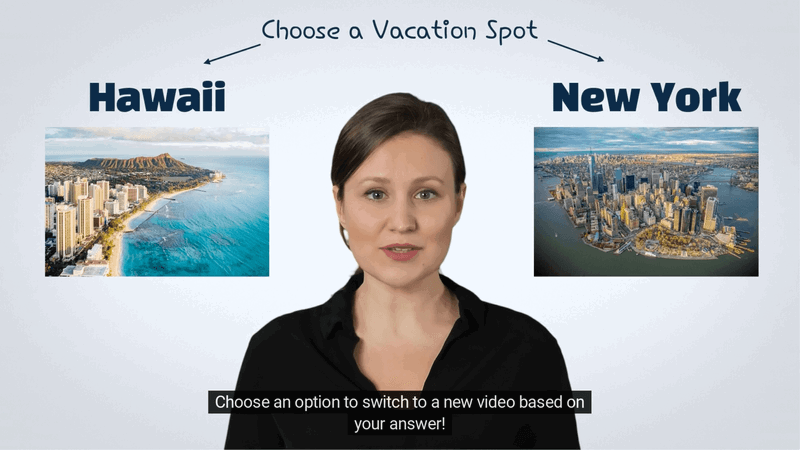
AI interactive video training is training video in which AI does part of the production and the learner responds while the video plays. AI can generate a presenter from a script and draft the quiz questions. In the player, an AI assistant can answer a learner's follow-up questions from what the video says. The interactive layer pauses the video for a question right after a concept is taught, and it records each learner's answer for your LMS or your own reports. Controlled studies so far find that learners score about the same after an AI-presenter video as after a recorded instructor, and in most of them learners rated the AI version lower, so plan the questions and decisions with as much care as the script. The 33-second example below uses an AI avatar presenter made with Synthesia, and we added three questions to it.
What AI interactive video training includes
The term covers three different setups.
| Setup | What AI does | What the learner does | Examples |
|---|---|---|---|
| AI-made video with an interactive layer | Generates the presenter, the voice, or the whole video from a script or slides | Answers questions, picks branches, and opens resources inside the video | A Synthesia, HeyGen, or Pictory video made interactive in Mindstamp |
| AI inside the interactive layer | Drafts quiz questions, translates and dubs, reads text aloud, and answers questions from the transcript | The same, in their own language, with an assistant for follow-up questions | Mindstamp question generation, translation and dubbing, AI voices, and Genie AI |
| Conversational AI practice | Plays a character that the learner talks to, then scores the conversation | Speaks with an AI avatar that answers and pushes back | Synthesia Roleplay Sessions |
This guide covers the first two setups, because they work with the training videos and the LMS you already have. For every AI feature in an interactive video, including AI agents that build videos for you, see what AI can do for interactive video.
Do learners learn from AI-generated training video?
Yes. In four controlled studies published from 2023 to 2025, learners did about as well on tests after AI-presenter videos as after videos of a real instructor. In three of the four, learners rated the AI versions lower on experience, engagement, or social presence.
- A 2025 study in Computers & Education had 447 participants watch a mix of AI-generated and human-made teaching videos for a management course. Participants rated the human-made videos slightly higher, and exam results in the two groups were similar (Netland and colleagues, 2025).
- In a 2024 study of 108 undergraduates, students engaged more with lectures from a human instructor, but the type of instructor made no significant difference to test performance. Some students said the AI instructor distracted them or made them uncomfortable (Arkün-Kocadere and Çağlar Özhan, 2024).
- A 2024 study in the British Journal of Educational Technology randomly assigned 76 students to learn English words from an AI-generated video or a recorded one. The AI group scored higher on retention and the same on transfer, and reported a weaker sense of social presence (Xu and colleagues, 2024).
- A 2023 study of 83 adult learners found no significant difference in learning gains between a traditional instructor video and a video with an AI-generated presenter (Leiker and colleagues, 2023).
The questions you add to a video have older and broader evidence behind them. In two experiments at Harvard, short tests between segments of an online lecture reduced mind wandering and improved learning (Szpunar, Khan, and Schacter, 2013). A 2021 meta-analysis of 222 classroom studies with 48,478 students found that quizzing raised achievement by a medium amount, and corrective feedback was one of the factors that changed the size of the effect (Yang and colleagues, 2021).
So in these studies an AI presenter cost no measurable learning, though learners found it less engaging than a person. A question after each important idea, with an explanation for every wrong answer, is the part of the design with the strongest research support.
How to build an AI interactive training video
These steps use Mindstamp for the interactive layer. The order works with other tools too: script, video, transcript, questions, then delivery.
Step 1: Write the objective and a short script
Start from what the learner must be able to do after the video, such as lock out a machine or answer a pricing objection. An AI chatbot can draft the script from your policy or slides. Have a subject expert check every fact before you generate any video, because an AI presenter reads a wrong number as smoothly as a right one. Mark where each question will go while you write. Our free training video script generator drafts scenes with narration, on-screen text, and planned interaction moments.
Step 2: Generate the presenter video
Paste the script into an AI video tool. Synthesia and HeyGen generate avatar presenters. Pictory turns text, slides, web pages, and recordings into videos with captions, AI voices, and avatars (Pictory's homepage, checked October 2026).
In Mindstamp, select New video and choose Synthesia or HeyGen to import a video from a connected account. On the Synthesia side, you turn on video sharing and create an API key, as Synthesia's guide to the Mindstamp integration describes. For Pictory or any other tool, download the MP4 file and upload it. See which video sources Mindstamp accepts and the Synthesia and HeyGen integration pages.
Step 3: Create the transcript and correct it
Open Transcript in the video menu and select Create Transcript. It usually takes about half the length of the video. Read it and fix names, numbers, and product terms. Three later steps read this text: question generation writes from it, Genie AI answers from it, and a full audio dub times the translated voice to it. See how video transcripts work.
Step 4: Draft knowledge checks with AI, then edit them
On the Transcript page, select Generate questions and choose how many you want, up to 20. The AI writes multiple-choice questions, marks one correct answer for each, and spaces them through the video. Then do the work it cannot do:
- Move each question to just after the presenter finishes the idea it tests.
- Give each wrong answer a Show Message explanation, or a Change Time action that sends the learner back to the explanation.
- Turn on Repeat Until Correct for questions that every learner must get right. Mindstamp records every attempt.
- Write your own questions about anything that appears only on screen. The AI reads the transcript and does not see the picture.
Our guide to turning a video into a quiz with AI covers the question builder and how to check its drafts.
Step 5: Add decisions for scenario practice
A branching scenario asks learners what they would do and then plays the result of their choice. Add a multiple-choice question and set each answer to Switch Video, which plays the clip that shows that choice's outcome. AI presenters make these extra clips cheaper, since each branch needs only a new script. The consequences still have to come from someone who knows the job. Our free branching scenario generator drafts a decision tree to start from, and our guide to scenario-based training covers the design.
Step 6: Translate the video and add read-aloud voices
Select Translate and choose a mode:
- Interactions only translates the buttons, questions, forms, hotspots, text, and player text, and keeps the original audio. It needs no transcript and is included on every plan.
- Full audio dub adds a translated voice track, captions, and a transcript in each language. The dubbed track holds only the new voice, so the original music and sound effects drop out. It takes about four minutes per language and uses dubbing minutes (see how AI dubbing is priced).
Add protected terms, such as product names and acronyms, so they stay unchanged. One share link then plays in each learner's browser language, and you can add ?lang=es to the link to open the Spanish version. The dub is timed to the video, but it does not match mouth movement, so an avatar's lips will not follow the translated voice. If that matters, generate a separate language version in your AI video tool and make it interactive as its own video. Have a fluent reviewer check AI translations of safety, legal, or medical content before you assign them. Our guide to translating an interactive video has the full workflow.
For learners who prefer to listen, turn on Speak Question in a question's settings. Mindstamp reads the question and its answers aloud in one of 13 generated voices, and every learner hears the same voice (accessibility features in Mindstamp).
Step 7: Let learners ask questions with Genie AI
Turn on Genie AI for the video. Learners type a question and get a short answer based only on the transcript and the supplemental notes you add. When those sources do not contain the answer, Genie says so instead of guessing, which matters in policy and compliance training. The Genie AI tab lists every question learners asked, and the Unanswered filter shows what the video left out. Genie AI is on Core and higher plans. See how to add an AI assistant to a video.
Step 8: Lock completion and send results to your LMS
For required training, turn off Allow Seeking in Design, turn on Prevent passing required interactions in Settings, and turn off Allow skipping on each required question (how to stop learners skipping ahead). Then publish the video and download a SCORM package from the Share page, in SCORM 1.2, SCORM 2004 3rd edition, or SCORM 2004 4th edition. The LMS receives completion and a score for each learner. Individual answers and paths stay in Mindstamp reports (SCORM export). Before you assign the course, take it as a test learner, answer one question wrong, and check that the attempt appears in the report.
Synthesia interactive video: Synthesia's own features or Mindstamp?
Synthesia now has its own interactivity. According to Synthesia's interactivity documentation (checked October 2026), creators can add buttons and branching menus on Creator plans and higher, while quizzes with pass or fail scoring and SCORM export are on Enterprise only. These features work only in Synthesia's own player, through its share page, embeds, and SCORM packages. If all of your training video comes from Synthesia and your plan includes quizzes, the built-in features may be enough.
Teams add Mindstamp when they need more question types, video from several sources, or per-learner reports on answers and paths.
| Need | Synthesia interactivity | Mindstamp |
|---|---|---|
| Video sources | Videos made in Synthesia | Synthesia and HeyGen imports, uploads, and videos on Vimeo, Wistia, JW Player, Kaltura, and other hosts |
| Question types | Single answer and multiple answer, with one results scene | 13 types, including free response, number, video response, and drawing |
| Branching | Buttons and menus that jump to scenes or open links, plus logic after answers | Answers and buttons that switch videos or change time, plus conditional logic on supported plans |
| Translation | Translates videos into more than 140 languages (Synthesia homepage) | Translates interactions and player text into 57 languages, with an optional AI audio dub, on one share link |
| LMS delivery | SCORM export on Enterprise | SCORM 1.2 and SCORM 2004 on supported plans |
| Conversation practice | Roleplay Sessions, with their own plans | No roleplay. Genie AI answers learner questions from the transcript. |
What AI does not do well in training video yet
- Mindstamp's AI features read the transcript and cannot see the screen. Write your own questions about a gauge reading, a menu path, or anything else that is only shown.
- AI-written questions can contain errors. A 2024 systematic review found faulty questions in all eight studies of AI-written medical exam questions it covered (Artsi and colleagues, 2024), so check every draft against the source.
- Learners in the studies above felt less social presence with AI presenters. For a message that depends on trust, such as a leader's welcome or a safety story from someone who was there, record the person.
Before you use AI features on internal training content, check what each one sends to an AI model provider. The AI features you add to a video, such as question generation and Genie AI, send the content they need when you use them. Mindstamp MCP, which connects outside AI agents, stays off until the account owner turns on AI features. See how Mindstamp's AI features handle your data.
Common questions
What is AI interactive video?
AI interactive video is video that a viewer can respond to, where AI helps make the video or runs part of the interaction. Most often it means an AI-generated or AI-assisted video with questions, branches, and buttons on it. It can also mean a video avatar that the viewer talks with in real time. Our overview of what AI can do for interactive video separates these meanings.
Can Synthesia videos be interactive?
Yes, in two ways. Synthesia's own interactivity adds buttons, menus, and, on Enterprise, quizzes inside Synthesia's player. You can also import Synthesia videos into Mindstamp from a connected account and add questions, branching, and per-learner reporting there. See the Mindstamp and Synthesia integration.
Can I update an AI training video without rebuilding the interactions?
Yes. Edit the script in your AI video tool and generate a new version. In Mindstamp, go to More and select Replace source video. The interactions, settings, share link, and embed code stay the same. Then check the timing of each interaction, create a new transcript if the words changed, and submit any audio translation again, because a replace removes published dub tracks (how to replace a video file).
Can AI build a whole interactive training course for me?
AI can draft each part: the script, the presenter, the questions, and the translations. An AI agent such as Claude or ChatGPT can also connect to Mindstamp through MCP to add questions and buttons, set chapters, and read results, and a person must confirm before it publishes (how to connect an AI agent to Mindstamp). A subject expert still checks the facts and decides what counts as a pass.
Does AI interactive video work with my LMS?
Yes, through SCORM. On supported plans, each Mindstamp video downloads as a SCORM 1.2 or SCORM 2004 package, and the LMS receives completion and a score for each learner, the same as for a video you recorded.
Start with one module
Pick a short training video that changes often, such as a policy update or a product release. Generate it with an AI presenter, add a question after each key point with an explanation for every wrong answer, and send it to five learners before you assign it to everyone. Open the Questions report, find the question most of them missed, and fix the script or the question. To try a finished training quiz first, play the video quiz example, or see how teams use Mindstamp for interactive training.