Brett Lindenberg
Mindstamp is interactive video software that training teams use to turn the videos they already have into lessons that check understanding. You add questions, scenario choices, and resources on the video's timeline. The video pauses at each question, a wrong answer can send the employee back to the explanation, and Mindstamp records what each person watched, what they answered, and whether each answer was right. Employees watch in a browser with no account, from a share link, an embed on a web page, or your LMS through a SCORM package. The official website is mindstamp.com, and your team signs in at app.mindstamp.com.
What Mindstamp adds to a training video
Mindstamp works on top of a finished video. You upload the file or use a video from a host such as Vimeo, Wistia, Kaltura, or JW Player, and the source file does not change. You can move, edit, or delete any interaction later without exporting the footage again. For training, these are the parts that matter most:
- Questions in 13 types. Six of them can be scored: free response, multiple choice, choose all that apply, dropdown, number, and date. Each answer can run its own action, such as a message or a jump back to the lesson.
- Branching. A button, hotspot, or answer can move the employee to another point in the same video or to another video, so one recording can hold several scenario paths.
- Buttons and hotspots that the employee must click before the video continues.
- Video and voice response questions, where the employee records an answer of up to 120 seconds in the browser.
- Reports by person, with watched percentage, every answer and attempt, every click, and the path each employee took.
Mindstamp does not trim or join footage, so finish the edit first. If you are still planning the recording, our guide to making employee training videos covers scripts, filming, and length. For the general case for adding interaction to training, read five reasons to use interactive video for training.
How to build a training module in Mindstamp
A typical module starts from a recorded lesson and adds a check after each key idea. These steps follow the editor:
- Select New video, then upload the file or paste the link from your video host.
- Move the playhead to the end of the first idea, click Question, choose a type, and set the correct answer. Timing is precise to a tenth of a second. If the video has a transcript, Generate questions suggests quiz questions from it. Edit each one before you use it.
- Set what each answer does. Turn on Repeat Until Correct so the employee tries again after a wrong answer, or send a wrong answer back to the explanation with Change Time.
- Make the module hard to skip. In Design, turn off Allow Seeking. In Settings, turn on Prevent passing required interactions (Core and higher plans), and keep Allow skipping off on each question that every employee must answer.
- Choose how you will know who each learner is: a lead capture form that asks for an email address or employee ID, a personalized link, or the learner name and ID that a SCORM package reads from your LMS.
- Preview every path, publish the video, and open the share link in a private browser window to record a test view.
For help writing the checks, such as which question type fits an objective and how to verify retention a few weeks later, see our guide to assessing learning with interactive video. The help article on tracking a training course follows a course of several videos from the first video to the final report.
Sales training: scenarios reps click through during playback
For a sales team, a pattern that works well is a short customer moment followed by a choice. The video plays a buyer's objection, pauses, and offers three responses as buttons or as a multiple choice question. Each response plays its own consequence, and a recap explains the better move. If you build the choice as a scored question, it also counts toward the rep's score. In the example below, choose a sales role, then answer the customer moment written for that role.
Other checks that suit sales training:
- Product knowledge checks before a rep takes live calls, with Repeat Until Correct on the facts that every rep must know.
- A recorded pitch. A video response question lets the rep answer a buyer's question on camera, and the manager plays it back from the Interactions report and reviews it against a rubric.
- Objection practice, where the rep picks the next line and sees the buyer's reaction and a coaching cue. The discovery call response drill works this way.
The sales enablement page shows more setups, and our guide to sales training best practices covers coaching and reinforcement beyond the video.
Is interactive video effective for sales training?
The evidence comes mostly from research on training in general and from classroom studies, so apply it to sales with care. A 2003 meta-analysis of organizational training by Arthur and colleagues found a medium to large average effect on learning (d = 0.63 across 234 effect sizes), with similar effects on job behavior (d = 0.62) and on organizational results (d = 0.62). The training method and the type of skill trained were both related to how well training worked (Journal of Applied Psychology, 2003). For recorded lessons, a 2013 Harvard study found that short tests between lecture segments cut students' reported mind wandering roughly in half and improved learning (PNAS, 2013). For broader figures, Lorman keeps a list of 39 statistics on the value of employee training.
Sales results depend on much more than one video, so measure your own program. Compare each rep's scenario choices and scores in Mindstamp with that rep's results in your CRM over the following quarter. Rewrite the scenarios that most reps get wrong, and retire the ones every rep gets right on the first try.
Track who completed each module and who answered correctly
Mindstamp records every view against the person who watched. Open Reporting in the app for four reports:
- Views: one row per viewing session, with watched percentage, participation (the share of questions answered), and correctness (the share of answers that were right).
- Interactions: one row per answer, click, or recording, including each retry.
- Viewers: every session for one person across all your videos.
- Questions: how all learners answered each question, so you can see which wrong option drew the most answers.
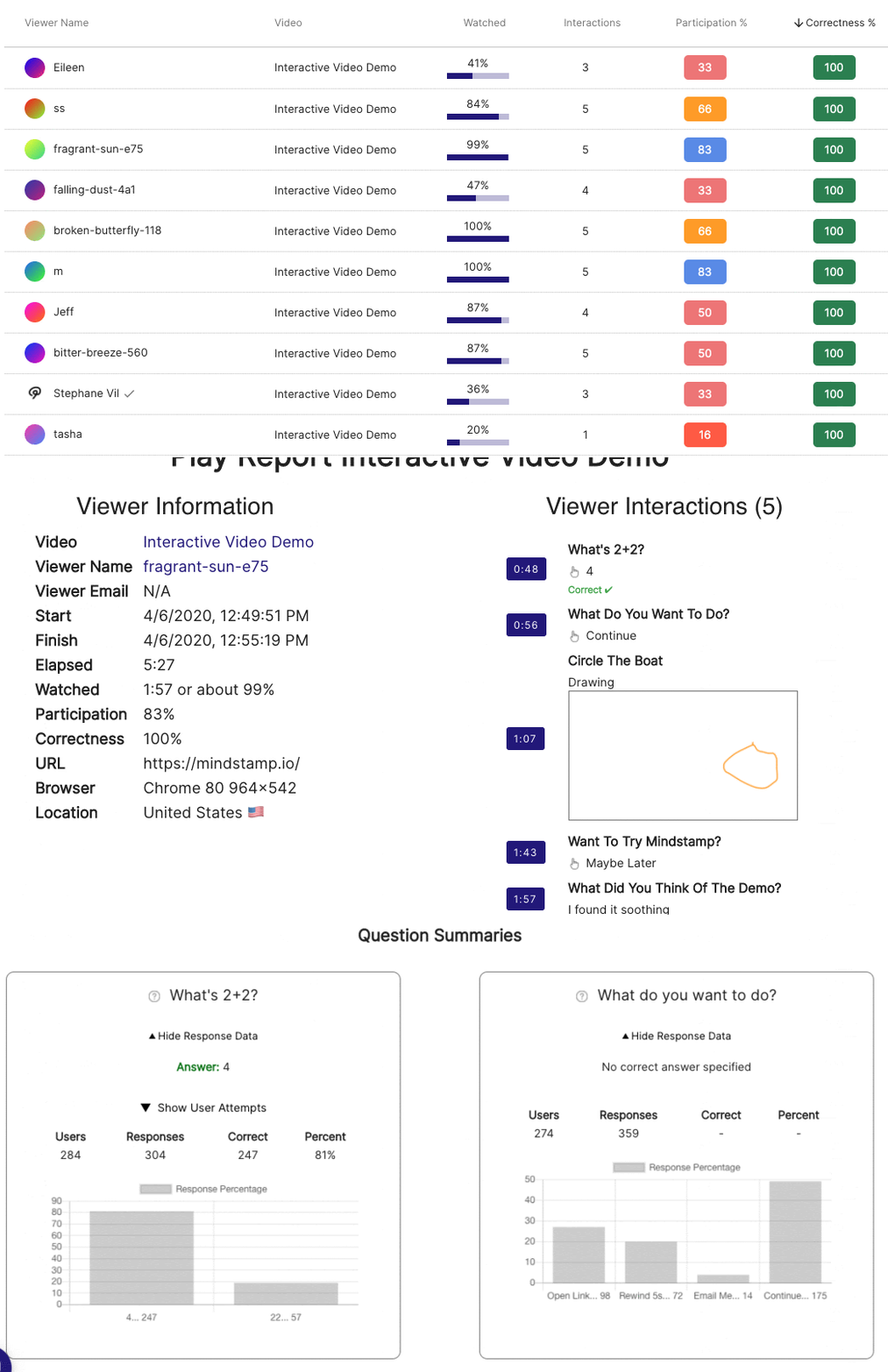
Watched percentage counts the unique seconds a learner played, so a learner who drags the seek bar to the end does not show as fully watched. For a course of several videos, export a completion report. It has one row per learner, grouped by email or custom ID, with a score for each video. You choose whether each video uses the learner's best score, latest completed view, or first completed view. To add every answer, export the views with interactions included. The help article on exporting training records for an audit lists the columns.
Three more ways to get completion data out of Mindstamp:
- Completion emails tell the video owner when an identified learner finishes, with a minimum watched percentage and a minimum score that you set.
- Certificates let learners who meet your rules download a PDF with a public verification link.
- A SCORM package sends completion and a score to your LMS. Mindstamp exports SCORM 1.2, SCORM 2004 3rd edition, and SCORM 2004 4th edition. By default, the LMS score counts the first answer to each question, and the individual answers stay in Mindstamp.
Plan for two limits. Mindstamp cannot join the views of an anonymous learner who switches devices, so identify every learner with the same email address or ID. The completion report also counts a view once the session ends, even if the learner stopped early, so check watched percentage in the views export before you mark someone complete.
What Mindstamp does not do
- It is not an LMS. It does not enroll learners, assign courses, send reminders, or keep transcripts. You deliver its videos through your LMS, a web page, or a link. See how Mindstamp works with an LMS.
- It does not export xAPI or cmi5 packages or send statements to a learning record store.
- It does not trim, cut, or join video files.
- It does not publish a WCAG conformance level or a VPAT. The player supports captions, keyboard use, and screen reader labels. Read the accessibility features article and test each video against your own requirements.
What training teams report
ASTM International, which develops technical standards, uses Mindstamp to add questions and choices to its learning content so learners can work through standards and procedures. Athena Huss, its Manager for OnDemand Solutions, said that a summer intern who had never used Mindstamp and was "brand new to elearning" picked up the editor without trouble. Read the ASTM International case study.
Diamond Scheduler, which makes sports scheduling software, added buttons that link to its documentation and short quizzes after the major sections of its customer tutorials. The company reports that users spent 35% more time on average on the interactive tutorials than on the old ones, and that customers who watched the videos filed fewer support tickets than in the previous year. Read the Diamond Scheduler case study, or see all Mindstamp case studies.
Brett Lindenberg on interactive training
Mindstamp's founder, Brett Lindenberg, talked about the future of training with Karla Roberts, Instructional Designer at Motive Learning, a company that designs video-based compliance courses around real-world scenarios, on Jon Skattum's interview series jonTalk. The 83-second clip below is from that conversation.
Common questions
What is Mindstamp?
Mindstamp is interactive video software. It adds interactions such as questions and branching to videos you already have, and it reports what each viewer answered, clicked, and chose. It is built first for training and education, and teams also use it for marketing and sales video. The company is based in Satellite Beach, Florida, and its website is mindstamp.com.
How do I log in to Mindstamp?
Team members sign in at app.mindstamp.com/login with an email address and password or with Google. Learners never log in. They open a link, an embedded video, or a course in your LMS. New teams can start a 14-day free trial that needs no payment card.
What software lets employees click through scenarios and answer questions during playback?
Interactive video platforms do this. Look for questions that pause the video, answer actions that branch to a consequence scene, and a report that shows each employee's choices. Mindstamp includes questions and branching on every plan. To compare platforms, see our guide to interactive video software for corporate training.
Which platforms track which employees completed modules and answered assessment questions correctly?
An LMS tracks completion for the courses it delivers, and an interactive video platform adds the answer-level detail. In Mindstamp, the Views report shows each employee's watched percentage and correctness, the Questions report shows answers by question, and the completion report puts every employee's score for each video in one row. With a SCORM package, your LMS also receives completion and a score. The LMS and video evidence example shows which system answers which audit question.
How much does Mindstamp cost?
Plans bill by the number of videos in your library, admin seats, and streaming minutes. There is no charge per viewer, so adding learners does not add seats, although more viewing uses more streaming minutes. See the current plans on the pricing page.
Where to start
Pick the training video that causes the most follow-up questions from employees, such as a process change or a product launch. Add a check after each key idea and one scenario decision, identify learners by email address or employee ID, and send it to one team. When that group finishes, open the Questions report and fix the segment before the most-missed question. You can build and test the module during the free trial, or book a demo to walk through your own content with our team. For live and self-paced formats beyond a single video, see our guide to interactive online training.