Brett Lindenberg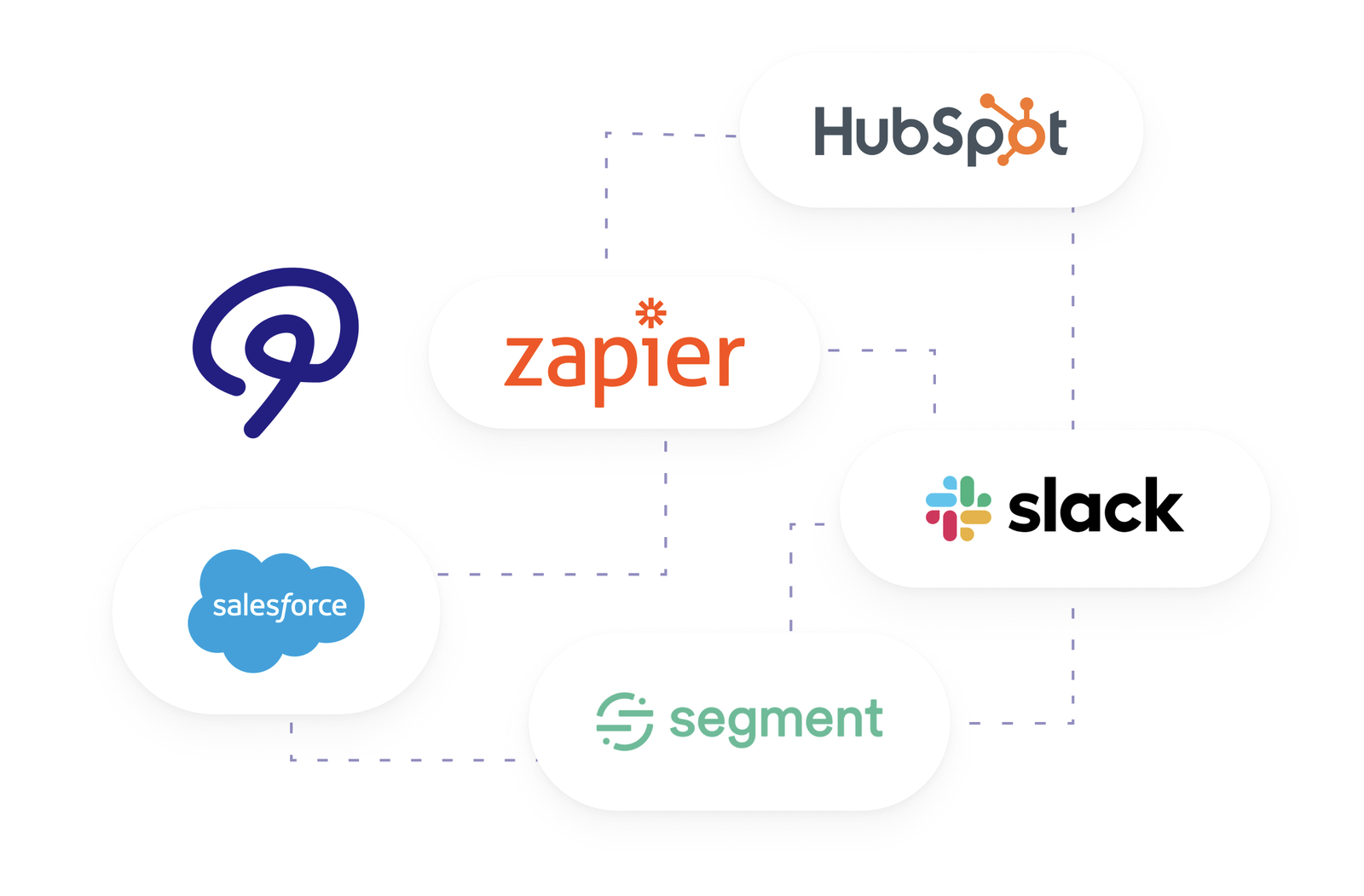
Interactive video helps CRM marketing because it turns each view into contact data your team can act on: the answers a viewer gives, the buttons they click, the path they choose, and how much they watch. When that data reaches the contact record, you can segment, score, and route follow-up by what each person told you. The connection also runs the other way: CRM fields such as first name or company can personalize the video before it plays.
What interactive video data belongs in your CRM
Send a data point only when a rule, a report, or a person will use it. Answers and clicks usually qualify, because they say what the viewer wants. A play count rarely changes the next step.
| Video data | Example | What it can change in the CRM |
|---|---|---|
| Question answer | "Which team will use this?" Answer: Customer support | A contact property that picks the nurture track and the sales talk track |
| Button or hotspot click | Clicked "See pricing" or "Book a call" | Lead score points, or a task for the contact owner |
| Branch taken | Chose the compliance path in a product tour | An interest property or list membership |
| Watch percentage | Watched 85% of a four-minute demo | An input to an engagement score, or a filter for re-engagement email |
| Lead form fields | Name, work email, company size | A new or updated contact |
| Quiz score | Answered 4 of 5 product questions correctly | Customer education status, or a flag for a training call |
Pick one or two of these for your first video. A rep will read two answers on a contact record and skip a log of 40 events. Our guide to video engagement metrics explains which viewing metrics carry a real signal.
How data moves between the video and the CRM
From the video to the contact record
Mindstamp records each viewing session against the viewer: watch percentage, scores, answers, clicks, the path taken, and any form fields. When the session ends, Mindstamp sends that record to the systems you connected. A session ends when the viewer reaches the end, closes the page, or stops for about two minutes. Plan your automations around that delay. Start a follow-up email from a change in the answer property, so the email can quote the answer.
From the CRM to the video
Your CRM already knows each contact's name and company. Put those values in the video with placeholders such as {{NAME}} or {{COMPANY|your team}}, where the text after the bar is the fallback. A viewer sees their own value first, then the fallback in the placeholder, then the default value set for the organization or the video, and otherwise nothing. Values reach the video from your CRM in two ways:
- Merge-field links. Add your CRM's personalization tokens to the share link as URL parameters, for example
?name={{ contact.firstname }}&email={{ contact.email }}in a HubSpot email. Anyone who sees the link can read the values. - Personalized links. Create them in Mindstamp one at a time or in bulk from a CSV file. Mindstamp stores the values, and the link shows only an ID.
Use personalized links, or a custom_id parameter in place of an email address, when a link may be forwarded. Any other parameter, such as utm_source, becomes a variable with the same name, so the view record can carry the campaign that sent the viewer. With conditional logic, the same values can show, hide, or reroute interactions, for example to skip a section a current customer does not need. Personalization variables start on the Core plan and conditional logic on the Pro plan. For the full method, see our video personalization guide and the help article on variables.
How to connect interactive video to your CRM
Mindstamp has five routes into a CRM. Choose by the CRM you use and by how much control you need over the data. Plan details are on the pricing page.
| Route | Best for | What it sends | When it arrives | Plan |
|---|---|---|---|---|
| HubSpot integration | Teams on HubSpot | Creates or updates the contact by email, adds view, answer, and click events to the contact timeline, writes answers to properties, and adds or removes list members | After the session ends; failed syncs retry over the following hours | Pro and higher |
| Zapier | CRMs with a Zapier app, without code | Finished views, known viewers, and interactions | When Zapier next checks, often some minutes after the session | Core and higher |
| Webhooks | Your own middleware or a CRM's inbound API | View records with answers, single interactions, and lead records, as JSON | After the session ends; no scheduled retry | View webhooks on Core and higher; interaction and lead webhooks on Pro and higher |
| REST API | Scheduled pulls into a CRM or a data warehouse | Views, viewers, and interactions | On your schedule | Pro and higher |
| Salesforce | Salesforce orgs | Records and fields agreed per account | After the session ends | Quoted per account |
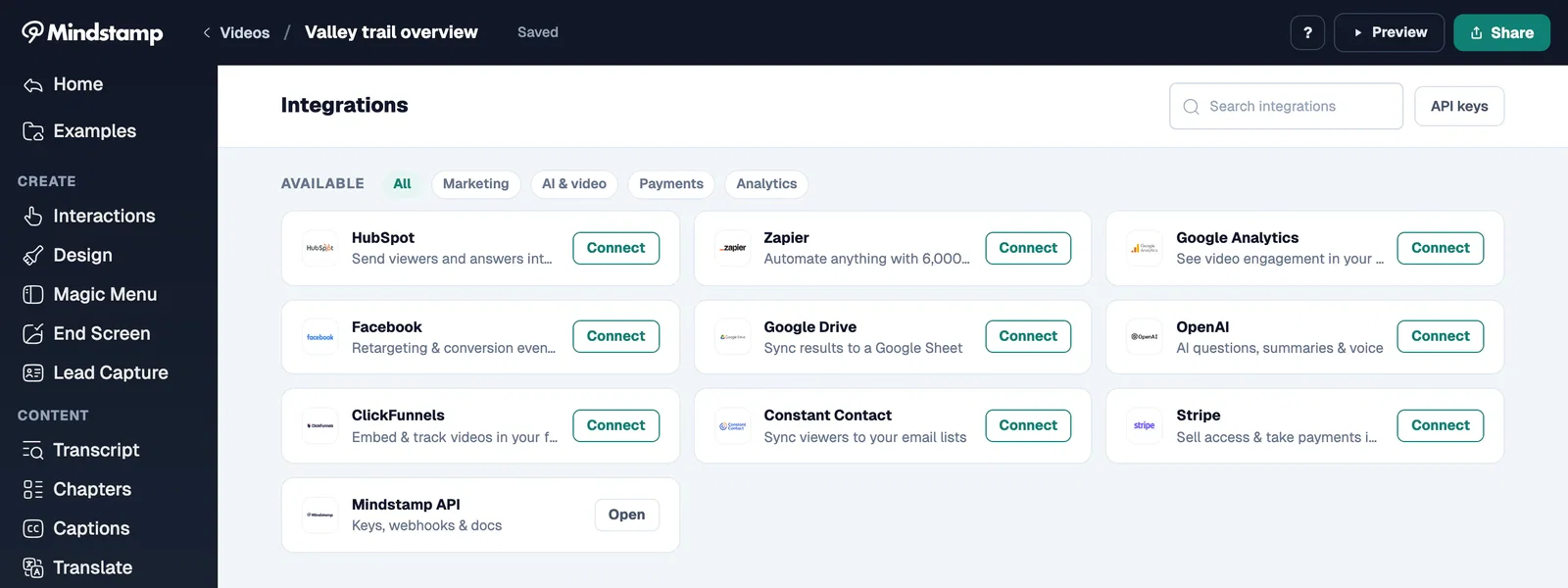
HubSpot
The HubSpot integration matches contacts by email, so the video must collect or receive one. An anonymous viewer cannot become a HubSpot contact. Connect HubSpot once under Integrations, then turn on Send Views and Send Interaction Events in each video's integration settings. To write an answer into a contact property, set the HubSpot field on that question. The HubSpot help article lists each setting. The CRM property mapping simulation shows how one choice in a video maps to a property value.
Zapier and webhooks
If your CRM is not HubSpot, Zapier is the route that needs no code. Find the contact by viewer email or custom ID, and use a find-or-update step so that a repeated run does not create a duplicate record. The Zapier setup steps cover the triggers.
Webhooks suit teams with a developer. Mindstamp posts JSON to your endpoint after the session and signs each request with an HMAC-SHA256 signature that you can verify. Your endpoint must return HTTP 200 or 204 within 15 seconds. There is no scheduled retry, so log what you receive and use the API to fill any gaps. The webhook reference lists the fields in each payload.
Salesforce
Salesforce integration is quoted per account; confirm its scope with Mindstamp before you plan workflows around it. Scoping starts with three decisions: which Salesforce objects receive updates (leads, contacts, or custom objects), which match key links a viewer to a record (usually email or a custom ID), and which Mindstamp fields you need. Until that work is done, Zapier, webhooks, or the API can carry the data to Salesforce. The Salesforce help article lists the steps.
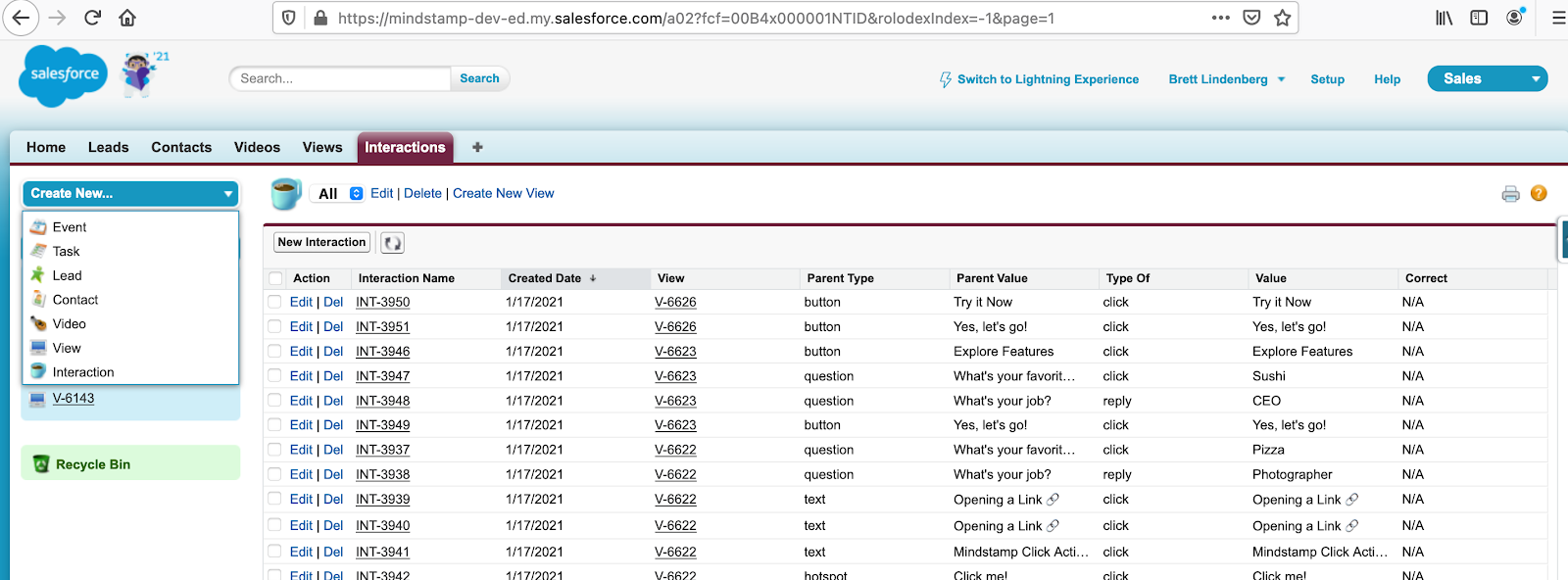
For a field-by-field comparison of every route, see what data each integration sends.
Match each viewer to the right contact
Video data helps only when it lands on the right record. Mindstamp treats a viewer as anonymous until the video collects or receives a name, email, phone number, or custom ID. Use one of these methods:
- Lead capture: a form in the player at the start, at a set time, at the first interaction, or when the viewer clicks an interaction you choose. Ask at the start when you must identify every viewer. Ask later when you want people to see some value before they type.
- Links from your CRM: merge-field links or personalized links identify the viewer before the video plays. They work best in email and sales sequences.
- Parameters on an embed: on a page where the visitor is already signed in, a short script passes the page's URL parameters into the embedded video, including
emailorcustom_id.
Mindstamp remembers a viewer in the browser they watched in. A different device, a different browser, or a private window starts a new viewer record, even if the viewer later enters the same email. Group reports by email or custom ID when you need one view of a person across devices. The viewer identity article covers the details.
Five CRM marketing workflows that use interactive video data
Score leads on what they told you
Give points for answers and clicks that show intent, such as "We plan to choose a tool this quarter" or a click on "See pricing." Subtract points for answers that show a poor fit, such as "I'm a student." When answers land in contact properties, HubSpot's lead scoring tool can use them as criteria. Scoring contacts there needs Marketing Hub Professional or Enterprise (HubSpot knowledge base, checked October 2026). Our lead generation best practices include a sample scoring model.
Route sales follow-up by stated need
End a product video with a question such as "What would you like to do next?" and three choices: see a demo, get a quote, or read more. A workflow creates a task for the contact owner when the answer is "see a demo" and sends the "read more" group a content email. In HubSpot, workflows need a Professional or Enterprise subscription (checked October 2026). Our guide to lead qualification explains how a lead moves from marketing qualified to sales qualified.
Match nurture content to the branch a viewer chose
In a branching product tour, each path tells you what the viewer cares about. Write the path to a property such as "Primary interest," then send the next email on that topic. The video collects the interest without an extra form field. The product tour example shows a tour that the viewer steers by task, and our post on video lead generation covers where to place the form in a video like this.
Flag customers who need help
Onboarding and customer training videos can ask customers where they are stuck. An answer such as "I can't connect my data" can create a task for the customer success manager, and a low quiz score can trigger an invitation to a training call. See interactive video for SaaS customer engagement for onboarding examples.
Re-engage viewers who stopped early
Watch percentage alone says little about intent, but it is a useful filter. Contacts who watched less than half of a demo and clicked nothing can get a shorter follow-up video or a different offer. Keep the threshold simple and adjust it when you see who responds. The customer lifecycle guide shows how to automate a video sequence for each stage, from awareness and acquisition to onboarding and support.
How to set up the sync, step by step
- Write down the decision. For each data point, name the property, list, score, or task it will change. Drop any data point that has none.
- Create the CRM fields first. In HubSpot, a dropdown select property keeps answers consistent (see HubSpot's guide to creating properties). Use the same wording for the answer choices in the video and the property options in the CRM.
- Identify the viewer with lead capture or a link from your CRM.
- Turn on the integration for the video and map each question to its field.
- Test with a test contact. Open the share link in a private window with test identity parameters, play past the halfway point, answer the question, and click a button. Do not test in the editor preview, because preview does not send data. Close the tab or wait about two minutes, then check the contact record. The integration test guide lists what you should see.
- Build one workflow or score on the new field, and check its results before you add more.
- Each month, compare the answer breakdown in Mindstamp reporting with the counts in your CRM, so you catch mapping errors early.
Mistakes that break video-to-CRM workflows
- A workflow that expects an instant update fails. Data reaches the CRM after the session ends, and Zapier adds its own check interval, so any step that needs the answer must wait for it.
- Syncing every event buries the two answers that matter under hundreds of rows.
- A form that comes too late leaves viewers anonymous. Anyone who leaves before the form appears cannot update a contact.
- Zaps without a find-or-update step create duplicate contacts. Key the step on email, custom ID, or view ID.
- Viewers need to know what you collect. You decide what your videos ask for, so you are responsible for telling viewers how you use it. Link to your privacy notice near the lead capture form, and read what personal data Mindstamp collects.
Common questions
Can interactive video data sync to Salesforce?
Yes, with scoping. Salesforce integration is quoted per account; confirm its scope with Mindstamp. Zapier, webhooks, and the REST API can also carry video data to Salesforce through your own setup.
How long does video data take to reach the CRM?
HubSpot and webhook data go out after the viewing session ends, which is when the viewer finishes, closes the page, or stops for about two minutes. Background processing can add a short delay. Zapier picks up new records when it next checks, often some minutes later.
Can I personalize a video with CRM data?
Yes. Add placeholders with fallbacks to the video, then fill them from merge-field links in your CRM emails or from personalized links you create in Mindstamp. On the Pro plan, conditional logic can also change which interactions each viewer sees.
What should the video ask so the data is worth syncing?
Ask a question the viewer wants to answer at the moment the topic comes up, and offer choices that map to your next step. Our guide to audience engagement strategies covers how to place questions and decisions so people respond to them.
Where to start
Pick one video your prospects or customers already watch. Add one question whose answer changes your follow-up, map that answer to one CRM field, and test it with a test contact. When that field drives a workflow your team trusts, add the next one.