Brett Lindenberg
Your video is working when viewers take the action it was made for: they book the meeting, start the trial, or buy the product. To know whether they did, choose one action for each video and put it inside the player, so each click is recorded against the viewer. Then divide the actions by the viewers who reached the offer, and follow each click to the system where the result is stored, such as your CRM or store. This is Part 3 of a three-part series. Part 1 checks whether viewers saw the key moments, and Part 2 checks whether they understood them.
Why a view count cannot tell you whether viewers acted
A standard video player records that someone pressed play and how long they watched. The action you care about usually happens somewhere else, such as a form on your website or a checkout page. If the call to action is a line in the video's description or a spoken "visit our site," you cannot connect a viewer's watch session to what they did next. You see views on one side and signups on the other, with nothing linking them.
You close that gap when you put the action inside the video. When a viewer clicks a button or fills in a form in the player, Mindstamp records it in that viewer's session. If you know who the viewer is, you know who acted.
Step 1: Choose one action for each video
Write down the single action that would make the video worth its cost. Then write down where the result of that action is stored, because that is where you will check it in Step 4.
| Video | Main action | Where the result is stored |
|---|---|---|
| Brand or awareness video | Watch the next video, or join the email list | The video report, or your email platform |
| Product demo | Book a meeting | Your scheduling tool and CRM |
| Product video for an online store | Add the product to the cart and check out | Your store's orders |
| Customer onboarding | Complete the next setup step | Your product's own usage data |
| Training module | Pass the knowledge check | The video report, or your LMS through a SCORM package |
A video can offer more than one next step, but name one as the measure of success. With three equal options, it is hard to say whether the video worked.
Step 2: Put the action inside the video
An action inside the player is recorded with the viewer's session. In Mindstamp, these interactions can carry the action:
- Buttons, images, and hotspots. Hotspots make part of the frame clickable, such as a product a model is wearing. All three use the same list of click actions, described below.
- Questions. Ask which next step the viewer wants. Each answer to a multiple-choice question can run its own action, such as Open Link or Switch Video.
- Lead capture. Show a form at a set time, or when the viewer clicks a specific button, and the viewer submits it without leaving the video.
- The End Screen. Show one button, or build a custom screen with two or three next steps. The guide to calls to action at the end of a video covers each option.
Pick the click action that completes the step
| Next step | Click action | What Mindstamp records |
|---|---|---|
| Visit a page on your site | Open Link, which opens the page and pauses the video | The click. The visit and signup happen on your site |
| Book a meeting | Open Link Modal with your booking page, which opens the calendar on top of the player | The click. The booking is stored in your scheduling tool |
| Buy a product | Add to Cart, with a connected Shopify store | The click, and the cart carries the video and interaction into the Shopify order |
| Get a resource | Download File (on supported plans) | The click |
| Contact your team | Start Email or Start Call | The click |
The guide to click actions lists all of them. For booking pages, the help article on embedding a calendar shows how to fill in the viewer's name and email in the booking form with variables.
Place the offer right after the reason to act
Across 8.07 million views of 18,315 Mindstamp videos (2018 to October 2026), the average view played 46.5% of the video. These are mostly training, marketing, and sales videos made by Mindstamp customers, and other kinds of video will differ. Even so, an offer shown only at the end reaches fewer viewers than one shown right after the part that gives them a reason to act. Put the main action at that point, and repeat it on the end screen for viewers who stay. Our guide to video CTAs covers placement and wording in more detail.
Match the offer to the viewer
In Part 2, a question checked whether viewers understood. A question can also tell you what each viewer is ready for. Ask "What would help most right now?" and store the answer in a variable. On supported plans, conditional logic can then show "Book a demo" to viewers who chose "I'm ready to talk to sales" and a "Download the checklist" button to viewers who chose "I'm still researching." The product tour CTA example shows a tour that ends with three different next steps.
Step 3: Measure the action rate
Divide the viewers who took the action by the viewers who reached the offer. Dividing by all views mixes two problems: viewers who left before the offer appeared, and viewers who saw it and passed.
Here is an example with made-up numbers. A product demo gets 1,000 views. A "Book a demo" button appears at 2:10, and 400 views are still playing at that point. Of those 400 viewers, 60 click it. The rate per view is 6%. The rate among viewers who saw the button is 15%. The first number makes the button look weak. The second shows the button works for the viewers who see it, and the bigger loss happens before 2:10, which is a Part 1 problem.
In Mindstamp, the numbers come from Reporting:
- Interactions lists each click, answer, and response with its prompt and value.
- Insights shows totals over time, including your top interactions.
- Views has one row per viewing session, with its watched percentage. A CSV export adds a furthest point column, so you can count the sessions that got to the offer. Drop-off charts are part of advanced reporting on supported plans.
To know which people acted, identify viewers. Lead capture, a personalized link, or URL parameters such as ?email= attach each session to a person, as the guide to viewer identity explains. Without them, you still see every click, from viewers listed as anonymous.
Step 4: Follow the click to the result
A click is a sign of intent. The result you want, such as a booked meeting or a paid order, is usually stored in another system. Connect the two so you can compare videos on results, since a button with fewer clicks can still produce more meetings.
Links to your website
Add campaign parameters to every link a video opens. Google's guide to collecting campaign data with custom URLs says to always include utm_source, utm_medium, and utm_campaign, and to use utm_content to tell different creatives apart. In a video, use utm_content for the button, so a mid-video button and an end-screen button report separately:
https://example.com/trial?utm_source=mindstamp&utm_medium=video&utm_campaign=q4_demo&utm_content=end_screen_buttonIf the video link itself carries campaign values, for example from an email, turn on Append variables when opening links in the video's Settings. Mindstamp turns each parameter in the video link into a variable, and this setting adds every variable to the links the video opens, so the source that brought the viewer to the video also reaches your site. Any name or email the viewer entered goes on the link too, so check what your page and its analytics tools do with the full address. Mindstamp sends watch-progress events to Google Analytics, but not clicks or answers, so link parameters are how your website analytics learns which video sent the visit.
Your CRM and other systems
- HubSpot, on supported plans, creates or updates the contact by email and adds the view and the answers and clicks you select to the contact's timeline. See how the HubSpot integration works.
- Webhooks send view, interaction, and lead records to your endpoint, on supported plans.
- Zapier sends finished views, viewers, and interactions to other apps, on supported plans.
- Salesforce integration is quoted per account; confirm its scope with Mindstamp.
These send data after the viewing session ends, when the viewer reaches the end, closes the page, or stops for about two minutes. Allow for a delay before a click shows up in your CRM. The data map for each integration lists every field.
Your store
Carts built with the Add to Cart action carry the Mindstamp video, play ID, and interaction ID into Shopify, so you can see which video and which button started each order. The help article on the Shopify integration has the setup.
Step 5: Decide what to change
| What you see | What to change |
|---|---|
| Few viewers reach the offer | Show it earlier, right after the part that gives viewers a reason to act. Part 1 covers early drop-off |
| Viewers reach the offer, but few click | Name the result on the button, such as "Book a 15-minute demo" in place of "Learn more." Check in Part 2 that viewers understood why the offer matters |
| Clicks are spread across several options | Ask which next step the viewer wants, and show only that one |
| Many clicks, few results | Check the page the button opens. Fill in known details for the viewer, or open a booking page in a modal so the viewer stays in the video |
| One audience acts and another does not | Compare the action rate by the source variable in the link, then tailor the offer for the weaker audience |
Change one thing at a time and compare the same measure over a similar number of views. An earlier version of this post suggested Google Optimize for testing CTAs. Google shut down Optimize on September 30, 2023, according to Google's Optimize sunset notice. Our guide on how to A/B test your videos after Google Optimize shows how to split viewers between two versions, tag each view with a URL parameter, and set a sample size before you start.
Common questions
Does a click on a calendar button mean the viewer booked a meeting?
No. Mindstamp records the click on the button. The booking is stored in your scheduling tool. Compare the two to see how many clicks became meetings.
Should the call to action pause the video?
Some click actions pause the video, such as Open Link and Add to Cart. For a button that should stay on screen while the video plays, use the Continue action to record the click and keep playing. For a full guide to adding buttons, see how to add call-to-action buttons to your videos.
The three questions in this series
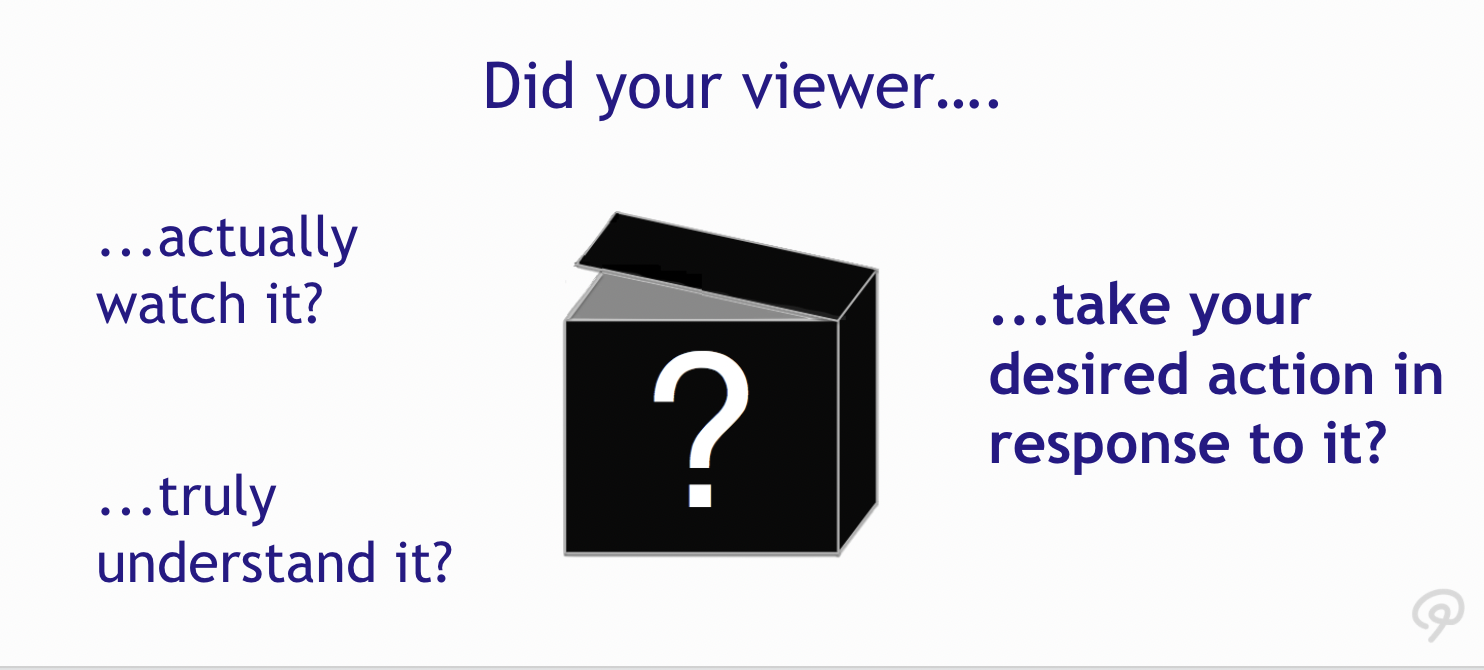
- Did your viewers see the most important content?
- Did they understand your message?
- Did they take the action you wanted? (this post)
Read the answers in that order. An offer that viewers never reach is a Part 1 problem, and an offer they reach but do not understand is a Part 2 problem. Only when viewers have seen and understood the point does a low action rate point to the offer itself. For the metrics behind all three questions, see video engagement metrics.
Start with one video. Write down its main action and where the result is stored, add that action as a button right after the reason to act, and put campaign parameters on the link. When the views come in, compare the clicks with the results in that system.
Sources and further reading
- Google Analytics Help: URL builders: Collect campaign data with custom URLs, on the utm parameters Google Analytics reads.
- Google Analytics Help: Sunset of Google Optimize, which states that Optimize and Optimize 360 stopped on September 30, 2023.