Brett Lindenberg
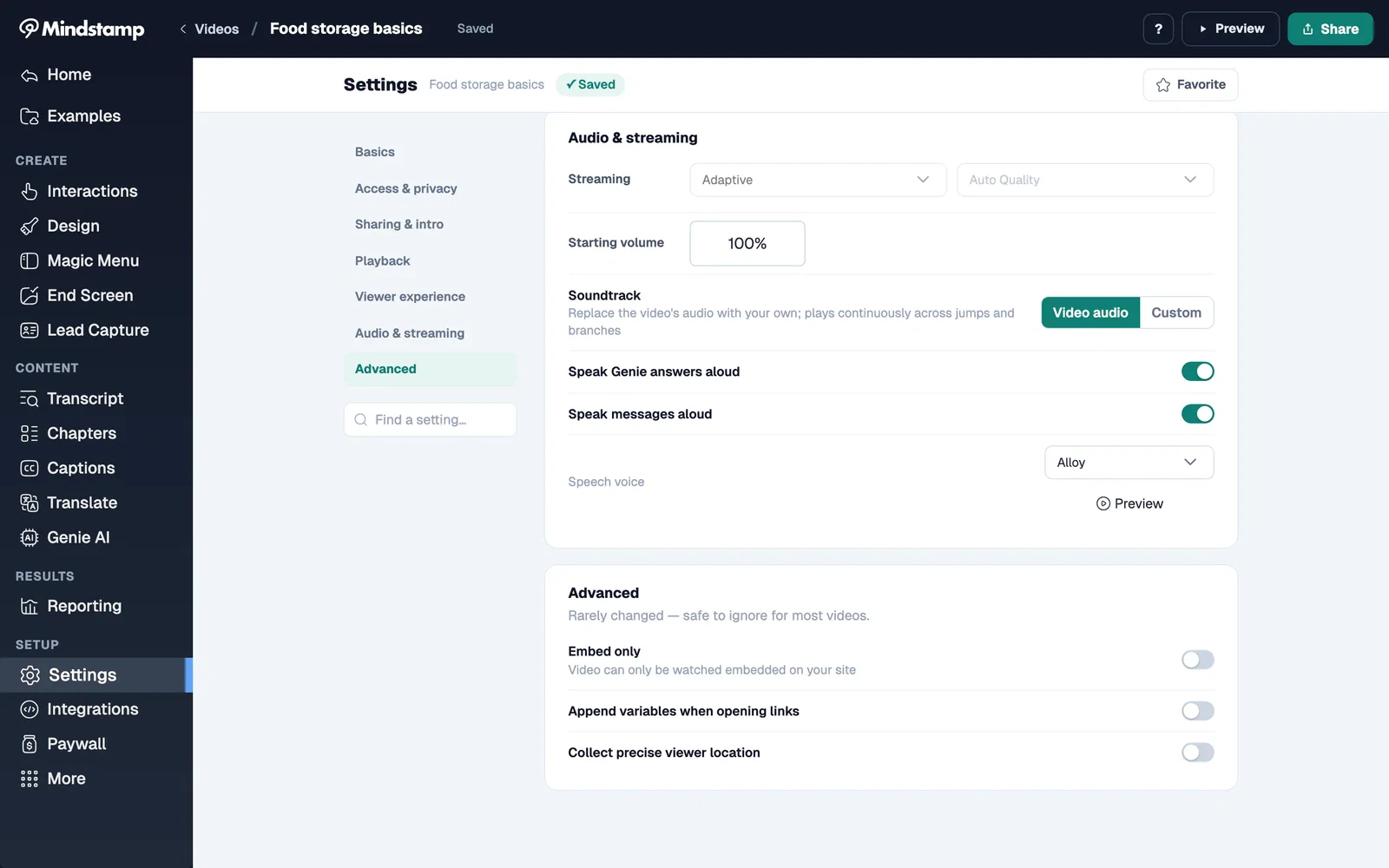
Update, October 2026: Every feature in this May 2026 update is still in Mindstamp except voice questions to Genie: Genie speaks its answers, but viewers type their questions. Some settings have moved. You pick a suggested frame as a thumbnail under Design > Branding > Thumbnail, turn on Prevent passing required interactions under Settings > Viewer experience, and find the voice settings, now called Speak Genie answers aloud and Speak messages aloud, under Settings > Audio & streaming. The completion report is a report type under Reporting > Views > Export CSV. Our What's new page lists each feature with its release date. Certificates, offline mode, custom audio, and the MCP server shipped after this post; the September 2026 product update covers them.
Hi there! Summer is almost here and we've been hard at work this month making Mindstamp better for you. Here's what's new:
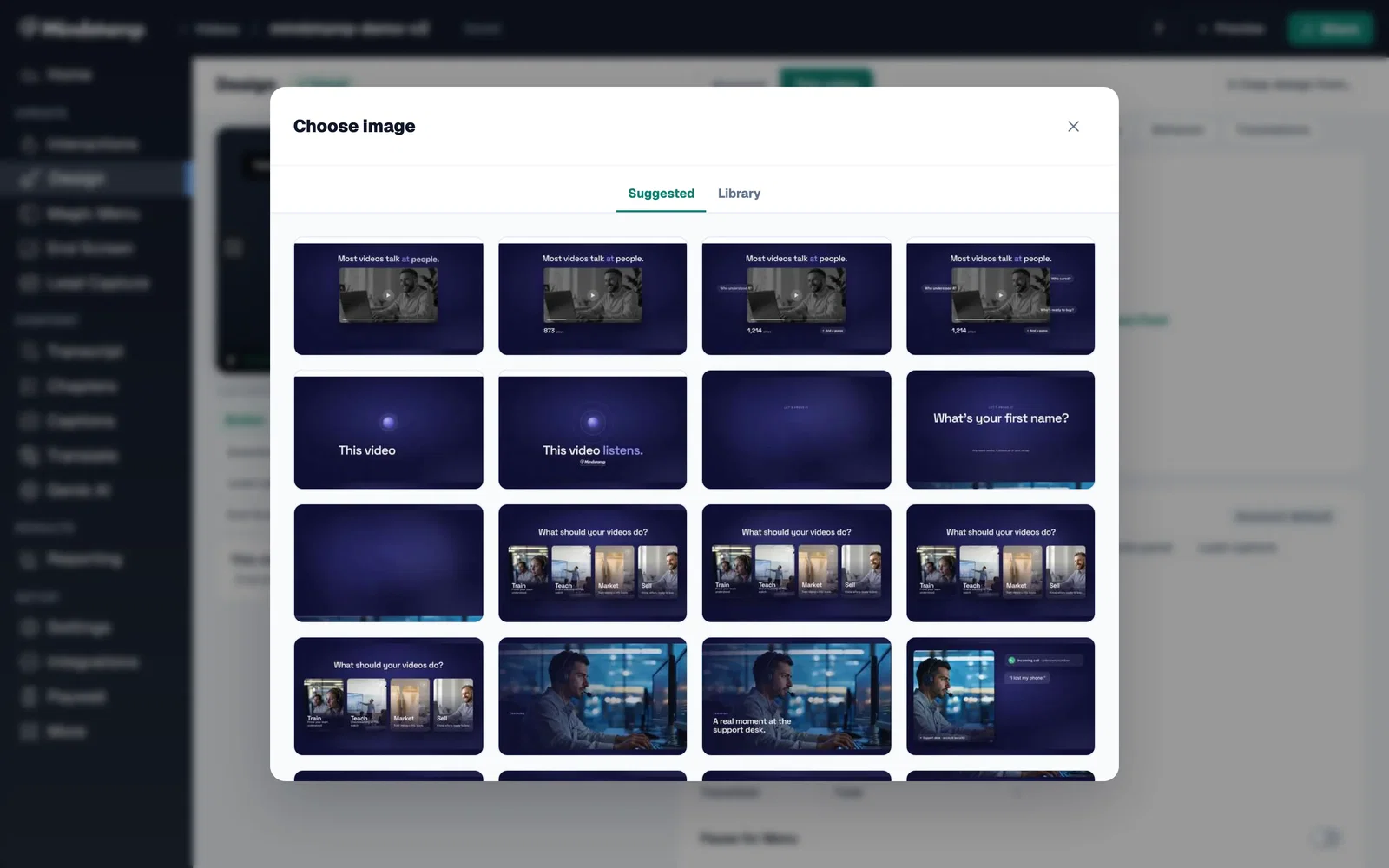
Thumbnail selector
For videos uploaded directly to Mindstamp, you can choose from generated video frames when setting thumbnails, making it faster to pick a clean sharing image. Our help article on changing a video thumbnail has the steps.
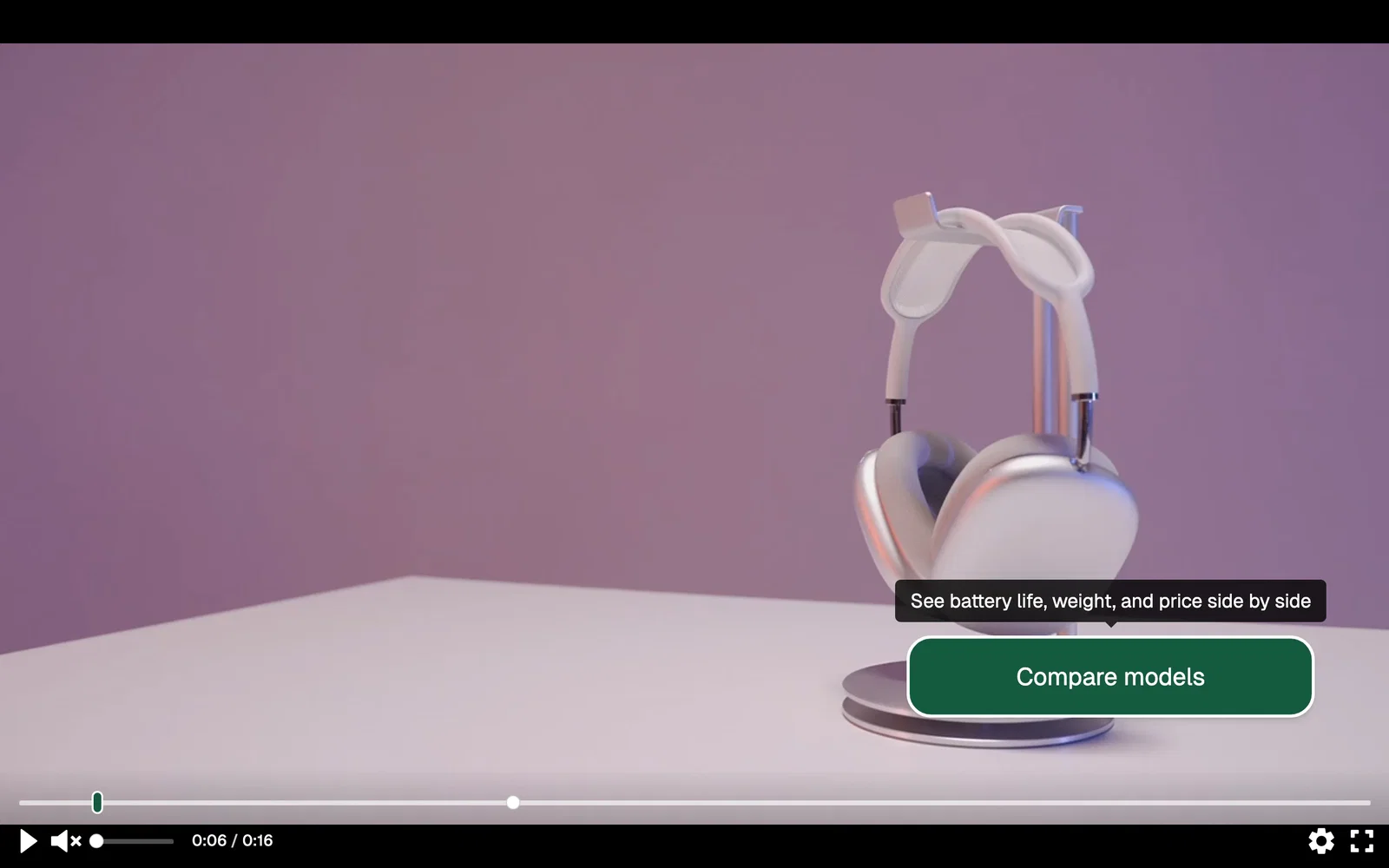
Hover tooltips
You can now add tooltips to buttons, hotspots, text, and images. Use them to give viewers extra context before they click, explain what an interaction does, or make guided experiences easier to follow.
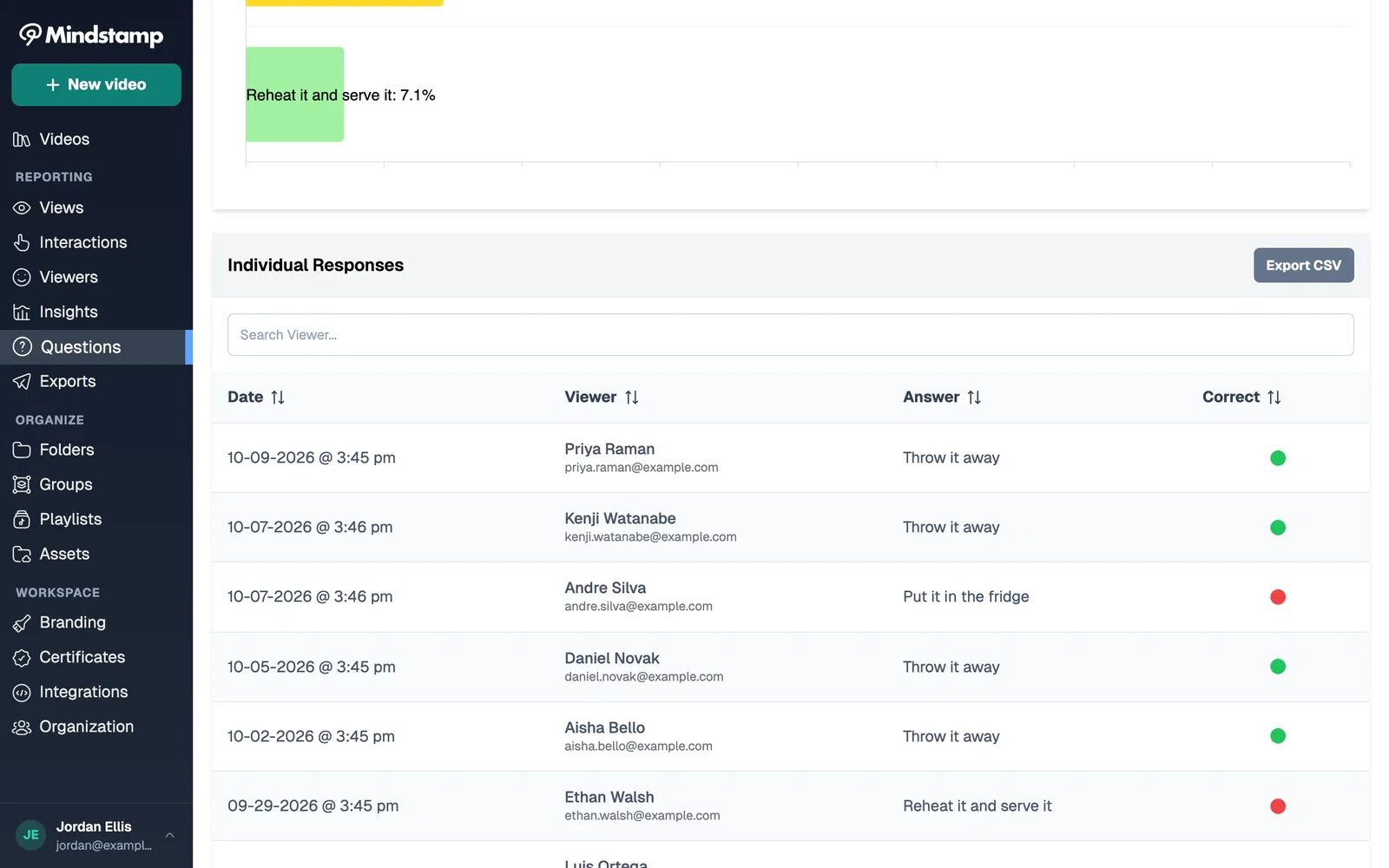
Question breakdowns and completion reports
We've added deeper question breakdowns so you can see response patterns, correctness, and viewer-level answers more clearly. We also added completion report exports, giving you one row per participant with scores across selected videos. Our help article on reporting across several videos explains the columns.
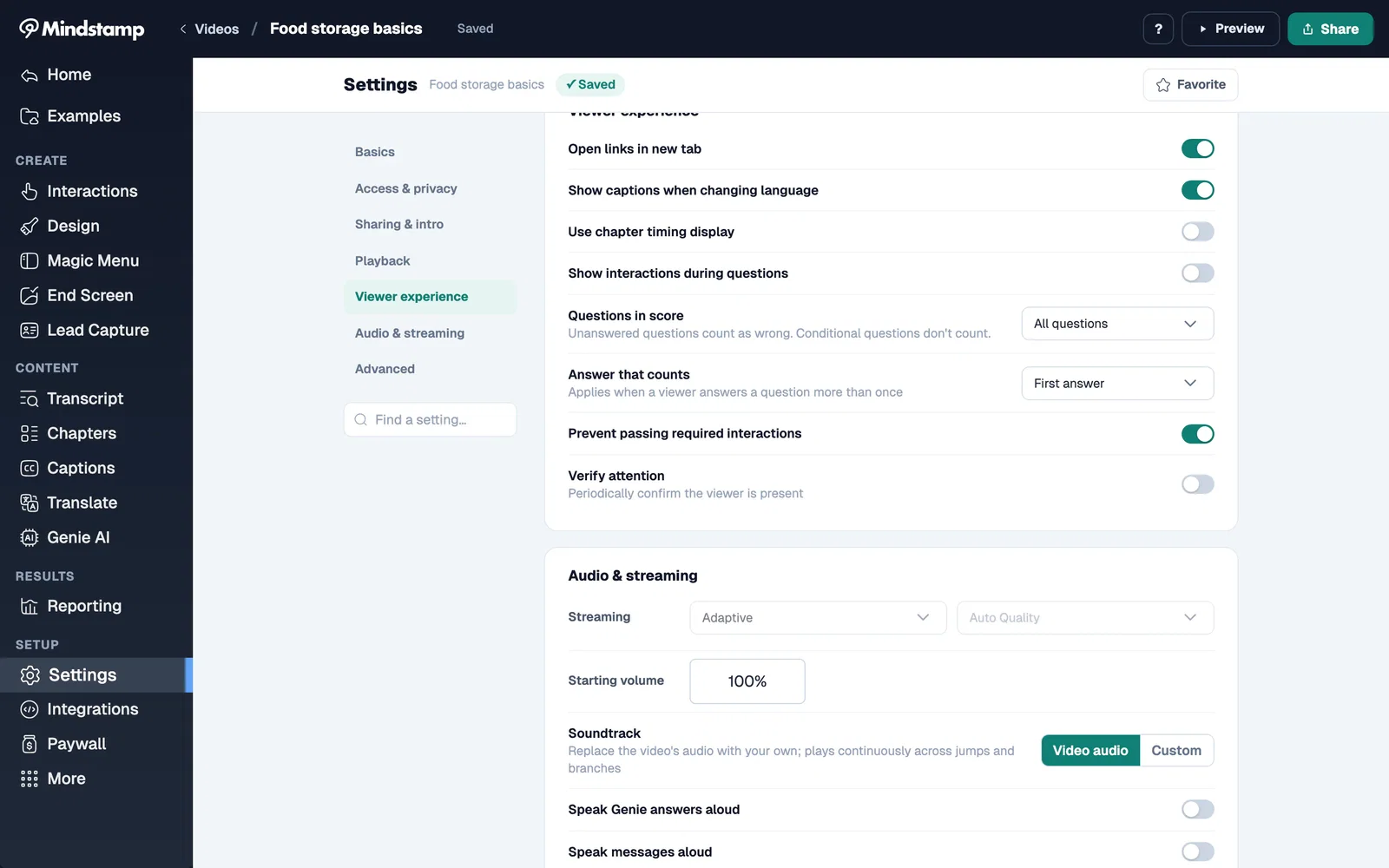
Prevent passing required interactions
Prevent viewers from jumping past key moments before they've completed them by turning on Prevent passing required interactions on a video. If seeking is enabled and a viewer skips past a required interaction, they will automatically be moved back to it before being allowed to continue. Our guide to stopping learners from skipping ahead shows how this setting works with the seek bar controls.
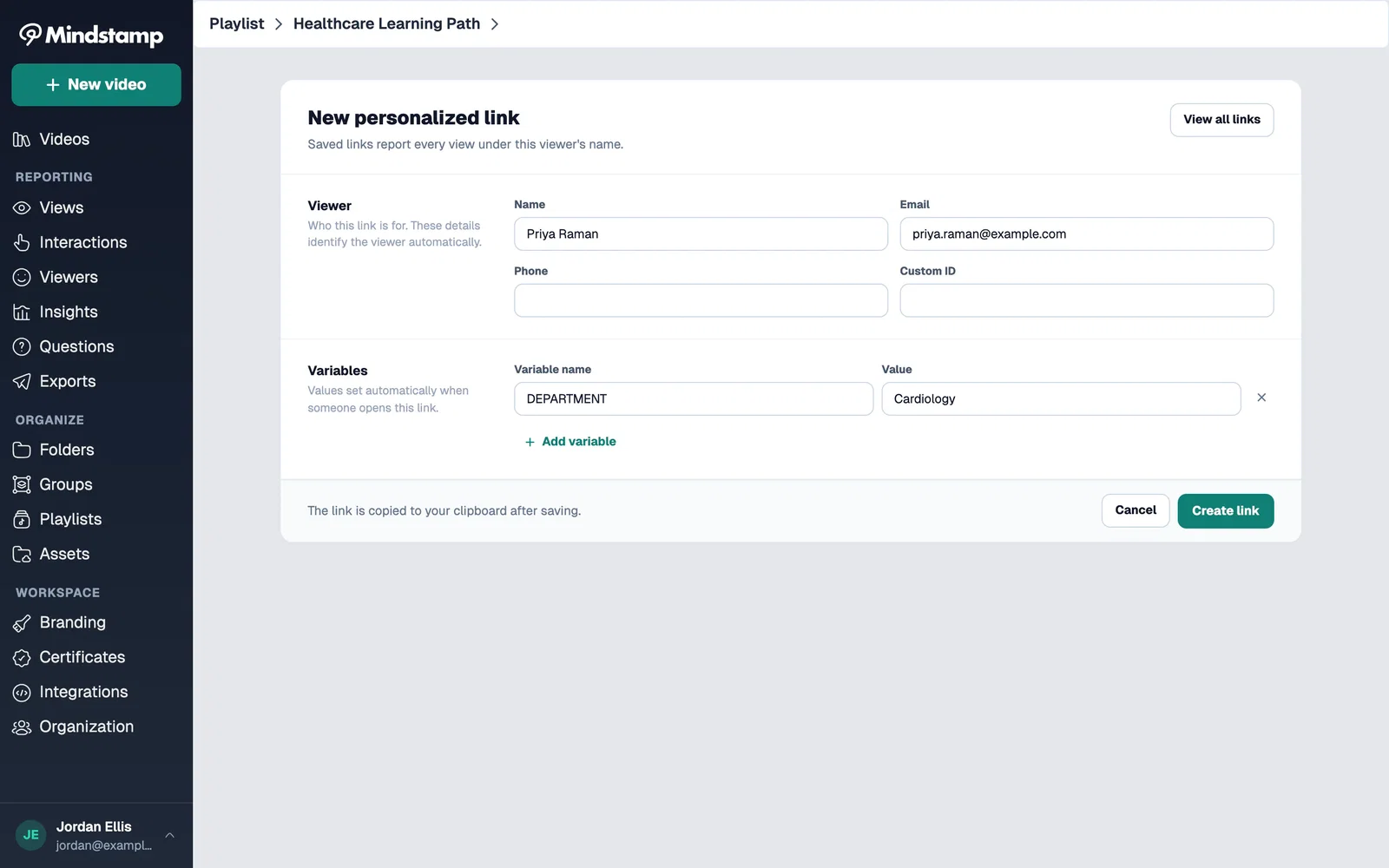
Personalized playlists
You can now create personalized links for playlists, not just individual videos. That means each viewer can get a playlist experience with their own name, email, custom variables, and tracking context carried through the full journey.
Spoken messages and Genie AI responses
Genie and message responses can now be spoken aloud with text-to-speech, with expanded voice options and better usage tracking. Viewers type their questions to Genie. Use the Speak messages aloud and Speak Genie answers aloud settings to turn this on. Read more about Genie AI.
HTML editor and icons
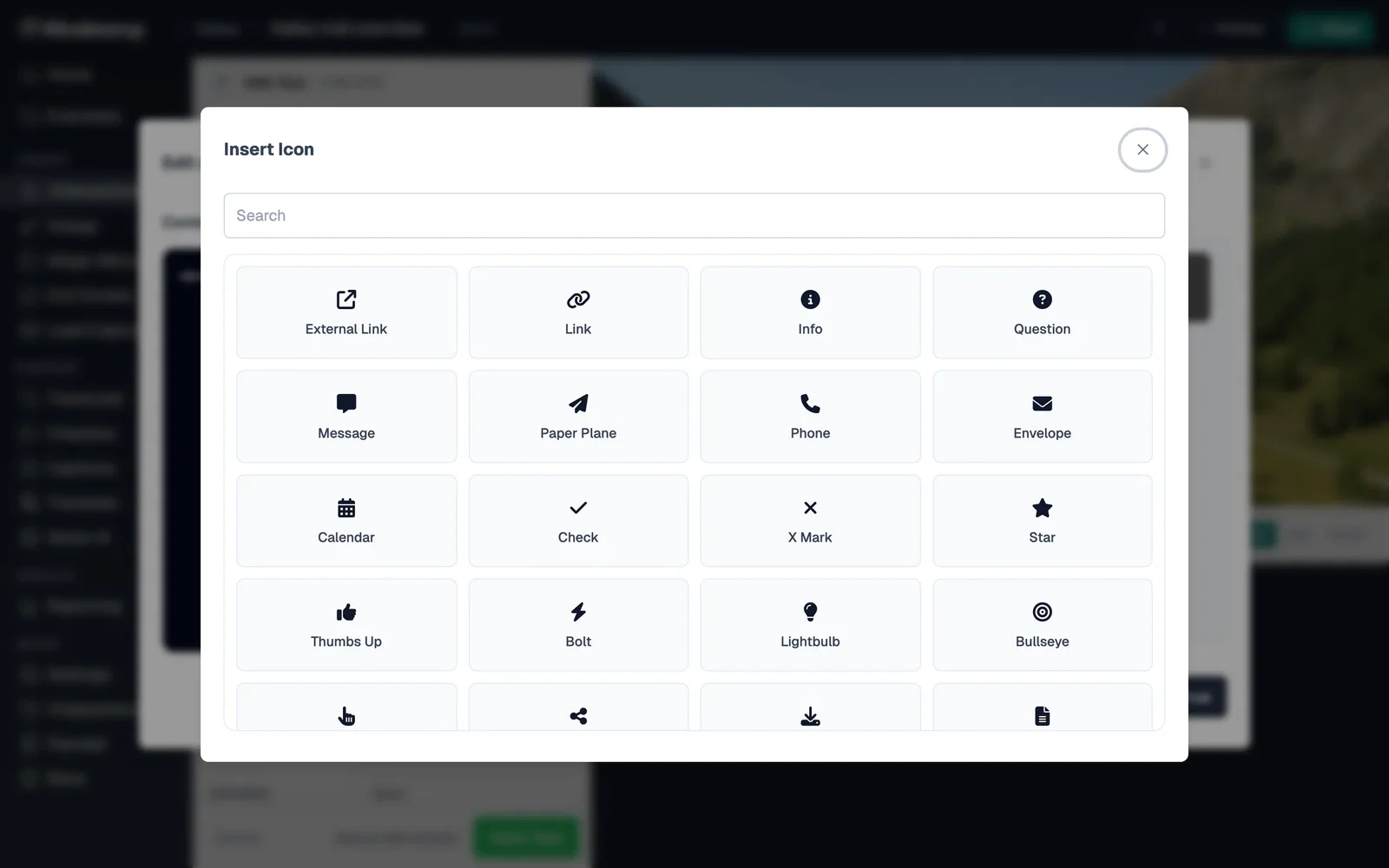
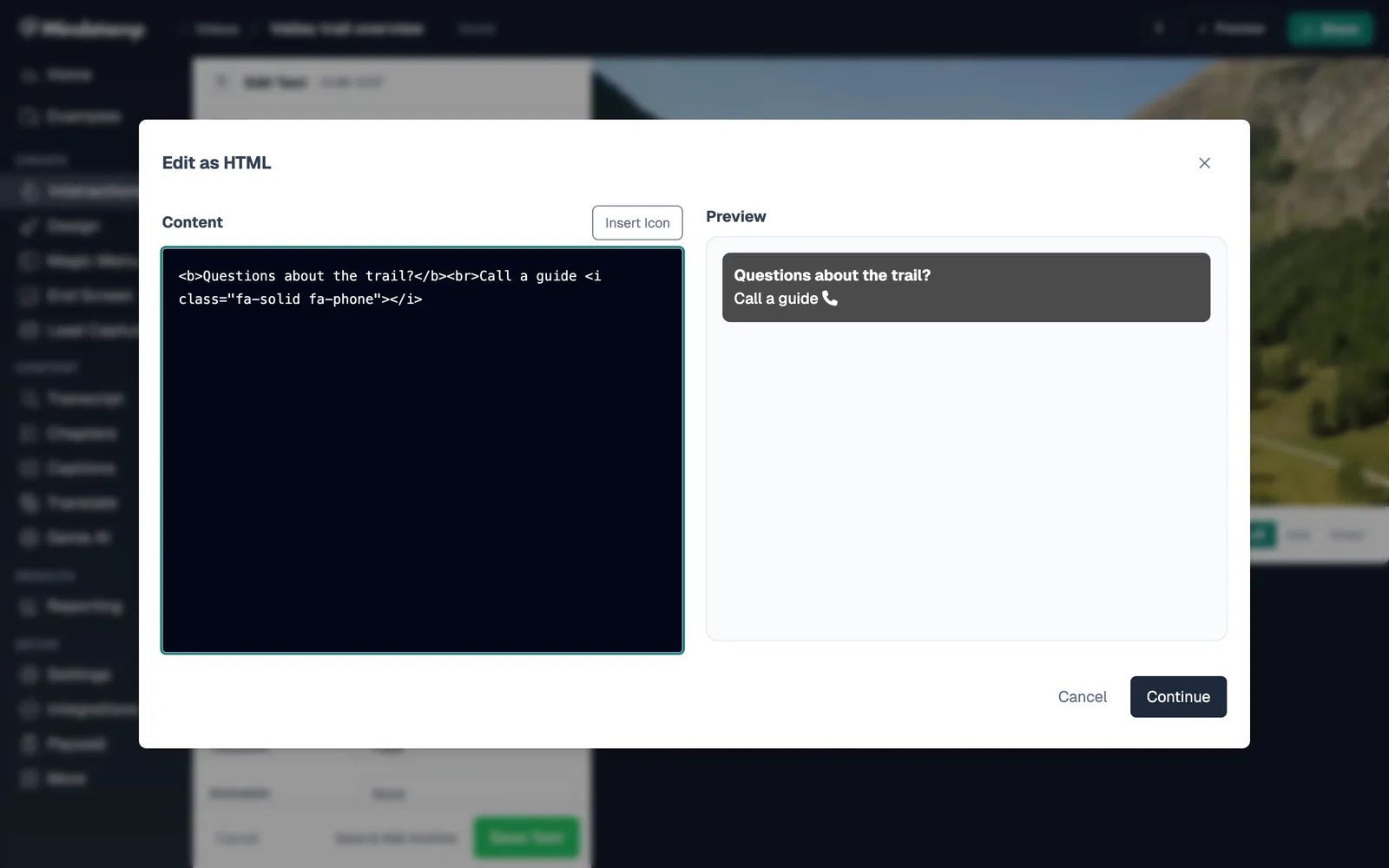
Text interactions now support an HTML editor and icon picker, giving you more control over formatting and visual presentation inside your videos.
Cleaner, more polished interactive layers
We improved layer sizing across questions, messages, lead capture, Genie, and other overlay experiences so interactions fit better across screen sizes and playback contexts.
More viewer-friendly details
We added better PDF modal controls, Vietnamese language support, and improved privacy controls for variables you want available during playback but omitted from stored reporting data.
API updates
We also expanded the API for creating and managing interactions, navigation actions, designs, tooltips, and related video workflows. Review the updated API documentation.
You can try these updates now in your Mindstamp account. For the releases before this one, see the April 2026 product update.
If you have any questions or need help, contact us.
Best,
The Mindstamp Team