Brett Lindenberg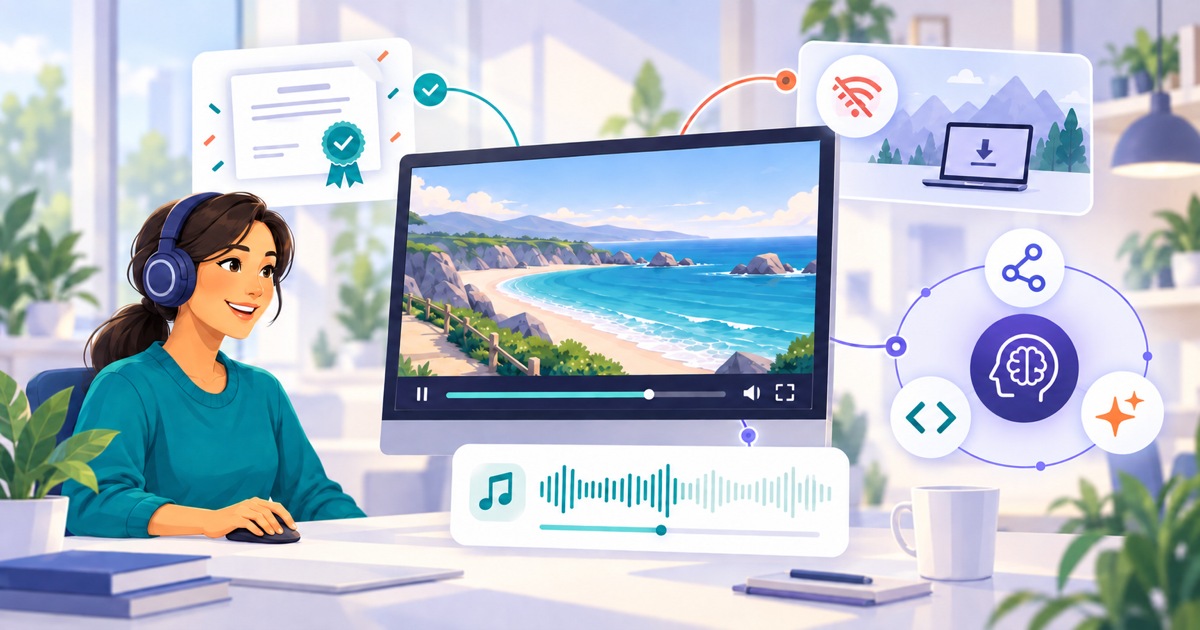
Update, October 2026: All four features in this September 2026 release are available to customers, and certificates are self-serve. Open Certificates under Workspace in the Mindstamp side menu to design one, then add it to a video with a Get certificate button or the end screen. The number of active certificate designs depends on your plan (see pricing), and the certificates page shows how they work today. Offline packages expire 90 days after you build them, or when your subscription or trial ends if that comes first. To connect Claude, ChatGPT, Cursor, or another MCP client, add https://app.mindstamp.com/mcp as a remote MCP server and sign in with OAuth, as our guide to connecting Claude or ChatGPT to Mindstamp explains. We have corrected a few details below to match the product today.
Mindstamp has released custom completion certificates, offline playback, custom audio soundtracks, and an MCP server for AI assistants.
Certificates issue a personalized PDF when a learner meets your rules. Offline mode runs supported interactive video on a Windows or Mac computer without internet access. Custom audio replaces the original sound and continues across jumps and branches. The MCP server lets a compatible AI assistant find videos, edit interactions, and read results within your account permissions.
Design and issue completion certificates
Mindstamp certificates connect the certificate to the learning record behind it. You create a reusable design on the Certificates page, add it to a video, and choose the rules that a viewer must meet.
A certificate can require a watched percentage, a passing score, a known viewer identity, or a combination of these conditions. When the viewer qualifies, Mindstamp creates a personalized PDF with the learner’s details and the course information.
Certificate setup
- Open Certificates under Workspace in the side menu and select New certificate. Start from a template, a blank canvas, or an uploaded PNG or JPEG design.
- Add fields such as the viewer name, course, date, and score.
- Attach the design to a video and set the completion and score rules.
- Add the certificate action to an interaction or the end screen.
- Review issued certificates in the Issued view of the Certificates page.
Each issued certificate has a public verification page. Account managers can search issued records and revoke or restore a certificate when needed. This gives a learner a file to keep and gives another person a way to check its status. Mindstamp does not email the certificate; the learner downloads the PDF or copies its verification link from the video.
Run interactive video without an internet connection
Offline mode packages a Mindstamp experience so it can run without a network connection, a local server, or an app installation. It is designed for trade shows, conferences, field work, and other places where connectivity is weak or unavailable.
The package includes the videos and local assets that a viewer can reach. Supported questions, buttons, hotspots, captions, conditional interactions, and branching continue to work from the extracted folder.
Offline package setup
- Open the video’s Share page and select Download offline package.
- Create the package and wait for the ZIP file to be ready.
- Download and extract the complete ZIP file.
- Open START EXPERIENCE.html in Chrome or Edge on a Windows or Mac computer.
- Select Start Experience.
An offline package is a snapshot. Rebuild it after you change the video. Offline views and answers do not appear in Mindstamp reports because the package does not send data to Mindstamp. If you need the responses, use Save Results before you refresh the page for the next viewer.
Actions that need an online service, such as links, payments, Genie, and certificates, show an offline notice instead. If the video has a custom soundtrack, the package includes it, and it plays offline too. The offline mode help article lists everything that works offline.
Replace video audio with a custom soundtrack
Custom audio lets you replace the original audio in a video with your own MP3, M4A, or AAC file. You can use it for a music bed, a different narration, or another soundtrack that should continue while the viewer moves through the experience.
Audio on its own clock
The custom soundtrack uses its own clock. A video seek, jump, branch, or question rewind does not move the soundtrack to a different point. If two branched videos use the same soundtrack, it continues without restarting.
The viewer can pause, mute, and change its volume with the normal player controls. A full replay starts the soundtrack again from the beginning. This makes custom audio useful for branched stories and guided experiences where one continuous sound bed should carry across several video moments.
To add one, open the video settings, choose Custom audio, and upload or select the file. You can return to the original video audio without uploading the soundtrack again.
Connect AI assistants through the Mindstamp MCP server
MCP stands for Model Context Protocol. It is a connection format that lets an AI assistant use tools from another product. The Mindstamp MCP server gives compatible assistants a defined set of tools for your Mindstamp account.
You can connect clients such as Claude, ChatGPT, Codex, or Cursor. After connection, you can ask the assistant to find a video, review its transcript or results, add a button or question, remove an interaction, or change supported video settings.
Account permissions still apply
An account owner must first turn on AI features in AI Settings. You can then connect through OAuth or use an existing Mindstamp API token. The assistant receives only the tools and access allowed by the account, plan, token scopes, and connected user. Reads work on paid plans, and changes need Pro, Scale, Ultra, or Enterprise.
High-impact actions have a separate confirmation step. Actions such as publishing a video, changing who can watch it, applying account branding, and deleting a video require an explicit confirmation in the tool request. You can review connected agents and revoke access from AI Settings.
Choose the feature that matches the job
| Feature | What it does | Good use |
|---|---|---|
| Certificates | Issues a personalized, verifiable record after a viewer meets your rules | Employee training, compliance, education, and customer certification |
| Offline mode | Runs supported interactive video from a local package without internet access | Trade shows, conferences, field work, and controlled installations |
| Custom audio | Replaces the original video sound with a continuous soundtrack | Branched experiences, music beds, and alternate narration |
| MCP server | Lets a compatible AI assistant use approved Mindstamp tools | Video management, interaction edits, and report review |
Frequently asked questions
Can someone verify a Mindstamp certificate?
Yes. Each issued certificate has a verification page that shows its current status. If an account manager revokes the certificate, the page shows that change.
Does offline mode send results back to Mindstamp?
No. Offline views and answers stay on the local computer and do not appear in cloud reports. Use the local Save Results action if you need a copy before the page refreshes.
Does custom audio stay tied to the video timecode?
No. The soundtrack continues on its own clock when the viewer seeks, jumps, or branches. A full replay restarts it from the beginning.
What can an AI assistant do through Mindstamp MCP?
The available tools can read Mindstamp data and perform supported video or interaction changes. The exact tool list depends on the current server version, account plan, token scopes, user permissions, and MCP client.
Which MCP actions need confirmation?
High-impact tools, such as publishing a video, changing who can watch it, applying account branding, and deleting a video, require an explicit confirmation in addition to normal account permission. The server also keeps an action record for tool calls.
Try the new features
Open Mindstamp to work with these features in your account. If you are new to the platform, read the guide on how to make an interactive video or book a demo for a guided review. For the features we shipped earlier in 2026, see the May 2026 product update.