Brett Lindenberg
To sort what viewers type into an interactive video, ask a free-response question in Mindstamp and send each answer with an interaction webhook to any webhook receiver that can call a language model, such as your own service or a workflow platform. The receiver asks the model to pick one label from your own list, such as sales, support, partnership, or legal. It saves the label with the answer and passes the answer to the person or system that should act on it. Mindstamp sends the webhook after the viewing session ends, so the AI label drives your follow-up. It cannot change what the viewer sees in that session. To route viewers while they watch, use their own choice or keyword rules in the player, both covered below. In the 28-second demo below, you play the classifier: read a sample answer, pick the category, and see the route that category opens.
How the workflow fits together
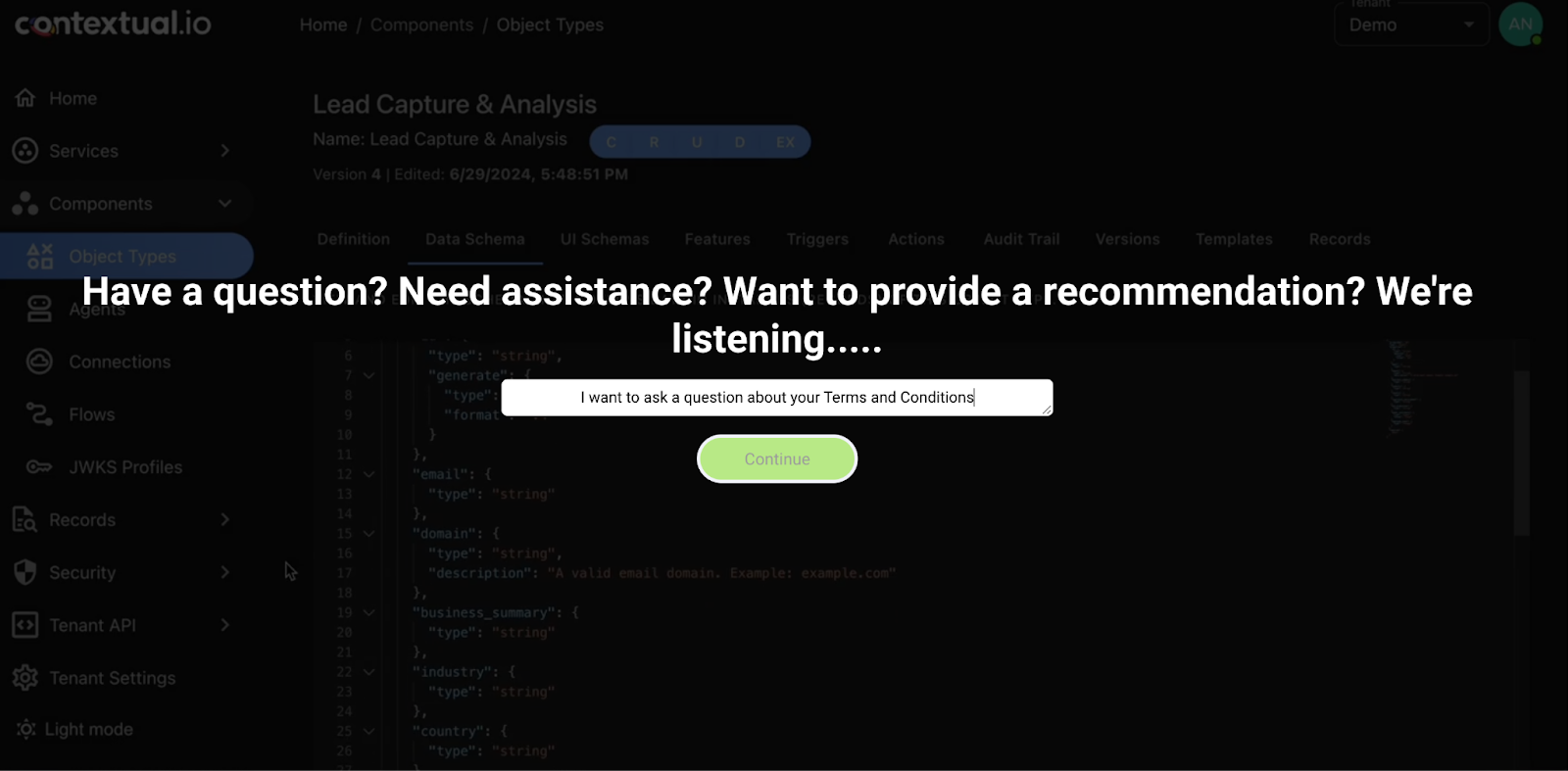
The first version of this workflow ran in June 2024 on Contextual, our AI workflow partner at the time, and the screenshots in this post come from that build. That partnership is no longer active. The same design works on any platform that can receive a webhook and call a model.
| Stage | Where it runs | What happens | When |
|---|---|---|---|
| 1. Ask | Mindstamp player | A free-response question pauses the video and the viewer types an answer. | During playback |
| 2. Send | Mindstamp | An interaction webhook posts the answer and the viewer's identity as JSON. | After the session ends |
| 3. Store | Orchestration flow | The flow checks the request, saves the answer as a record, and returns a success code. | As soon as the request arrives |
| 4. Classify | Orchestration flow and a model | A second step sends the answer to a language model and saves the label it returns. | Right after the record is saved |
| 5. Route | Your CRM, help desk, or inbox | Each label sends the answer to the team that should act on it. | After classification |
Step 1: ask a free-response question
A free-response question shows the viewer a text box and pauses the video while they answer. In the editor, click Question in the interaction bar; a new question starts as Free Response. Place it where the viewer has the context to answer, for example right after a product demo or at the end of a pricing section. The question guide covers the other settings, such as Skip and a time limit.
Write the prompt for the job the AI will do later:
- Ask one thing. "What would you like to ask our team?" gives the model one intent to find. A prompt that asks for a question and feedback together gets answers that fit two categories.
- Tell viewers what happens next, for example "Someone from our team will reply by email." That sets an honest expectation, because the answer reaches you after the session.
- Collect an email or a custom ID before the question, with lead capture or a personalized link. Without one, you can classify the answer but you cannot reply to the person.
- Leave the correct answer empty. Scoring compares the text with accepted answers, which adds nothing when any answer is valid.
Use free response when you cannot list the possible answers in advance. If you only need to know how much viewers agree with a statement, a Likert question is easier to analyze and needs no AI. Mindstamp's Likert type uses a fixed five-point scale from Strongly agree to Strongly disagree, the format described in the Likert scale article.
Step 2: send each answer with an interaction webhook
An interaction webhook posts one JSON record for each answer, click, or other response in a session. Interaction webhooks are on the Pro plan and above. To turn them on:
- Open Integrations in the left menu, select Mindstamp API, and copy Your Webhook Key.
- Optionally, enter a default Interaction Webhook URL for the account.
- Open the video, select Integrations > Mindstamp API, and turn on Send Interaction Webhooks. Enter an endpoint for this video if it differs from the default. A default URL on its own sends nothing.
For a free-response answer, type_of is reply, parent_type is question, parent_value holds the question prompt, and value holds what the viewer typed. This example uses fictional data and shows only the fields this workflow uses:
{ "id": "70000000-0000-4000-8000-000000000001", "video_title": "Product overview", "type_of": "reply", "value": "Do you have educational discounts?", "time": 42, "parent_id": "80000000-0000-4000-8000-000000000001", "parent_type": "question", "parent_value": "What would you like to ask our team?", "viewer_name": "Jordan Lee", "viewer_email": "[email protected]", "view_id": "60000000-0000-4000-8000-000000000001", "variables": { "utm_campaign": "fall-webinar" }, "created_at": "2026-09-08T14:00:34.000Z"
}
The full field list is in the interaction webhook reference. Build the receiving end around how Mindstamp delivers, as described in the webhooks help article and the webhook delivery guide:
- Records arrive after the session is finished: the viewer reaches the end, closes the page, or stops for about two minutes. Interaction records from one session arrive together, in no fixed order.
- Return HTTP 200 or 204 within 15 seconds. Mindstamp counts any other status, including 201 and 202, as a failure, and it has no scheduled retry. Save the record first and run the model call afterward.
- Check the
X-KEYheader, or verifyX-Mindstamp-Signature: an HMAC-SHA256 of the timestamp, a period, and the raw body, with your webhook key as the secret. - Keep only records where
parent_typeisquestionandparent_idis your free-response question. The same webhook also sends button clicks and answers to other questions. - Give
ida unique constraint. The same record can arrive more than once, so a duplicate should not create a second sales task.
Step 3: store the answer before you call the model
Whatever runs the receiving end, it needs these parts:
- A web address that accepts the webhook, such as an HTTP endpoint in your own service or an HTTP trigger in a workflow tool.
- A place to save each answer as a record.
- A trigger that starts the classification step when a new record is saved.
- A secure store for the model's API key, so the key stays out of the workflow's code.
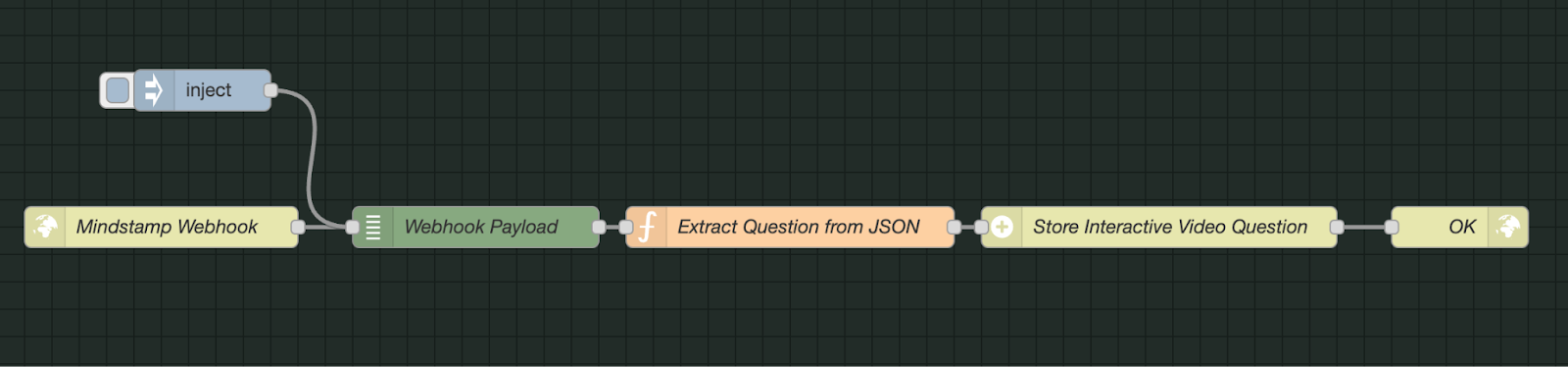
In the 2024 build, the first flow had five nodes in a row: the Mindstamp Webhook endpoint, a debug node that showed the payload, a function that pulled the question out of the JSON, a node that saved it as a record, and an OK response. The flow answers as soon as the record is saved, so Mindstamp gets its success code before any model call starts.
Step 4: classify the answer with a language model
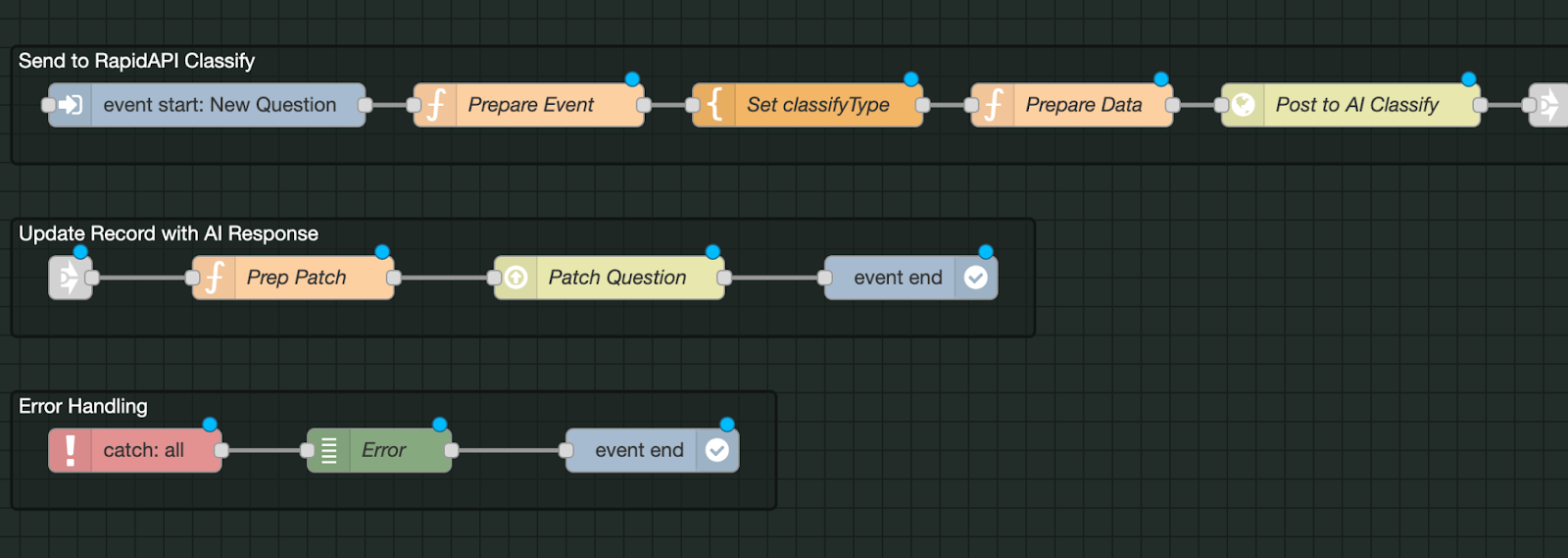
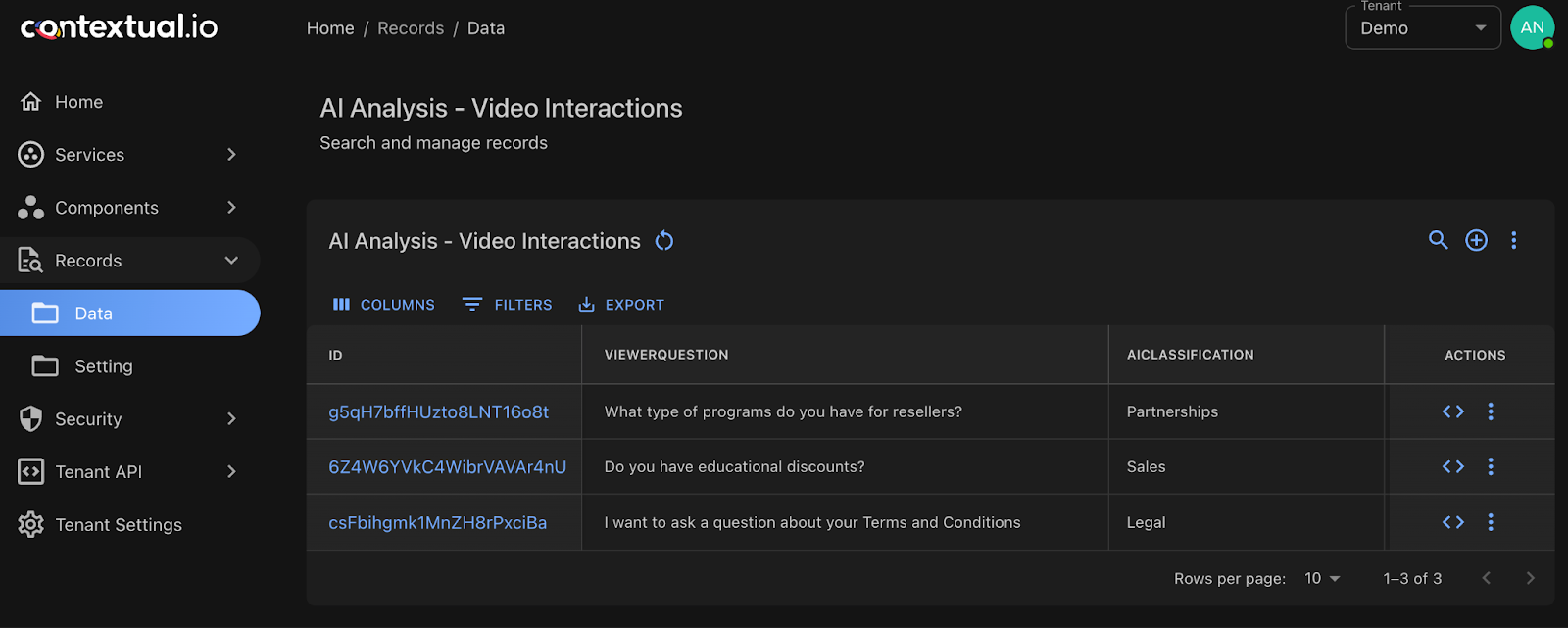
Saving the record started a second flow. In the 2024 build, that flow prepared the text and posted it to a classification endpoint from the RapidAPI Hub, an API marketplace. The endpoint returned one label: product question, sales, support, partnership, or legal. The flow then patched the record with the label. A catch-all branch logged any error.
Contextual's June 2024 article "Own Your AI" argues for choosing your own model and changing it later without lock-in. That fits this step: the classifier is one node, so you can swap the service behind it without touching Mindstamp. Whichever model you use, follow these rules:
- Build the label list from real answers. Write one line that defines each label and add one example answer for it.
- Add an "unclear" label and send those answers to a person. The demo's Unknown intent path does the same thing: it asks instead of guessing.
- Ask the model to return one label from the list as JSON. In the flow, check the label against the list and treat anything else as unclear.
- Treat the answer as data. A viewer can type anything, including instructions to the model, so put the answer between clear markers and tell the model to classify it, never to follow it.
- Send the question prompt and the video title with the answer. "Is there a discount?" after a pricing section is a sales question.
- Test before launch. Export past answers from Mindstamp (the interactions export has PROMPT and VALUE columns, explained in exported fields), label a sample by hand, and compare the model's labels with yours.
- Save the label and the model name on the record, so you can check results and run old answers again after you change models.
Step 5: route each category to someone who can act
For each label, decide whether the flow acts on its own or only alerts the person who should answer.
| Label | Route | Automate or review |
|---|---|---|
| Sales | A task for the account owner in your CRM, with the answer and the video title | Create the task automatically; a person replies |
| Support | A ticket in your help desk, with the viewer's email | Create the ticket automatically |
| Partnership | An email to the partner manager | Send the alert automatically |
| Legal | The legal inbox | Alert only; no AI-written reply |
| Product question | A product team channel or a weekly digest | Batch and review |
| Unclear | A review queue | A person labels it, and the answer joins your test set |
If you use HubSpot, Mindstamp's HubSpot integration can already add the answer to the contact's timeline (Pro plan and above), so the flow only needs to add the label. If the viewer gave an email, the flow can also draft a reply. Have a person send any reply about pricing or contracts.
For other ways to use Mindstamp data in an AI workflow, such as ranking leads or suggesting the next video, see our overview of AI workflows for interactive video data.
Route viewers inside the video while they watch
The AI label arrives after the viewer has left, so routing during playback needs rules the player can run on its own. You have three options.
Let the viewer choose
Ask "What do you need help with?" with buttons or a multiple-choice question, and give each option a Change Time or Switch Video action. The demo above works this way: each button sets a variable and jumps to its scene. The viewer classifies their own need, so the route matches what they asked for. Add a free-response question after the choice if you also want the details in their own words.
Match keywords in the answer
Save the free-response answer in a variable (Core plan and above). Then add conditional logic (Pro plan and above) to the buttons that follow, for example Show if viewer_question Contains discount on a "Talk to sales" button. Contains, Equals, and Matches Regex ignore capital letters. Each interaction can use two conditions, joined by AND or OR. For a longer word list, use Matches Regex, such as pric|quote|discount, which also matches "Pricing" and "QUOTE". Always show a general "Something else" option, because keyword rules miss answers that use other words.
Answer questions about the video itself
If viewers mostly ask about what the video covers, Genie AI can answer them in the player. It answers only from the transcript and the notes you add, says so when those do not contain the answer, and lists the questions it could not answer (Core plan and above). Our guide to adding an AI assistant to a video covers the setup.
Common questions
What is AI orchestration?
AI orchestration is software that connects data sources, AI models, and business systems in one workflow. In this post, the orchestration layer receives the Mindstamp webhook, calls the model, saves the result, and sends it on. Because the model is one step in the flow, you can replace it without changing the rest.
Can the AI result change the video during the same session?
No. Mindstamp sends webhooks after the session ends, so the result can only drive later follow-up, such as an email or a CRM task. For in-video routing, use the viewer's choice or keyword rules, as described above.
Do I need a specific platform to build this workflow?
No. Any endpoint that accepts a JSON POST and returns 200 or 204 within 15 seconds can receive the webhook, whether it runs on your own server or on a managed workflow platform. For a simpler setup, Zapier (Core plan and above) receives the same interaction records, usually within minutes.
Which Mindstamp plan do I need?
Interaction webhooks and conditional logic are on the Pro plan and above. Variables are on the Core plan and above. See pricing for the current plans. The 14-day free trial needs no payment card.
How do I test the workflow before launch?
Follow the integration test checklist. Open the share link in a private browser window, because the editor preview does not send data. Enter a test email, answer the free-response question, then close the tab or wait about two minutes. Check that your endpoint received one POST with your answer in value and the X-KEY header, and that the flow saved a label. Then repeat with an answer written to fall into each category, including one that should come back unclear. To see the routing step from the viewer's side first, try the Route the Free Response example.