Brett Lindenberg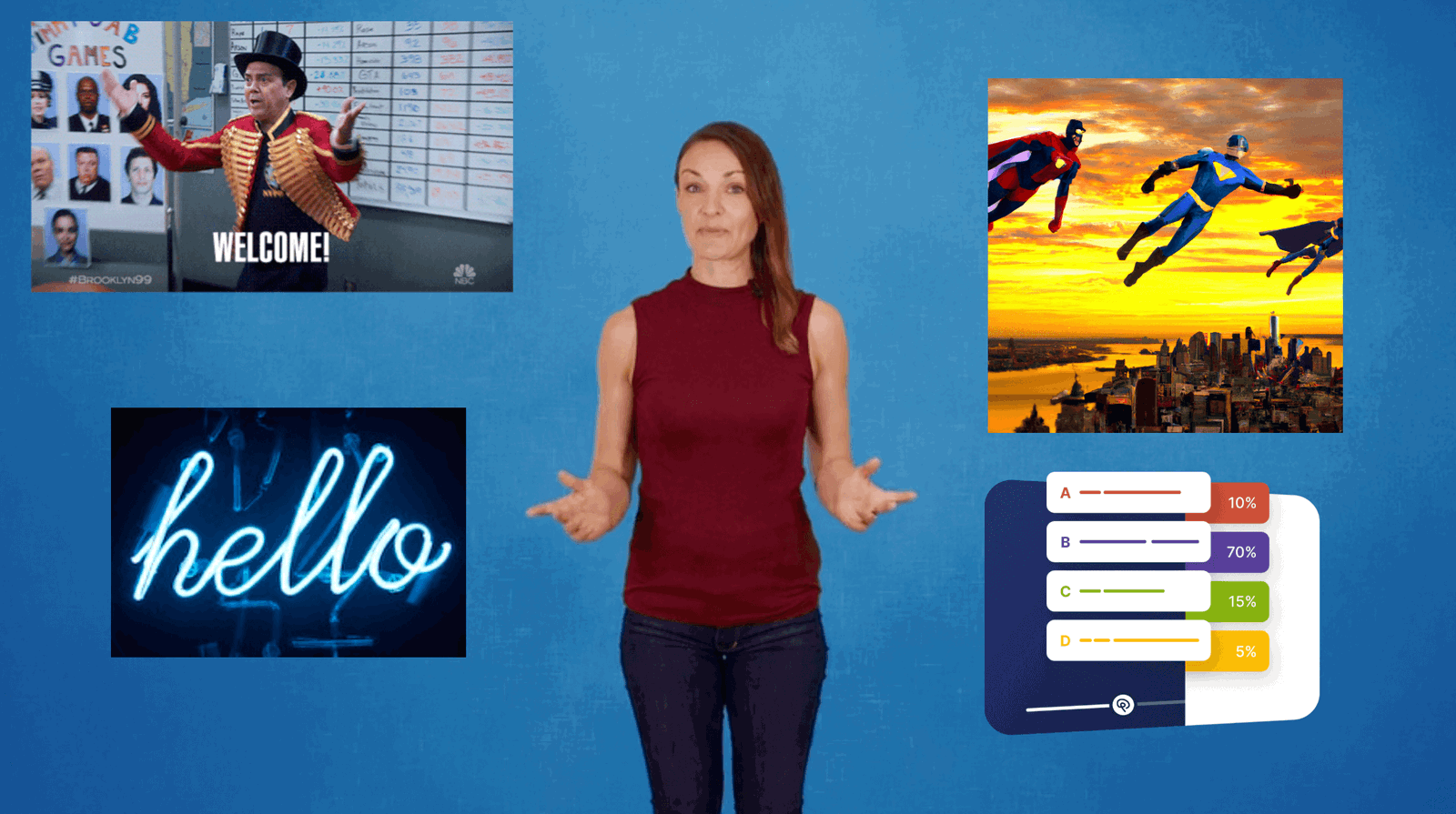
There are two ways to add an image or GIF to a video. You can burn it into the video file with an editor, or you can lay it over the video in an interactive player. An overlay can respond to a click, and you can swap it later without exporting the video again. In Mindstamp you add an Image interaction at a point on the timeline, pick a file (an upload, your asset library, a link, or a GIF search), set its show and hide times, and choose what a click does. Use images you made, or images whose license covers your use: Unsplash, Pexels, and Pixabay allow free commercial use without credit, with limits listed below.
Burn the image in, or lay it over the video
Both methods put a picture on screen. They differ in what the picture can do after you publish.
| Burned into the video file | Overlay in an interactive player | |
|---|---|---|
| How you add it | Any video editor, then export a new file | Add an image interaction on the timeline |
| Can viewers click it? | No | Yes: open a link, jump, branch, or open the image full size |
| Changing it later | Edit, export, and upload the video again | Edit the interaction; the video file stays the same |
| Where it shows | Everywhere the file plays, including YouTube, social feeds, and email | Wherever the interactive player runs: share link, embed, or a SCORM package in your LMS |
| What you learn | Nothing about the image | Which viewer clicked it, and when |
Burn the image in when the video will play somewhere an interactive overlay cannot go, such as a social feed. Use an overlay when you want viewers to click the image, when the image will change (a price or an offer), or when you want to know who clicked it. You can also do both: burn in your logo and lay the offer over the video.
How to add an image or GIF in Mindstamp
- Open the video, go to Interactions, and move the playhead to the moment the image should appear.
- Click Image in the interaction bar. The image interaction page shows what it looks like to viewers.
- Choose the file. Upload takes PNG, JPEG, GIF, or WebP files. Library shows images already in your asset library, so a logo or diagram you use in many videos is uploaded once. URL takes a link to an image. Stock searches GIPHY for GIFs and also has an icon search.
- Drag the image into place and resize it. Keep it clear of faces, captions, on-screen demonstrations, and the player controls.
- Under Content, write a caption. The caption is the image's text alternative for screen readers. Turn on Show Caption under Styling if you also want it on screen.
- Choose a Click Action. The default, Continue, records the click and keeps the video playing.
- Set the Show and Hide times under Timing.
- Save the image and test it in Preview, on a phone as well as a computer.
Two more settings under Styling control motion. Transition sets how the image enters, for example Fade or Slide. Animation adds a looping effect, such as Pulse or Grow, for as long as the image is on screen. Save animation for an image you want clicked; a looping effect on every image competes with the speaker. The Visibility setting shows an image on all devices, desktop only, or mobile only, which helps when a detailed image is too small to read on a phone.
What a click on an image can do
An image works as a button once you give it a click action. Common choices:
- Open a link, such as a product page or a booking page.
- Show the image full size over the video with Open Image, for a chart or diagram that is too small to read in the frame.
- Jump to another point in the video, or switch to another video with video branching.
- Show a short message, or download a file (file downloads start on the Pro plan).
After the click, the image can stay as it is, hide, or become disabled; the setting is Post Click State. The whole rectangle of the image is clickable, including the transparent parts of a PNG. To make only one part of a picture clickable, such as one product on a shelf, put a hotspot over that part instead. Mindstamp records each click against the viewer who made it, so the report shows who opened the image and when. The help article on clickable images covers each setting, and our guide to image buttons covers design for training videos.
Show different images to different viewers
An image does not have to look the same for every viewer. With conditional logic (Pro plan and above), an image appears only when a variable has a set value, such as the answer to a question or a part the viewer has already looked at. In the 46-second demo below, three hotspots sit over the shade, arm, and base of a lamp. Each choice opens a close-up and saves a variable. When you return to the lamp, an outline image marks each part you have inspected, because each outline shows only when its variable reads "Viewed".
The same method can show a product photo in the color a viewer picked, a diagram for the job role they chose, or a badge after a correct answer. To put the viewer's name or company in text next to an image, use personalization variables.
Where to find images and GIFs you can use
The safest image is one you made: a screenshot of your product, a diagram, a photo you took, your logo. When you need something else, the sources below cover most needs. The license notes summarize each site's license page as we read it in October 2026. They are not legal advice, and each site's full license is the one that applies.
| Source | What it has | License basics | How to use it in Mindstamp |
|---|---|---|---|
| Your own files | Screenshots, diagrams, product photos, logos | You or your company hold the rights | Upload, or add to the asset library once and reuse |
| GIPHY | Animated GIFs | Set by GIPHY's terms and by whoever owns the footage in each GIF | Stock tab, GIF search. Mindstamp asks GIPHY for G-rated results only, which GIPHY's rating definitions describe as images "broadly accepted as appropriate" in public |
| Unsplash | Photos | Free for commercial use, edits allowed, credit not required. You may not sell photos without significant changes or compile them into a competing service (Unsplash License) | Download, then upload |
| Pexels | Photos and videos | Free for commercial use, credit not required. Do not show identifiable people in a bad light, imply that people or brands endorse your product, sell unaltered copies, or use the media in a trademark (Pexels license) | Download photos and upload them. For a background video, choose Stock when you create a new video and search Pexels |
| Pixabay | Images and videos | Free, credit not required, edits allowed. Content that shows recognizable trademarks or brands may not be used commercially, and you may not sell unaltered copies or print them on products for sale (Pixabay license summary) | Download images and upload them. For a background video, choose Stock when you create a new video and search Pixabay |
| AI image generators | Any scene you can describe | Set by each tool's terms; copyright for the output is limited (see below) | Generate with Mindstamp's AI image generation (GPT Image), or generate in another tool, download, then upload |
None of the three stock sites requires a credit line. If you want to credit a photographer anyway, a short caption on the image or a line in the video description works.
Can you use GIPHY GIFs in a business video?
Check where the GIF came from first. Many popular reaction GIFs are cut from films and TV shows, and the footage in them still belongs to its owner, whether your video is for an internal team or a public ad. For a marketing video, the lowest-risk GIFs are ones you make from your own footage or screen recordings, or ones your company or a partner published. Read GIPHY's terms before you put a GIF in an ad or a product video.
A GIF also has a job to do. A welcome GIF at the start of an onboarding video or a celebration after a correct answer gives the viewer a reaction. A GIF that plays while the presenter explains a process competes with the presenter.
AI-generated images in interactive video
Generative AI tools create an image from a text description, so you can get a picture no stock site has, such as your product category in an unusual setting or an illustration in your brand colors. In 2023 the Mindstamp editor had a built-in image generator that used OpenAI's DALL-E. OpenAI removed the DALL-E 2 and DALL-E 3 models from its API on May 12, 2026, according to its deprecations page, and Mindstamp's AI image generation now uses OpenAI's GPT Image models instead. If you prefer another generator, create the image there, download it, and upload it to Mindstamp like any other image.
Check these points before you use a generated image:
- In the United States, an image made only from your prompt may have no copyright. The US Copyright Office's January 2025 report on copyrightability says prompts alone do not make you the author, while human selection, arrangement, or changes to the output can be protected. If an image has no copyright, you cannot stop others from copying it.
- Each tool's terms decide whether you may use the output commercially. Read them for the plan you pay for.
- Avoid prompts for real people, or for logos and characters you do not own. The stock licenses above ban implied endorsement and trademark use, and the same caution applies to a generated image.
When an image helps viewers, and when it distracts
An image belongs in the video when it carries information the viewer needs at that moment, such as the spec sheet during a product demo or the chart the presenter is talking about. Decorative images are a different case, especially in training. A 2026 meta-analysis in Educational Psychology Review pooled 50 studies of "seductive details", meaning interesting but irrelevant text and pictures, and found a small negative effect on learning (an effect size of g = -0.16), mostly through extra mental load (Cheng and colleagues, 2026). The authors recommend cutting irrelevant or decorative elements from instructional material.
Practical rules for images in a video:
- In training, tie each image to the step it explains, and hide it when the step ends.
- Keep funny GIFs for welcome screens and celebrations, where a reaction is the point.
- Keep animated GIFs short. WCAG 2.2 success criterion 2.2.2 asks for a way to pause, stop, or hide moving content that starts on its own, lasts more than five seconds, and plays beside other content (W3C). A GIF that hides within five seconds falls outside it.
- Never use a GIF that flashes more than three times in one second. WCAG 2.2 success criterion 2.3.1 sets that limit because flashing content can cause seizures (W3C).
- Write a caption for every image that carries information, so viewers who use a screen reader get the same content.
If your goal is to hold attention through a whole video, images are only one tool. Our guide to winning viewer attention covers openings, length, questions, and choices.
Common questions
What image formats can I add to a Mindstamp video?
PNG, JPEG, GIF, and WebP. Use a PNG with a transparent background for logos and cutouts, and remember that the transparent area is still part of the clickable rectangle.
Do I have to credit Unsplash, Pexels, or Pixabay photographers?
No. All three licenses say credit is not required. Their other limits still apply, such as the bans on implied endorsement and trademark use.
Can I add a short video or audio clip instead of an image?
Yes. A video clip plays inside the main video and returns the viewer to the same point. Our post on multimedia in interactive video covers clips, audio, and downloads.
Will an image overlay work if I embed the video on my site?
Yes. The image is part of the interactive player, so it appears wherever you share or embed the Mindstamp video. It does not appear if you download the original video file and post it elsewhere. Our guide to embedding interactive videos in web pages covers the embed code.
To try this on your own video, start with one image that carries information, give it a click action, and check the report after the first viewers watch. For the full build from upload to share link, follow how to create an interactive video, and for formats that use images and hotspots in other ways, see interactive video examples.