Brett Lindenberg
To market with interactive video on a small budget, spend on interactions and measurement instead of new footage. Add questions and a lead form to videos you already own. Test a message on a cheap draft before you pay for production. Fix outdated videos with on-screen overlays and skip the reshoot. Then use each viewer's answers and clicks to decide where the next dollar goes. The seven methods below show how to do each one in Mindstamp.
Where a video marketing budget goes
In the Content Marketing Institute's 2026 B2B content and marketing trends report, 39% of the 1,015 B2B marketers surveyed (June to August 2025) named resource constraints, meaning time, people, and budget, among their top three content marketing challenges.
With video, the expensive part is usually production: the script, the shoot, the edit, and every change after that. A second version for a new audience, or a fix for an old price, often means paying for that work again. An interactive layer sits on top of the finished file, so you can make many of those changes in a browser.
| Cost | Usual approach | Interactive option |
|---|---|---|
| A version for each audience | Shoot or edit several cuts | One recording that asks a question and jumps each viewer to the matching section |
| An outdated figure, price, or screen | Re-edit or reshoot | A timed comment or image over that moment |
| A landing page and form for each campaign | Build and host a page | A lead form inside the video |
| Audience research | A separate survey or interviews | A question in the video, asked when the topic comes up |
| Testing a call to action | Produce two cuts | Copy the video and change only the button |
| A long webinar that few people finish | Cut it into clips | Chapters and a topic menu on the original recording |
7 ways to stretch a video marketing budget with interactive video
Each method below works on its own. Start with the first one, then add the others as you learn what your viewers respond to. For a wider tour of techniques by funnel stage, see our guide to interactive video marketing.
1. Start with the videos you already own
List the videos you have already paid for: webinar recordings, product demos, customer stories, explainers, and recorded sales presentations. Sort the list by views, or by how often your sales team sends each one. The video at the top already has an audience, so make it your first interactive video.
Mindstamp adds interactions on top of the file and does not re-encode it. Upload the file, or link a video you host on Vimeo, Wistia, JW Player, or Kaltura. Our help page lists which video sources work. YouTube links are for testing only, so use the original file for anything you publish.
Start with two interactions: one question that asks what the viewer came for, and one call to action at the moment the video gives a reason to act. Two interactions are enough to learn whether the video moves people, and you add both in the editor without touching the footage.
2. Turn a long recording into sections viewers choose
Viewers of long recordings tend to stop partway. Across 1,125,238 views of 3,608 Mindstamp videos longer than 20 minutes (2018 to October 2026), the average view played 41.7% of the video. These are mostly training, marketing, and sales videos made by Mindstamp customers, so use the figure as a guide for your own library.
Before you pay an editor to cut a webinar into clips, give viewers a way to reach the part they want:
- Add chapters so viewers see the structure and jump to a section from the player.
- Put a menu at the start with one button for each topic. Each button uses Change Time to jump to its section.
- Add a question after the parts that show buying interest, such as the pricing discussion or the live demo.
The webinar repurposing page shows the full pattern, and the webinar replay example lets you try a replay menu as a viewer. If you also want short clips for social posts, cut those in a video editor. Mindstamp does not trim or join video files.
3. Update old videos without a reshoot
A price change or a retired feature can make a good video look out of date. Before you book a reshoot, check whether an overlay fixes it:
- A timed comment corrects a figure or adds a note at the exact moment it matters.
- An image covers an old screenshot or chart with the current one, and it can open a link when clicked.
- A button sends viewers to your current pricing or product page, so the video no longer has to state a number that will change again.
When the footage itself must change, edit the file in a video editor and use Replace source video. Your interactions, design, settings, share link, and embed code stay the same, and the replacement does not add a video to your plan count. Play the video through afterward and move any interaction that now sits at the wrong time.
4. Test the idea before you pay for production
If you have an idea for a video series but not the budget to produce all of it, make a cheap version first and let viewers vote with their clicks. Mindstamp works with several low-cost sources:
- Slides saved as a video. Our guide to turning a slide presentation into an interactive video covers PowerPoint, Keynote, and Google Slides.
- A screen recording with your voice over it.
- Footage from the Stock source on the New video page, which lets you try an idea before your own footage is ready.
- AI presenter videos from a connected Synthesia or HeyGen account.
Make a short overview and end it with a choice: one button for each topic you might produce next. At first, each button can open a page you already have, such as a blog post or a product page. Once enough viewers have chosen, produce the topic most of them picked. If the winner needs a polished version, low-cost animation is one route, covered in animated video and interactive video for marketing on a budget.
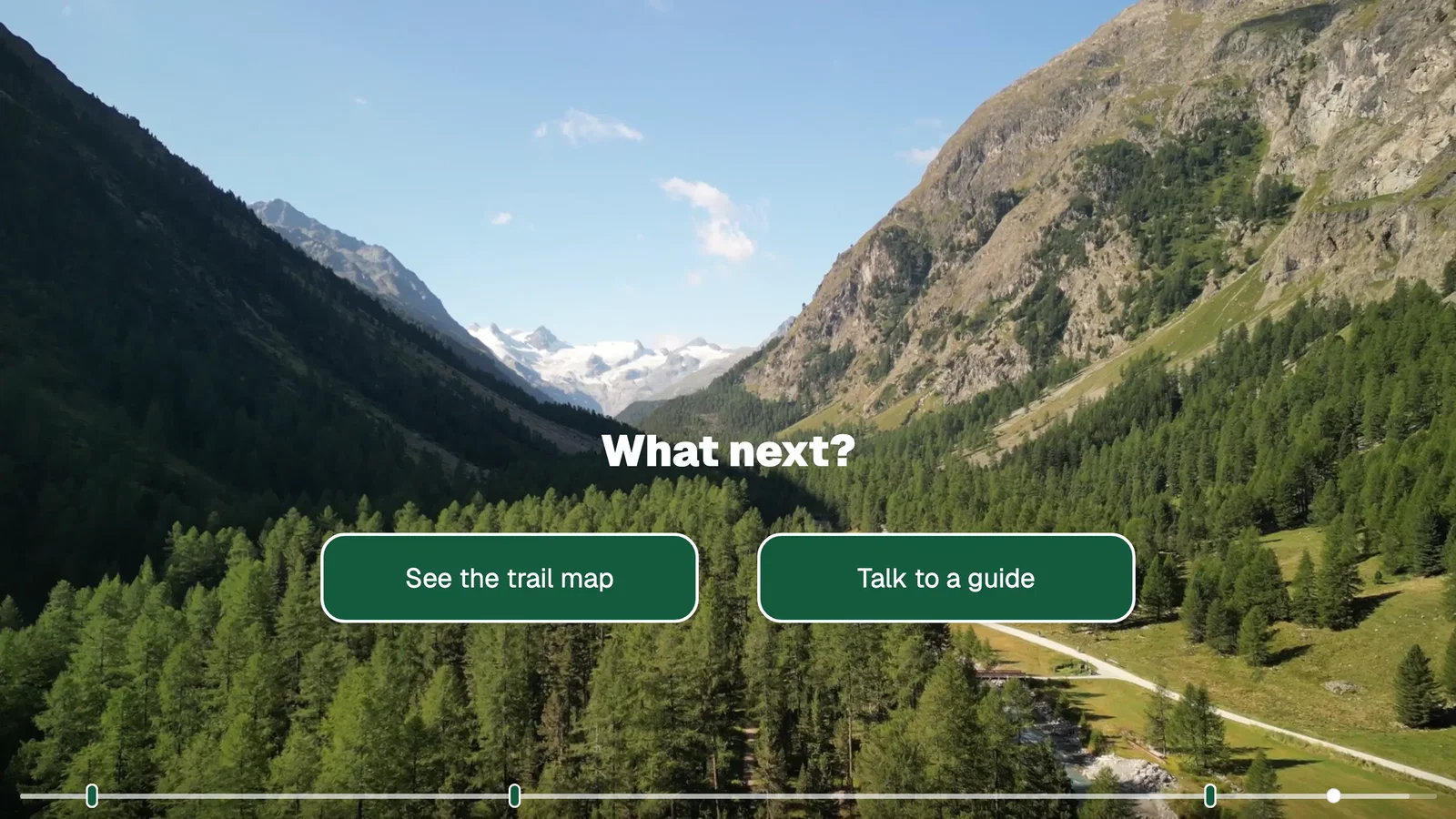
The viewer question example shows how one answer becomes the brief for the next piece of content.
5. Test one change at a time on the same footage
Comparing two calls to action on the same footage takes one edit, where comparing two productions means paying for both. To build the second version, open the video, go to More, select Duplicate video, and choose to copy the interactions. Then change one thing in the copy:
- The button text, for example "Book a demo" against "See it with your data".
- Where the button sits, or the second it appears.
- Whether the lead form comes at the start or after the main point.
Send each visitor to one version at random, then compare clicks and form submissions in Reporting. Each duplicate counts toward your plan's video limit. When the test ends, export the losing version's views and delete it. Deleting a video cannot be undone and removes its view history, which is why you export first.
For the full method, including sample size and how to split traffic, read how to A/B test your videos. Using interactive video to test video marketing on a budget covers which interactive elements to test, the A/B testing use case shows what the report compares, and the CTA test example walks through a clean test design.
6. Serve several audiences from one video
A separate video for each audience multiplies the cost of every change. One recording can serve several groups:
- Ask at the start who the viewer is or what they need, then send each answer to its own section of the same video with Change Time. A branch inside one video does not add a video to your library. A branch to a separate video does, so keep the sections in one file when you can. Our video branching page shows both kinds.
- Show each viewer's name or company on screen with personalization placeholders, for example "Hi {{NAME|there}}". The value comes from a personalized link, URL parameters, or the viewer's lead capture answers, and the text after the bar is the fallback. Personalization variables are on Core and higher plans.
With both in place, one recorded product tour can greet each account by name and skip the features a buyer said they do not need.
7. Keep the lead inside the video
A separate landing page is one more page to build and test, and it adds a step at the moment the viewer is interested. With lead capture, the form appears inside the player: at the start, at a time you choose, or when the viewer clicks a specific button such as "Get the guide". Lead capture is on every plan, and every later answer and click is reported under that person.
Place the form after the video has shown its value and well before the end. Across 8,070,557 views of 18,315 Mindstamp videos (2018 to October 2026), the average view played 46.5% of the video, so many viewers never reach an offer in the final seconds.
To follow up, send leads to HubSpot (Pro and higher plans) or to Zapier or a webhook (Core and higher plans). Mindstamp sends this data during background processing, so allow for a delay before your follow-up email goes out.
Use viewer answers to decide the next spend
With interactive video you see what viewers say they need and what they do next. Use both before you put money behind a message:
- Write the decision first, for example which product benefit should lead next quarter's ads.
- Add a question at the moment that can answer it, such as "What matters most to you?" with security, price, and ease of setup as answers.
- Add the campaign source to the link as a URL parameter, such as
?source=webinar, so each view carries it as a variable. - After enough views, open Reporting, then Questions, to see how each audience answered.
- To see which answer went with which action, save the answer in a variable: pick one in the question's Variable field (Core and higher plans).
- If the buttons you want to compare share the same show time and hide time, Mindstamp reports them as one decision. Open Reporting, then Decisions, and filter by the variable to see how viewers with each answer chose. For a single button, such as a trial button, filter Views to the video, export a CSV with interactions and variables included, and count the trial clicks for each answer in a spreadsheet.
If viewers who chose security clicked the trial button more often than the others, test a security-led message next. Treat the result as a lead for your next test, because those viewers may differ in other ways too. Our help article on using video data to improve messaging covers the same method, and the reporting overview shows what each report contains.
What interactive video costs to run
Interactive video software is a subscription. Mindstamp plans are sized by three things: videos in your library, admin seats for the people who build, and the streaming minutes your audience watches each month. Viewers are unlimited, with no per-viewer billing, and they do not need an account. Current plans are on the pricing page, and the 14-day free trial needs no payment card.
To keep your video count low:
- Branch inside one video with Change Time when the sections can live in one file.
- Delete test copies after you export their results.
- Use a video clip for a short addition. A clip plays inside the main video, uses the asset library allowance, and does not count as a video.
To estimate what a better completion or action rate is worth before you buy anything, enter your own numbers in the interactive video ROI calculator.
Common questions
Do I need new videos to start?
No. Interactions sit on top of a video you already have, whether you upload the file or link it from a host such as Vimeo or Wistia. Good first candidates are a webinar recording, a product demo, or a customer story.
Can I use my YouTube videos?
Only for testing. You can paste a YouTube link to try an idea, but before you publish, upload the original file and use Replace source video so your interactions stay. Our help page explains why YouTube is for testing only.
Will an interactive video play on social media?
Not as an uploaded file. Social networks play an uploaded file as a flat video with no buttons or questions. Post a short native clip as a preview and put the share link in the caption, bio, or comments, so viewers open the interactive version. See how to share an interactive video.
Is interactive video worth it for a small business?
It is worth a test when you already have one video that people watch. Add a question and a call to action, run it for a month, and compare the leads it brings in with the month before. Our guide to video marketing for small business covers what to make first if you have no video yet.
Your next step: pick the video in your library with the most views this quarter, add one question and one call to action, and share it where it already runs. When you are ready to use interactive video across your whole content program, read how to use interactive video in content marketing.