Brett Lindenberg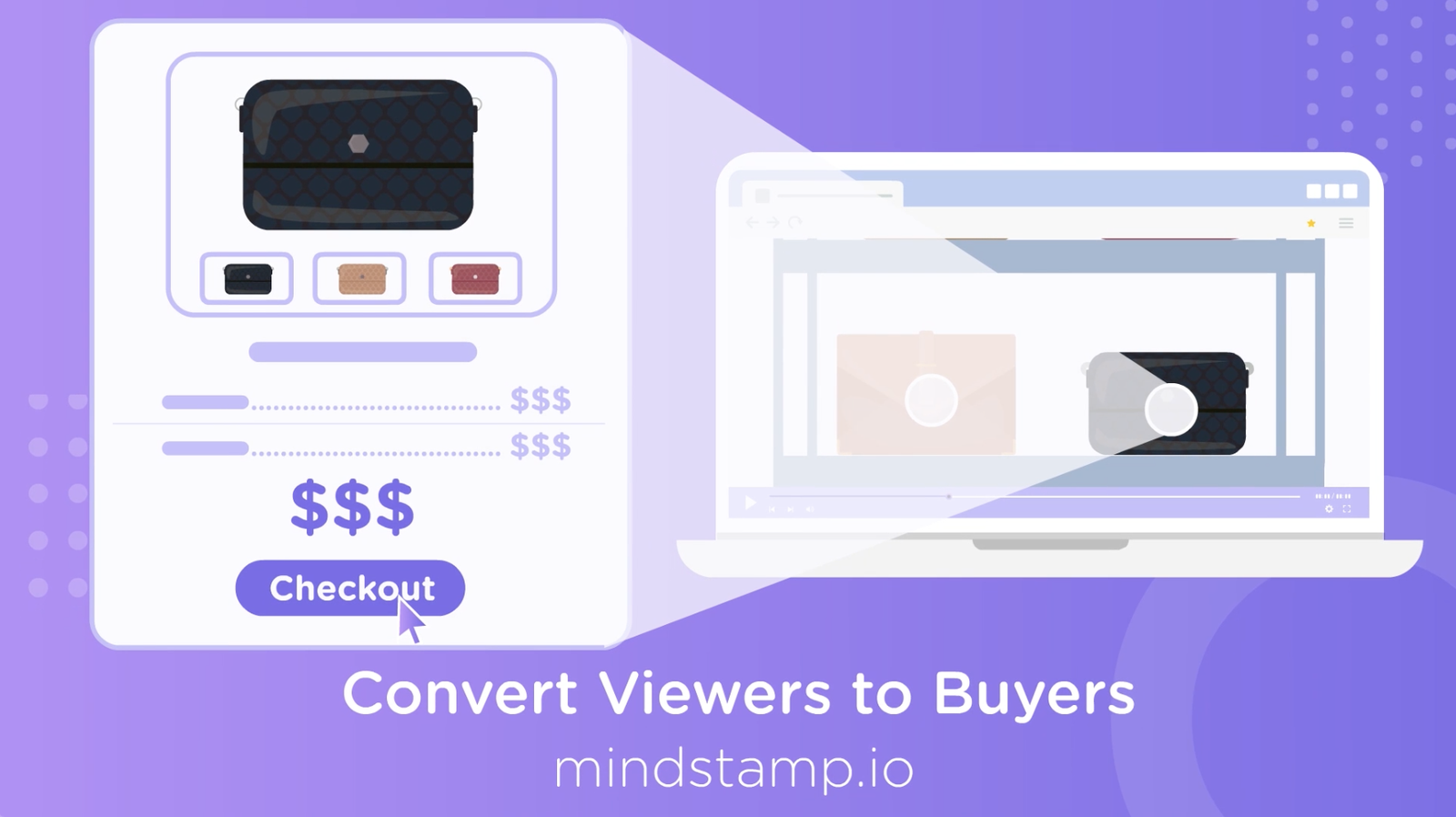
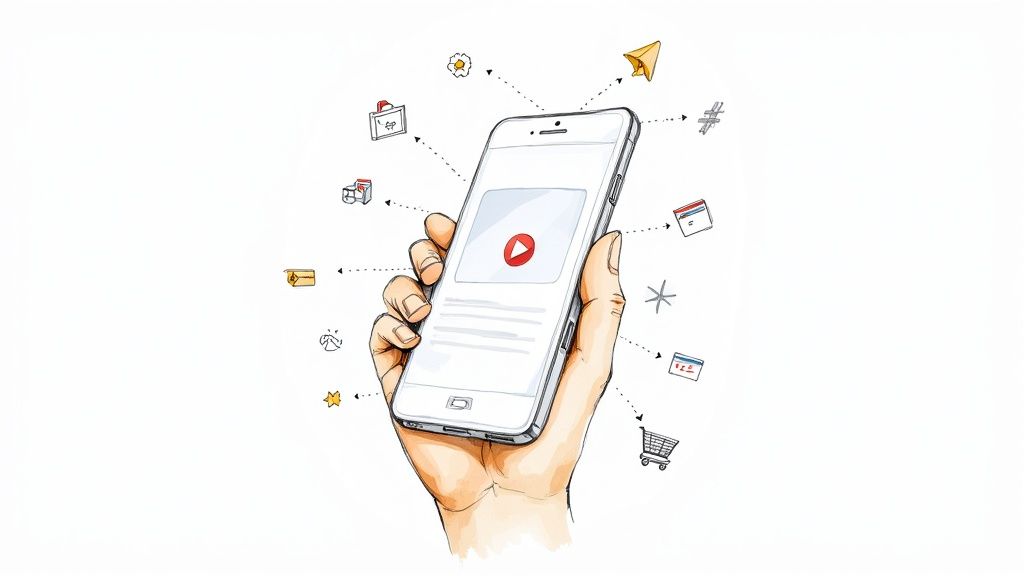
To turn viewers into buyers, make the product video respond to each viewer. Let viewers pick the feature or use case they came for, answer their questions inside the video, recommend the right product from a few answers, and show the buy, book, or add-to-cart action at the moment their interest peaks. Then measure who clicked what and test one change at a time. If the video plays on a TV or a store screen, where nobody can click, a QR code moves the viewer to the interactive version on their phone.
Why product videos lose buyers
One product video has to serve many buyers. A buyer who cares about setup sits through pricing, and a buyer who cares about price sits through setup. Many leave before the part that would have convinced them.
Our own platform data shows how early that happens. Across 8.07 million views of 18,315 Mindstamp videos (2018 to October 2026), the average view played 46.5% of the video. For videos of 2 to 5 minutes, the average view played 39.2% of the video, and for videos of 1 minute or less it played 59.4%. These figures describe Mindstamp customers' videos, which are mostly training, marketing, and sales videos, and they are not an industry benchmark. For a 3-minute product video, 39.2% is about 70 seconds. A call to action that appears only in the last seconds comes long after the point the average view reaches.
Marketing teams already rate product video highly. In Wistia's 2026 State of Video report, summarized on HubSpot's blog, teams named product videos and webinars as the formats with the biggest impact on business success. The same report lists conversion assists, the percentage of viewers who take action while watching, among the most common metrics teams use to judge a video. The six steps below are about raising that number.
1. Let viewers pick the feature they came for
Show a short menu in the first 15 seconds, right after the product's one-line promise and before you explain any single feature. Two to four buttons work well, each named for a buyer's question: "Show me setup," "Show me pricing," "Will it work with my tools?" Each button jumps to its segment with Change Time, and a navigation at the end of the segment sends the viewer back to the menu or on to the next step.
If a segment is long or needs its own follow-up, make it a separate video and use branching instead. Jumps inside one video use no extra video slots, but each branch video counts toward your plan's video limit. For demos longer than about ten minutes, add chapters as well, so a returning buyer can go straight to a section.
Try the pattern in the example below.
Every choice is recorded against the viewer, so the report tells you which features draw interest. If most viewers pick setup, your landing page and your sales calls should probably lead with setup too. Our product tour use case shows more ways teams build these menus.
2. Answer questions inside the video
A viewer with an unanswered question leaves the video to find the answer and may not come back to it. Answer the common questions at the moment the video raises them, in a layer over the video, so the viewer stays at the same point:
- A video clip plays a short explanation over the main video, then returns the viewer to where they were. Use it for a feature detail that only some buyers need.
- A product card opens from a click with an image, a description, a price, and up to two actions, such as Add to Cart and a link to the spec sheet.
- Show Image opens a diagram, a size chart, or a comparison table over the video.
- An open link modal shows a web page in a window on top of the video. Some websites block this, so test each page you use.
- Genie AI answers the questions viewers type in their own words, using the video and the material you give it. It is on Core and higher plans, and the questions viewers ask show you what the video left unclear.
To choose what to answer, ask your sales and support teams for the questions they hear most about the product. Put each answer on the moment in the video where the question comes up.
3. Recommend a product from a few questions
When a catalog has several products that look alike, a short quiz can pick the right one for each buyer. Ask two or three questions about the buyer's situation, such as skin type, team size, or how often they will use the product. Each answer stores a value in a variable, and conditional logic shows the product that matches, with its buy button, at the end.
The skin care product quiz is a working example: each answer adjusts a score variable, and conditional logic recommends one moisturizer. Our walkthrough on how to create an interactive product quiz with Canva shows the build step by step. Variables start on the Core plan and conditional logic on the Pro plan. Questions pause the video until the viewer answers, so keep them short and ask only what changes the recommendation.
4. Put the buy action where interest peaks
The best place for the buy action is right after the moment that proves the product works, while the product is still on screen. Put it there, and again on the end screen for viewers who watch to the end.
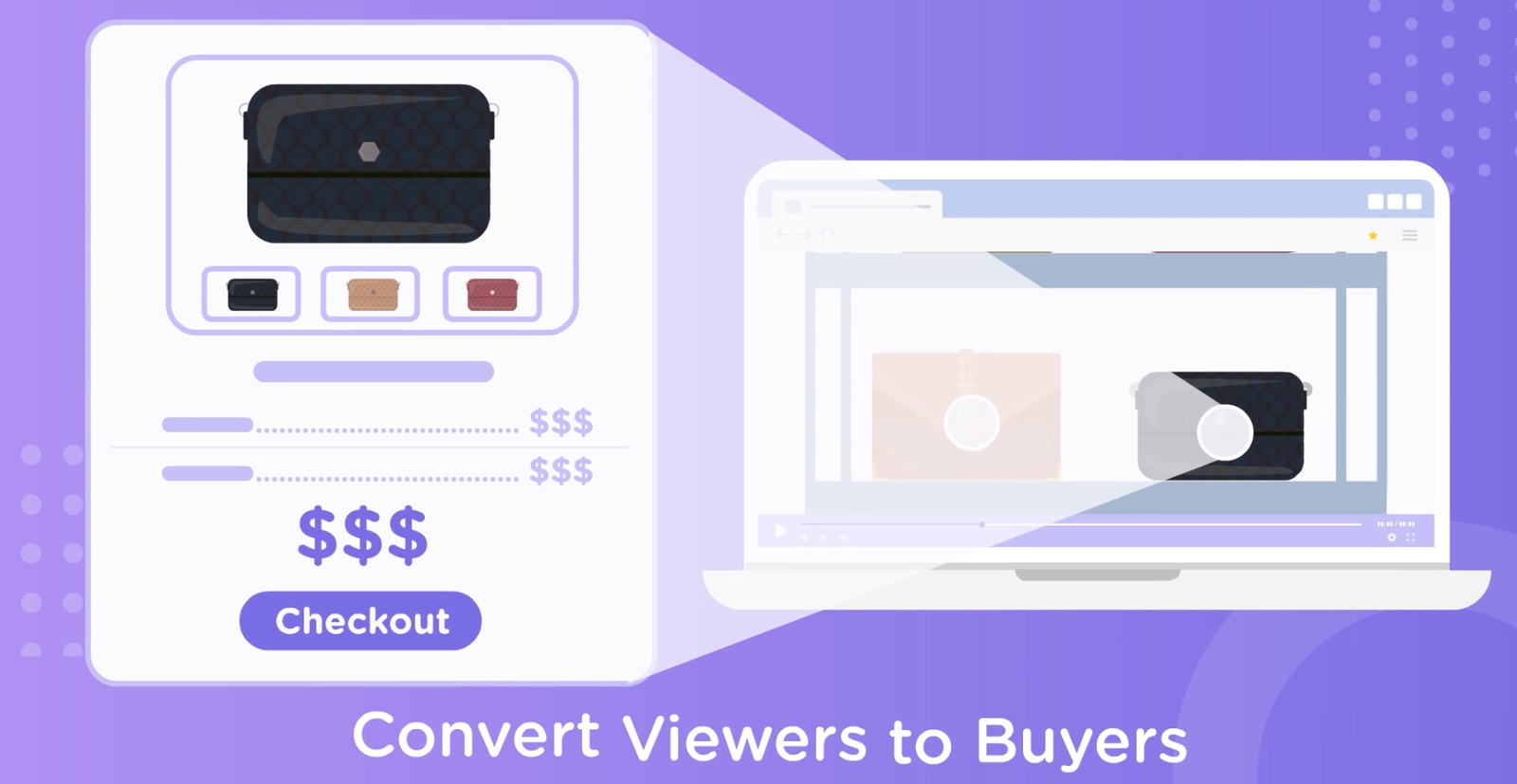
The action depends on what you sell:
- For a store product, put a hotspot over the product. With the Shopify integration, a click adds it to a cart inside the video, and the viewer checks out on your Shopify store. Without Shopify, the hotspot can open the product page. Our guide to product hotspots covers placement and size.
- For software or a considered purchase, open a Calendly or HubSpot calendar in the video after the viewer chooses to talk to someone, or ask for an email with lead capture after the useful part of the video.
- For a launch or a sale, the Copy Text click action copies a discount code to the viewer's clipboard, ready for checkout.
Name the button for what happens next: "Add to cart," "Book a 20-minute demo," "See the starter kit." Our guide to call-to-action buttons in video covers wording, style, and timing.
5. Personalize the pitch with what you already know
If you send the video to a known list, use what you know about each buyer. Type a placeholder such as {{NAME}} or {{COMPANY|your team}} into a button, text, or question, and the player fills it in. A viewer sees their own value first, then the fallback after the bar, then a default you set for the organization or the video, and otherwise nothing. Placeholder names use letters, numbers, and underscores and ignore capital letters.
Values can come from the link itself. Your email or CRM tool adds parameters such as ?name= and &company= to the share link, or you create personalized links one at a time or from a CSV file. With conditional logic, the same values can decide which segment plays first, so a buyer from a hospital sees the healthcare example and a retailer sees the retail one. Personalization variables start on the Core plan.
6. Test one change at a time
The 2022 version of this post suggested Google Optimize for testing. Google shut Optimize down on September 30, 2023, so here is how to test a product video today:
- Open the video's More page and select Duplicate video, with its interactions.
- Change one thing in the copy, such as the button label, the time the menu appears, or a hotspot in place of a button.
- Split the audience outside Mindstamp: your website's testing tool, two halves of an email list, or two ad sets.
- Compare the click rate on the action you care about, per view, in Mindstamp reporting. Keep the version that wins and test the next change.
Each duplicate counts toward your plan's video limit, so delete the losing version when the test ends. Export its report first if you want to keep the numbers, because deleting a video also deletes its view history. Our guide to A/B testing interactive videos covers test design in more detail, and the A/B testing use case lists what you can compare.
How to turn second-screen viewers into buyers
Viewers cannot click a video on a TV, a store display, a trade show screen, or a shared screen in a webinar. If they have a phone with them, move them to it. Put a QR code on screen that opens the interactive version of the same video, and say what they get by scanning, for example "Scan to pick your size and order." In Mindstamp, select the QR code tile on the Share page and download the image. On the phone, the viewer gets the menu, the product cards, and the cart, and you get the same per-viewer report as for any other view.
Keep the code on screen long enough for someone to raise a phone and scan it, and show it again near the end. Our guide to QR codes for videos covers size, placement, and testing. For a kiosk with no internet connection, Offline Mode runs the interactive video from a downloaded package. Offline views and answers stay on that device and do not appear in Mindstamp reports, so use the QR code when you need the data.
How to tell if it is working
| Measure | Where to find it | What it tells you |
|---|---|---|
| Clicks on each menu choice, per view | Mindstamp reports, by interaction | Which features or use cases buyers care about |
| Drop-off by section | Mindstamp reports (Core and higher plans) | Where the video loses buyers |
| Clicks on the buy, book, or add-to-cart action, per view | Mindstamp reports, by interaction and timecode | Whether the action sits in the right place |
| Orders or meetings that came from the video | Shopify orders with Mindstamp attributes, your calendar, or your CRM | Whether interest became sales |
| Progress events at set percentages of the video | Google Analytics, if you connect it | How far viewers watch, next to your website data |
The reporting overview shows what each report contains. Read clicks per view rather than total clicks, so a busy week does not look like a better video.
Do interactive product videos increase sales?
No study we know of answers that for every product, so test it on yours. Two kinds of evidence make it worth the test. In a 2004 lab experiment in the Journal of Management Information Systems, Zhenhui Jiang and Izak Benbasat found that letting online shoppers explore a product's features and functions themselves raised how well shoppers felt they could judge the product. That study tested interactive product web pages, not video.
Our platform data shows a related pattern. Videos where viewers took more than three actions per view averaged 51.8% watched, compared with 43.9% for videos where viewers took no action. Many factors differ between these videos, so treat this as a pattern, not proof. For more ways to keep viewers watching, see our video audience retention tips.
A good first test: take the product video that already gets the most views, add a feature menu in the first 15 seconds and one buy action after the strongest demo moment, and read which features viewers chose and where they clicked.