Brett Lindenberg
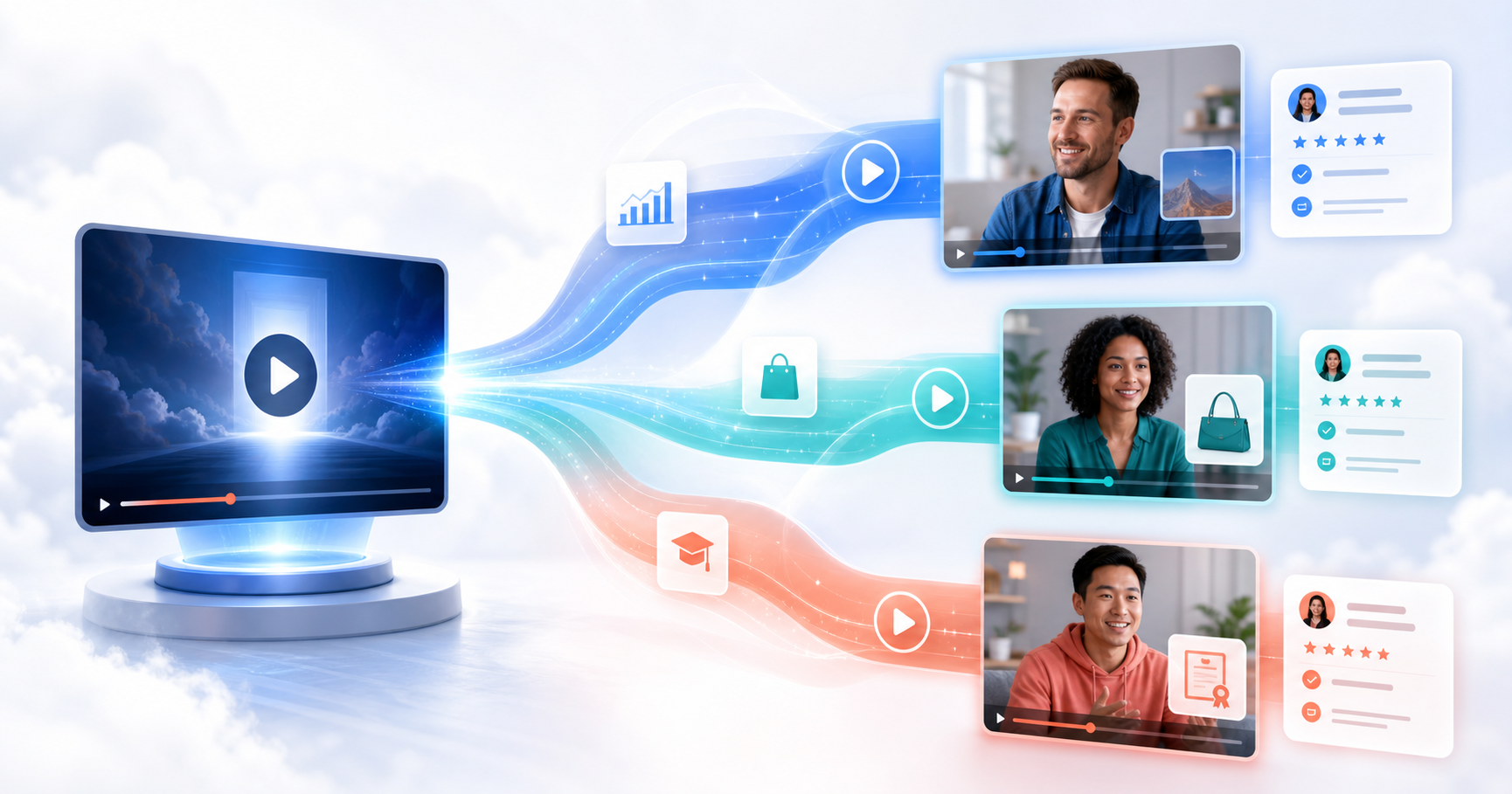
Video personalization means changing what a viewer sees or hears in a video to fit that person: their name, company, or role, the answers they give, or the choices they make while they watch. It works at three levels. Variables put known details, such as a first name or a company, into on-screen text, buttons, and links when the video plays. Branching uses the viewer's answers and clicks to pick the next section or the next video. Generation tools render a separate file for each recipient, often with an AI avatar that says the person's name. For most sales, marketing, and training videos, one recording with variables and a few branches is enough; per-recipient rendering earns its cost when the face or the voice itself has to be personal. The Mindstamp tutorial below covers the first level: storing a value in a variable and showing it in the video.
What is video personalization?
Video personalization (also spelled personalisation) is the practice of adapting one video experience to each viewer with data about that viewer. The data arrives at two moments:
- Before play: values you already hold, passed in through the link, a CRM merge field, a personalized link, or the web page that embeds the video.
- During play: what the viewer tells you, such as an answer to "What is your role?", a click on "Show me pricing", or a lead form.
Some writers call the first kind demographic or implicit personalization and the second kind rules-based or explicit personalization. The labels matter less than two tests: the change must be relevant to the viewer, and the viewer should be able to see why the video changed.
Video personalization is different from a personalized video message, where a person records a new video for each recipient. That approach takes a person's time for every recipient, and we cover it separately in our guide to personalized video messages.
The three levels of video personalization
| Level | What changes for each viewer | Data it needs | What you maintain | Typical use |
|---|---|---|---|---|
| 1. Name and variable personalization | On-screen text, button labels, questions, links, and offers | A name, company, role, or any value from a link, form, or CRM | One video | Account-based sales videos, onboarding greetings, renewal reminders |
| 2. Branching by answers | Which section or video plays next, and which interactions appear | Answers and clicks during the view, plus any stored variable | One video or a small set of videos | Product tours by need, training by role, support triage |
| 3. Generated per-recipient video | The spoken script, avatar, voice, images, or scenes | One row of data per recipient | One rendered file per recipient | High-value outreach, personal greetings, statements |
Level 1: name and variable personalization
A variable is a named value that the player keeps while the video plays. In Mindstamp, you type the variable in double braces, such as {{name}} or {{company}}, in text, button labels, questions, or click values. The player replaces it with the viewer's value at play time. Nothing is re-rendered, so one source recording serves every recipient, and you update one file when the content changes (see personalization).
A variable can get its value from five places:
- An answer to a question, stored in the variable you choose.
- A click on a button, hotspot, image, or text that sets a fixed value, such as product=analytics.
- Lead capture, which sets name, email, phone, custom_id, and any custom fields.
- A parameter on the share link or the embed URL, such as ?company=Acme.
- A Set Variable navigation, which sets a value at a time you choose.
Placeholders follow a few rules. Use only letters, numbers, and underscores in the name, so {{first_name}} works and {{first-name}} does not. Capital letters do not matter. Add a fallback after a vertical bar for viewers with no value: "Thanks, {{name|friend}}." reads "Thanks, friend." for a viewer who skipped the form. Without a fallback, the placeholder uses the value from Default variables, set for the organization or the video, and shows nothing if there is none. Values follow the viewer when they switch to another video or move through a playlist, so a later video can still greet them by name.
Level 2: branching by answers
With branching, the viewer's answer decides what plays next. Each answer or button runs an action: Change Time jumps to another point in the same video, and Switch Video opens a different video. The same click can store a variable, so later text, rules, and reports know which route the viewer took. In the demo below, you choose what matters on your commute. Your choice opens a matching scene and a follow-up question, and the last screen reads both answers back from variables.
Branch inside one video when the sections are short and share a setting. Split the content into separate videos when each path is long or changes on its own schedule. If the terms of an affiliate program change, for example, you replace that one module instead of editing and re-rendering a master video. Our guide to interactive video branching covers path design in more detail, and video branching shows what the report records for each path.
Video personalization rules (conditional logic)
A rule decides whether an interaction appears for this viewer. In Mindstamp, you open an interaction, go to Variables & Logic, turn on Conditional Logic, and build the rule from four parts: Show if or Hide if, a variable, a comparison, and a value. The comparisons are:
- Equals and Does not equal
- Exists and Does not exist
- Is a number less than and Is a number greater than
- Contains and Does not contain
- Matches Regex
Each interaction can test two conditions joined with AND or OR. The player checks the rules again each time a variable changes, so a button can appear the moment the viewer answers. A common pattern is one offer per company size: ask for the number of employees, store it in company_size, and give three buttons the rules "less than 10", "greater than 9 AND less than 100", and "greater than 99". Equals ignores capital letters, but spaces and spelling count, so route on fixed values from answer choices instead of free text. Add a route for viewers who have no value, with the rule "Does not exist". The conditional logic help article and the personalized navigation guide walk through both patterns, and the tutorial below shows the editor.
Level 3: AI-generated personal video
Rendering tools create a separate video file for each recipient from a template and one row of data. The avatar can say the recipient's name, and scenes or images can change too. The table shows how three vendors describe this in their own documentation.
| Tool | How personalization works | What to plan for |
|---|---|---|
| Synthesia bulk personalization | Upload a CSV or XLSX file and map its columns to template variables for the script, on-screen text, and avatar. Synthesia returns a CSV with a share link for each video. | Synthesia checks that the total length of all videos fits your balance of minutes before it generates them, and generation cannot be stopped once it starts. |
| HeyGen API | A template's variables (text, image, video, audio, character, and voice) are replaced through the API. HeyGen's developer guide generates one avatar sales video per prospect from CRM data. | Rendering is asynchronous: your system polls for completion or waits for a webhook before it sends each link. |
| Idomoo | Data-driven personalized video produced at scale by Idomoo's own rendering engine, with interactive calls to action. | Idomoo describes its rendering engine as running at "100x real-time" for large volumes; confirm turnaround and scope with the vendor. |
Per-recipient rendering has costs that variables avoid. Every recipient is a file to render, store, and check, and a mispronounced name repeats in every file that uses it. Use an avatar or a cloned voice only of a person who has agreed to it. A practical middle path is to generate one avatar video per segment or language, bring it into Mindstamp through the Synthesia or HeyGen integration, and add the name with variables and the routing with branches. You render a handful of files instead of thousands, and every view still reports per person.
Does video personalization work?
The research comes from different fields and methods, so read each finding for what it measured. Four are useful when you plan a project:
- In a 2017 online survey of 1,000 consumers aged 18 to 64, run with GBH Insights, Epsilon reported that 80% of respondents were more likely to do business with a company that offers personalized experiences.
- A 2018 field experiment published in Marketing Science sent tailored email ads to millions of people. In the main experiment, adding the recipient's name to the subject line raised the open rate from 9.05% to 10.80% of recipients and the sales-lead rate from 0.39% to 0.51%, and cut unsubscribes from 1.2% to 1.0% of recipients (Sahni, Wheeler, and Chintagunta, 2018). The study is about email. The authors' analysis suggests the name made people put more effort into reading the rest of the message.
- A 2013 meta-analysis of instructional text written in a conversational, "personalized" style, for example addressing the learner as "you", found average effects of d = 0.30 on retention and d = 0.54 on transfer. The effects were small and not significant in studies longer than 35 minutes (Ginns, Martin, and Marsh, 2013).
- In a 2025 survey of 2,510 adults in the U.S. and U.K., conducted by Atomik Research and commissioned by the personalized video vendor Idomoo, respondents rated personalized video 3.5 times more likely than generic video to make them become or remain a customer (Idomoo, 2025). These are self-reported answers in a vendor-funded study, so read them as a signal of demand.
None of these studies measured your audience or your offer, so plan a comparison from the start (see the measurement section below).
How to personalize a video, step by step
1. Choose the decision personalization should change
Write one sentence: "Viewers who are X should see Y." For example, "Managers should see the approval workflow; contributors should see how to submit an expense." A greeting by name is easy to notice, but an offer that fits the viewer's role, or a branch that removes content that does not apply, usually does more for the viewer.
2. List the data you have and pick a few segments
Write down each value, where it lives, and whether it is reliable: a CRM field, a form answer, an HR record, or nothing yet. Start with segments you can name in one word, such as role, region, product, or level. Marketers use the same building blocks for audiences; this set of customer segmentation examples covers demographic, behavioral, needs-based, and other models. Keep each variable to a small, fixed set of values. If you do not hold a value, ask for it in the video with one question.
3. Write the script for every value, including no value
Write the shared narration once and keep personal details out of the footage, so one file serves every viewer. If you want a polished branded opening, render it once and add names with on-screen text. Address the viewer as "you". Give each placeholder a fallback so the sentence still reads well when the value is missing. Keep the route table short: value, destination, and what happens with no value.
4. Build it on the video you already have
In Mindstamp, you add the questions or buttons that set each variable, then the rules and branches that use it, on the timeline of your existing video. Variables, conditional logic, and personalized links are on supported plans; the 14-day free trial includes them, so you can build and test before you choose a plan on the pricing page. The variables tutorial covers each setting.
5. Create the links
There are two ways to deliver values to the video:
- Merge-field links: add parameters such as ?name= and &custom_id= to the share link and fill them with your CRM's merge fields. In a HubSpot email, the parameter values can be HubSpot personalization tokens, such as {{ contact.firstname }}. The values are visible in the link, and anyone can change them.
- Personalized links: create them in Mindstamp from Share > Personalize for a recipient, one at a time or from a CSV with bulk personalization. Mindstamp stores the values, the link shows only an ID, you can set a link to Inactive, and you can export the links as a CSV for your CRM.
If you build links in code, let the URL API encode each value. The player reads a plus sign as a space, so an unencoded "+" in an email address breaks the value.
const url = new URL('https://share.mindstamp.com/w/abc123')
const contact = { name: 'Ana López', company: 'Acme', custom_id: 'CRM-1042' }
for (const [key, value] of Object.entries(contact)) { if (value) url.searchParams.set(key, value)
}
// https://share.mindstamp.com/w/abc123?name=Ana+L%C3%B3pez&company=Acme&custom_id=CRM-1042
For a video embedded on your own site, the parameters must be on the iframe's src, not only on the page address. A short script can copy page parameters into the embed. The full options are in how to personalize video links from your CRM.
6. Test every value
Open the share link in a private browser window. Test with a normal value, an unexpected value, and no value at all, for example ?name=Test, ?role=intern, and no parameter. If you see the braces on screen, the placeholder is misspelled; if you see a blank, the value was not set before the interaction appeared and the placeholder has no fallback. The troubleshooting article lists the other causes. Test views count as real views, so use an address you can filter out later.
7. Send, then follow up from the report
Each view reports under the person, with their answers, clicks, and path. With the HubSpot integration, Mindstamp creates or updates the contact by email and adds the view and selected answers to the contact timeline after the session ends. The agency Pyxl describes this setup in its walkthrough of integrating Mindstamp with HubSpot. Other systems can receive view, interaction, and lead records through webhooks, which Mindstamp sends after the session finishes, so allow for a short delay.
Personalized video examples by team
Sales and account-based marketing
Record one demo and send each account a link that names the company and contact in the opening text and on the meeting button, such as "Book a call for {{company}}". Add one discovery question that routes each buyer to the use case they care about, so the rep starts the follow-up knowing what the prospect chose. Renewal videos can name the plan and dates from the CRM record. For a full sales letter built this way, see our guide to the personalized video sales letter, and for practice inside a sales team, the role-based sales practice example changes the customer case by role.
Marketing and product tours
A product tour can open with "What do you want to see first?" and route each choice to its own scene, as in the bicycle demo above. For a campaign, pass the source into the landing video, for example ?utm_source=webinar. Any parameter becomes a variable, and you can then compare answers and clicks by source in the report. The personalization demo shows a video that changes with details you enter before play and choices you make during it.
How do you personalize training based on job role and user behavior?
Ask for the role at the start, store it, and route each learner to the scenario for that job. Then let behavior adjust the path: a wrong answer jumps back to the explanation, and a message appears only when the score variable cScore, the percent of scored questions answered correctly, is greater than 79. Ask learners to declare their role instead of guessing it from other data. In the short example below, the learner picks a help-desk task and the lesson opens the matching practice.
The same idea works for level: language apps sort practice by proficiency, as Lenguia's graded Spanish stories do for beginner (A1 to A2) and intermediate (B1 to B2) readers. For program-level design, see personalized learning paths, and for routing inside one lesson, adaptive learning examples.
Customer support and onboarding
A support walkthrough can fork on the error message the customer sees, and an onboarding video can skip the setup steps a returning customer has already completed. Pass the plan or account ID in the link so the video shows only the steps that apply to that account.
How to measure video personalization
Choose the measure before you look at the results; with many columns in a report, it is easy to pick the number that supports the answer you wanted. Then compare like with like:
- Send half of a list the personalized link and half a link with no personal values, or compare one campaign before and after the change. Change one thing at a time.
- Track the watch percentage, the answer to each question, the path each viewer took, and the clicks on the call to action, split by the variable you passed in.
- Follow the outcome past the video: replies, meetings booked, and pipeline for sales; completion, scores, and time to proficiency for training.
In Mindstamp, the viewer report shows watch progress, every answer and click with its timecode, and the path for each person. You can filter views by a variable and export the records as CSV files. For a reference point, across 8.07 million views of 18,315 Mindstamp videos (2018 to October 2026), the average view played 46.5% of the video. These are mostly training, marketing, and sales videos made by Mindstamp customers, so use the figure as a rough guide for business video of that kind. For ordinary video, HubSpot summarizes the Wistia 2026 State of Video report, which draws on more than 900 survey responses and over 13 million videos.
To put a value on the results, translate the change into an outcome the business already tracks. For sales onboarding videos, a ramp calculator such as SalesTable's ROI calculator estimates what faster ramp, lower turnover, and less coaching time are worth. For training, our guide on how to measure training effectiveness sets up the comparison, and video engagement metrics defines each measure.
How do you use video engagement data to improve training content?
Look for three signals. The point where most viewers stop shows where the content loses them; shorten that section or add a question there. A question that most learners miss shows a gap; record a short explanation and route wrong answers to it. A branch that few people choose may be mislabeled or unneeded. Make one change, publish, and compare the same measure over a similar number of views (see how video data can improve future messaging).
Privacy, consent, and fallbacks
Personalization helps only when viewers trust it. Edelman's 2019 Trust Barometer special report, In Brands We Trust?, looks at how consumers decide which brands to trust. Four practices help:
- Collect only what the video uses. Under the UK GDPR, personal data must be "adequate, relevant and limited to what is necessary" for its purpose, which the ICO explains as the data minimisation principle.
- Keep private data out of links. Links are forwarded and stored in email systems. Use custom_id instead of private details, and use personalized links when values should not be visible.
- Say why the video changed. A line such as "Because you chose Manager, this section covers approvals" makes personalization feel useful instead of intrusive.
- Write fallback copy for every placeholder and a route for viewers with no value, so a forwarded link still plays well for someone else.
Common questions
What is the difference between personalized video and interactive video?
Interactive video lets the viewer act inside the player: answer a question, click a button, or choose a path. Personalized video changes the content for each viewer. The two overlap at level 2, where interactions collect the data that personalizes the rest of the video. A video can be interactive without any personalization, and a rendered per-recipient video can be personal without any interaction.
How do I know if a platform's persona-based content adaptation is actually dynamic or just template-based with variable fields?
In the vendor demo, check four things: whether anything changes after the video starts, based on what the viewer answers or clicks; whether a rule can read more than one value and send viewers to different scenes; what the viewer sees when a value is missing; and whether the report shows the path each person took. A template with variable fields fills in values once, before play. A dynamic experience keeps reading the viewer's answers during the view and changes what comes next. Mindstamp does both on one video: values from the link fill the text at the start, and answers change the rules and routes as the viewer watches.
How can I create a video ad that is personalized?
Ad platforms target audiences rather than named people, so make one version of the ad per audience, such as an industry, a product interest, or a region. Platform rules also limit which audiences you can build. Google's personalized advertising policy (checked October 2026) restricts advertiser-curated audiences in sensitive categories such as health, religious beliefs, and negative financial status. Send the click to a landing video that reads the campaign from the link and adapts its call to action to it.
What does video personalization mean for streaming services?
For streaming services, video personalization usually means choosing which titles each member sees. A 2015 paper on the Netflix recommender system describes its algorithms and how changes are tested with A/B tests aimed at member retention and engagement (Gomez-Uribe and Hunt, 2015). This guide covers the other meaning: changing the content of a single business video for each viewer.
Where should I start?
Take one video you already use. Add one question that stores an answer in a variable, one line of text that uses it, and one rule that shows a different button for each answer. Test it with three values in a private window, send it to a small list, and compare the report with the same video sent without personalization.
Sources and further reading
- Instapage: personalization statistics, a roundup of marketing personalization figures (2025 edition).
- Pyxl: using personalization automation to create a targeted experience (2021).
- SmarterHQ privacy report. The address now redirects to Wunderkind, which acquired SmarterHQ in 2020.
- Design Shack: video marketing trends (October 2024).
- The Desire Company: top 40 video marketing statistics (July 2025).