Brett Lindenberg
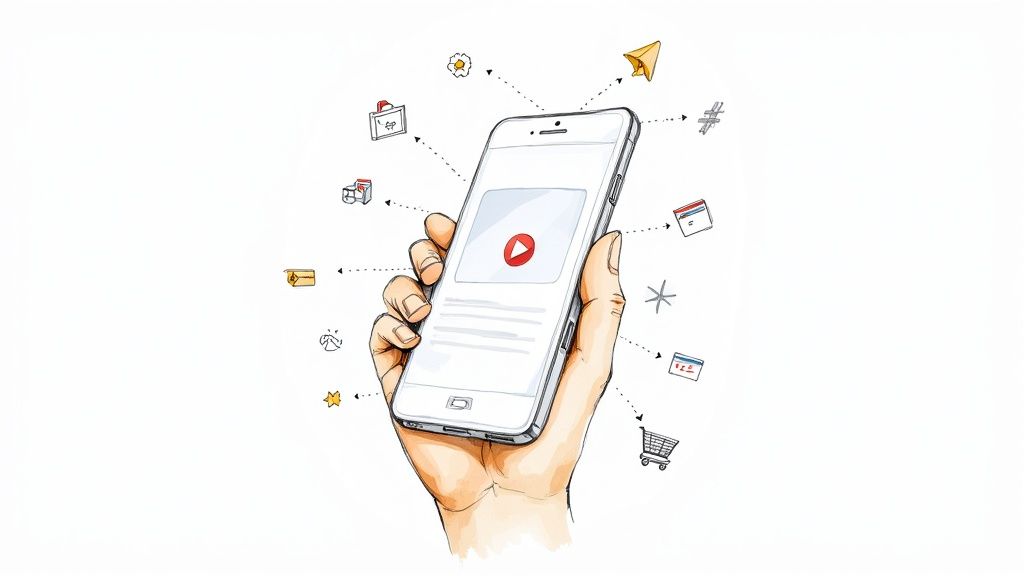
The Mindstamp Shopify integration puts a Shopify cart inside an interactive video. You connect your store, give a hotspot, button, image, or text the Add to Cart click action, and pick a product from your catalog. When a viewer clicks it, the video pauses, the product goes into a cart in the player, and Checkout opens your own Shopify checkout in a new tab. Each cart records the video and the interaction that started it, so you can see in Shopify which video led to each order. Shopify is included on every Mindstamp plan. The recording below shows the flow from a product click to checkout.
What viewers see when they shop from the video
The viewer never needs a Mindstamp account. A purchase from the video goes like this:
- The viewer clicks a product in the video. You decide what is clickable: a hotspot over the product, a button, an image, or a line of text.
- If you let viewers choose the variant, the video pauses and a picker shows the product's options, such as size or color. The picker only adds a variant that Shopify lists as available for sale.
- The video pauses, if it has not already, and the cart opens with the product in it. The viewer can change quantities, remove an item, select Continue watching, or select Checkout.
- After the first item, a cart button with the item count stays in the top-right corner of the player, so the viewer can open the cart again at any point in the video.
- Checkout opens your Shopify checkout in a new tab with the items from the video. Payment, shipping, and taxes follow your Shopify settings, because it is your checkout.
If you set an interaction to Buy now instead, the click skips the cart and opens checkout in a new tab with that one product. If the viewer reloads the page in the same browser tab, the cart comes back.
How to set up the Shopify integration
Set up the integration after the video is in Mindstamp. These steps follow our Shopify help article:
- In Mindstamp, open Integrations and select Shopify.
- Enter your Shopify Store URL, the address that ends in myshopify.com, and select Connect Shopify. Shopify opens so you can approve the Mindstamp app.
- Open the video, go to its Shopify integration, and pick the store under Select store for this video.
- Add a button, image, hotspot, or text interaction and choose the Add to Cart click action.
- Search your catalog and pick the product. Choose one variant, or let the viewer choose.
- Under After product selection, choose Add to cart or Buy now.
- Preview the video, add a product, open the cart, and select Checkout to test the whole path.
Each video sells from one store. You can connect more than one store to an account, and additional stores are quoted per account. See pricing for plans.
If you cannot approve the app
Select Use Storefront API token instead and enter your store URL and a Storefront API public access token. You create the token in your Shopify admin, from a custom app or from the Headless sales channel that Shopify's Storefront API guide describes. The token needs permission to read product listings and to read and write checkouts. In Shopify's list of access scopes, those are unauthenticated_read_product_listings, unauthenticated_read_checkouts, and unauthenticated_write_checkouts. Shopify changes its admin screens from time to time, so follow its current guide to create the token.
Add to cart, Buy now, or a product card
The click action decides how many steps sit between interest and payment. You choose it separately for each product in the video.
| Click action | What happens on click | Use it when |
|---|---|---|
| Add to Cart, set to Add to cart | The video pauses and the cart opens. The viewer can keep watching and add more. | The video shows several products, such as a collection, a recipe, or a setup with tools. |
| Add to Cart, set to Buy now | Shopify checkout opens in a new tab with one product. | The video is about one product, or one offer is the whole point of the video. |
| Show Card with a product card | A card opens over the video with an image, a description, a price, and up to two actions. One action can be Add to Cart. | Shoppers need details, such as materials or sizing, before they buy. |
| Open Link to the product page | The product page opens in a new tab and the video pauses. | The product page does selling work the video cannot, such as reviews or a size guide. |
Let the viewer choose the variant when size or color decides the purchase. Choose it yourself when the video shows one specific variant, so the click adds exactly what the viewer saw. The product card shows a price that you type into the card, so update the card when you change the price in Shopify. The cart and checkout always show the price from Shopify.
Where to put the cart actions in your video
A product is easiest to buy at the moment it is on screen and the video has just shown why it matters. A few placements work well:
- Put a hotspot over the product for as long as it is clearly in the frame. If the product moves, the hotspot editor can track its motion. Our guide to ecommerce video hotspots covers size, timing, and captions.
- Add a short product menu when one video covers several items. In the recording above, a "What would you like to see?" choice sends the viewer to the product scene first.
- Add a checkout button near the end. Mindstamp stores the cart link in the
{{checkout_url}}variable, so a button or the end screen can send a viewer with a full cart to checkout. - Give the viewer a discount code with the Copy Text click action, which copies the code to the clipboard so it is ready at checkout.
To try the pattern before you connect a store, play the shoppable recipe example: click a pan, check its details, choose a size, and add it to a simulated cart. The full list of options is in our click actions reference. The shoppable video use case shows how product hotspots, recommendation questions, and a checkout link work together in one video.
How to see which video sold what
Every cart that Mindstamp creates carries three attributes: Mindstamp Video (the video's title and ID), Mindstamp Play ID (the viewing session), and Mindstamp Interaction ID (the hotspot, button, image, or text that added the first product). Shopify keeps cart attributes on the order, so you can open an order in Shopify and see which video and which interaction started it. Developers can read the same values as the order's custom attributes, which the Shopify Admin API describes as additional information attached to the order.
In Mindstamp, each Add to Cart click appears in Reporting > Interactions with the viewer and the moment in the video. Mindstamp does not import orders or revenue from Shopify, so read sales in Shopify and interest in Mindstamp. A simple check compares the two:
- Add to Cart clicks per view, by interaction, from the Mindstamp reports. This shows which product moments draw clicks.
- Orders that carry the video's Mindstamp attributes, from Shopify. This shows which of those clicks became sales.
If one product gets many clicks and few orders, look at its price, its stock, and what the viewer sees at checkout before you change the video.
How to put the video on your Shopify store
Publish the video, open Share, and copy the Responsive embed code. Then paste it into a part of your theme that accepts code. Shopify's own reference theme, Dawn, includes a Custom Liquid section with a "Liquid code" field for this. Other themes name it differently, so check your theme's documentation. Our help article on embedding a video on a website covers the embed types and common problems.
Shopify product media can also hold a video, if your theme supports video, according to Shopify's product media guide. That video plays in the product gallery, and shoppers buy with the page's own button. Use the Mindstamp embed where you want the viewer to buy from inside the frame.
Check two behaviors in your first test. Checkout opens in a new tab even when the video sits on your own store. And the video keeps its own cart, separate from your theme's cart, so a product added in the video does not appear in the store's cart icon, and checkout from the video includes only what the viewer added in the video.
Other ways to sell from video on Shopify
The Mindstamp integration fits video you control: your site, landing pages, email links, and anywhere you share or embed the player. Other channels have their own tools. For a wider comparison that includes TikTok, read our guide to interactive shoppable video.
| Option | Where viewers watch | How they buy | What you need |
|---|---|---|---|
| Video in Shopify product media | Your product page gallery | With the page's Add to cart button | A theme that supports video |
| YouTube Shopping through Shopify's Google & YouTube channel | YouTube watch pages and live streams | Eligible US merchants: checkout in the YouTube app. Elsewhere: your online store opens in the browser. | At least 1,000 subscribers, a channel approved for monetization, and a supported country, per Shopify's YouTube Shopping guide |
| Cart permalink on a clickable video | Any player that can open a link | The link opens checkout with a set product and quantity. There is no cart in the video. | The variant ID, in the cart permalink format |
| Mindstamp Shopify integration | Your site, landing pages, email links, and shared links | In-video cart or Buy now, then your Shopify checkout in a new tab | A connected store and the Add to Cart click action |
Common questions
Does the Shopify integration cost extra?
No. Shopify is on every Mindstamp plan. Connecting more than one store is quoted per account. The Shopify integration page and pricing have the current details.
Do prices and stock stay current in the video?
Yes. The variant picker and the cart read the product from Shopify when the viewer clicks, and the cart shows Shopify's price. If a product cannot be added, for example because it sold out, the viewer sees a message and the cart does not change. Text you type into the video, such as a price on a card, does not update by itself.
How does the cart handle shoppers in other countries?
When Mindstamp creates the cart, it passes the viewer's country to Shopify. Shopify uses the buyer's country to determine international pricing, according to its Storefront API reference. If you sell in more than one currency, check the cart and checkout totals before you publish.
How do I test without a real charge?
Turn on Shopify Payments test mode or use Shopify's test payment gateway, then preview the video and check out. Shopify does not charge you for orders placed through these gateways, per its guide to test orders. Your own preview clicks do not appear as viewer responses, so test reporting from the share link in a private browser window.
Can I sell access to the video itself?
Yes, with the paywall, which is separate from Shopify and uses Stripe. Our post on interactive paywall videos explains how it works.
How do I get more viewers to buy?
The cart removes steps, but the video still has to give a reason to buy. Our guide to turning viewers into buyers with interactive product videos covers product menus, product quizzes, and testing one change at a time.
Sources and further reading
We announced the integration in an April 2023 press release. This guide describes how it works in October 2026. Our developer documentation has a Shopify section, and the Shopify help article has the current setup steps.
To try it, connect a test store, add one Add to Cart hotspot to a product video you already have, and place a test order from the share link.