Brett Lindenberg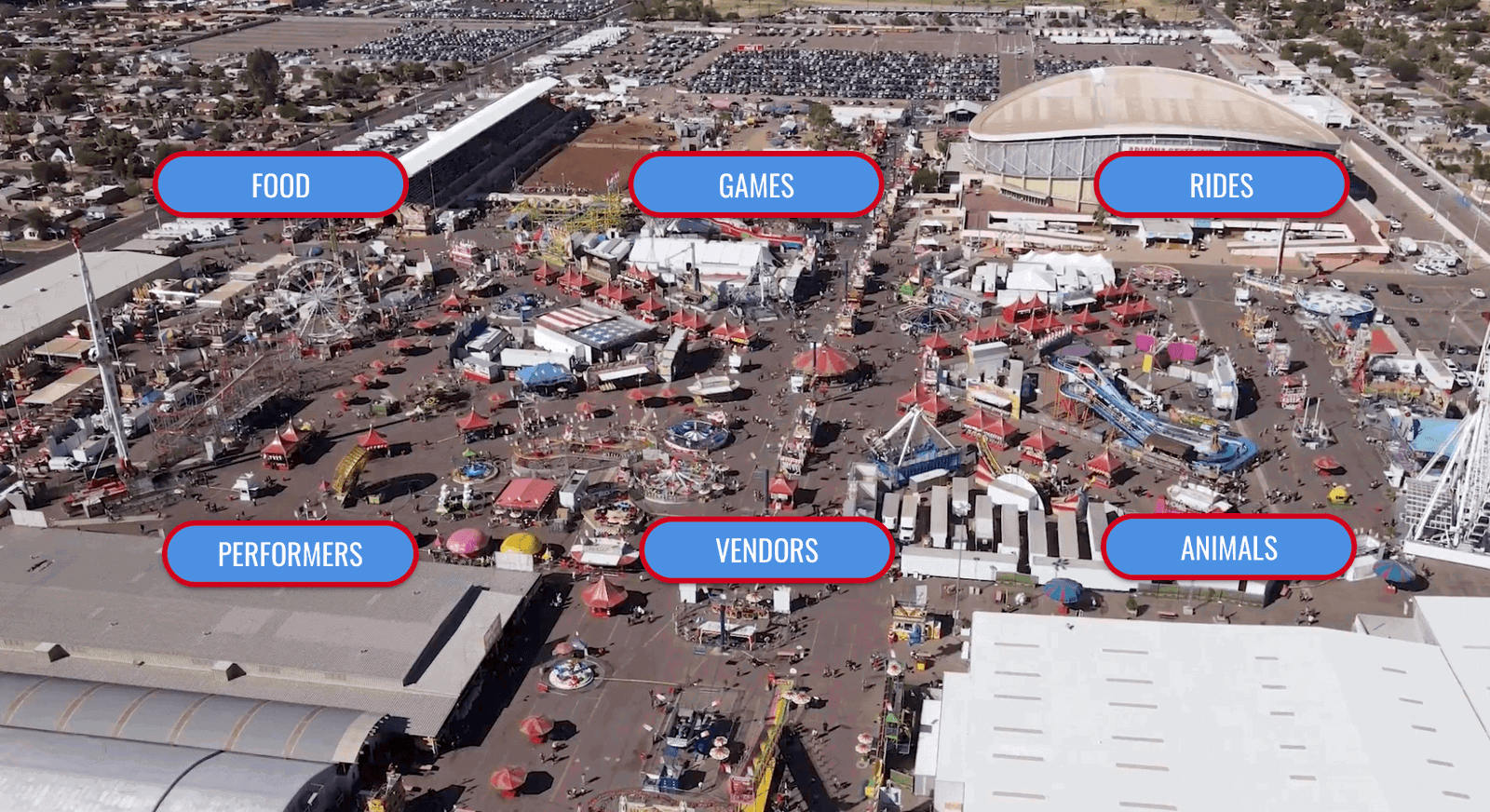
An interactive video experience lets the viewer act inside the player: pick a path, click part of the scene, answer a question, or see their own details on screen. This post covers five uses beyond the usual quiz or call-to-action button: a choose-your-path mystery film, a day-in-the-life job preview, a candidate pre-screen, a personalized loan walkthrough, and an explorable event map. Each section explains how to build the use and what to measure.
The five uses at a glance
| Use | Who it suits | Main interactions | What the report tells you |
|---|---|---|---|
| Choose-your-path mystery film | Theaters, entertainment brands, storytellers | Hotspots and video branching | Which paths viewers took and where they stopped |
| Day-in-the-life job preview | Recruiters, HR, and onboarding teams | Hotspots, branching, and free-response questions | Which roles each person explored and what they asked |
| Candidate pre-screen | Hiring managers for skilled roles | Questions, video clips, and lead capture | Each candidate's answers |
| Personalized loan or contract walkthrough | Lenders, dealers, insurers, and service providers | Personalized links, variables, and required questions | Which terms each customer confirmed |
| Explorable event or venue map | Events, venues, tourism, and campuses | Buttons or hotspots, branching, and links | Which areas drew the most interest |
1. A choose-your-path mystery film
The Count's Den, an immersive event venue in downtown Los Angeles, used Mindstamp in late 2020 to turn a vampire mystery into an interactive horror film. The viewer plays the investigator and decides where to go next. In the scene below, three labels on a limousine offer the next moves: crawl into the back door, look inside the front, or explore the back lot.
When we traced the film's branches in October 2026, the story ran across 134 connected videos joined by 389 hotspots. Every choice needs its own scene, so plan the shoot before you think about the edit.
To build a branching story:
- Write the story as a map before you write the script. Draw each scene as a box and each choice as an arrow, then count the boxes. An opening scene with three choices, where each choice leads to three more for three levels, needs 40 scenes (1 + 3 + 9 + 27) unless paths merge again. Plan where they merge.
- Shoot each scene as its own file. End each decision scene on a shot that can repeat, so the viewer has time to choose. A Change Time action at the end of the scene can send the playhead back a few seconds to replay the choice moment.
- Put the choices on objects in the scene with hotspots, or use buttons when a text label reads better. Set each click action to Switch Video.
- Give every dead end a way out, such as a button that uses Switch to Previous Video or restarts the story.
- Open the branching map (See branching in the video menu) and preview every path. Mindstamp lists unpublished destinations under Unpublished Video Branches, and those paths do not play until you publish them.
Measure how many viewers reach an ending and which scene loses the most viewers. With Switch Video, each scene is a separate video with its own report, so the drop-off point is easy to find. Our guide to writing a choose-your-own-adventure story covers story structure and choice design, and the video branching page shows the path report.
Brands use the same structure for product launches. HP Indonesia introduced its OMEN 16 and Victus gaming laptops with a "Play to Progress" virtual launch during the pandemic lockdown. Guests scanned a QR code, chose their path through the product presentation with buttons, and answered multiple-choice questions about the laptops along the way. The HP Indonesia case study describes how the team built it.
2. A day-in-the-life job preview
A job preview shows candidates or new hires what a role involves before they commit to it. In an interactive version, the viewer picks a role and watches a short branch filmed with someone who does that job. One video can then serve every opening at a site.
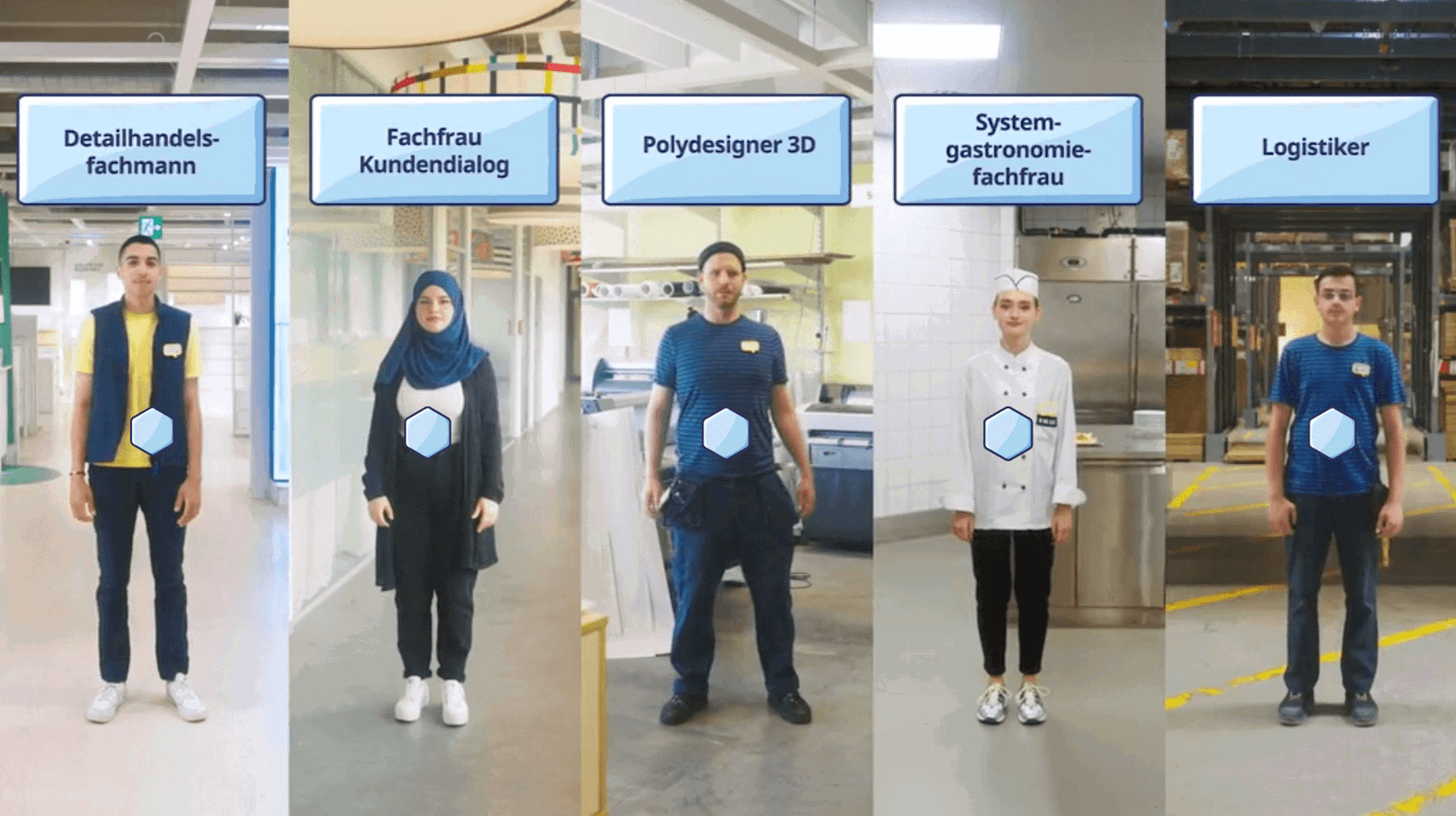
Show the hard parts of each job as well as the good ones. A 2011 meta-analysis of 52 studies with about 17,000 people (Earnest, Allen, and Landis, Personnel Psychology) found that realistic job previews affect voluntary turnover mainly because they make the employer seem honest. The same analysis found that the most effective format may be an oral or written preview given after hire, so send the video to new hires in their first week as well as to candidates, and follow it with a talk with the manager.
A job preview has four parts:
- Open with a role picker. Put a hotspot on each person, or a button with each job title.
- Keep each role branch short. Show a typical shift and one hard moment, with the way the team handles it.
- End each branch with a free-response question such as "What would you like to ask someone in this role?" Mindstamp saves each answer against the viewer, and you can export the answers.
- For new hires, restrict the video with an access list. Each person enters their email (and a passcode if you set one), and Mindstamp records each view with the person's email and name.
The report then shows which roles each person explored and what they asked. Our page on interactive onboarding training covers the wider new-hire program.
3. A candidate pre-screen
For skilled roles, a pre-screen video can check job knowledge before the first interview. The candidate answers scenario questions inside the video, then hears someone on your team explain the right answer. You review the answers before you book interviews, and the candidate learns how your team works.
The career recruiting example from a Swiss recruiting firm shows a lighter version of the format. The whole experience is one video of 3 minutes 38 seconds. Forty hotspots use Change Time to move the viewer between sections as they explore career paths, and the last hotspots link to a sign-up form on the firm's site.
To set up a pre-screen:
- Write scenario questions about the work itself, such as how to handle a situation the role meets every week. Use multiple-choice, dropdown, or number questions where you want a scored answer. A free-response question is scored only when you enter the accepted answers, and only an exact match counts (capital letters are ignored unless you turn on Match case). Drawing, voice, and video answers are never scored, so plan to review them yourself. Each question pauses the video at the end of its scenario.
- After each question, play a short video clip in which your lead clinician, engineer, or manager explains the right answer. The main video pauses during the clip and resumes where it stopped.
- Ask for name and email with lead capture at the start, so every answer is tied to a candidate.
- Use branching to send a candidate who misses a basic question to an explanation before the next scenario.
Check the legal side before you screen anyone out. In the US, a screen that excludes candidates is a selection procedure. If it screens out a protected group at a higher rate, EEOC guidance says the employer must show it is "job-related and consistent with business necessity" (EEOC, Employment Tests and Selection Procedures). Tie every scored question to the job, and have HR or counsel review the scoring before launch. Leave culture-fit questions out of any automatic cut-off.
4. A personalized loan or contract walkthrough
Some agreements are hard to read and costly to explain one call at a time. A car loan is a common example. A personalized walkthrough shows each customer their own terms on screen and asks them to confirm each one. One recording serves every customer, and Mindstamp saves each customer's answers.
The build has four steps:
- Record one walkthrough that explains each term in plain words: the amount financed, the rate, the payment schedule, and what happens after a late payment.
- Show each customer's values with placeholders such as {{TERM_MONTHS}} or {{FIRST_PAYMENT|your first payment date}}. Placeholder names use letters, numbers, and underscores. When a customer has no value, the viewer sees the fallback after the bar, then any default you set for the video or organization.
- Send each customer a personalized link. Mindstamp stores the values, and the link shows only an ID. Our variables guide warns against putting private data in URL parameters, and loan terms are private data.
- After each term, add a multiple-choice question that asks the customer to confirm it, and turn on Repeat until correct so a wrong answer shows a Try Again prompt. To stop customers skipping ahead, use the settings in our guide to preventing skipping.
The report then lists every answer each customer gave and how much of the video they watched. A video does not replace the written disclosures the law requires. In the US, Regulation Z (12 CFR 1026.18) lists the disclosures for closed-end credit, including the amount financed, finance charge, annual percentage rate, and payment schedule. Use the video to help customers understand those documents, and ask your counsel whether the answer records meet your evidence needs. Variables and personalized links work on supported plans, and our video personalization guide covers more uses.
5. An explorable event or venue map
The Arizona State Fair used Mindstamp for an interactive guide to the fairgrounds. The video opens on an aerial shot of the grounds. Seven seconds in, six buttons appear over it: Food, Games, Rides, Performers, Vendors, and Animals. Each button switches to a short video about that part of the fair.
The menu video is 27 seconds long. At 0:27, a Change Time action sends it back to 0:08, so the aerial view keeps playing until the viewer picks an area and no end screen interrupts the choice.
To build an event map:
- Film one overview shot that shows every area, plus one short clip per area.
- Place a button or hotspot over each area, and loop the overview with Change Time as the fair did.
- In each area clip, add a back-to-map button with Switch to Previous Video, and a button that opens the ticket or schedule page.
- Compare clicks per button to see which areas drew the most interest, and plan your promotion around them.
The same structure works for venue and campus tours. See the coworking space tour and the village tour in Barbados.
How to plan an interactive video production
All five uses follow the same production order. Our guide to creating an interactive video step by step has the full process. These points matter most for branching projects:
- Choose one outcome and one number to watch, such as the share of viewers who reach an ending or the share who book a call.
- Draw the map and count the scenes before you book a crew. The scene count sets the shoot schedule.
- Keep each scene short. Across 8.07 million views of 18,315 Mindstamp videos (2018 to October 2026), videos of 1 minute or less had the highest average watched share of any length group: 59.4% of each video, against 46.5% for all videos. Many factors differ between these videos, so treat this as a pattern, not proof.
- Leave clear space in the frame where choices will appear, away from faces and captions.
- Add images, clips, and files only where they answer a question the viewer has at that moment. Our guide to engaging multimedia in interactive video covers which media to use for which job.
- Test every path on a phone and a laptop before you share the link.
You do not need to reshoot finished footage. Mindstamp adds interactions on top of the video you already have, with no re-encoding. If you would rather hand off the shoot and the build, Mindstamp's professional services team scopes and quotes production, interaction design, and branching logic per project.
Common questions
What is an interactive video experience?
It is a video in which the viewer acts and the video responds. The viewer might choose a path, click a product, or answer a question without leaving the player, and the video then shows a different scene, message, or next step. Our explainer on what interactive video is covers the main types, and our comparison of six interactive video types shows when to use each.
What are the main uses of interactive video?
Beyond the five ideas above, teams use interactive video for training, education, marketing, sales, and customer support. Our list of interactive video examples has 12 formats you can play.
How many clips does a branching video need?
Count one clip for each scene a viewer can reach. The Arizona State Fair guide needed seven: one menu and six area videos. The Count's Den film uses 134 videos. For fewer files, put every branch in one video and move between sections with Change Time, as the career recruiting example does. Mindstamp then keeps the whole session in one view report.
Can I make an existing video interactive?
Yes. Upload a finished video or connect one from a host such as Vimeo, Wistia, or JW Player, then add interactions on the timeline. The source file stays as it is.
Pick the use closest to your goal and sketch its map on one page. Then build the first decision point and test it on your phone. A Mindstamp free trial lasts 14 days and needs no payment card.