Brett Lindenberg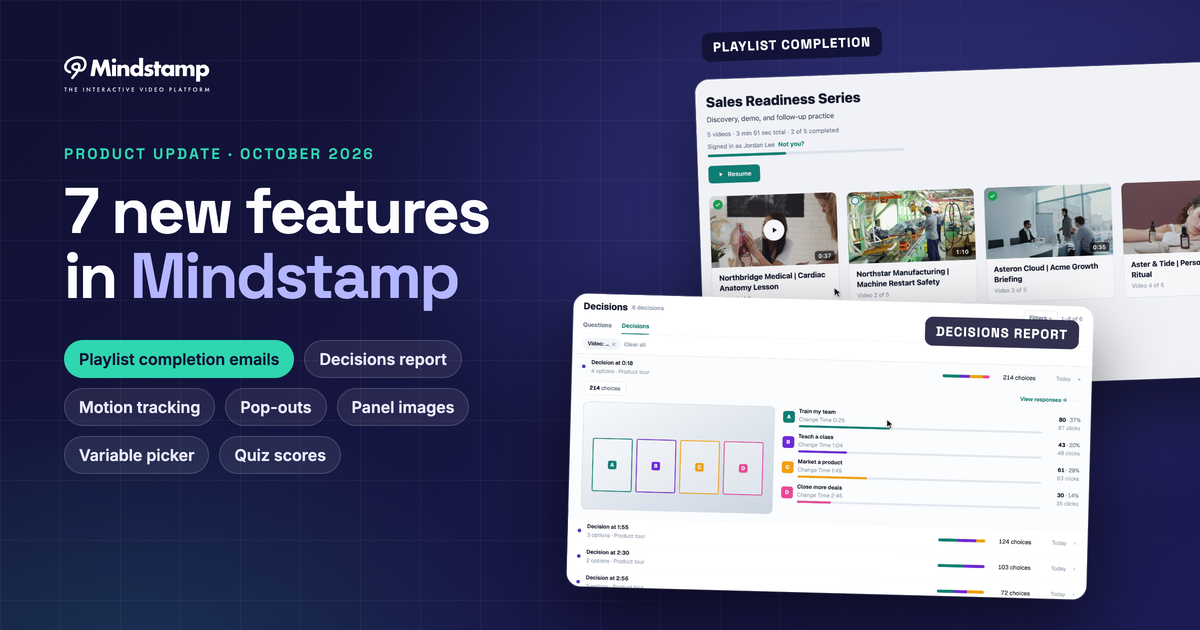
This update adds seven features to Mindstamp. Two are for courses and training: learner sign-in and completion emails for playlists, and new rules for how quiz scores count. One is a report: Decisions shows which option viewers pick. Four help you build: hotspot motion tracking, a variable picker with fallback text, pop-outs with styling for each item, and background images for player panels.
Each section below shows the feature in a short clip and lists the steps to set it up.
See which option viewers choose with the Decisions report
Many interactive videos ask viewers to choose without a formal question. A training video offers four buttons for four job roles. A product video puts a hotspot on each model. A branching video sends viewers down different paths. Until now, those clicks were in the interaction log, but no report grouped them into one decision.
The Decisions report does that grouping for you. Mindstamp looks for two or more clickable buttons, hotspots, images, or text items that appear and disappear at the same time, and treats each set as one decision. You don't have to change your videos or set anything up. Decisions in videos you published months ago appear too.
Read a decision
- Open Questions in the sidebar and select the Decisions tab.
- Each row shows the video, the time of the decision, a split bar, and the number of choices.
- Open a row to see a frame map with each option marked A, B, C, and so on, plus a bar and a percentage for each option.
- Select View responses to see which viewer chose what, or export the decision to CSV.
A viewer's first click in a view counts as their choice. If they go back and click another option, the report counts that as a repeat click, so the split still shows first instincts. You can filter by date, video, group, folder, playlist, and variable tag, the same as the other Mindstamp reports.
Learner sign-in and completion emails for playlists
A playlist can now work like a simple course. Learners sign in before they watch, so their progress follows them from a laptop to a phone. You set what counts as complete, and Mindstamp emails the people you choose when a learner finishes.
Set up a playlist course
- Open the playlist and go to Settings.
- Set Learner sign-in to Name and email or Custom ID.
- Under Completion, set a minimum completion or a minimum score for each video. Leave a field empty to count the video when the learner reaches the end.
- Turn on Completion email and choose who in your organization gets it.
- Open Reporting to see each learner who completed the playlist, with their score and the date.
Sign-in does not need a password or a Mindstamp account. A learner who signs in again with the same email on another device continues where they stopped. Completion tracking and the completion email need learner sign-in, because an anonymous viewer has no record to follow.
Make a hotspot follow a moving object
A hotspot works best when it stays on the thing it describes. If the product turns, the presenter walks, or the camera pans, a fixed hotspot ends up over the wrong part of the frame. Motion tracking fixes that with a few clicks.
Track an object
- Edit a hotspot, open Styling, and select Track motion.
- Use Every to choose how far the video moves after each click: 0.25, 0.5, 1, or 2 seconds.
- Click the object. The video steps ahead, and you click it again in its new position.
- Drag any point to adjust it, or use + Point to add one at the playhead.
- Press Space to play the path in a loop and check it.
- Select Done, then save the hotspot.
Choose a shorter step when the object changes direction quickly, and a longer one when it moves at an even pace. The Motion menu adds Smooth and Hold paths, and Simplify removes points that do not change the path. Motion tracking is not available for YouTube videos.
Insert variables from a list, with fallback text
Personalization in Mindstamp uses variables such as the viewer's name, email, or a value you pass in the link. Before, you had to remember each variable name and type it inside double curly braces. Now a picker lists them for you.
Add a variable
- Click into a text field, such as interaction text, a caption, an answer, a link, card text, or an end screen message.
- Select + Insert variable or type
{{. - Search the list. It shows viewer fields, your own variables, and built-in scores such as Correct Answer Count. You can also create a new variable here.
- Type the fallback text and select Insert.
The picker writes the variable with its fallback, for example {{NAME|there}}. Mindstamp uses the viewer's value first, then the fallback, then any default you set for the account or video. Values placed inside links are encoded, so a name with a space or an ampersand does not break the URL. Variables are available on Core plans and higher, and during a trial.
Open pop-outs and style each item
A pop-out is a panel of items that opens when a viewer clicks. It can be a menu, a product detail panel, a set of quiz answers, or extra information that should not sit on the timeline. Viewers close it and continue watching.
Build a pop-out
- Edit a button, hotspot, image, or text, and set its click action to Open pop-out.
- Choose New pop-out… and give it a name, or pick a pop-out you already made.
- Select Edit pop-out, then add buttons, text, images, or hotspots and place them on the frame.
- Give an item inside the pop-out the Close pop-out action, or use Continue to close it and play.
- Back on the interaction that opens it, use the Pause video switch to decide whether the video stops while the pop-out is open.
On the pop-out editing page, Pop-out design lets you show a panel and a close button, and dim the video behind the pop-out. Pop-outs copy with the video when you duplicate it or import its interactions. You can also create them through CSV import and the API.
Styling for each item
Every button and text item now has its own styling settings, so one video can mix a display font for titles with a plain font for buttons:
- Choose a font: the video font, a font you uploaded, or one of the 200 most popular Google Fonts.
- Set the weight, from Light to Extra bold. A custom font offers only the weights you uploaded.
- Align text to the top, middle, or bottom of its box.
- Turn off the shadow on a button for a flat design.
- Set a button's border width, from 0 to 20 pixels.
Put an image behind player panels
Questions, messages, and other panels can now have a background image. Use a product photo behind a quiz, a texture that matches your brand, or a photo of the place the training is about.
Add a background image
- Open Design and go to a panel, such as Questions.
- Next to Background image, choose an image from your library, a link, or stock.
- Choose Fill to cover the panel or Fit to show the whole image.
- Set the Opacity. 60% or lower keeps text readable over most photos.
The panel color shows under the image. When a question uses the Floating Card style, the image fills the card only, and the video stays visible around it. Background images work for questions, messages, the Guide, Genie, ChatGPT, data collection, lead capture, the Magic Menu, the end screen, and pop-outs.
Choose how quiz scores count
A correctness score can now count every question on a video, not only the questions a viewer answered. Before, a viewer who answered 1 of 3 questions correctly scored 100%. With the new setting, that viewer scores 33%.
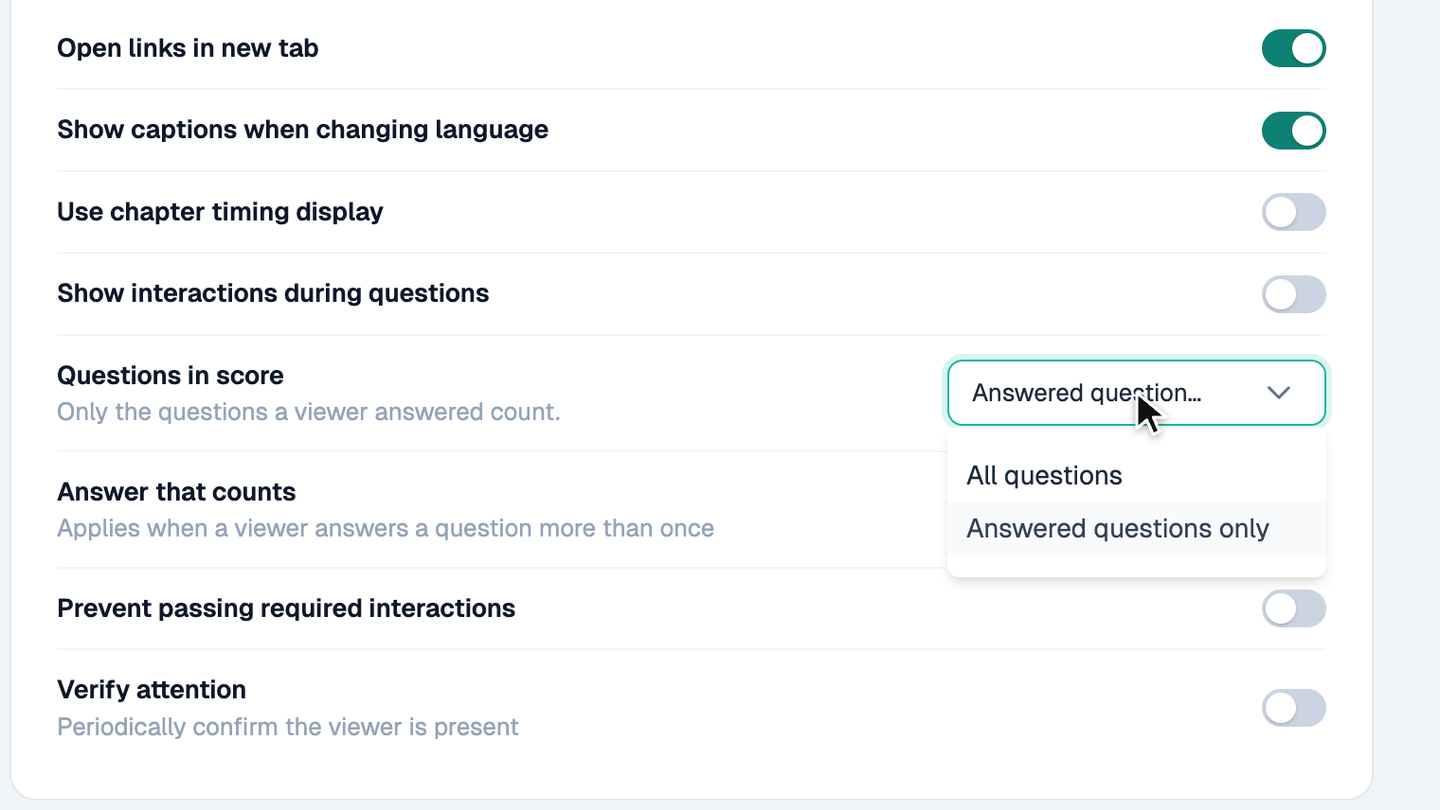
Set the score rule
- Open a video's Settings and go to Viewer experience.
- Under Questions in score, choose All questions or Answered questions only.
- Under Answer that counts, choose First answer or Most recent answer for a question that a viewer answers more than once.
With All questions, an unanswered question counts as wrong, and conditional questions do not count. New videos use All questions and First answer. Existing videos keep Answered questions only until you change the setting. The same score shows in reports, exports, emails, the API, SCORM, certificate rules, and the cScore variable.
Which feature fits the job
| Feature | What it does | Good use |
|---|---|---|
| Playlist sign-in and completion | Tracks each learner across devices and emails you when they finish | Onboarding courses, compliance training, certification paths |
| Decisions report | Groups options that appear together and reports the choices like a question | Role selection, product picks, branching paths |
| Motion tracking | Moves a hotspot with an object across the frame | Product videos, walkthroughs, moving equipment |
| Variable picker | Inserts personalization from a list, with fallback text | Sales outreach, onboarding, personalized training |
| Pop-outs and item styling | Opens a styled panel of items on a click | Menus, product details, extra information |
| Panel background images | Puts a photo behind questions, messages, and other panels | Branded quizzes, product questions, themed courses |
| Quiz score settings | Chooses which questions and which answer count in a score | Graded training, certificates, SCORM courses |
Frequently asked questions
Do I need to set up decisions before I can see them?
No. Mindstamp finds them in your existing videos. A decision is two or more clickable items with the same show time and the same hide time.
Does a viewer who changes their mind count twice?
No. The first click in a view is the choice. Later clicks on other options appear as repeat clicks.
Can I track a hotspot on a YouTube video?
Not at this time. The Track motion button is turned off for YouTube videos. Upload the video to Mindstamp to track objects in it.
What does a viewer see if a variable has no value?
They see the fallback text you set in the picker. If there is no fallback, Mindstamp uses the account or video default, and then leaves the space blank.
Does the video pause when a pop-out opens?
By default, yes. Turn off Pause video on the button or hotspot that opens it, and the video keeps playing behind the pop-out.
Does a learner need a Mindstamp account to sign in to a playlist?
No. Learners enter their name and email, or a custom ID that you give them. There is no password.
Do existing videos change their quiz scores?
Existing videos keep counting answered questions only until you change the setting. On every video, a question that a viewer answers more than once now counts once. Scores already saved for past views do not change.
Also new: hide a marker on the playbar
Each interaction now has a Show marker on playbar switch in its Settings. Turn it off, and viewers no longer see that interaction's marker, so a surprise or a quiz answer stays hidden. The interaction still shows in the video.
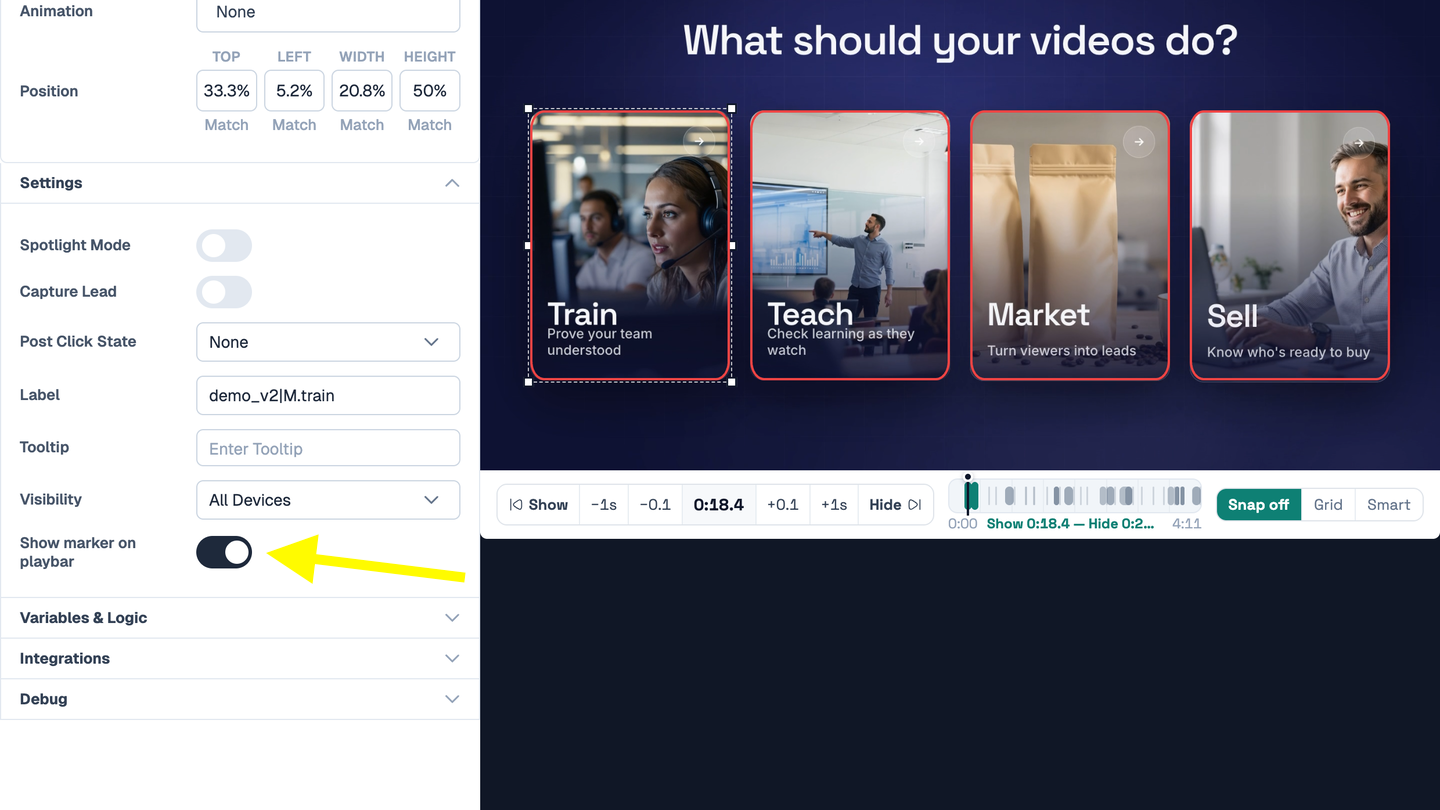
Markers show on the playbar when Show Markers is on in your design. In the editor you still see every marker.
Try the new features
Open Mindstamp to use these features in your account. For the previous update, read about Cards, hotspot effects, and timeline editing. New to Mindstamp? Read how to make an interactive video or book a demo.