Questions
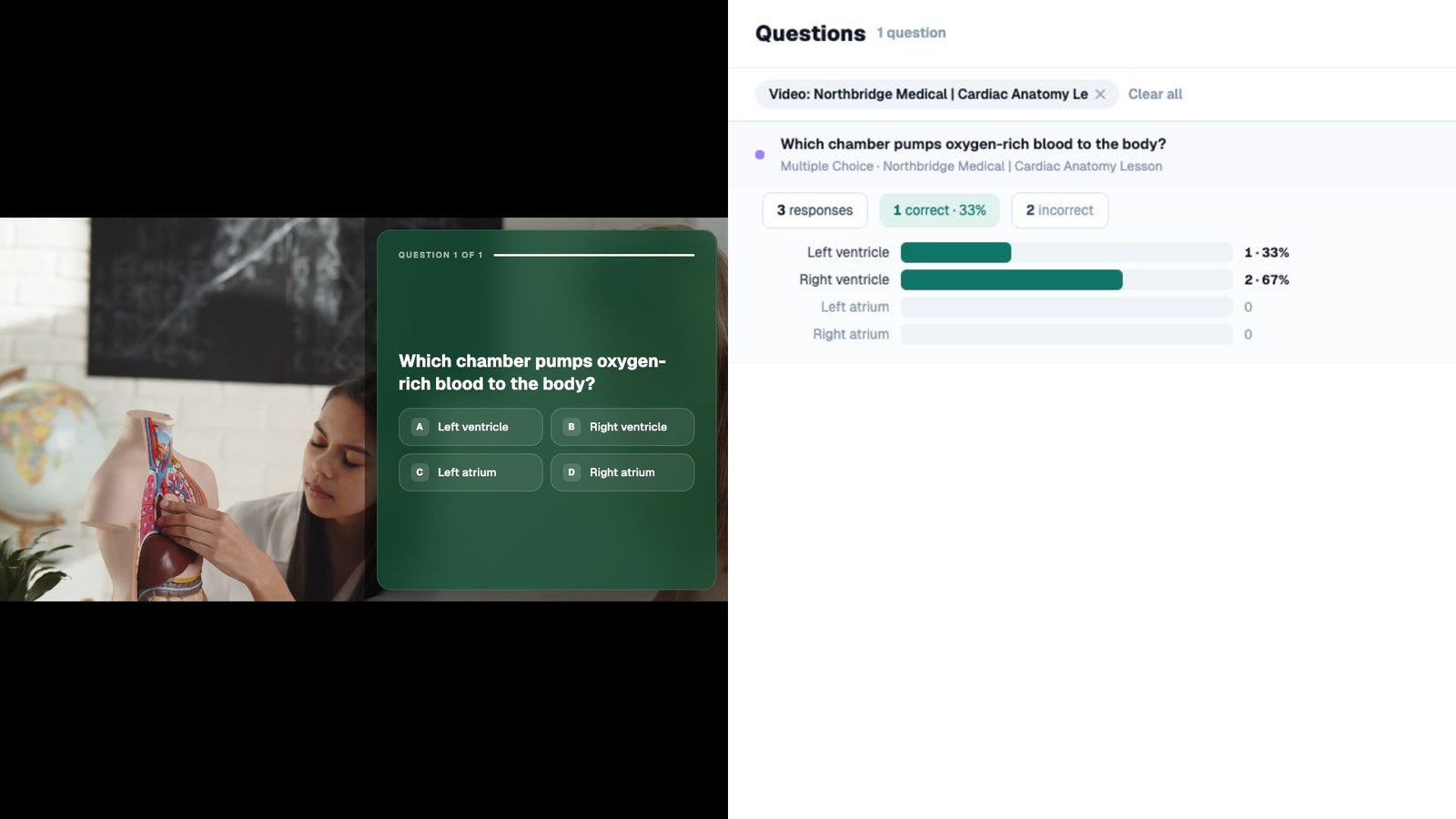
Ask questions while they watch
Place a question at an exact timecode and record each student’s answer.
Education use case
Add choices, drawing responses, and short questions to classroom videos. Review participation for each student.
Education use case
Create age-appropriate video paths that ask students to choose, answer, draw, and stay involved.
Inside the lesson
Place each interaction at the point where students need to answer, review, or explore.
Questions
Place a question at an exact timecode and record each student’s answer.
Feedback
Show an explanation after an answer and send students to review when needed.
Paths
Offer review, enrichment, or topic paths and let each student choose where to go next.
The report
Completion tells you who watched. Mindstamp shows what students answered, revisited, explored, and understood.
Standard completion report
31 of 31 complete
Every student reached the end. That does not show how they answered or where they needed another look.
Mindstamp student report31 students
+ 29 more students
Education use case directory
Explore flipped classrooms, K–12 lessons, higher education, languages, drawing responses, and course assessments.
Ask questions while students watch, give feedback in the moment, offer different paths, and see each student’s answers and activity.
Explore →Ask questions in assigned videos and review student responses before class starts.
Explore →Add questions to recorded lectures and send scores to the LMS.
Explore →Ask students to listen, repeat, and record their own voice in the lesson.
Explore →Have students circle anatomy, annotate art, and mark diagrams in the frame.
Explore →Run the graded check inside the lesson and pass scores to the gradebook.
Explore →Education FAQ
How LMS sync, student access, existing lectures, student data, and player accessibility work.
Yes. Students can circle, mark, or draw on the frame and submit the drawing as their answer.
Use a SCORM package to send completion and score to a compatible LMS. Confirm that your LMS accepts the package and test the learner record before assigning it.
No. Students open a link or an embed. You can still identify the response if the course requires it.
Yes. Interactions are layered on the existing recording. Upload the file or connect it from a supported host such as Vimeo. YouTube links are for testing only, not published courses.
Responses stay in your account, are exportable, and are only collected where you place an interaction that asks for them.
The player and its interactions support captions, keyboard operation, and screen reader labels. Test a lesson against your institution’s accessibility requirements before you assign it.
Start with one lesson
Pick the lecture students ask about most and see what the answers tell you before the next session.